

A location says where the agent’s computer runs. A runtime environment says what is installed on it.
Manage locations
Admins manage locations in Platform > Agents > Runtime, on the Locations tab. Each row shows its type (Managed or Self-hosted), its status (Connected, Checking, Unreachable or Setup incomplete), and which one is the Default (change it with Set as default).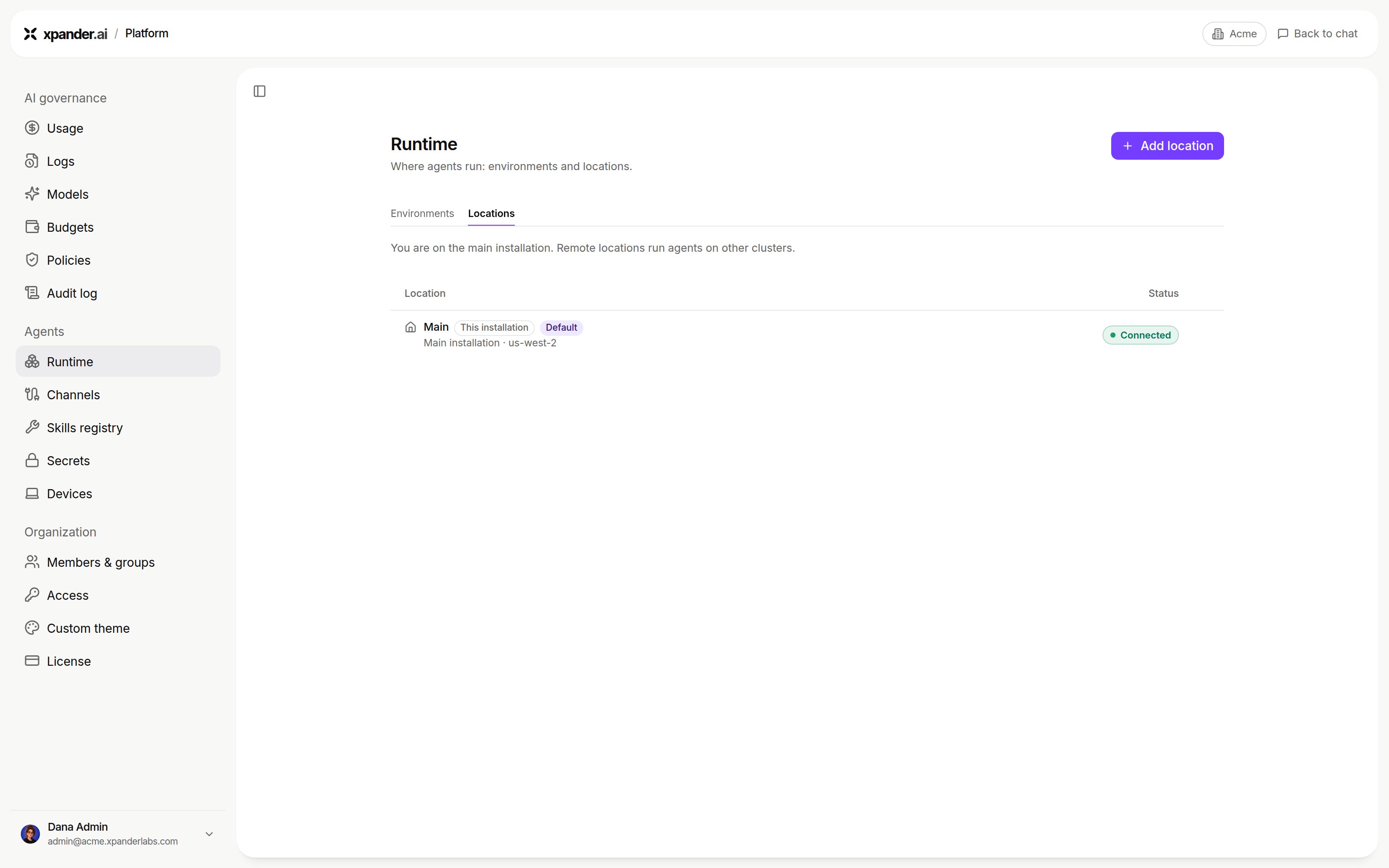
Platform > Agents > Runtime > Locations. Shown with sample data.
Add a location
Add location depends on the organization:- Cloud organization: you choose Hybrid (data and agents in your cluster, control plane in the xpander.ai cloud) or Air-gapped (everything in your environment, then no cloud location). Self-hosted locations depend on your plan, and the tab says if a plan change is needed.
- Licensed installation (already air-gapped): the dialog is New remote location. It asks only for a Name, an optional Domain, and Use dash subdomains (
chat-xpander.acme.cominstead ofchat.xpander.acme.com). The new cluster joins your installation.
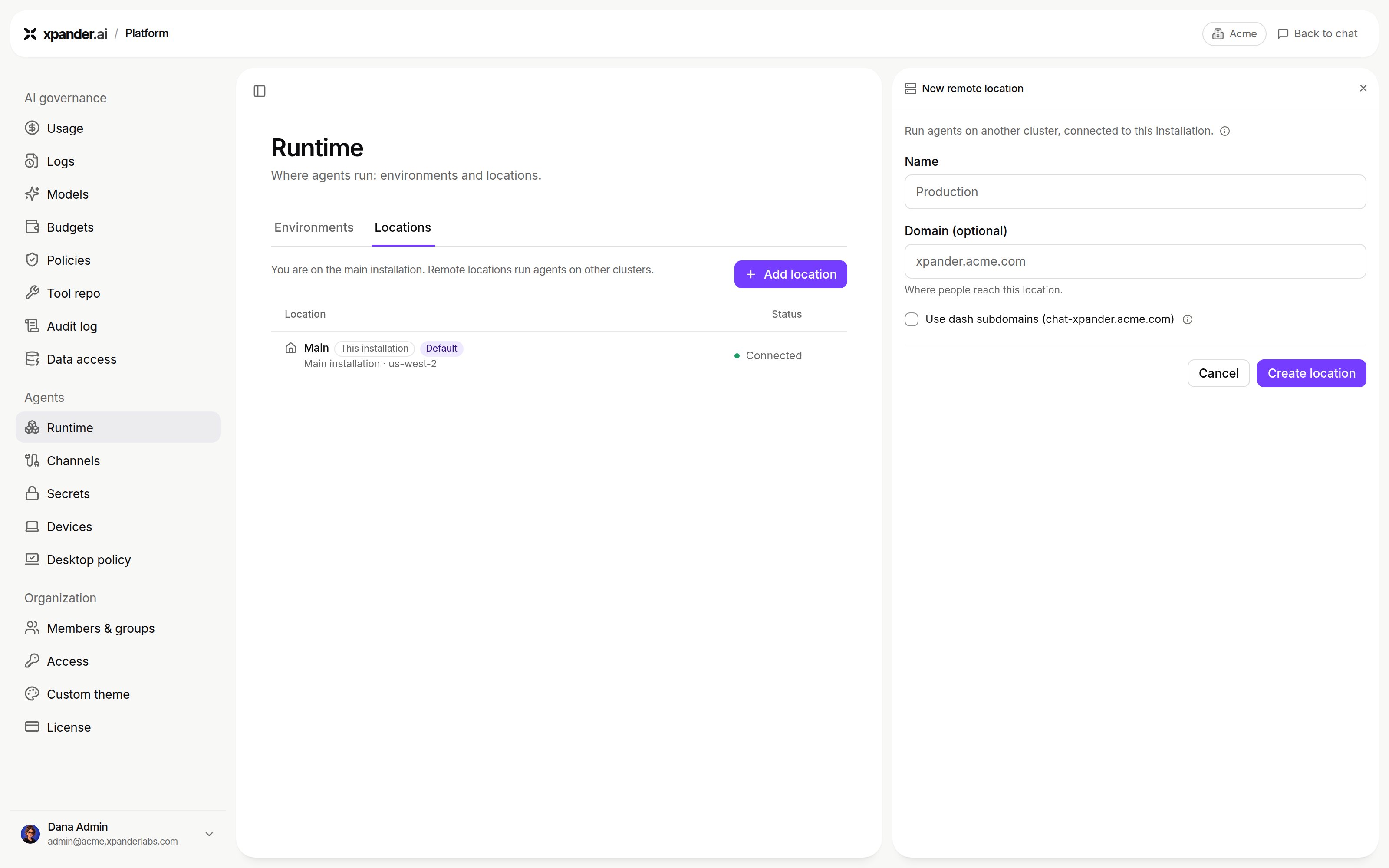
Add location on a licensed installation: New remote location, with a name and an optional domain. Shown with sample data.
1
Create the location
Create location adds the row as Setup incomplete.
2
Connect the cluster
The row opens Connect with the system requirements, a one-line installer and a manual Helm install. See Self-hosted, Hybrid and Air-gapped.
3
Wait for it to report in
The row turns Connected.
Cloud controls and deleting a location
Cloud controls on a self-hosted row decide what that cluster exposes through the xpander.ai cloud:
Delete location removes it. Agents assigned to it stop running there.
Which location an agent runs in
An agent’s location is set when it is created, with the Environment picker on the New agent form (the default is starred).Switching environments
With a connected self-hosted location, the profile menu gains an Environments section: xpander.ai cloud (Managed), or Main / This installation on a licensed installation, then each self-hosted location. Your choice sticks across visits. Until you pick, you start in the default location. Agents work only in their own environment. Opening one from elsewhere shows a notice with a Switch to button.When a self-hosted environment is not connected
The row reads Not connected, with a hint to check your VPN. Then it depends on the location’s Chat control:The cloud location in a Hybrid organization
Once a self-hosted location exists, the Locations tab shows an Agents runtime row with the switch “Allow agents to run on the xpander.ai cloud runtime.” Turned off:- Members work only with agents in your self-hosted locations.
- The cloud leaves the environment switcher and the New agent picker.
- New tasks on cloud agents are blocked, and a link to one asks an admin to re-enable it.
Next steps
Install a self-hosted location
Hybrid or Air-Gapped.
Set up an agent's computer
Runtime environments.