

https://mcp.xpander.ai. On a self-hosted install it is the install’s public MCP address; if the page says No MCP gateway on this installation, the install has no public MCP address yet.
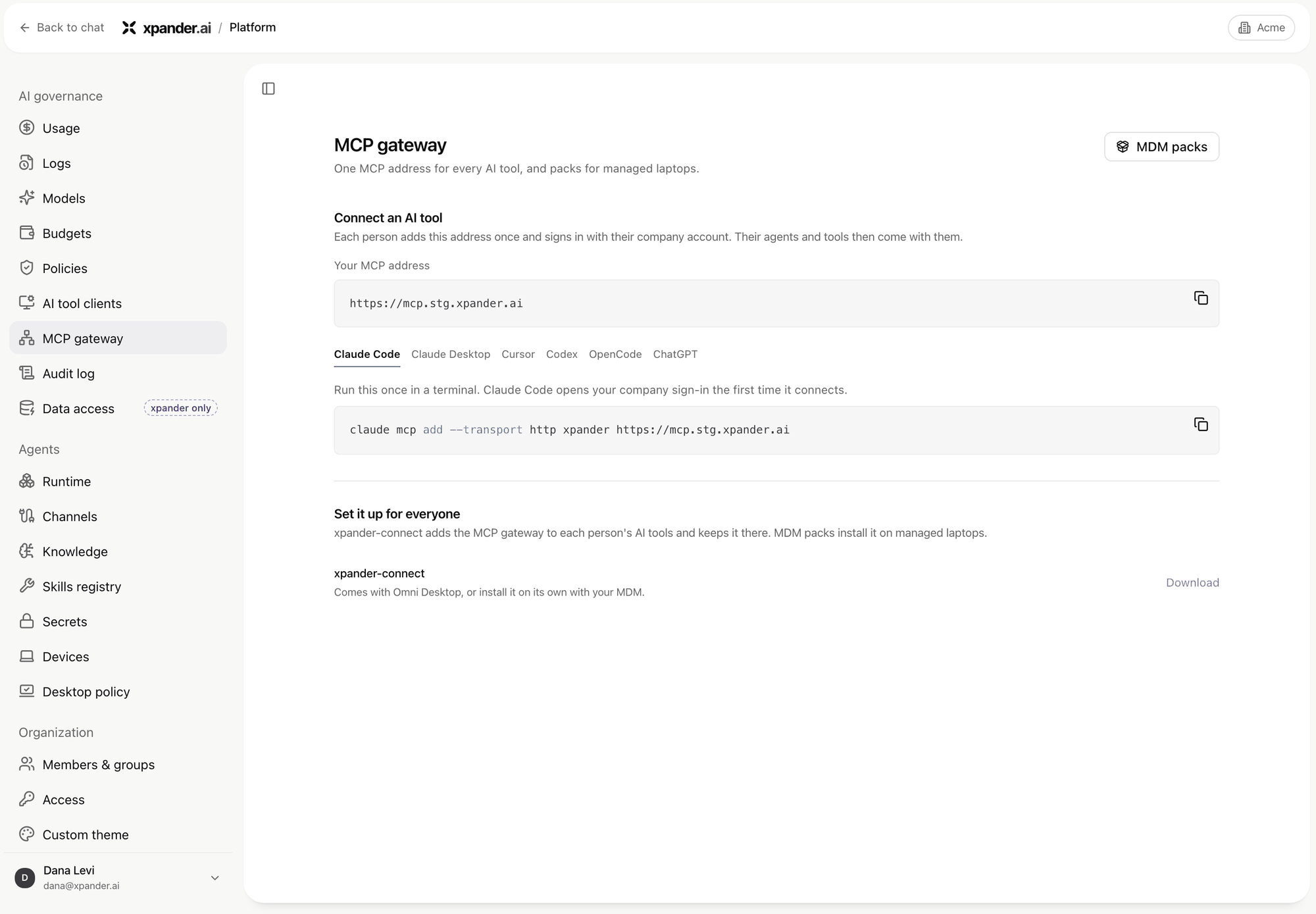
The MCP gateway page: the address, setup for each AI tool, and xpander-connect. Shown with sample data.
Connect one client
Pick the client underConnect an AI tool and copy its setup: Claude Code, Claude Desktop (which also covers claude.ai), Cursor, Codex, OpenCode or ChatGPT. The entry is always named xpander, and the first call opens the company sign-in in the browser. On a computer signed in with xpander-connect, Claude Code signs in by itself (One sign-in, on the xpander-connect page). The same steps are on MCP gateway.
Set it up for everyone with your MDM
xpander-connect is a small app that adds the MCP address to each person’s AI clients and keeps it there. It comes with xpander Desktop; Set it up for everyone > Download gets it on its own. On managed laptops, install it with a pack from MDM packs on the same page.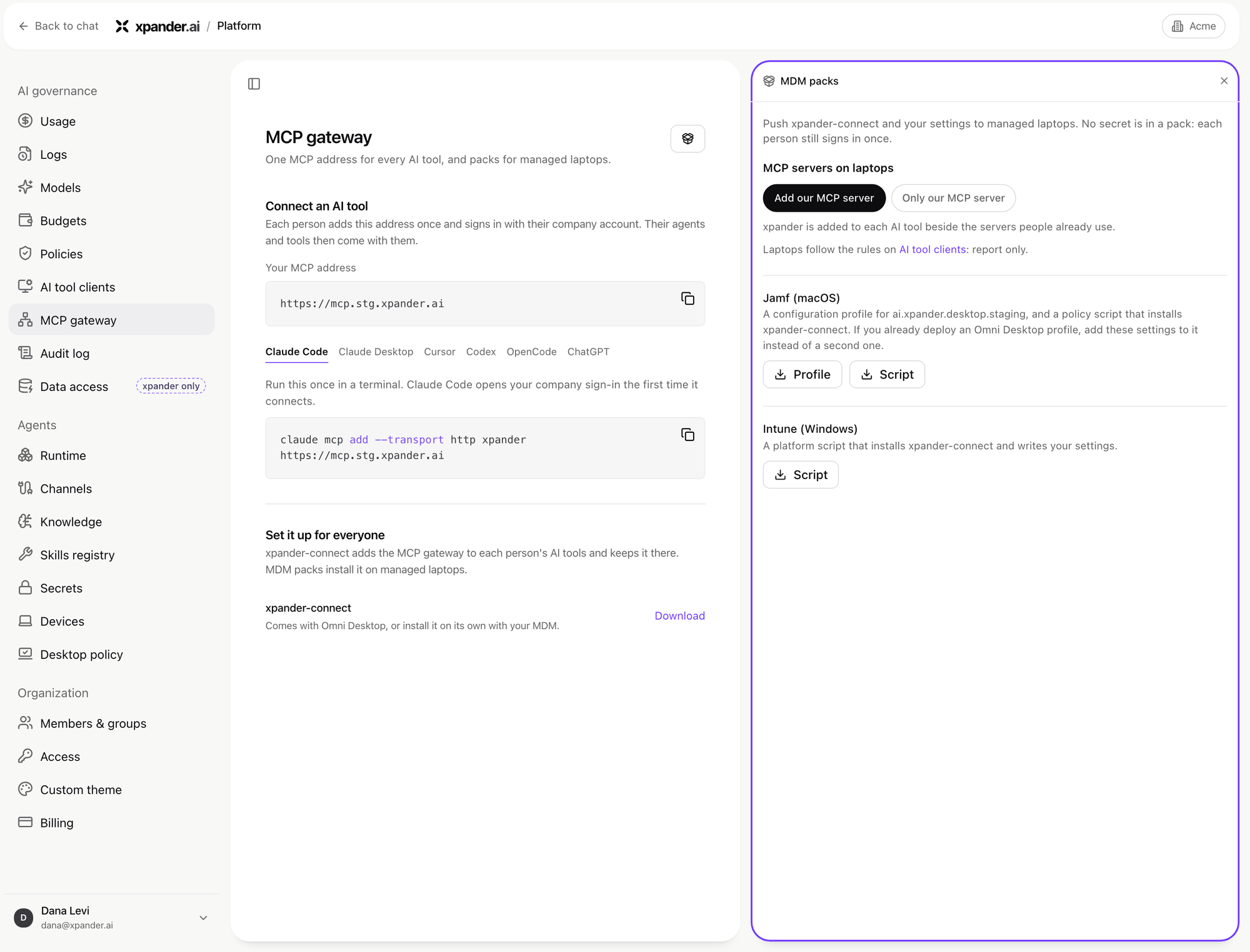
MDM packs: what laptops keep, and the Jamf and Intune downloads. Shown with sample data.
- Choose what laptops keep, under
MCP servers on laptops:Add our MCP server: xpander is added beside the entries people already have.Only our MCP server: xpander is the only entry left in each client. The others are set aside and come back if you switch back to Add. In Claude Code the rule is also set machine-wide, unless your organization already manages that file.
- Download the pack for your MDM:
The packs carry your xpander address and your organization’s settings, never a secret: each person still signs in once with
xpander-connect login. The install scripts download the newest xpander-connect release, check it against its published checksum, install it, and apply the settings machine-wide. Running them again is safe. The AI clients follow the Report or Lock rule saved on Platform > AI governance > AI tool clients, and the packs wait for that rule to load before they download.
The keys a pack sets, for an MDM you configure by hand:
On macOS they go in the preference domain
ai.xpander.desktop; on Windows under HKLM\SOFTWARE\Policies\xpander\Desktop.
On a self-hosted install that publishes no xpander-connect releases, the page says so and the install scripts leave the download folder empty for you to point at your own copy.
Claude Desktop, claude.ai and ChatGPT take the address from the person (Settings > Connectors > Add custom connector in Claude, Settings > Apps and connectors in ChatGPT). xpander-connect lists the entries it finds in Claude Desktop but does not add one there.
Sign in with your identity provider’s assertion
For organizations with single sign-on configured, a server-side MCP client can trade an identity assertion issued by your identity provider (an ID-JAG) for an xpander token, with no browser step. The client must be registered with xpander as a confidential client allowed to use this grant. Your identity provider issues the assertion with:aud: the xpander sign-in address (https://api.xpander.aiin xpander cloud)aud_tenant: your xpander organization idclient_id: the MCP client’s client idemailof a member of the organization, withemail_verifiedtrue
email_verified true, or for someone who is not a member, is refused.
An assertion is valid for at most 10 minutes and is used once. The token it buys lasts one hour, with no refresh: the client presents a new assertion after that.