

How it works
- You install xpander-connect on a computer, by hand or with your device management software (Jamf, Intune and others). It also comes inside xpander Desktop.
- The person signs in once: xpander-connect shows a short code, and they approve it in xpander in their browser.
- xpander-connect sets up the clients your organization chose. Model calls from those clients run as that person: on the models your organization enabled for them, within their budgets, and they show under their name in Logs. The MCP entry gives them their own skills from the Skills registry (MCP gateway).
What it sets up
xpander-connect only writes its own entries and keeps a one-time backup of each file it changes. When an admin turns a client off, xpander-connect removes what it wrote there; settings a person made themselves stay.
One sign-in for the MCP gateway
On a computer signed in with xpander-connect, Claude Code reaches your organization’s MCP address without asking the person to sign in again. When Claude Code connects, xpander-connect hands it a short-lived MCP sign-in made from the computer’s own sign-in. Nothing is stored in a file, and it works only while that computer is signed in: when the person runsxpander-connect logout, an admin chooses Remove client, or the person leaves the organization, it stops at once and Claude Code asks for the browser sign-in instead.
- It is on by default. Turn it off for everyone, or only for some groups, under Platform > AI governance > AI tool clients,
AI tools on clients: One sign-in for the MCP gateway on the Everyone row or on a group override. A group can only turn it off. - An access policy can turn it off for a person or a group too: deny
feature:Useon the resourcefeature/connect.mcp_one_sign_in. It applies once Features is enforced for your organization. - Calls made this way run as the person, with their own skills and approvals, and show in the audit log under their name and the AI client they used. Each one sign-in, and each refusal with its reason, is recorded in the audit log.
- If one sign-in is off, refused or not reachable, Claude Code simply opens the company sign-in in the browser, as it does without xpander-connect.
- Cursor, Codex and OpenCode sign in to the MCP address once in the browser.
- It works the same on xpander cloud, Hybrid and Air-Gapped installs where people sign in to the AI Gateway with xpander-connect.
Your organization’s skills in Claude Code
xpander-connect keeps your organization’s published skills in Claude Code on each computer, so people get them without adding anything. Each skill from the Skills registry that the person may use is written to its own folder,~/.claude/skills/xpander-<name>/, with its SKILL.md and the text files that come with it, and Claude Code uses it like any other skill.
- It updates when a skill changes, removes a skill when it leaves the person’s library, and puts back a skill someone changed by hand. It checks when the person signs in and every 30 minutes.
- Only folders xpander-connect created are ever changed or removed. The person’s own skills, and a folder of the same name they made themselves, are never touched.
- If xpander cannot be reached, or one skill cannot be read right now, the skills already on the computer stay as they are.
- It is on by default. Turn it off for everyone, or only for some groups, under Platform > AI governance > AI tool clients,
AI tools on clients: Organization skills on the Everyone row or on a group override. A group can only turn it off. Turning it off removes the skills xpander-connect wrote. - No skills are written for a person whose Claude Code your organization set to be left alone.
- An access policy can turn it off for a person or a group too: deny
feature:Useon the resourcefeature/connect.skills_sync. It applies once Features is enforced for your organization. - Admins see, for each computer, which of your organization’s skills it has under Clients (
Organization skills). - It works the same on xpander cloud, Hybrid and Air-Gapped installs.
Skills people make
Claude Code also loads skills a person writes by hand in~/.claude/skills. Your organization chooses what xpander-connect does with them:
The skills xpander-connect keeps in Claude Code for your organization are never touched. To share a skill with the team, people ask their AI client to register it to the skill library through the MCP gateway, where your organization’s approval rules apply. Skills inside a repository’s own
.claude/skills folder are not checked.
Set up a computer by hand
Install it from your xpander. On an Air-Gapped or self-hosted install, the command comes from that install and the computer signs in there:irm https://<your xpander>/desktop/connect/install.ps1 | iex. The same commands, with your address filled in, are on Platform > AI governance > MCP gateway under Install on one computer, and on your install’s /desktop/ page. Each download is checked against the checksum your xpander publishes.
Then:
xpander-connect status shows who is signed in and what the background agent last did. xpander-connect logout signs the computer out.
The background agent renews the sign-in before it expires, checks your organization’s settings every 30 minutes and puts back any setting it manages that was changed, and checks for a new xpander-connect release every 6 hours. xpander-connect update checks now. Each release is signed, and xpander-connect installs only a release whose signature and checksum match. The copy inside xpander Desktop is updated with Desktop.
Which xpander it talks to
By default xpander-connect talks to xpander cloud (https://chat.xpander.ai). Installed with the command from your own install, it already talks to that install. To set it by hand on one computer, run xpander-connect config set-server https://<your xpander> once (xpander-connect login --server https://<your xpander> saves it too, and xpander-connect config clear-server goes back to xpander cloud).
People in an organization with a Hybrid install keep the default: their computers sign in to xpander cloud.
To set the address for every managed computer:
The same setting configures xpander Desktop, so one profile covers both. An address set this way cannot be changed on the computer. To check what a computer uses, run
xpander-connect config show.
Deploy with device management
More settings sit next toServerUrl, in the same profile, registry key or file:
Run
xpander-connect managed apply as an administrator from your device management software (a Jamf policy script, an Intune platform script). It applies the settings that need administrator rights and is safe to run on every check-in; it removes them again when the computer no longer has the profile.
Ready-made Jamf and Intune packs with these settings and an install script are on Set up AI clients.
Choose which clients it sets up
In xpander, go to Platform > AI governance > AI tool clients. UnderAI tools on clients, the Everyone row sets, for each client (Claude Code, Codex, OpenCode, Claude Desktop, Cursor), whether xpander-connect sets it up, a Default model, Enforce (Report or Lock), One sign-in for the MCP gateway, Organization skills and Skills people make (Allow, Report or Block). Add group override makes a group stricter than the organization: a group can skip a client, require Lock, turn one sign-in or organization skills off, or ask for a stricter rule for skills people make, never the opposite. Connect clients shows the setup steps and the device management settings for your organization, ready to copy.
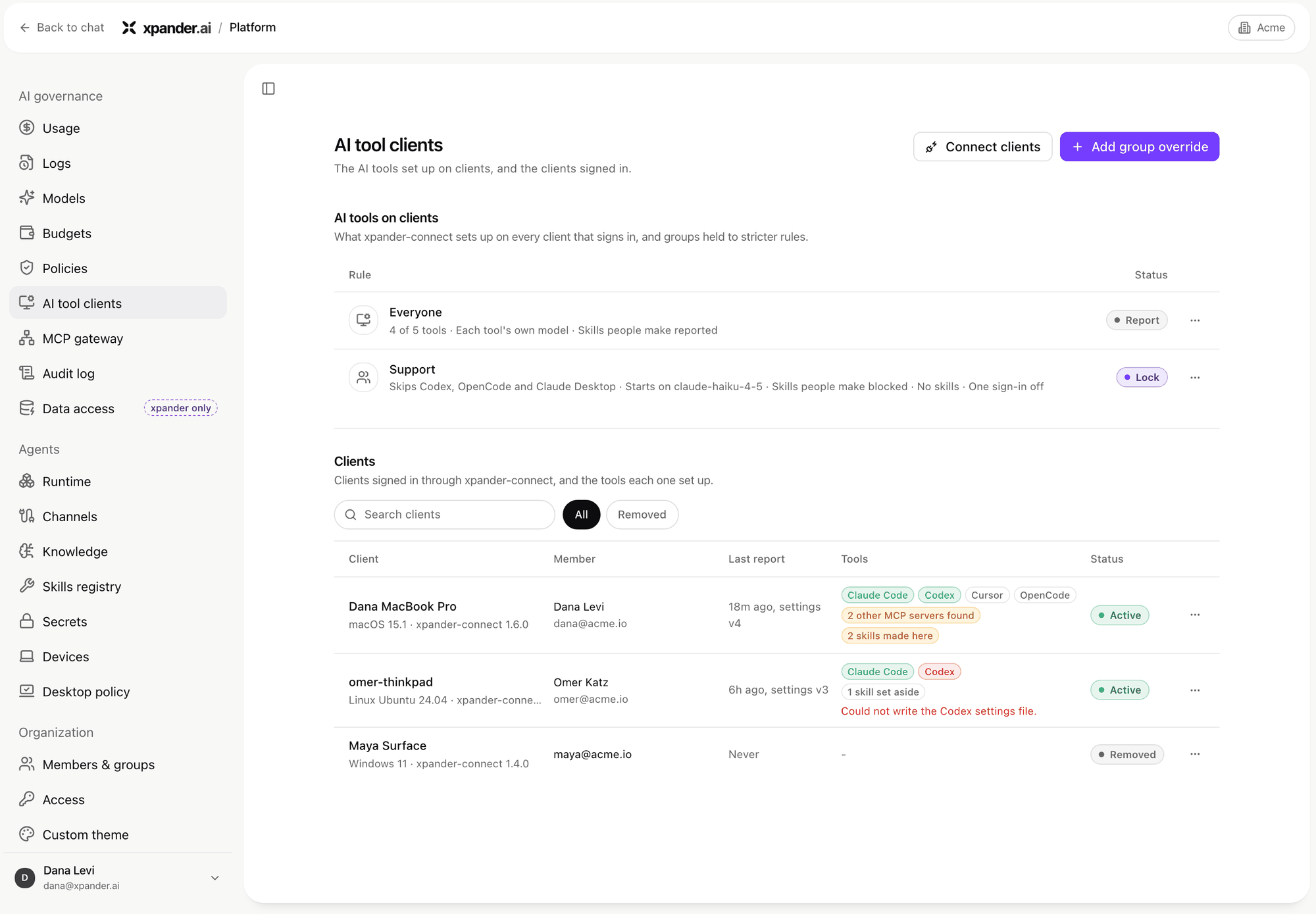
AI tool clients: the rule for everyone, a stricter group override, and the clients signed in. Shown with sample data.
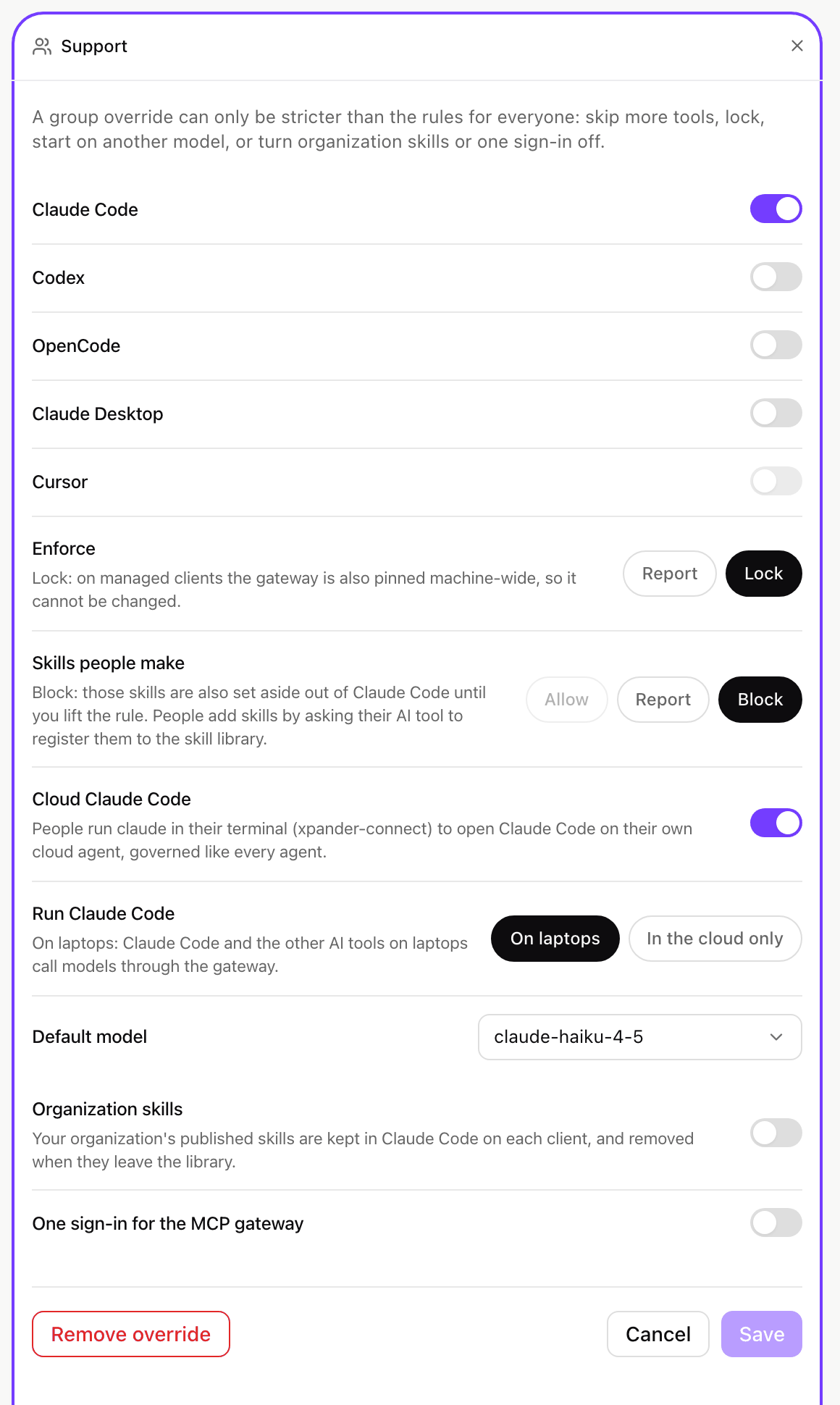
A group override: each setting can only be stricter than the rule for everyone. Shown with sample data.
Computers your admins manage
Under Clients on the same page, admins see every computer signed in through xpander-connect: its owner, its system and xpander-connect version, when it last reported, which clients xpander-connect set up and any that failed, which of your organization’s skills it keeps in Claude Code (Organization skills, by name only), the skills people made on it by hand under Skills made on this client (name and fingerprint, and which are set aside), and under Other MCP servers every other MCP entry found in its AI clients (the client, the entry’s name and the host or program it runs, never its address details or keys). Remove client signs it out of the gateway right away, and it cannot sign in again until an admin chooses Restore client. Nothing on the computer is deleted. People never see these entries in their own settings.
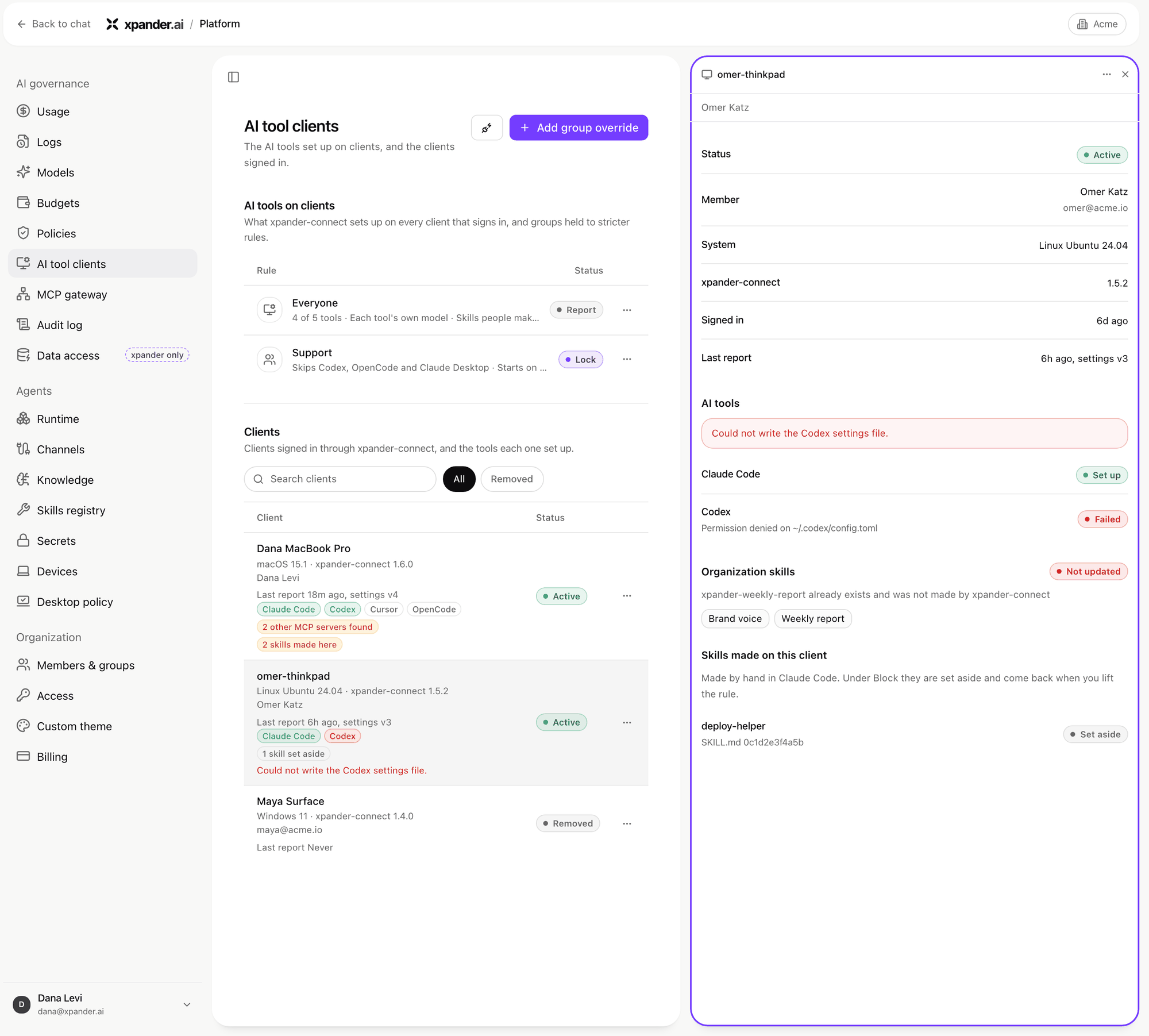
One client opened: what xpander-connect set up, what failed, and the skills kept or set aside. Shown with sample data.