

On a run: permission mode and approvals
Choose the mode under Approvals in the composer with the first message. It stays fixed for that conversation.
A held action shows a card with a sentence about the action (never its raw arguments), who started the run and who may decide. In Manually approve it is headed bash (gated mode).
- A gated command or a Manually approve hold goes to the people or groups named on the rule, or to the agent’s owner if none.
- A marked skill action goes to the people or groups named under WHO APPROVES, plus the person who started the run when Self approve is on.
- When nobody can answer, for example a scheduled run with no one named, the action does not run and the run continues.
- Any one approver settles it.
- An approval can cover this exact call, the rest of the run, this kind of call for a few minutes, or until revoked.
- A decline answers only this attempt. The requester can withdraw a pending request.
- If nobody decides within the hold window (4 hours by default), a gated command does not run and the run continues. A later decision can still approve it. A marked skill action expires and the run resumes with “Not answered in time.”
GET /v1/tasks/{id} shows status: executing while one waits. Question cards are answered with POST /v1/agents/{agent_id}/conversations/{conversation_id}/answers (Submit Question Answers). See Approvals.
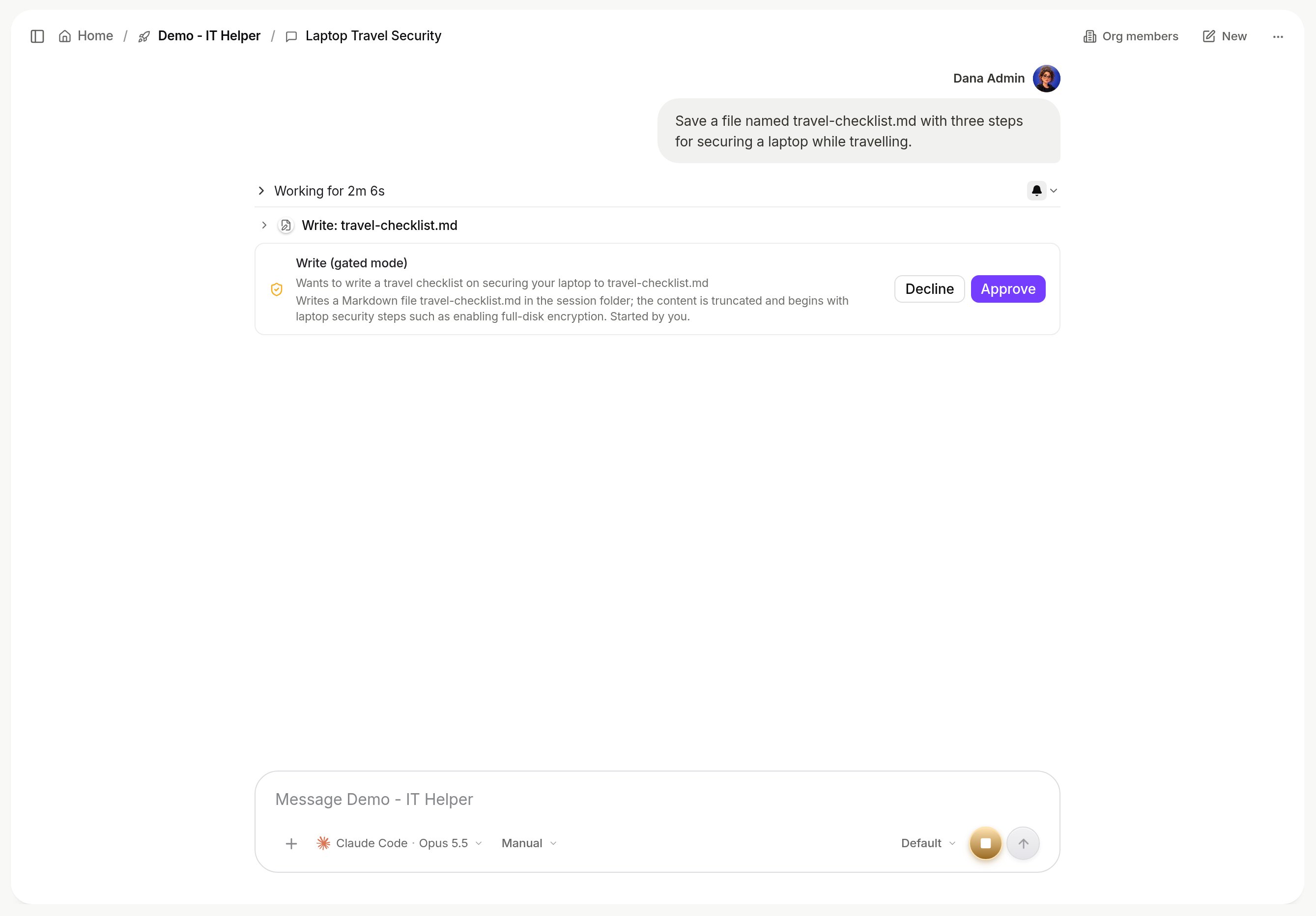
An approval card in the conversation.
On an agent: access and sharing
The person who creates an agent is its owner. Agent settings shows an Owner chip with their name.ACCESS is Org-wide by default: everyone in the organization gets the agent with full access, including editing. Manage access narrows it to Private (only you) or Group (people and groups you pick, then Apply). A restricted agent is invisible to others, and a link to it reads “not found”.
Group grants follow group membership. Whether a person may create, duplicate, delete or share agents at all is a user-group switch.
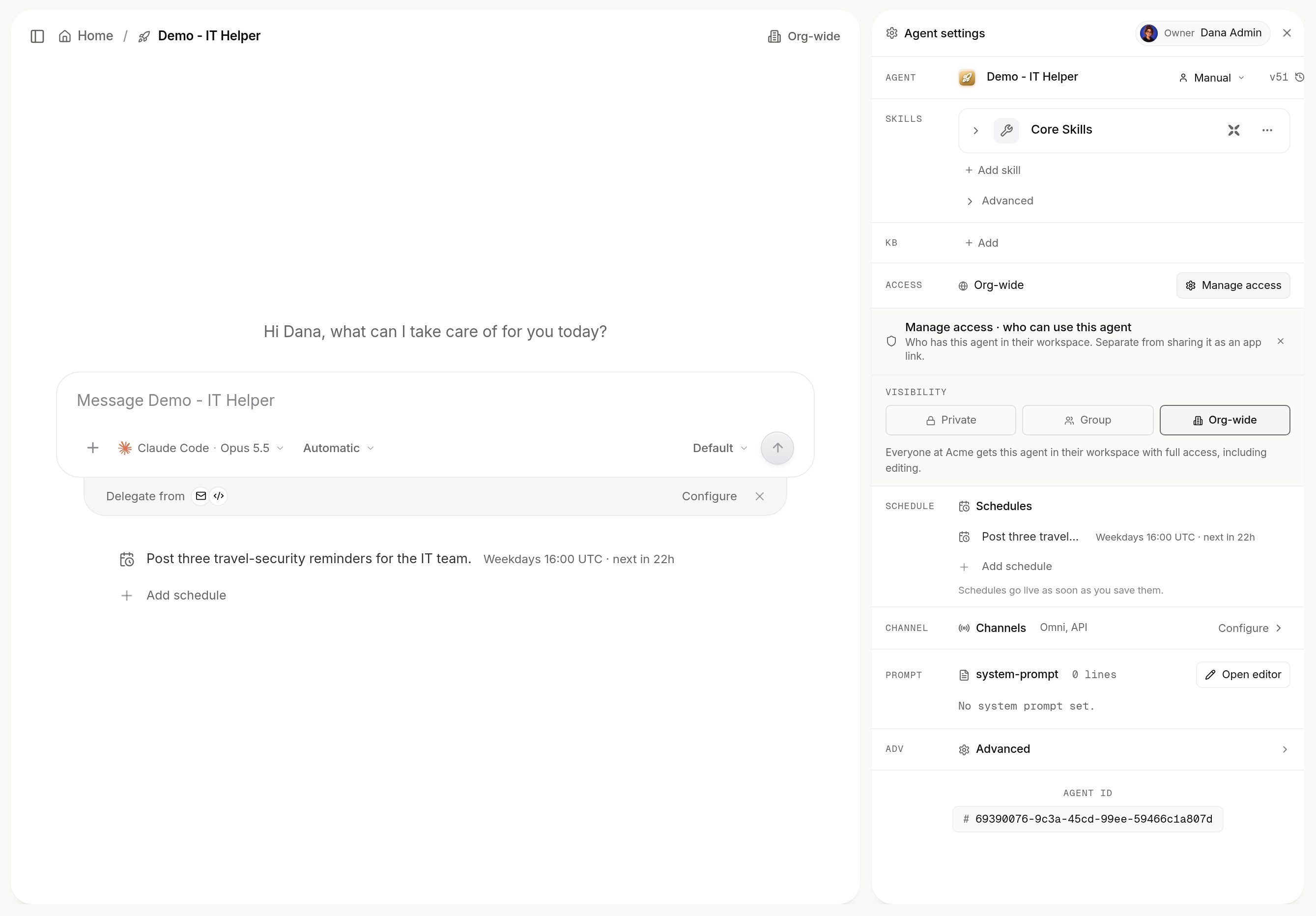
Manage access on an agent.
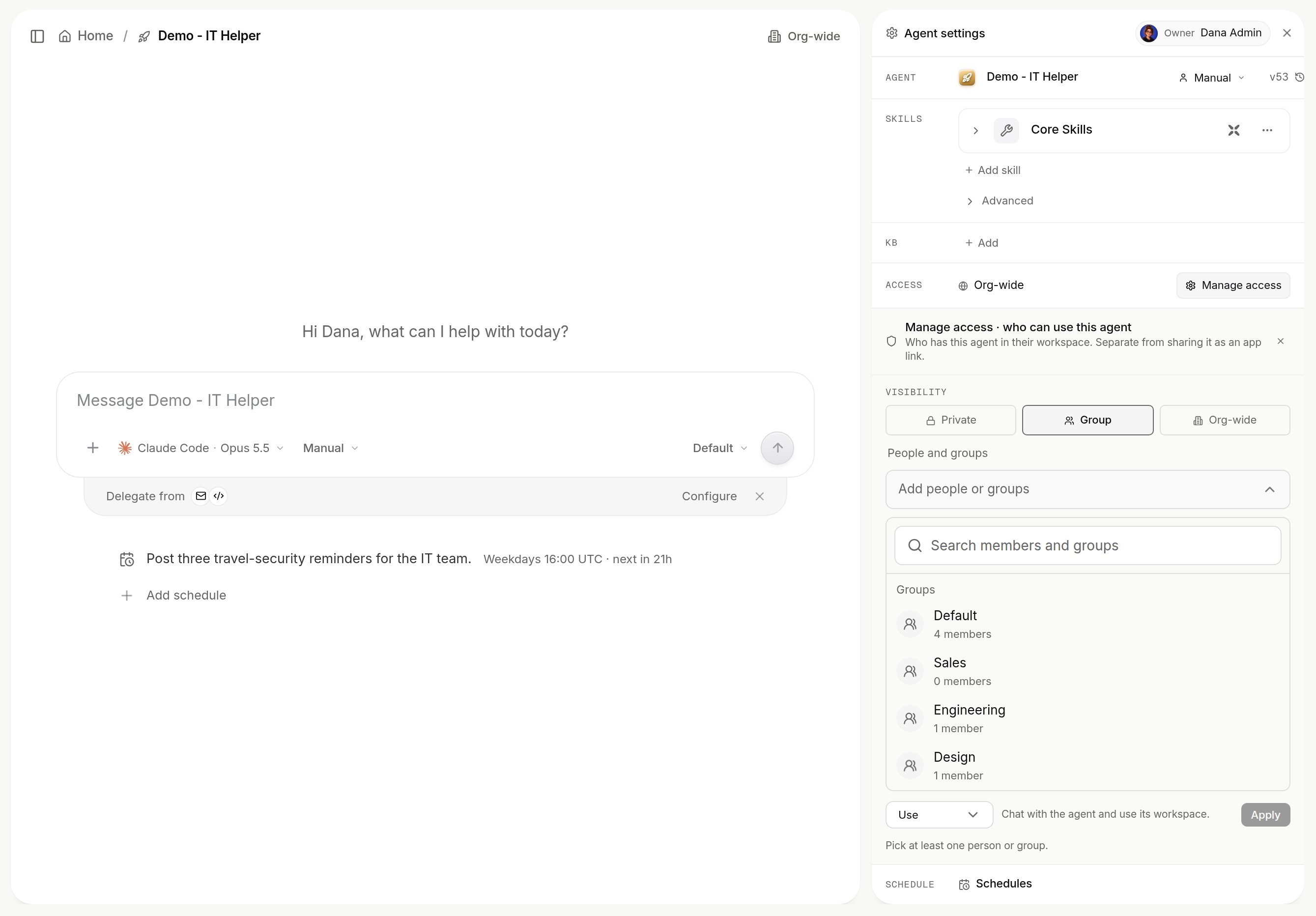
Manage access with Group selected: the people-and-groups picker lists your groups and members.
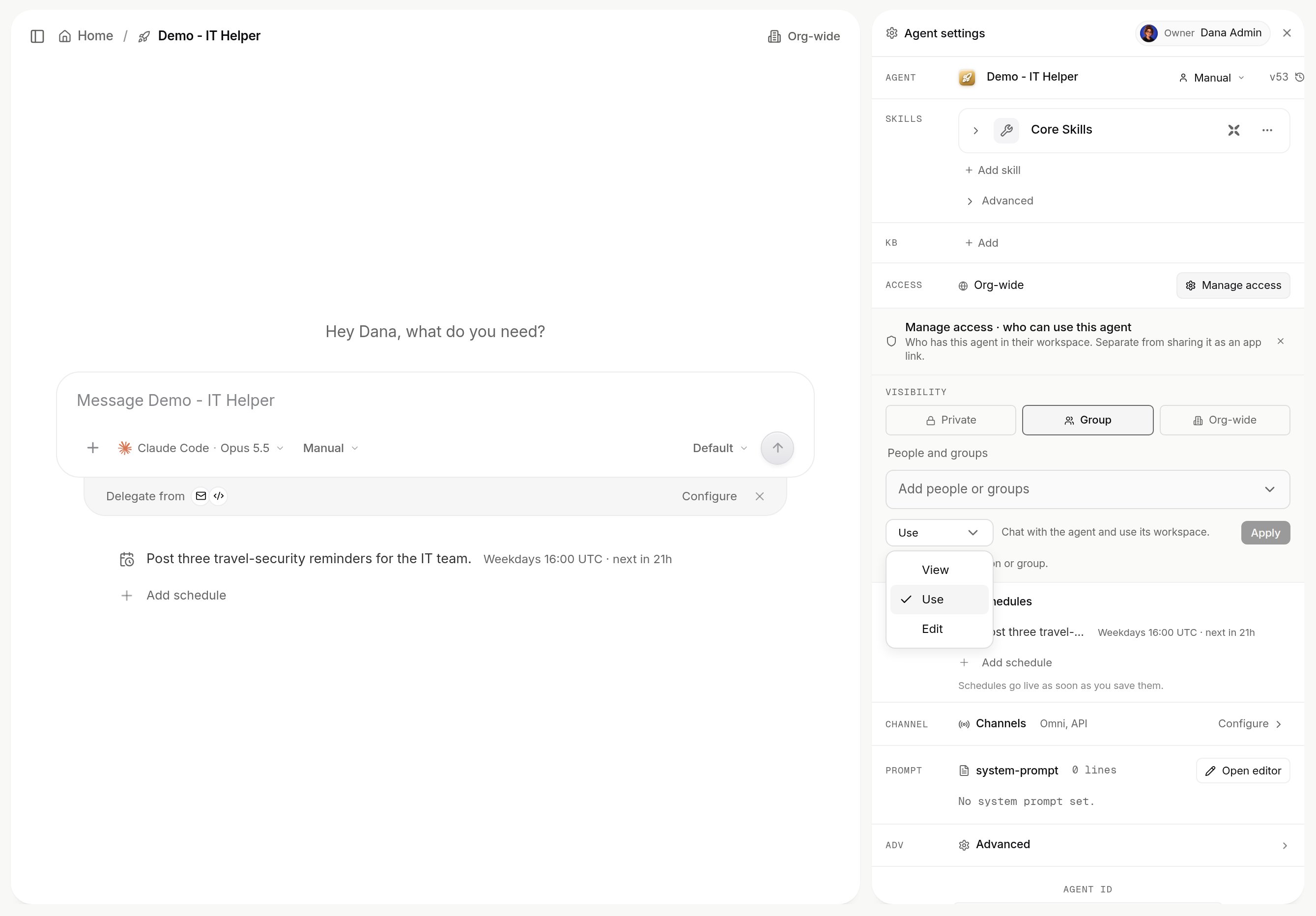
Choosing the permission to give: View, Use or Edit, then Apply.
On a conversation
Only the author may rename, delete or share a conversation. You can read it when it is yours, when you own the agent, or when the agent is org-wide. Share conversation opens it to your organization, named people or groups, or a public link. Allow replies lets a viewer continue in their own copy. Live surfaces follow the share.On a skill
A skill’s Shared with setting (Private, People, One agent or Organization) decides who can see and attach it. See Skills.Whose credential a shared agent uses
Each skill is bound to a connection (an organization account or a personal one) and an auth mode:
A Vault secret can raise a binding’s mode, never lower it. Each call records the mode and whose credential was used, in the task and as a
use_secret audit event. MCP connectors also choose whether a person’s token is shared across their agents, and whether callers without their own sign-in may run.
Signed-in user (SSO) on an MCP connector
Where single sign-on is set up, an MCP connector can use Signed-in user (SSO): the server gets the person’s SSO token asAuthorization: Bearer, with no separate sign-in.
Runs from xpander Chat or Omni over MCP use the asker’s token. Schedules, webhooks, API calls and messages from unlinked accounts use the agent’s default user. A person without a valid SSO sign-in gets a note to sign in. xpander never opens OAuth for these servers. If a non-admin changes the address of a server that sends the raw token, it switches to Exchange for an audience.
Roles and user groups
A Member uses shared agents and creates agents where their group allows. An Admin manages everything under Settings and invites members. Platform > Organization > Members & groups has per-group switches for skills, agents, each agent-settings section, each Settings tab, workspace file actions and channels. A feature is hidden only when every group a person is in disables it. Groups can follow your identity provider.Next steps
Approve an agent's actions
What waits and who decides.
Connect accounts and credentials
How skills get credentials.