

Steer a running turn
Turns in one conversation run one at a time. A message sent while a turn runs is steered into it at the next skill boundary, so a correction lands in the work in progress. In Slack the sender sees an eyes reaction. In WhatsApp and Telegram steering is silent. When a skill served over MCP asks for input mid-call, answer it in the chat. A long-running MCP operation runs in the background and posts its result when done.Sub-tasks
An agent can hand work to another agent as a sub-task: a separate execution with its own record, listed under the conversation and in the Session Manager. The API’s sub-task mode sets how they run:sync (inline), async (queued) or auto (the agent chooses).
- A sub-task that runs on reports back when it finishes. It never starts background sub-tasks of its own.
- Turns from Slack, Teams, WhatsApp and email run sub-tasks inline, so the channel reply is the whole answer.
- Asking Omni to task another agent creates that agent’s own conversation. The result comes back into Omni’s thread.
Upload a file
Attach up to 50 MiB in the composer. The file is stored in your organization’s file store and copied into the conversation’s working directory asuploads/<name>. If the copy fails, the agent reads it from the link. Models that accept images and documents also get the file directly.
Anyone who can open the conversation can see the upload: every member for an org-wide agent (the default), or you and the owner for a restricted one. Other conversations of the same agent do not see it. See who can see a conversation.
Results and the files an agent produces
The answer is in the conversation. The task panel shows changed files, tokens and cost. Browse, edit, upload and download files in the Computer view. Credential stores such as.aws, .ssh and .kube never appear there. shared and skills are the agent’s own folders, shared by all its conversations.
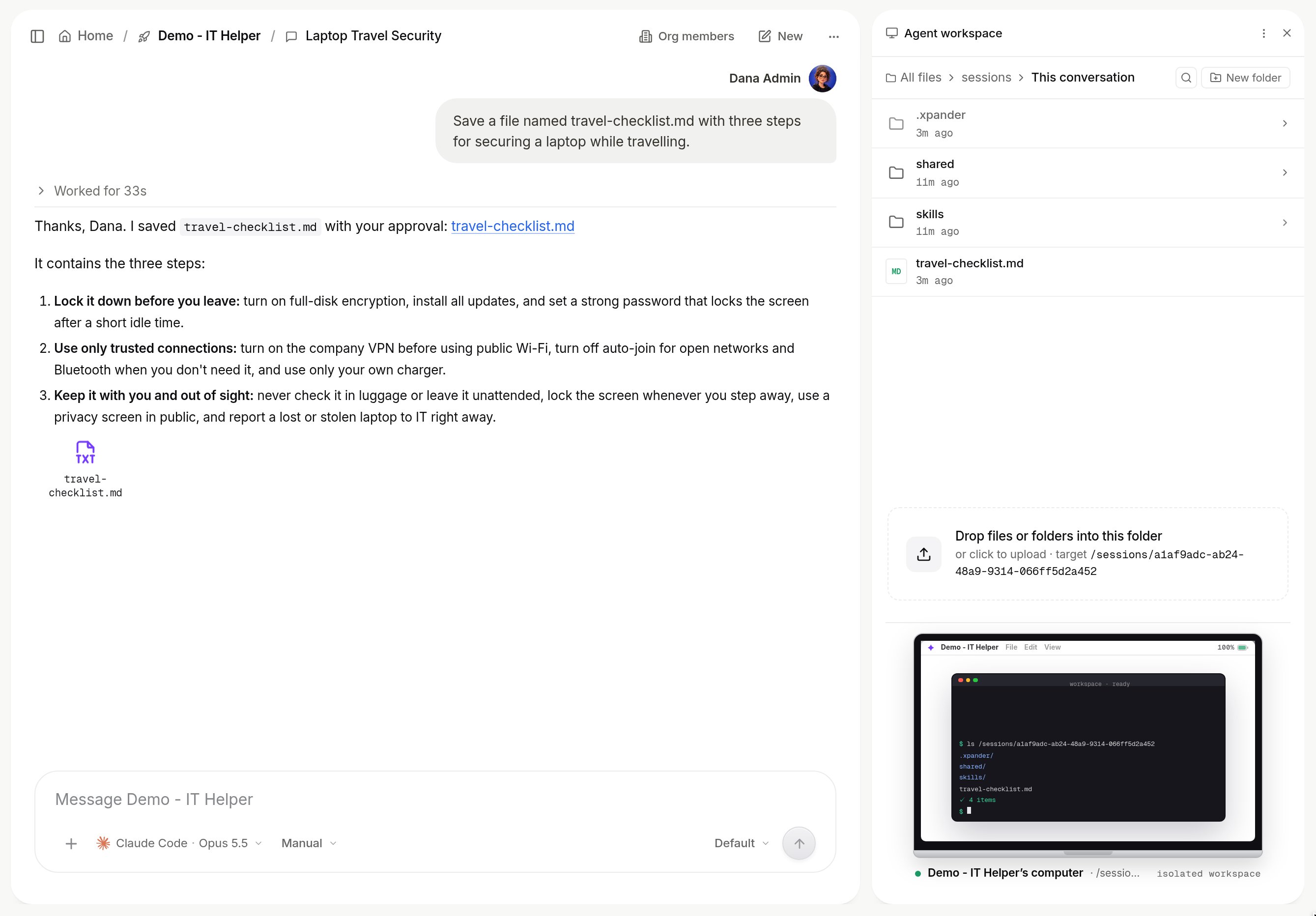
The Computer view: the conversation's working directory as a file browser, with the file the agent just wrote. Shown with sample data.
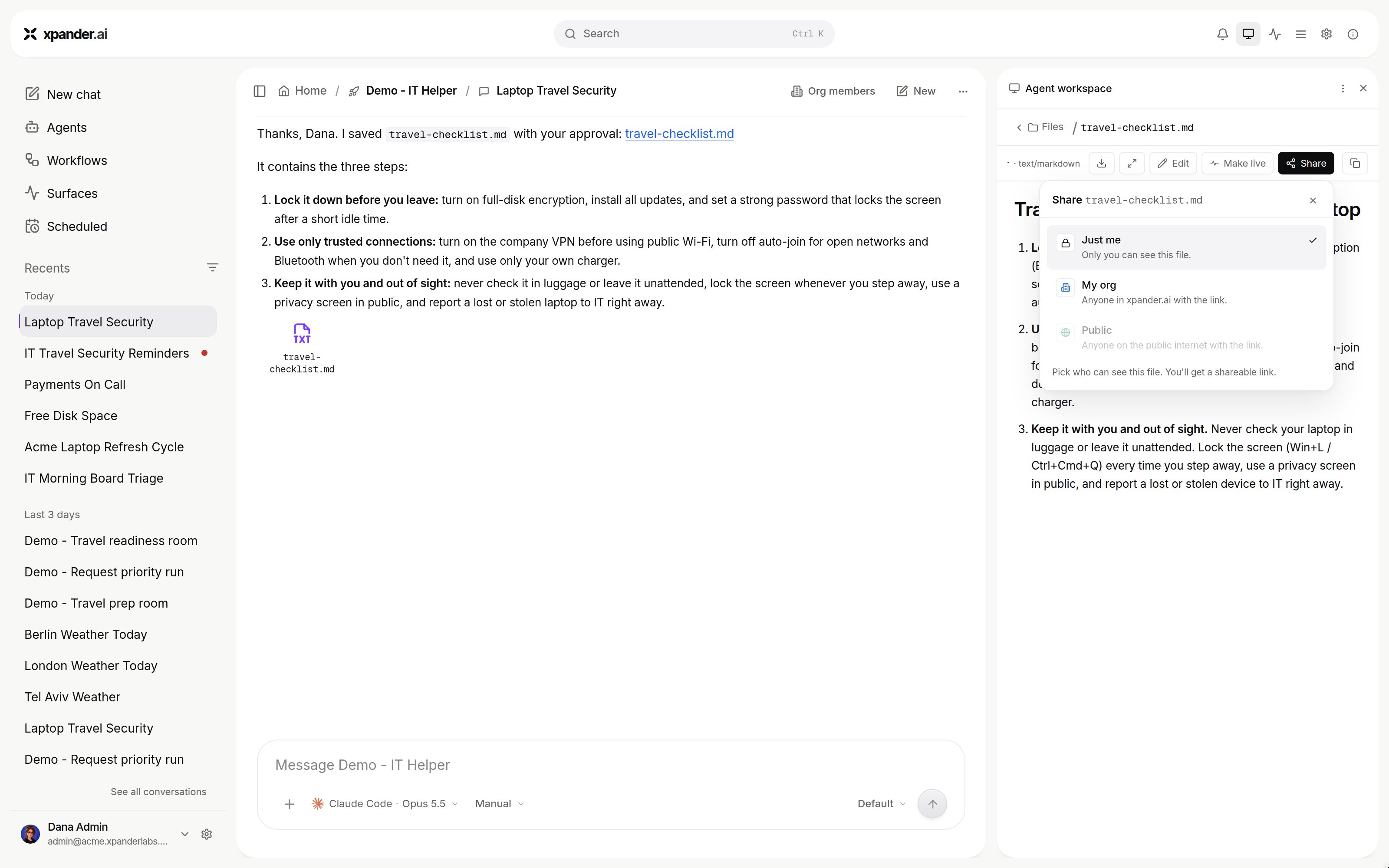
Share on a file: Just me, My org or Public. Public is greyed out here because the organization does not allow links that work without signing in. Shown with sample data.
The task record
Every conversation and sub-task is a task. It records the status (pending, executing, paused, error, failed, completed or stopped), messages, skill calls with parameters, results and the credential used, approvals, usage and the model.
Read it in the Session Manager, or with GET /v1/tasks/{task_id}, /thread and /llm_usage. Failures on xpander’s side read Budget limit reached, Out of credits, Quota reached or Account blocked, never a stack trace. See Audit and debugging.
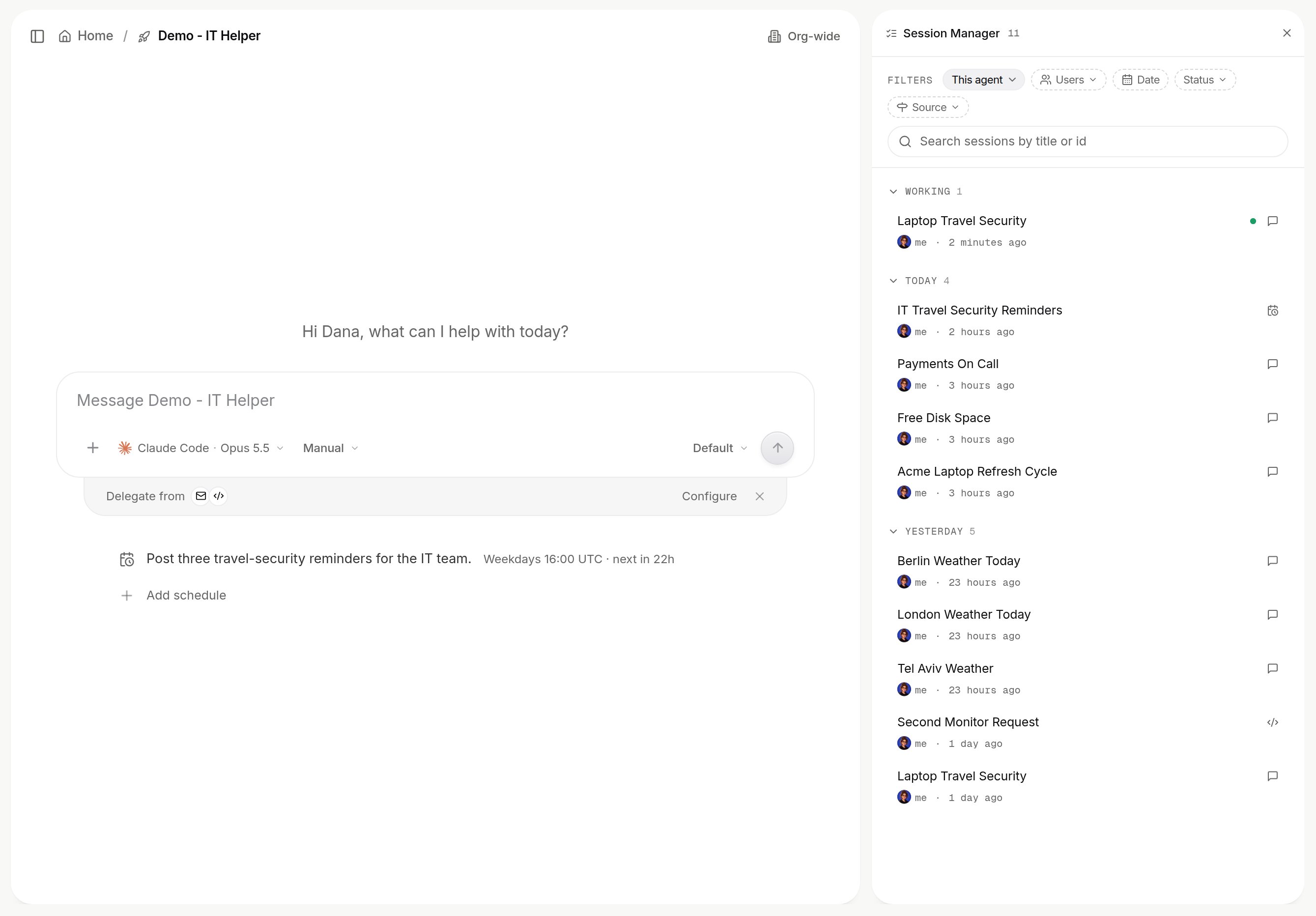
Session Manager: every task for an agent, filtered by user, date, status and source. Shown with sample data.
conversation_kind: gateway) are read-only. Start a new one to continue.
Continue later
Reopen a conversation any time, or branch from any message. The harness resumes its session if it still exists. Otherwise a new session starts with the history handed over. Switching harness keeps the conversation. The working tree of a conversation idle for 14 days is removed, and the record stays.Work together
Anyone with access to the agent can write in the conversation, and every action is recorded under the person who asked. Share conversation gives a read-only view. Allow replies lets a viewer continue in their own copy. For a live room with people and several agents, use Shared sessions (one transcript and one shared set of files), when your organization enables them.Next steps
Debug a failed task
Read a task record.
Open a shared session
Work live with people and agents.