

Agents have no way to delete a file through a trusted folder. A file an agent saves under a name that is already taken is saved beside it, for example
report (2).md, unless the agent was asked to replace it.
Add a folder
- In Settings > Trusted folders, choose Add folder, pick the folder and set its access.
- In the composer, click the folder chip in the laptop strip (it reads Trust a folder while none is trusted) and add one there.
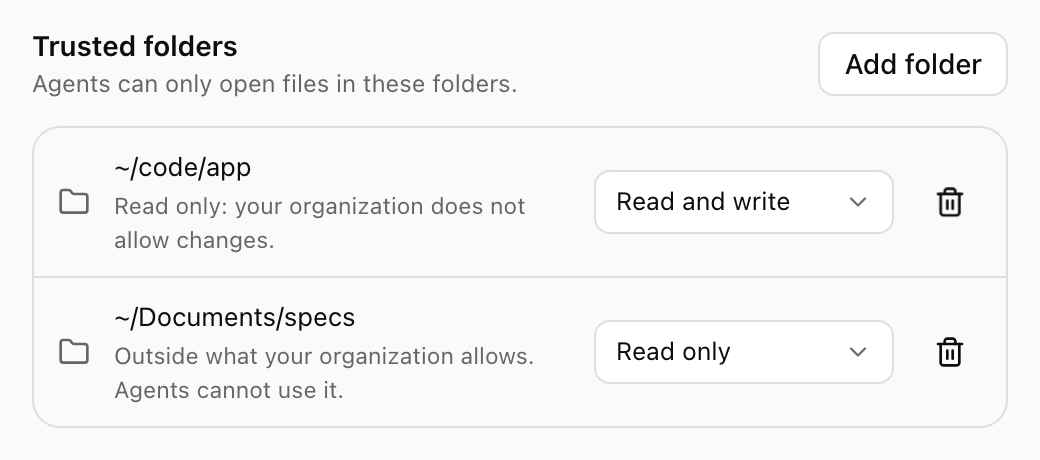
Trusted folders in Settings, with notes where your organization's policy narrows them. Shown with sample data.
The folder for new files
When more than one folder is Read and write, one of them is the Default for new files: where an agent saves a file you did not give a full path for, and where files from the cloud land. Choose Make default for new files on another folder in the composer’s folder list to change it. When an agent leaves new files only in its cloud workspace, the app saves them into this folder for you. Existing files are never replaced. To review them first instead, turn Save new files to this Mac automatically off in Settings > Notifications: the conversation then shows the files created in the cloud with Save to the folder, or Choose a folder.
Files an agent left in the cloud, ready to save to your Mac. Shown with sample data.
When an agent asks for a folder
An agent that needs a folder you have not trusted asks for it during the task. The app asks Allow access to a folder?, shows the folder and what the agent says it needs it for, and notes when the folder is outside what your organization allows or when your organization only allows reading. Choose Read only, Read and write, or Not now.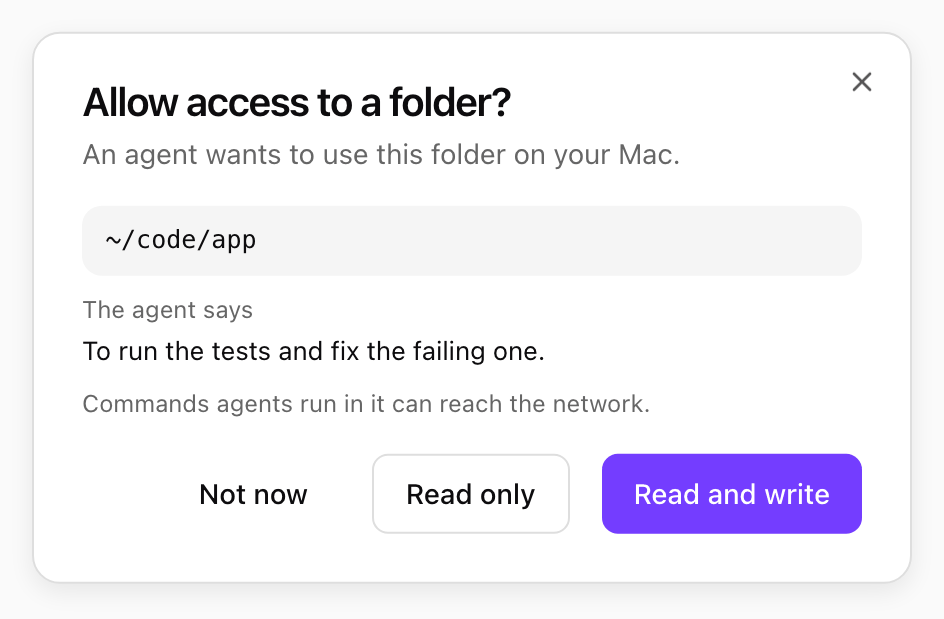
An agent asking for a folder, with its reason. Shown with sample data.
What your organization’s policy changes
Your organization’s Desktop policy, and your own Files switch in Settings, decide what any trusted folder may be used for:- Files off: agents cannot use files on this computer at all.
- Read only: every folder is read only, whatever you set. A read-and-write folder reads Read only: your organization does not allow changes.
- Folder rules: your organization may allow only certain folders. A folder outside them reads Outside what your organization allows and agents cannot use it.