

Run a schedule on this Mac
- In the app, open the scheduled task’s editor.
- Switch on Run on this Mac.
-
Optionally let its runs work without asking each time:
- Use the Omni browser without asking each run: runs may use the Omni browser without asking.
- Control apps and the screen without asking each run: runs may use computer control without asking.
- Save the schedule.
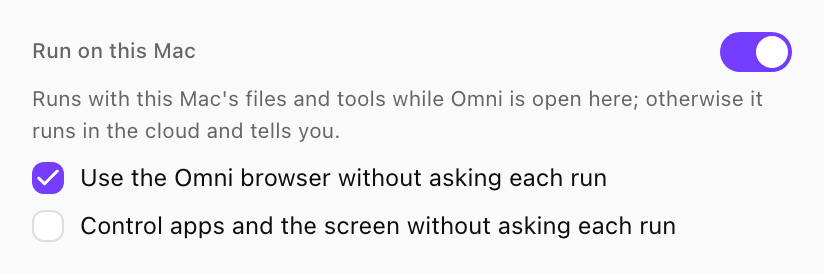
Run on this Mac in the schedule editor. Shown with sample data.
When your Mac is not available
A run uses your Mac only while Omni Desktop is open and connected on it. If the Mac is asleep, off or the app is closed when the schedule fires, the run goes to the cloud instead, without your Mac’s folders. The app then tells you ran without your Mac, with Run now to run it again here once the app is open.Who can change it
- Switch Run on this Mac off to unlink the schedule from your Mac.
- If another member changes what the schedule runs (its prompt, model, timing or who it runs as), it is unlinked from your Mac.
- An admin who can remove laptops in Devices can unlink it too.