

Devices
Devices lists every computer signed in to Omni Desktop: its name, its system (macOS, Windows or Linux) and version, the member, the app version, when it was last seen, and whether it is Online now. Search by computer or member, or show only Online now. Revoke disconnects a computer at once: its owner is signed out of Omni Desktop on it, and agents lose access to its folders. The app on it shows Mac removed. Nothing on the computer is deleted. To use it again, the member signs in again and it is added as a new computer. A member who leaves the organization has all their computers revoked. One member can have up to 20 computers connected at a time.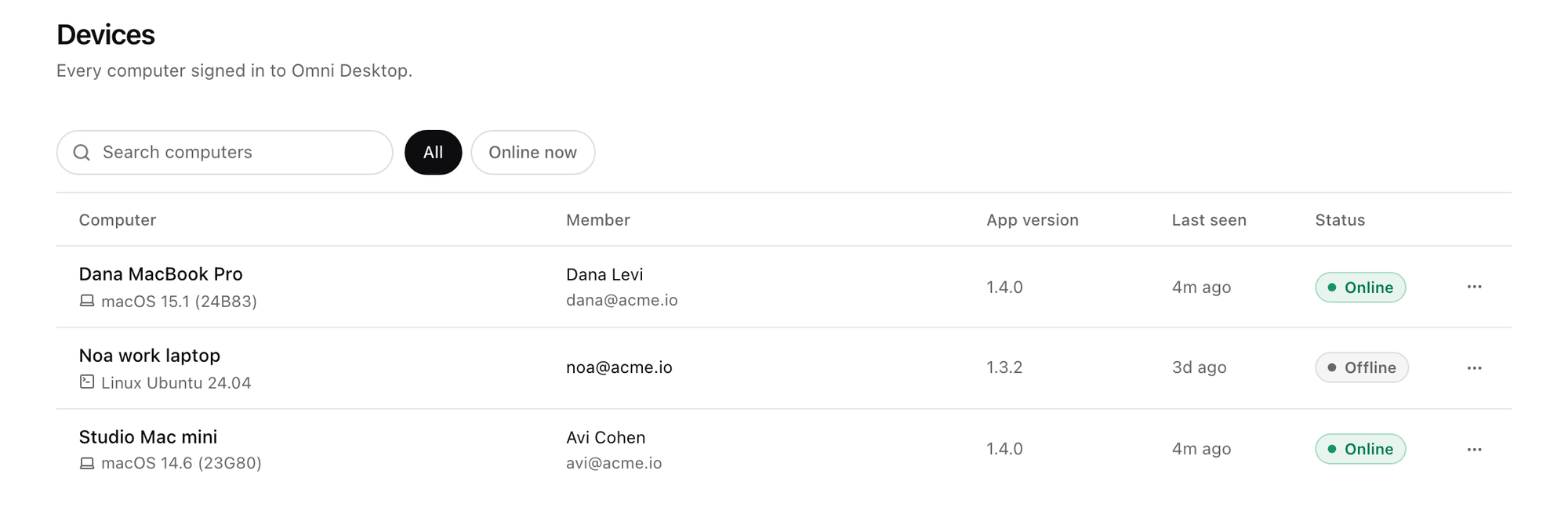
Platform > Agents > Devices. Shown with sample data.
Desktop policy
Desktop policy sets the most Omni Desktop may do. The Every member row is the organization default: it applies to every member, and opens in a panel with every setting below. A new organization starts with everything on, so members can use Omni Desktop as soon as it is available; turn off what you want to keep closed.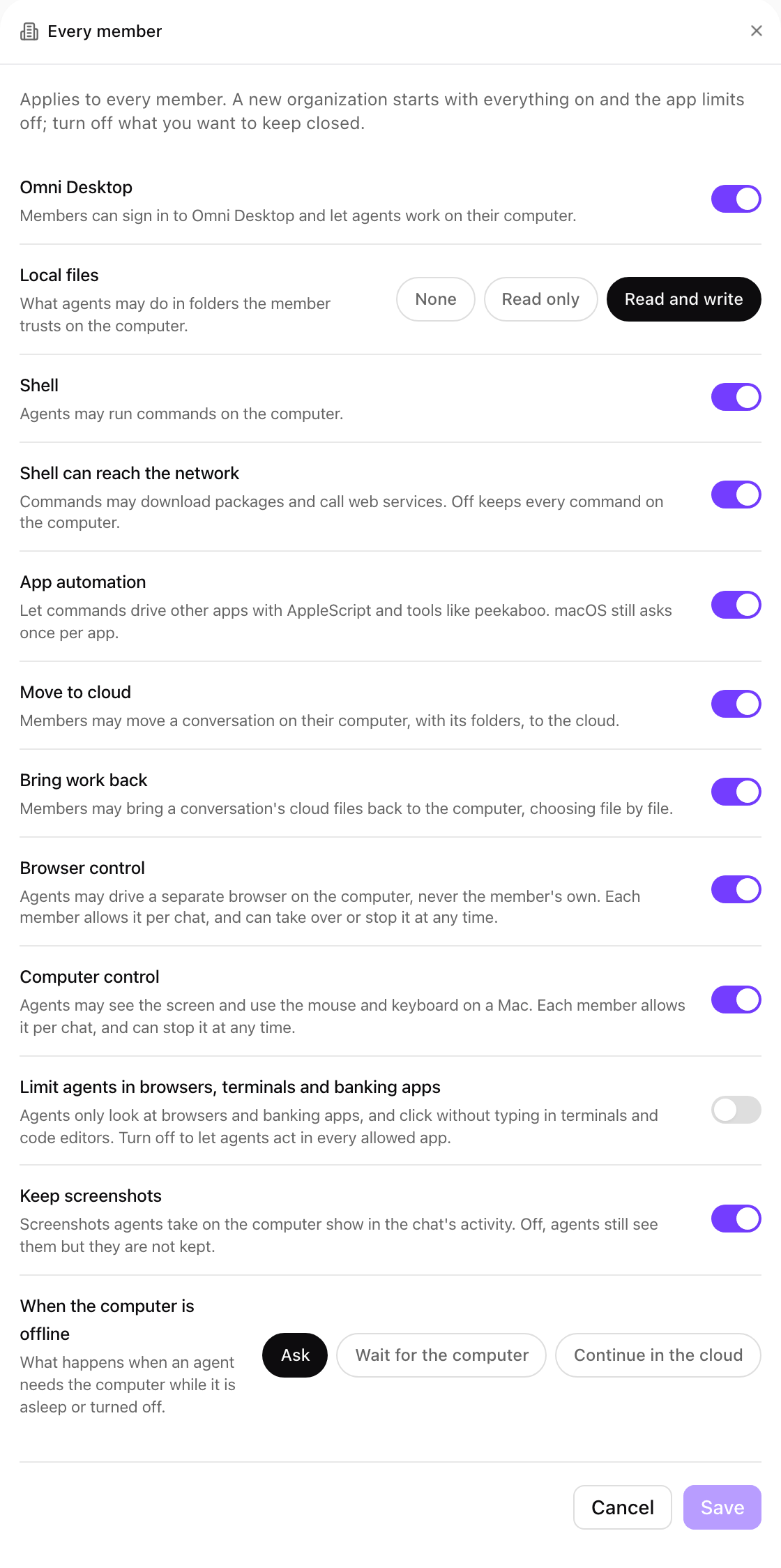
Every member: the organization default for a new organization. Shown with sample data.
Group overrides
Group overrides give a group’s members more than the organization default. Choose Add group override, pick the group, set its values and Save. Anything the default already turns on shows as on, and locked, in every group. A member in several groups gets the most each of their groups allows; when their groups pick different offline behaviors, the app asks. Remove override returns the group’s members to the organization default.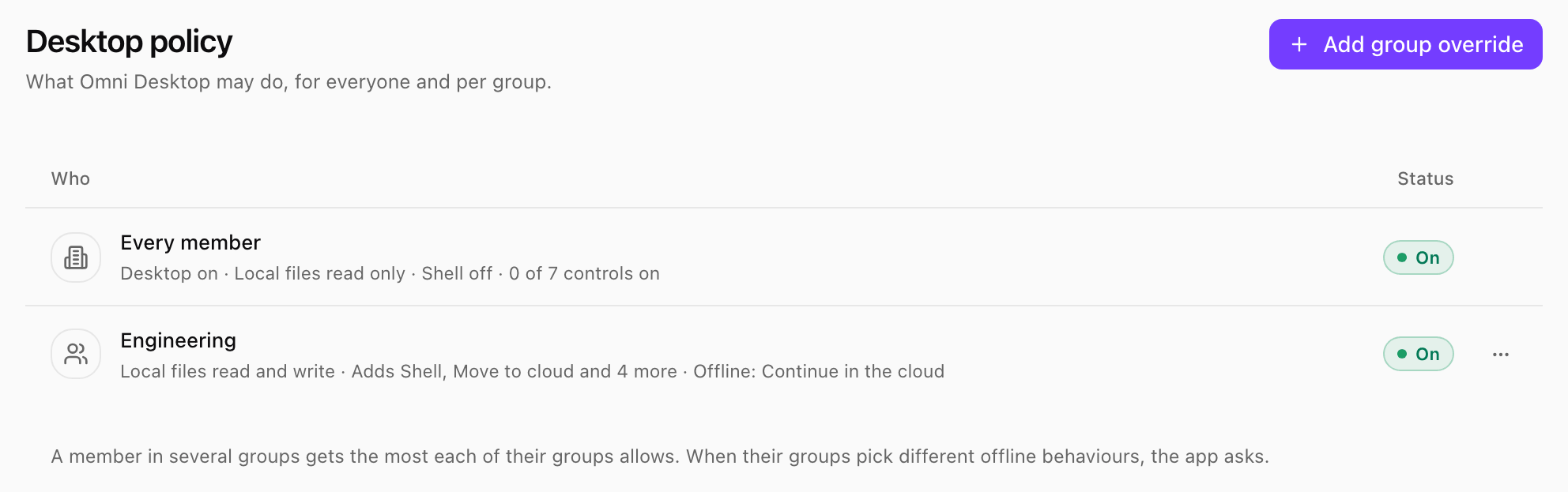
Platform > Agents > Desktop policy: the organization default and a group override. Shown with sample data.