

When your organization’s Desktop policy allows Browser control, an agent in a conversation you started from the app can open web pages on your computer, read them, click, type and fill forms. It works in the Omni browser: a separate window the app owns, with its own sign-ins and cookies. It never uses your own browser, its profile or its saved passwords. Because it runs on your computer, the Omni browser reaches the same sites you do, including internal sites on your network or VPN.

Allow it for a chat

The first time an agent wants the browser in a conversation, the app asks Allow browser control? and names the site it wants to start with:
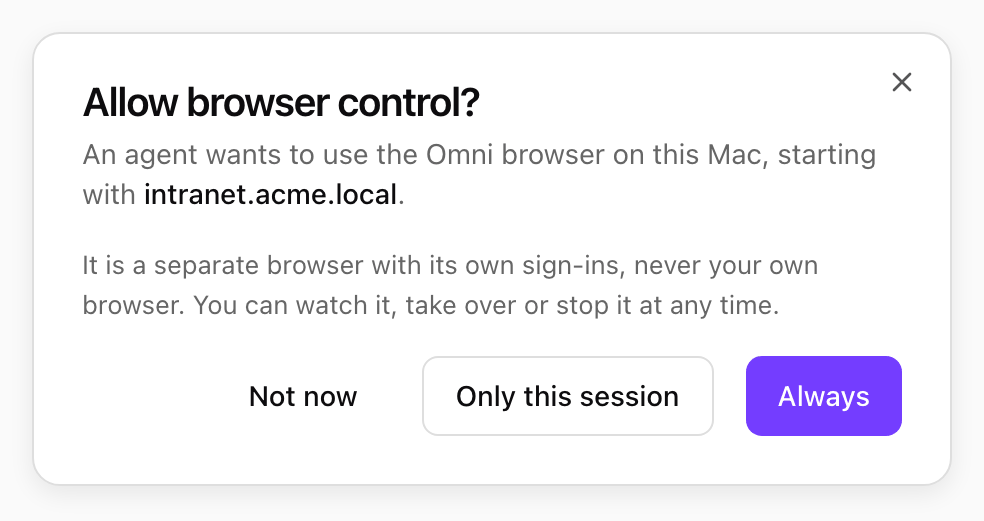
Allow browser control? dialog naming intranet.acme.local, with Not now, Only this session and Always

An agent asking to use the Omni browser. Shown with sample data.

If the window is not in front, a notification tells you An agent asks to use the browser. A question you do not answer closes as Not now. To go back to being asked, open Settings > Trusted folders and choose Ask each time next to Browser control.

Watch, take over or stop

While the agent drives, the Omni browser window shows Agent is controlling this browser, and a strip under the app’s title bar reads Agent is controlling the Omni browser.
  • Take over pauses the agent and gives you the browser, for example to sign in or solve a check. The agent waits until you choose Hand back.
  • Stop closes the browser and stops the agent’s browsing in this conversation. If you allowed it Only this session, the agent has to ask again.

Purple banner reading Agent is controlling this browser, with Take over and Stop

The banner at the top of the Omni browser window. Shown with sample data.

Strip reading Agent is controlling the Omni browser, with Take over and Stop

The strip under the app's title bar. Shown with sample data.

You can also stop it from the menu bar icon with Stop browser control. Closing the browser window counts as Stop.

What the browser does for you, and what it leaves to you

  • Cookie and newsletter pop-ups are closed for the agent, always with the choice that shares the least (reject, or close). It never accepts.
  • Sign-in, payment, CAPTCHA, age and permission prompts are left for you. The agent asks you to take over when it meets one.
  • Downloads are cancelled. Files reach your computer only through your trusted folders.
  • Camera, microphone, location and notification requests from a page are refused.
  • Password fields are never read by the agent.

Browse on this computer or in the cloud

Agents also have a browser in the cloud. Prefer this Mac’s browser in Settings > Shell & files (Prefer this computer or the cloud) decides which one they use first: on (the default), they browse on your computer; off, they use the cloud browser and come to your computer only when you ask.

What is recorded

The audit log records the site an agent opened, never the page address, what it typed or what the page showed.