

Move a conversation to the cloud
- In the conversation, choose Move to cloud in the laptop strip under the composer.
- Pick the folders the agent needs. The app uploads a copy of each.
- Choose Move to cloud. You can take up to five folders in one move, each up to 2 GB.
node_modules, .venv, __pycache__) and anything private, such as keys and credentials, which never leave your Mac.
The next messages in the conversation run in the cloud, on the copies. The folders on your Mac are not changed.
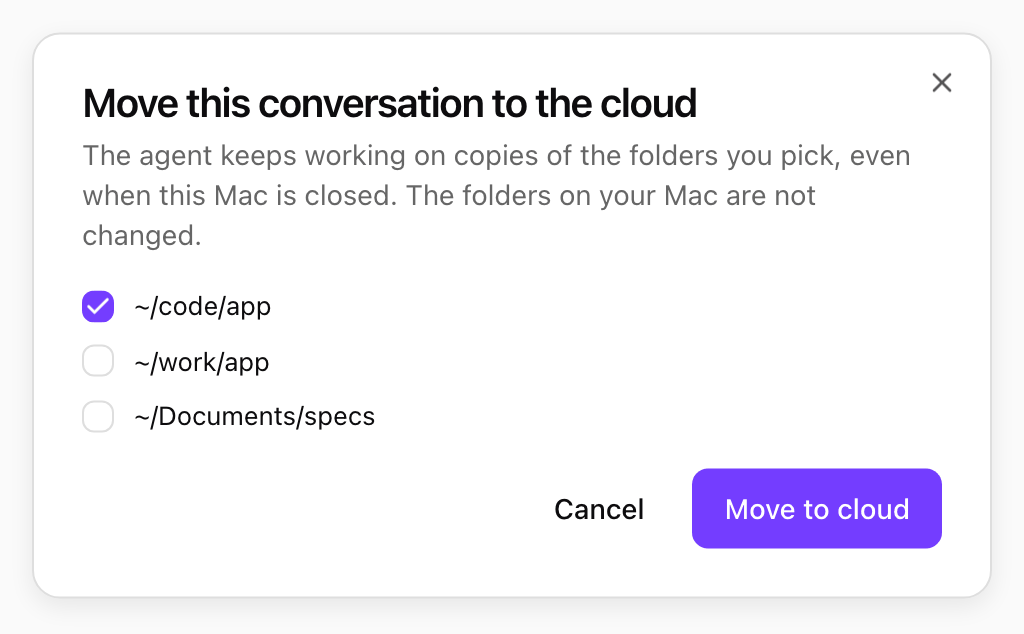
Choosing the folders to take to the cloud. Shown with sample data.
Bring it back
- In the conversation, choose Bring back in the laptop strip under the composer.
- The app downloads the cloud copy and compares it with what it uploaded, and lists every change:
- Apply: the file changed only in the cloud. It is updated on your Mac.
- New: the file was created in the cloud.
- Conflict: the file changed both in the cloud and on your Mac. Choose Keep mine, Take the cloud version or Keep both (the cloud version is saved next to yours, for example
README.cloud.md). - Deleted in the cloud: listed only. Nothing on your Mac is deleted.
- Open any file to see what changed, then choose Apply changes.
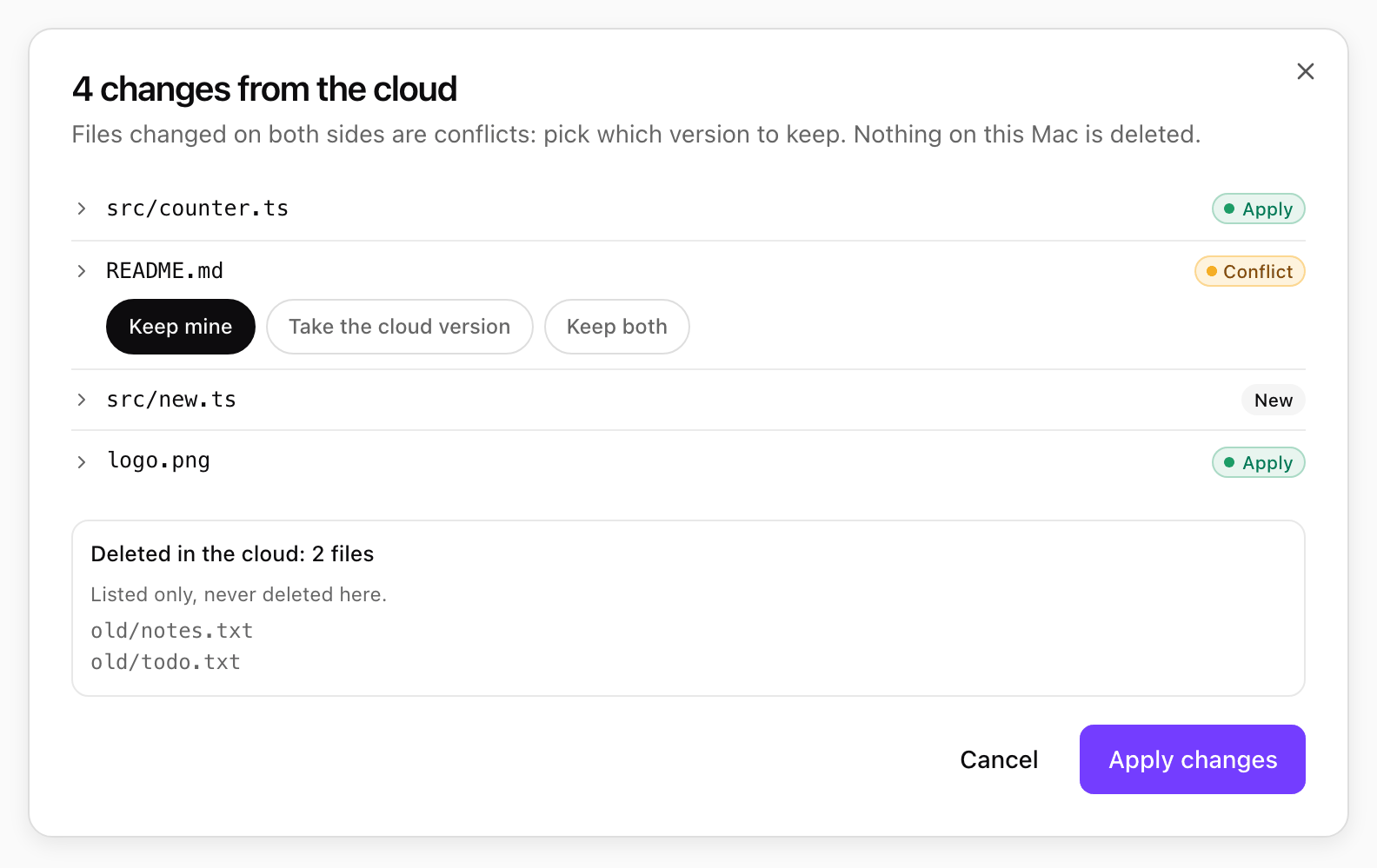
Changes from the cloud, with a conflict to settle. Shown with sample data.