

Allow commands and file changes for a chat
The first time in a conversation that an agent wants to run a command, the app asks Run a command? and shows the full command. The first time it wants to write a file, it asks Write a file? and shows the path.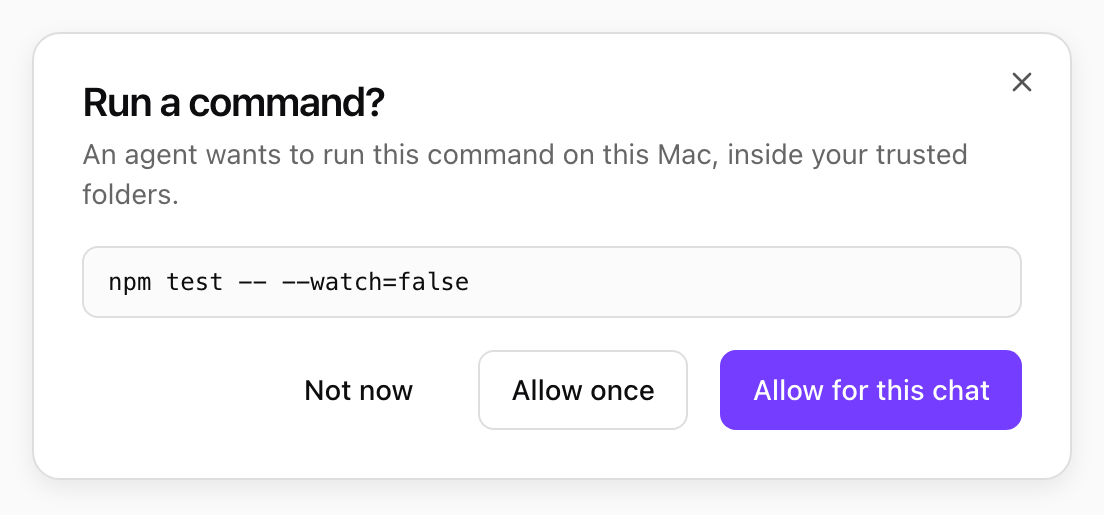
The first command in a conversation asks first. Shown with sample data.
What a command can reach
Every command runs in its own macOS sandbox, built for that command from your trusted folders:
Shell network is on by default. Your organization can turn it off for everyone (Shell can reach the network in the Desktop policy), and you can turn it off for your Mac in Settings > Shell & files. With it off, commands still run, but cannot download anything or call a web service.
When the shell does not run
- Your organization’s policy turns the Shell off, or you turned Shell commands off in Settings.
- Files are off for this computer, in your organization’s policy or in your own Settings. The shell works inside your trusted folders, so it is off too.
- No folder is trusted yet.
- Your organization’s policy is read only: the shell is read only too, and cannot write anywhere.
- The computer cannot run commands safely, for example on Windows today. The strip then reads Shell unavailable, and agents work with your files directly. See Where it runs.