

Give the app the macOS permissions
macOS asks you to allow two permissions for Omni in System Settings > Privacy & Security:
The app opens a sheet, Allow Omni on this Mac, when you sign in, when your organization turns computer control on, and when an agent needs a permission that is off. For each permission, choose Open System Settings and switch Omni on. The sheet updates as you do.
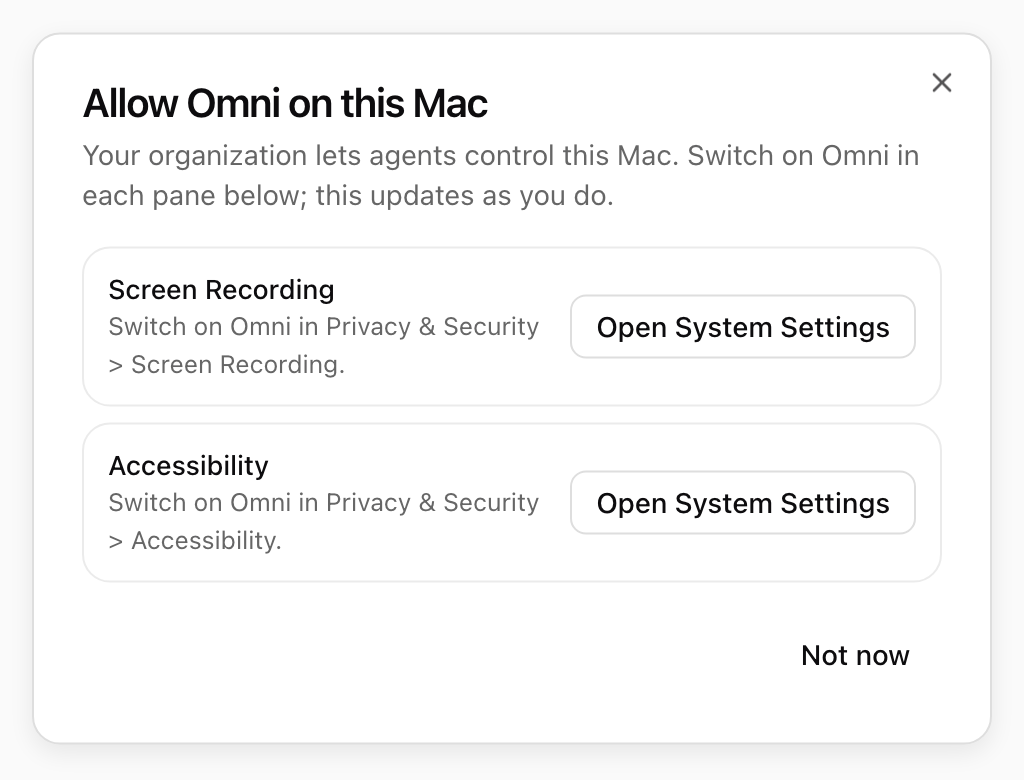
The macOS permissions computer control needs. Shown with sample data.
Allow it for a chat
Every conversation asks before an agent takes control the first time. The app asks Let the agent control your Mac?: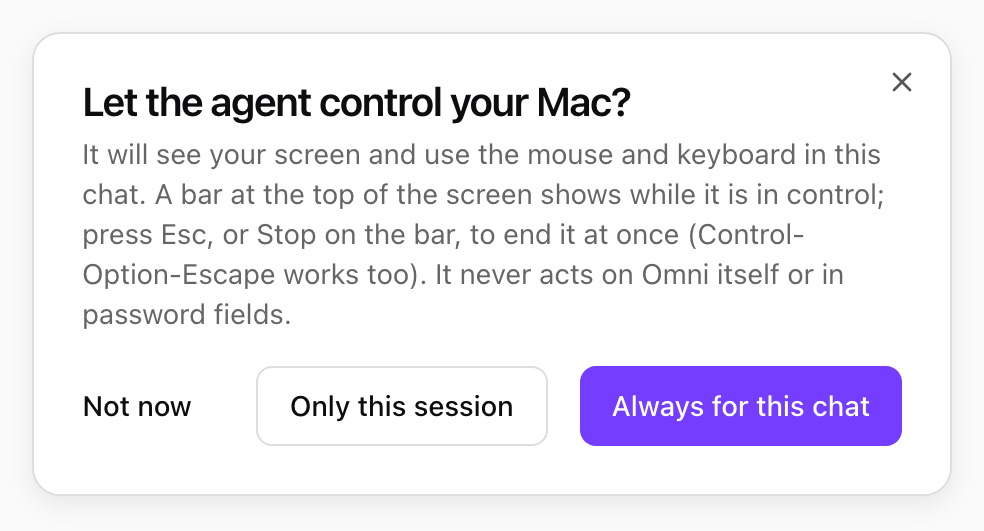
Each conversation asks before an agent takes control. Shown with sample data.
While the agent is in control
A bar at the top of your screen reads Omni is controlling your Mac. It stays on top of every window and is hidden from the agent’s own screenshots.
The bar at the top of the screen while an agent is in control. Shown with sample data.
When the agent asks you something
An agent in control may need a choice or a detail from you. The bar changes to Omni has a question and shows the question with its options, or a Reply field and Send. A notification shows the same question, and you can answer from the notification’s buttons or its reply field without switching windows.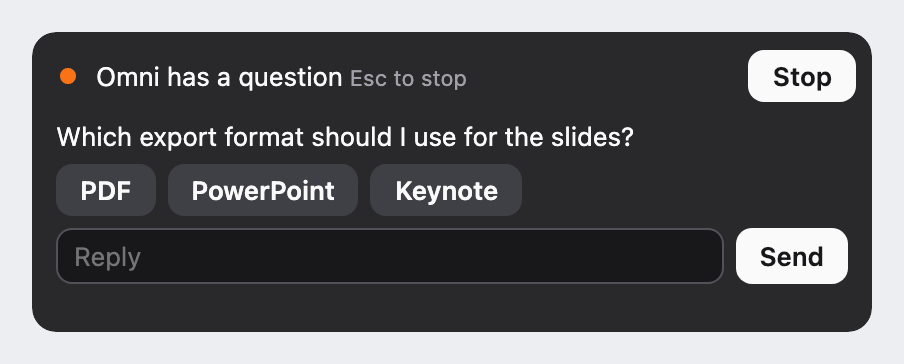
A question from the agent, on the bar. Shown with sample data.
Screenshots
The agent works from screenshots of your screen. When your organization’s policy has Keep screenshots on (the default), the screenshots an agent took show in the conversation’s activity, so you can see what it saw. With it off, the agent still sees them, but they are not kept.Limits
- An agent can take up to 60 actions a minute on your Mac.
- Your organization can limit computer control to certain apps. An agent that tries another app is told your organization does not allow it.
- The audit log records where each action landed, never what was typed or seen on screen.