

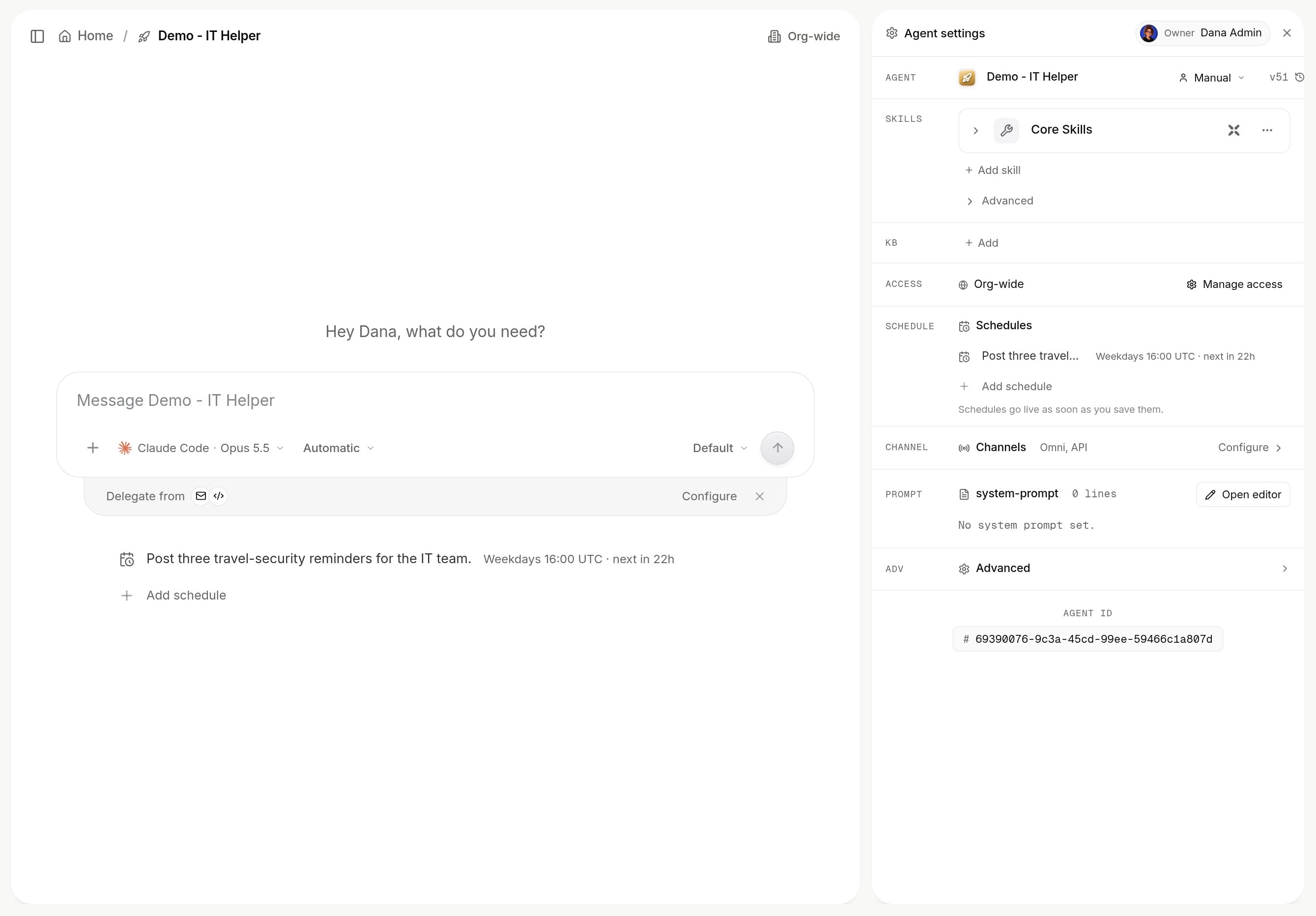
Agent settings: skills, access, channels and prompt on one card; harness and model are set from the composer.
Instructions
PROMPT opens the prompt editor:
- Static: freeform instructions. Generate drafts them from a short description.
- Dynamic: a Python function,
xpander_dynamic_prompt(), that runs on every turn and adds its return value before or after the static prompt. Workspace secrets are available asos.environ.
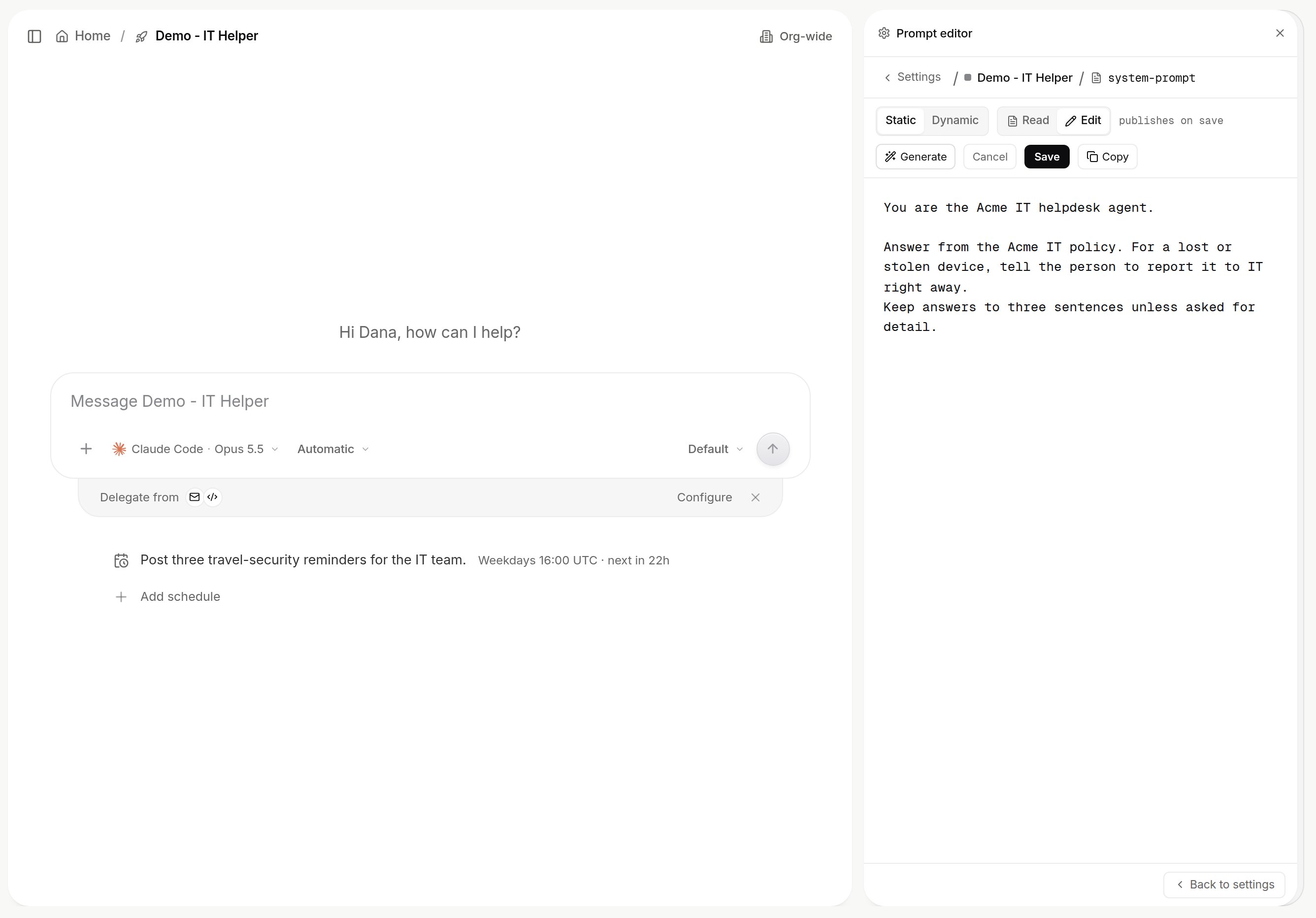
The Static prompt editor in Edit mode: a freeform instructions box with Generate, Save and Copy. Shown with sample data.
Harness and model
The composer’s Harness and model picker sets Claude Code, Codex or OpenCode and the model, from the providers your admins enabled under Platform > AI governance > Models. An agent’s model cannot be an alias today: the picker lists models only. Any harness can run a model from any enabled provider. Claude Code can run a GPT or Gemini model, Codex can run a Claude model, and all three can run your own provider’s model. The AI gateway translates each call. The picker lists a model from another vendor only when that pair passed xpander’s test on that harness. Your own provider’s model is listed after Test model passes for that harness. A model you pick inside a conversation applies from the next turn. If you can edit the agent, a model from the CLI’s own vendor, or from a custom provider, is also saved as the agent’s default model for that CLI. OpenCode saves a model from any provider. A model from another vendor on Claude Code or Codex applies only to that conversation. New conversations start on the default. A conversation that already has messages keeps the model it ran on when the default changes. An agent-level credential in the Vault can set the agent’s own provider key or endpoint. It outranks the organization’s key. Calls on your own key are measured but not charged in credits.Skills
Add skill offers the skills your organization has made available: API connectors, MCP connectors, Markdown skills and custom actions. Per skill, you choose which actions are enabled and which wait for approval. Steps: Add a skill. Whether you may add skills at all is a group switch under Platform > Organization > Members & groups. Which skills exist is set by admins in Platform > Agents > Skills registry.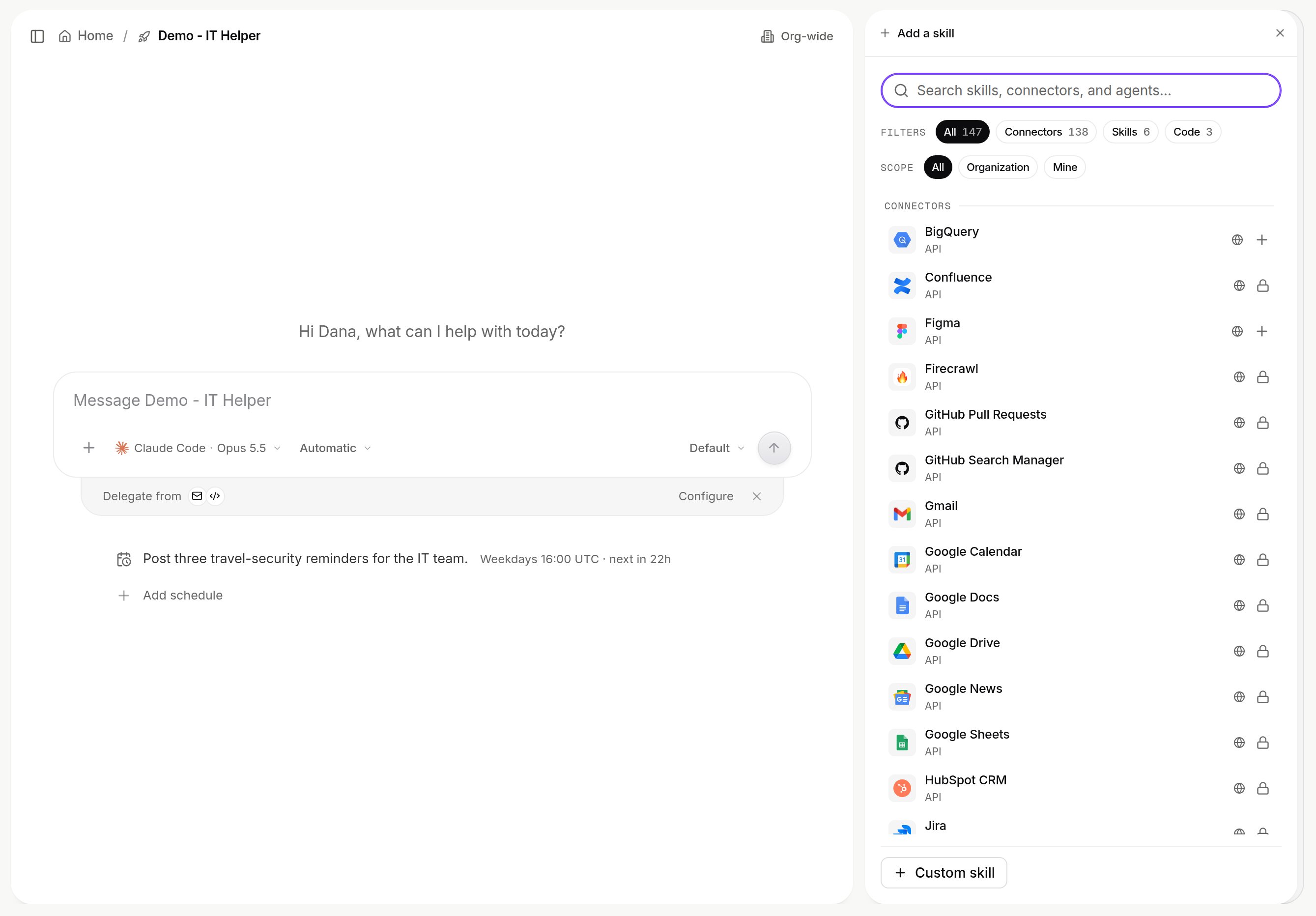
The Add skill panel, filtered by kind and scope.
Approval rules
Three rules make an action wait for a named person:
WHO APPROVES names people or groups. Any one of them settles a request. Self approve adds the person who starts the run.
Gated commands are case-insensitive text fragments, such as
rm -rf or terraform apply. They wait in either permission mode, for anyone, and on schedules. Each takes an optional exception (unless), a note, approvers and notification channels. With no approvers, xpander asks the agent’s owner, and a night run parks instead of proceeding. Imported destructive scripts are gated by default.
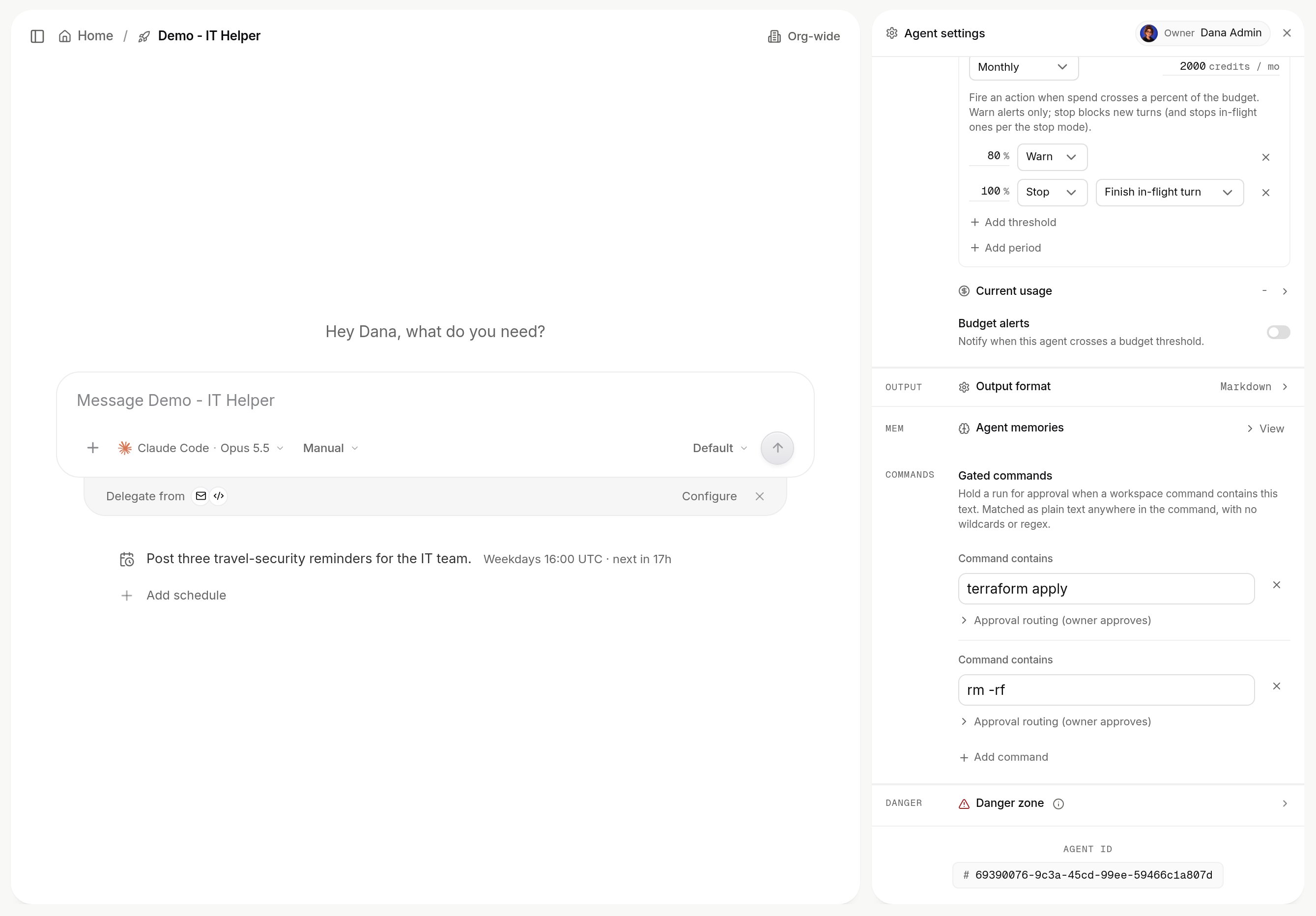
Gated commands on an agent.
Secrets
A skill’s credential is entered when you connect the skill and used at the moment of a call. The agent never sees it. The agent’s own secrets go under Advanced > Vault secrets (Manage secrets). It reads each as$NAME, refreshed every turn, and cannot add or change them. When a run lacks a credential, an Ask for secret card sends what you type to the vault, not the model. See Credentials.
Output format
Output format is Default, Markdown or Structured output. Structured output takes a JSON Schema (Generate with AI drafts one). The answer is validated, repaired when possible, and returned by the API as the task’sresult. Chat channels show it as prose and keep the JSON in the record. See API and structured output.
Runtime environment
Advanced > Runtime environment attaches the agent’s computer: the CLIs, packages, config and context it finds on every run. See Runtime environments. Harness built-in tools and xpander built-in tools, under Advanced, turn off the harness’s own built-in tools (shell, files, web) or xpander’s, so the agent works only through what you attached. Both are on by default. See Built-in tools.Budgets and limits
Advanced holds a Per-agent budget (daily, weekly or monthly, several at once with Add period) and a Per-turn budget. Each warns or stops at percentage thresholds. See Budgets and usage.Rehearse with mock data
Each connection has a Live / Mock switch. In Mock, xpander returns generated, cached data in the operation’s response shape. Nothing reaches the vendor and no credential is used. The run still uses the model and is recorded. There is no whole-agent dry run.Publish
Changes apply on the next turn. With Stage before publishing to live on:1
Publish to staging
Changes go to a staging copy. The API invokes it with
?version=draft.2
Promote when ready
The live agent keeps the previous version until you Promote to live.
Roll back to an earlier version
Every publish is kept as a version. The version chip shows only when your user group has Version history on (Platform > Organization > Members & groups > Groups, a group, Customize features). To go back to a version:- In Agent settings, select the version chip next to the agent’s name, for example
v7. Version history opens with the versions published to this agent. - Select a version. Inspect shows how its settings differ from the agent’s current state; skill and knowledge base changes are not listed. Compare puts two versions side by side.
- Select Publish to live. That version’s settings and instructions go live at once as a new version number, so the history keeps the version you left. Its skills, connected actions and knowledge bases are not restored: the agent keeps the ones it has now.
Next steps
Add a skill to an agent
Steps per skill kind.
Set up a runtime environment
CLIs and context.
Decide who can use the agent
Access and sharing.
Get structured answers from the API
The same shape every time.