

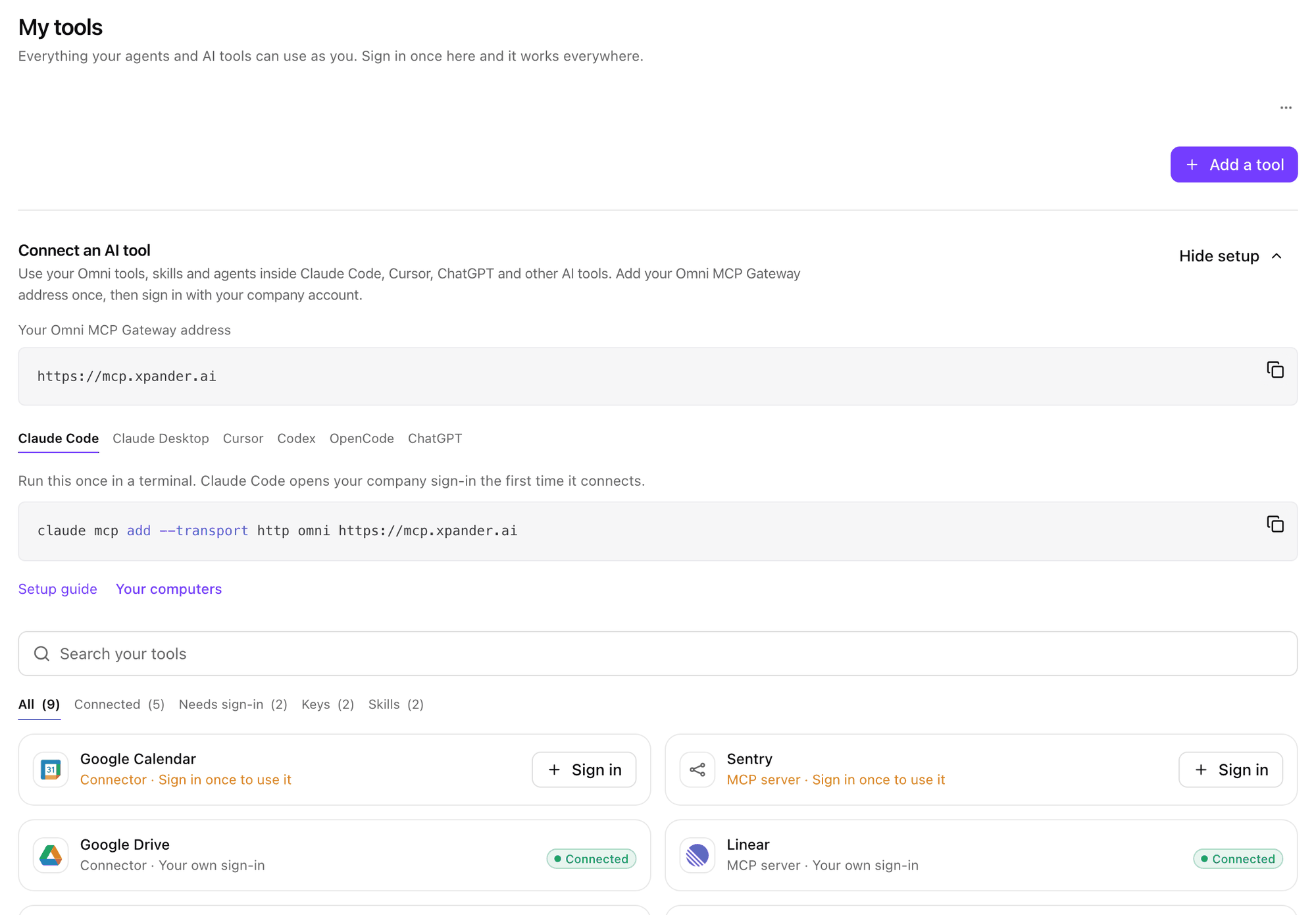
Settings > My tools lists everything your agents and AI tools can use as you: apps, MCP connectors, skills and the keys you saved. Sign in once here and the sign-in works in every agent and in every AI tool connected to the Omni MCP Gateway. Links to the old Settings > Connections page open My tools.
My tools page with Add a tool, the Connect an AI tool card showing the Omni MCP Gateway address and Claude Code setup, a search box, the All, Connected, Needs sign-in, Keys and Skills tabs, and cards with Sign in and Connected

Settings > My tools: the Connect an AI tool card, then each item with its status. Shown with sample data.

Connect an AI tool

The Connect an AI tool card shows Your Omni MCP Gateway address with a copy button, and the setup for Claude Code, Claude Desktop, Cursor, Codex, OpenCode and ChatGPT. Pick your AI tool, copy its setup, and sign in with your company account the first time it connects. Setup guide opens the full steps, and Your computers lists the computers signed in as you. Hide setup folds the card. For Claude Code, the card gives one command to run in a terminal:
On a self-hosted install, the card shows your install’s address instead.

Find an item

Search your tools filters by name. The tabs narrow the list: Each card says what it is and how it connects: Sign in once to use it, Your own sign-in, Connected by your organization (nothing to sign in) or Yours (a connection or MCP connector you added).

Add a tool

Add a tool opens a panel with every app, MCP connector and key you can add. Search it with Search apps, MCP servers and keys. Connect signs you in with your own account. On an app that takes keys, the key button beside Connect opens the token form instead (Connect with your own key).
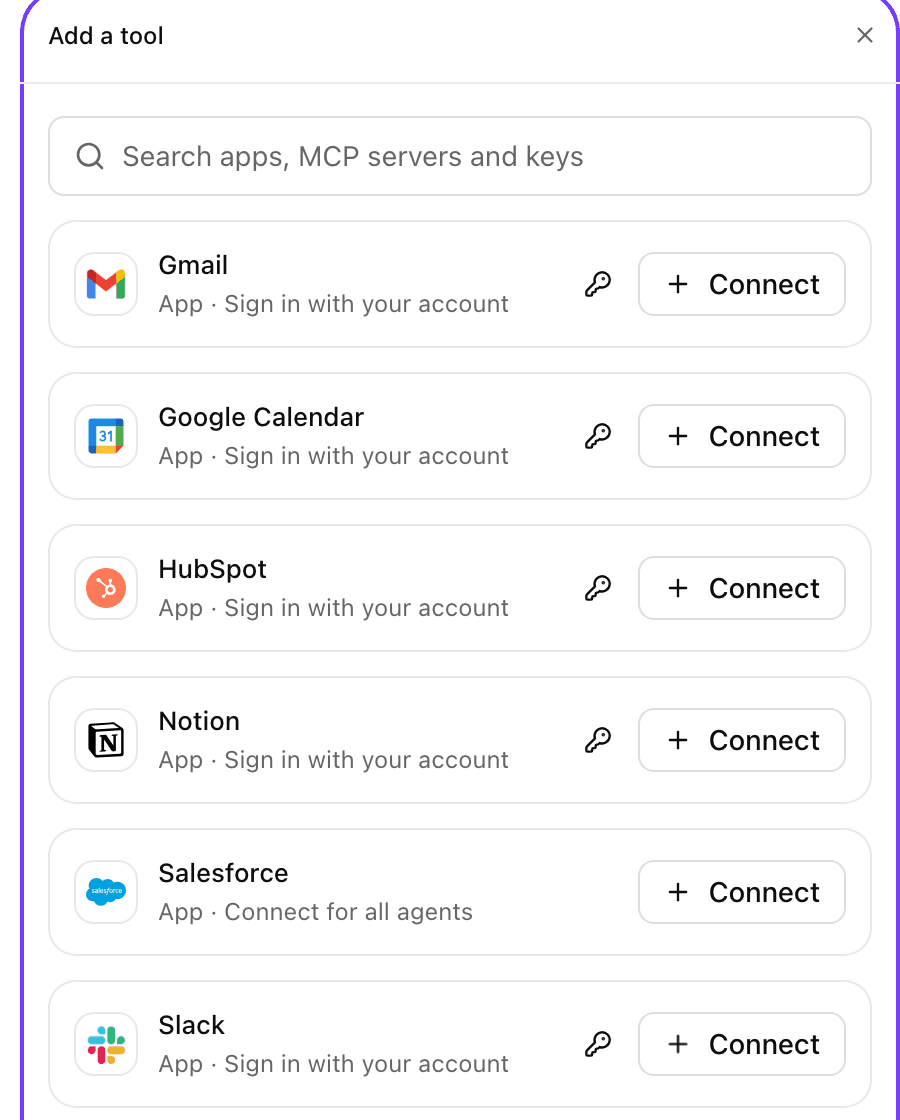
Add a tool panel with a search box and Gmail, Google Calendar, HubSpot, Notion, Salesforce and Slack, each with Connect

Add a tool: apps you can sign in to, each with Connect and, where the app takes keys, a key button. Shown with sample data.

Open an item

Select a card to open it. How it connects says whose account it uses and shows its status. From there you can:
  • Sign in to the app, or Sign in again when your sign-in expired.
  • Sign in with another account, or Use a token instead, on an app you already connected.
  • Disconnect your sign-in, or Disconnect all of one app’s sign-ins.
  • Add key for an app agents can also reach with a key you save, or Keys to see the one you saved.
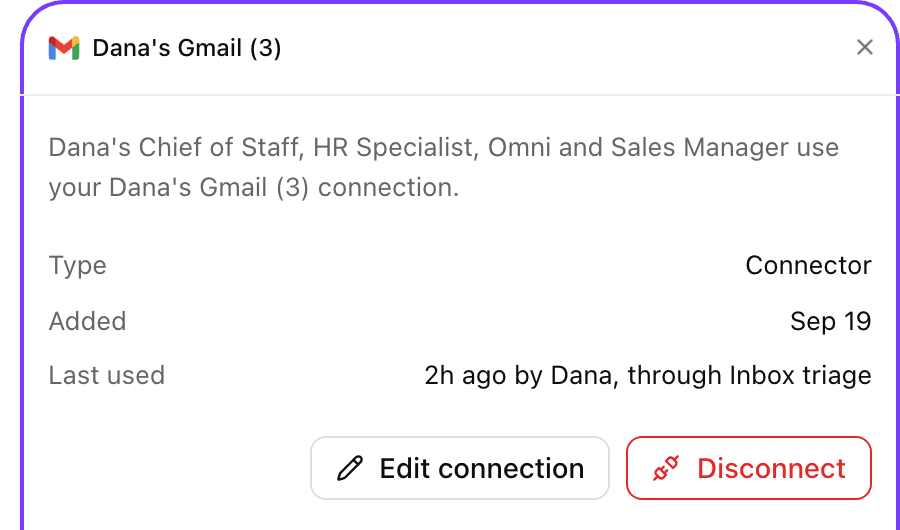
A connection you hold shows Used by (the agents that use it), Last used (when, by whom and through which agent) and Added. Below, its actions each show Ready or Asks approval. An app your organization manages is read-only here; Open in Skills registry takes admins to its settings.
Dana's Gmail connection card listing the agents that use it, its type, Added Sep 19, Last used 2h ago by Dana through Inbox triage, and the Edit connection and Disconnect buttons

A connection opened from My tools: when it was added, when it was last used and by which agent, Edit connection and Disconnect. Shown with sample data.

When a sign-in expires

A banner at the top of My tools names the sign-ins that stopped working, for example 1 sign-in expired. Sign in again opens the Needs sign-in tab, where each expired card reads Your sign-in expired and has its own Sign in again button.

My tools with a warning banner reading 1 sign-in expired, Google Drive stopped working for your agents

An expired sign-in: the banner names the app that stopped working for your agents. Shown with sample data.

Disconnect all

With more than one sign-in, the menu (…) next to Add a tool offers Disconnect all. It signs you out of every app and MCP connector; agents ask you to sign in again the next time they need one. API keys and tokens you saved under Keys stay.
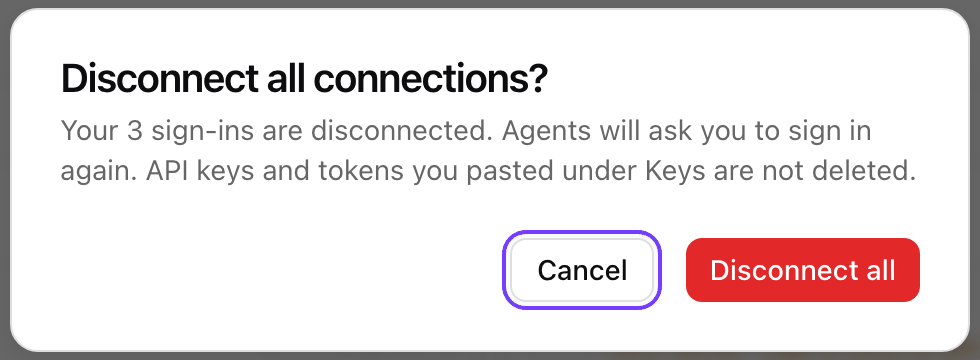
Disconnect all connections dialog saying your 3 sign-ins are disconnected, agents will ask you to sign in again, and API keys and tokens under Keys are not deleted, with Cancel and Disconnect all

Disconnect all asks first, and keeps the keys you pasted. Shown with sample data.

Connect an app with your own API key or token

Apps that sign people in, such as Slack, GitHub and GitLab, can also take your own API key or token. You paste it once, it is saved as your own connection, and your agents and AI tools use it as you, the same as a sign-in. Apps that offer their own sign-in only, such as Google, Microsoft and Atlassian apps, show sign-in only. An admin can also keep an app on sign-in only with Allow API keys on its Skills registry card (Allow API keys). You can paste a key in three places: Paste the value under Token and choose Check and save. Where xpander can check the key with the app, it does so before saving (Checked with Slack before it is saved.); otherwise Save stores it and your first use checks it. How to get one links to the app’s own instructions.
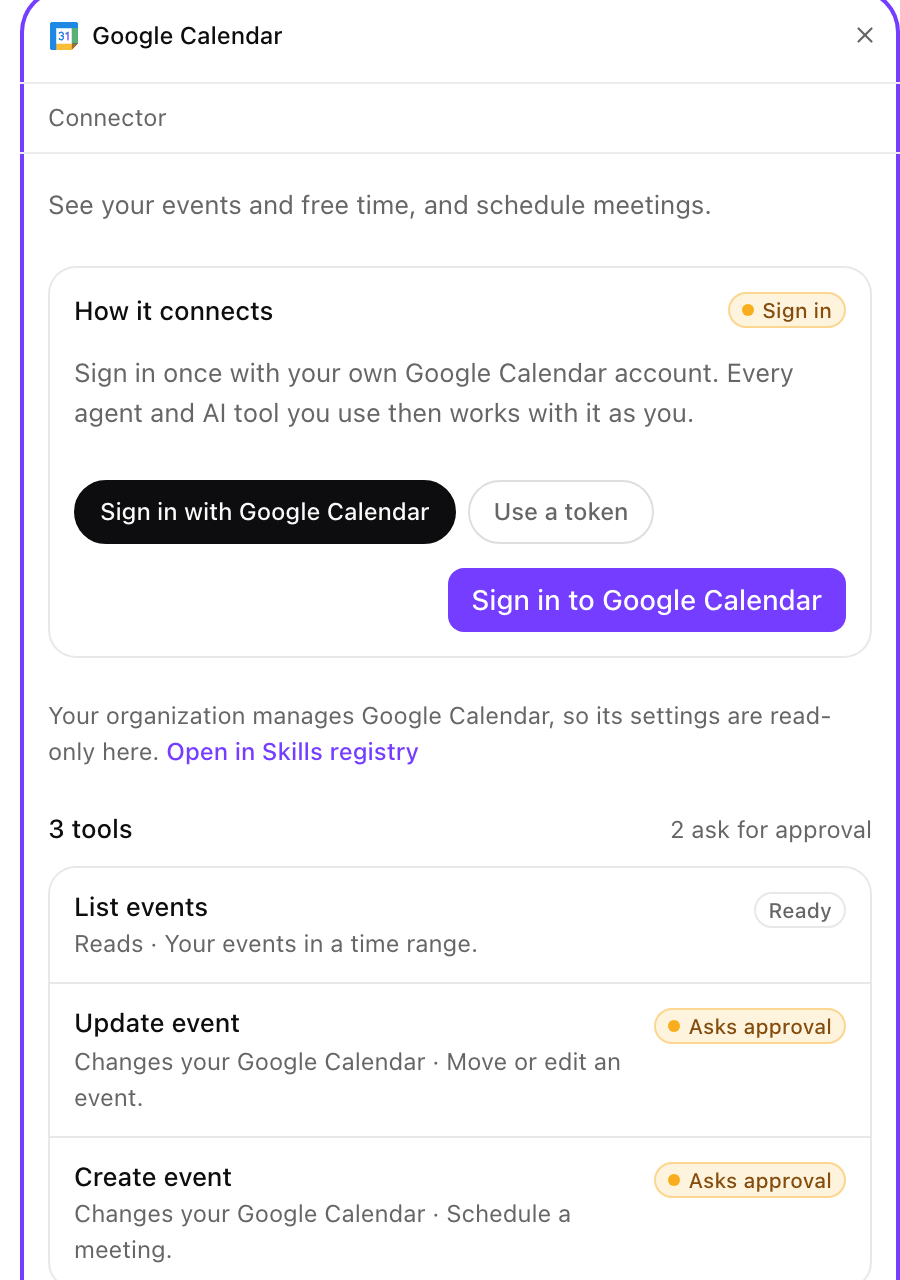
Google Calendar card in My tools with How it connects, the Sign in with Google Calendar and Use a token choices, a Sign in to Google Calendar button, and its three actions marked Ready or Asks approval

An app opened in My tools: sign in with your account, or use a token. Shown with sample data.
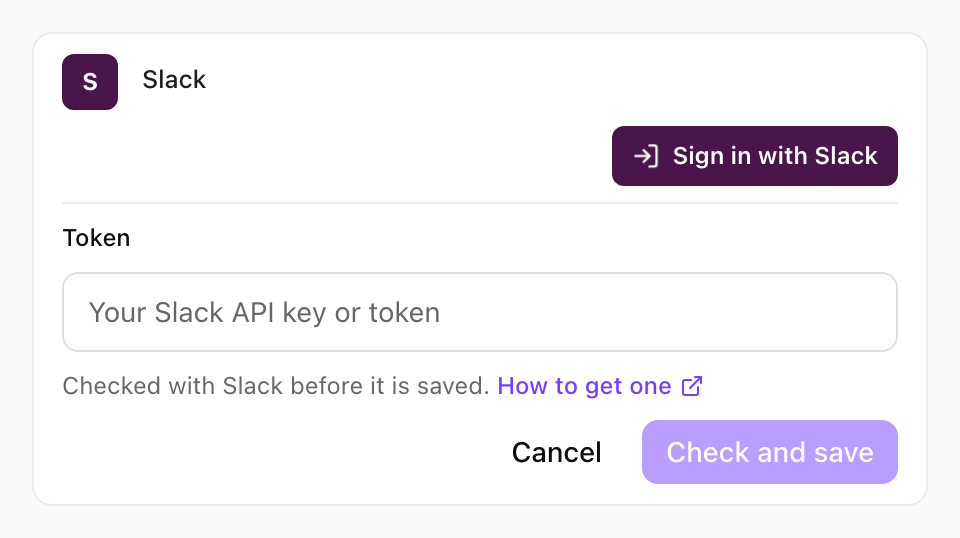
Slack sign-in card in a chat with Sign in with Slack, a Token field, Checked with Slack before it is saved, How to get one, Cancel and Check and save

The sign-in card in chat with Use a token open: the token is checked with Slack before it is saved. Shown with sample data.

In AI tools connected to the Omni MCP Gateway

When an AI tool calls an app you have not connected, the answer carries a sign-in link. When the app takes keys, it also carries a key link that opens Settings > My tools on that app’s token form. After you sign in or save the key, ask the AI tool to run the call again.

Keys

The Keys tab lists the API keys and tokens you pasted for agents, with the app each one is for and when it was updated. Add key stores a new one. Open a key to Replace token or Remove it. A key is never shown again after you save it, and the next conversation uses a replaced value. If your organization keeps keys off computers, an agent or AI tool that tries to write a key to a file is told to add it here instead (Keys and credentials on disk).

Next steps

Credentials

Where an agent’s credentials come from.

Sign-in apps

Your organization’s own sign-in app for an app.