

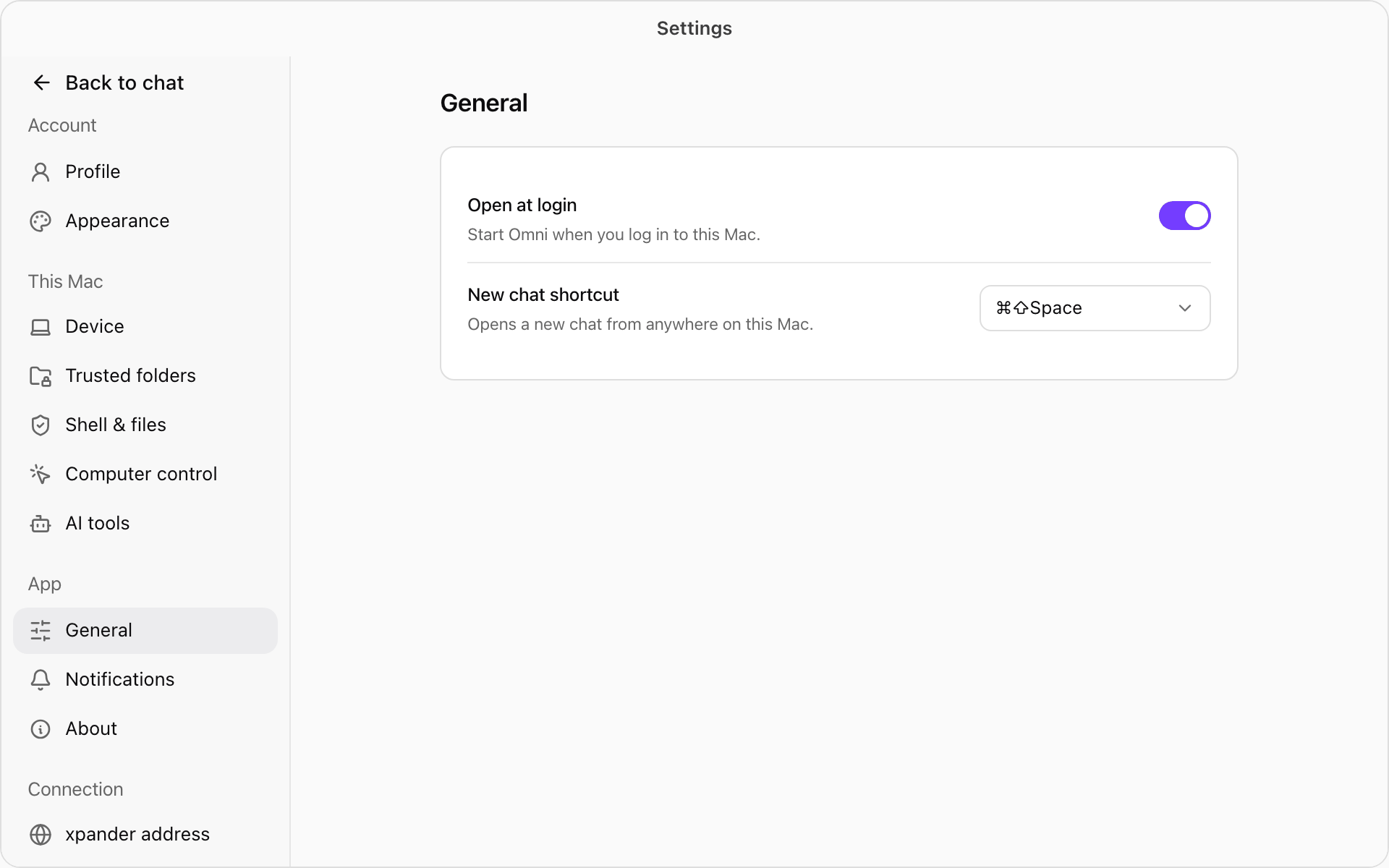
Settings in Omni Desktop, open on General. Shown with sample data.
How the policy and your switches combine
Your organization’s Desktop policy sets the most agents may do. Your switches can turn any of it off for this computer, never on beyond it. Agents can do what both allow, and the first shell command, file write, browser use or computer control in a conversation still asks you (shell, browser, computer control). A switch the policy turns off reads Not allowed, with Your organization does not allow this. Ask an admin. When your organization turns Omni Desktop off for you, the menu bar icon reads Turned off by your organization, the sidebar shows Mac turned off, and agents cannot reach this computer. Policy changes apply while the app runs, with no restart.Your switches
Everything starts on. Settings > Shell & files:
Folders that may be trusted shows your organization’s rule and cannot be changed. The computer control switch is in Settings > Computer control.
Each Always allow you gave also shows here: Run commands: always allowed and the like for shell and file questions, and Always allowed in every conversation under Browser control. Ask each time takes one back, so the next such action asks again.
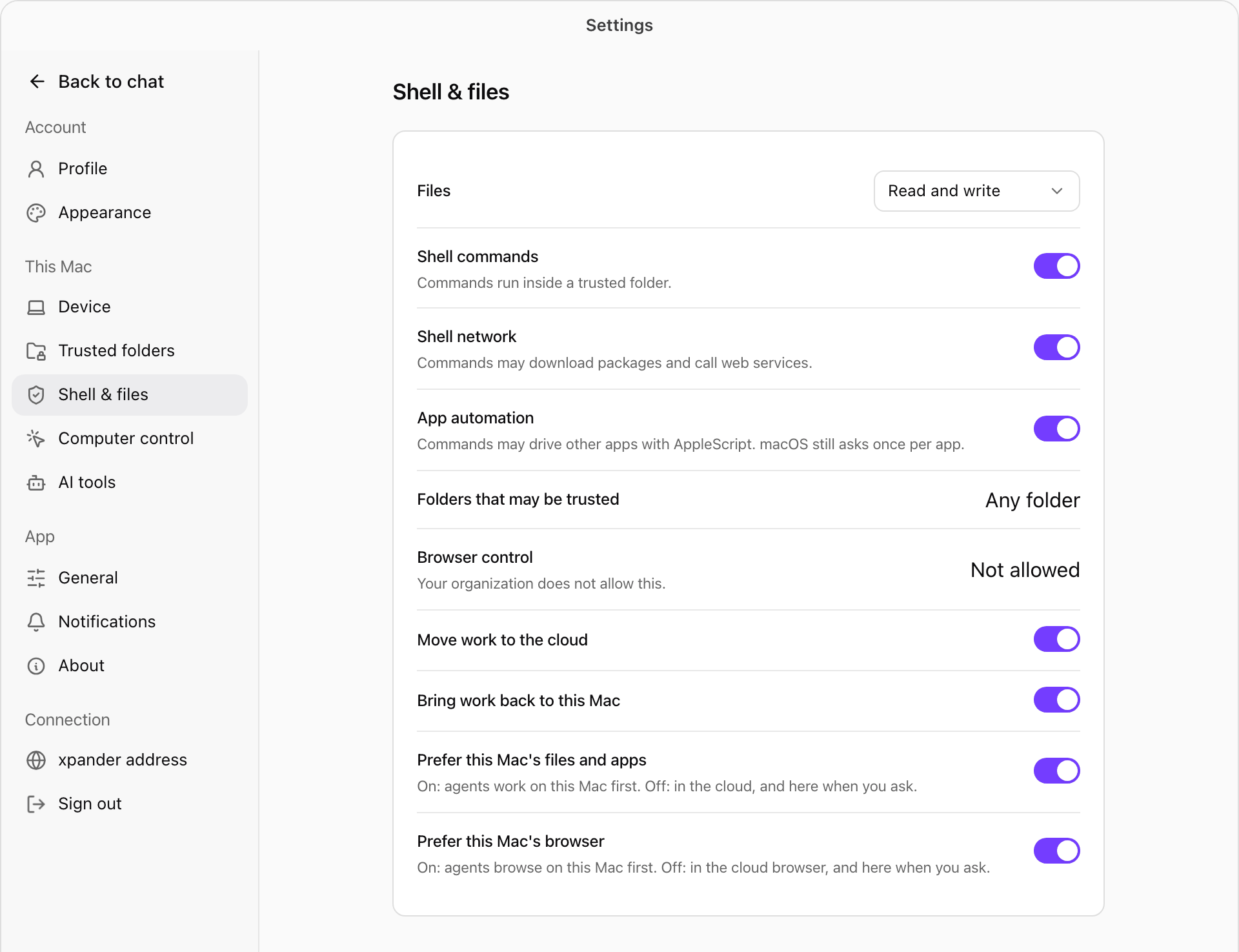
Settings > Shell & files, with browser control turned off by the organization. Shown with sample data.
Prefer this computer or the cloud
Agents also have a cloud workspace and browser. Two switches in Shell & files decide where they work first in app conversations:
Turn one off to keep agents working after you close the lid, or to keep work off your computer unless you ask.
Coding tools on this computer
Settings > AI tools sets up Claude Code, Codex and OpenCode on this computer to use your organization’s models through the AI Gateway, and keeps your organization’s published skills in Claude Code. The app does this with the xpander-connect it includes.- Choose Sign in AI tools and approve the code in the browser window that opens.
- Choose Set up now. Each coding tool shows Set up, or Not installed when it is not on this computer.
Notifications
The app sends a native notification when:- A task finishes, with a short line of its result. Every conversation you started from the app tells you when it ends.
- An approval waits for you. Choose Approve or Deny on the notification.
- An agent asks you a question. Answer with its buttons or reply field, without opening the window, even while an agent is controlling your Mac.
- A task is waiting for your computer because the app is not connected (Waiting for your Mac).
- A scheduled task ran without your computer. Choose Run now to run it again here. See Scheduled tasks on your computer.
- An agent asks to use a folder. See Trusted folders.
- An agent asks to use the browser, or is using the Omni browser. See Browser control.
Turn notifications off or change their style
Turn notifications off or change their style
Turn Notifications off in Settings > Notifications to stop them all. Focus and Do Not Disturb apply as usual, and macOS System Settings > Notifications > Omni sets the style. Conversations that did not start in the app follow the same settings as the web bell.
All settings
Account
Account
This Mac
This Mac
App
App
Connection
Connection