

SKILL.md document, plus any scripts and files it points to, that tells an agent when and how to do one job. The skills registry is your organization’s library of them. A badge on every skill shows who provided it.
Find and add a skill
Add skill in an agent’s settings lists everything the agent may reach. TheSkills chip under FILTERS narrows to skill bundles. All, Organization and Mine under SCOPE split what is shared with you from what you created. Search covers names and descriptions.
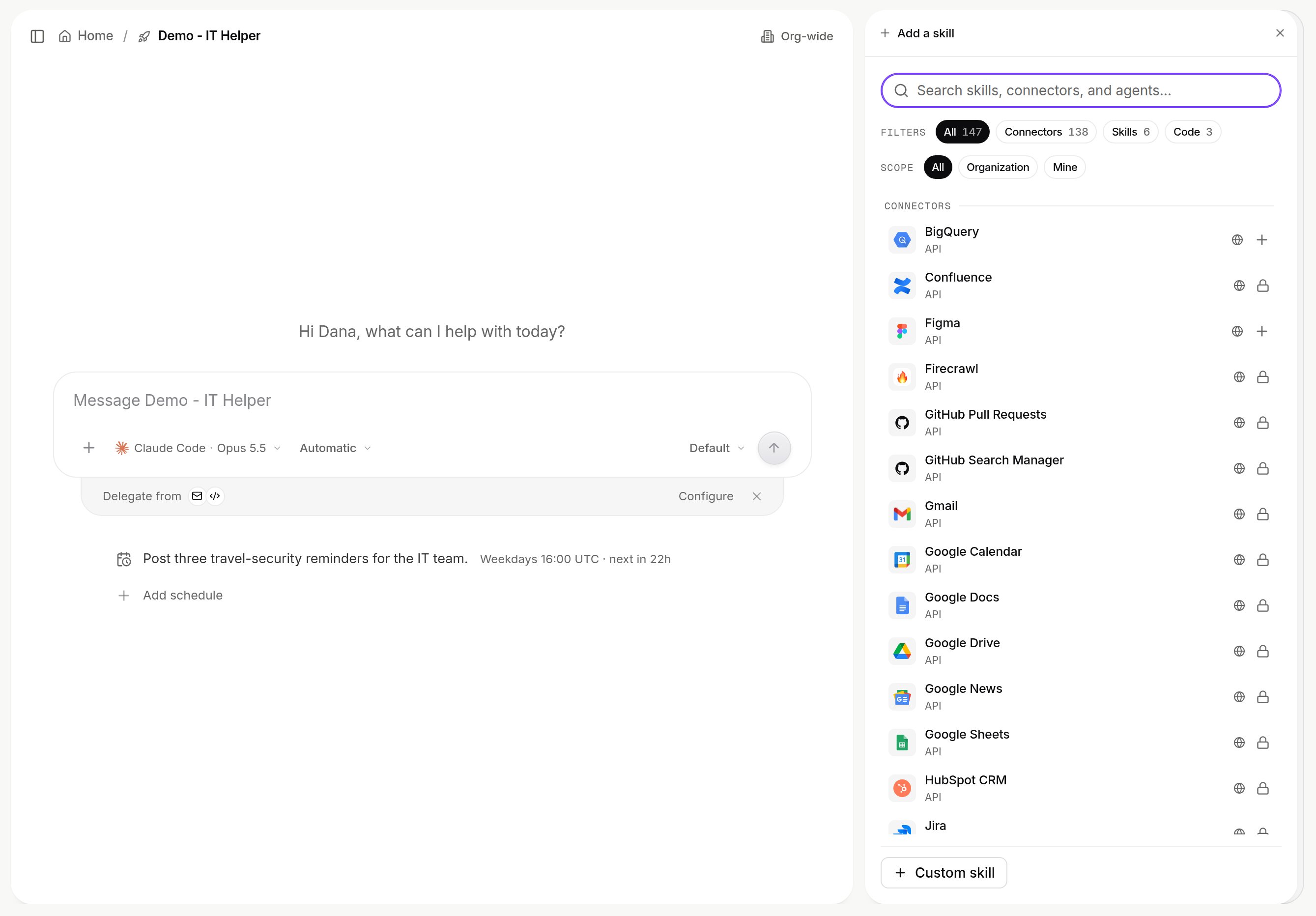
Add skill on an agent. Skill bundles carry a provenance icon; a registry skill opens a preview of its SKILL.md before you add it. Shown with sample data.
SKILL.md first. The same library is in Settings > Skills (Code skills tab, with Import skill and New skill). Admins see each item’s organization setting in Platform > Agents > Skills registry, where your own skills show as Personal.
Create a skill
In the panel, choose Custom skill > Skill (or Create a skill when the list is empty).1
SKILL: name it
Lowercase letters and digits with single hyphens, unique in the organization.
anthropic and claude are not allowed.2
ABOUT: describe it
One line. Left empty, the document’s first line is used.
3
SKILL.md: write the document
Front-matter
name: and description: stay in sync with the rows above. Keep it short: SKILL.md loads fully into the agent, so long procedures belong in bundled files.4
Save
Creates version
1.0.0 and attaches it to the agent you started from..md, or a zip with SKILL.md and other files, the only way to add extra files) or From URL. Adjusted imports show an Imported with warnings banner. Claude Code skills use the same format, and Omni can import them from Claude. See Get started.
Manage a skill you created
Open it from Settings > Skills. You can edit Name, Description, Shared with and SKILL.md (Save changes bumps the version). The ⋯ menu has Download bundle, Replace files and Delete, which removes the skill from every agent using it and can’t be undone.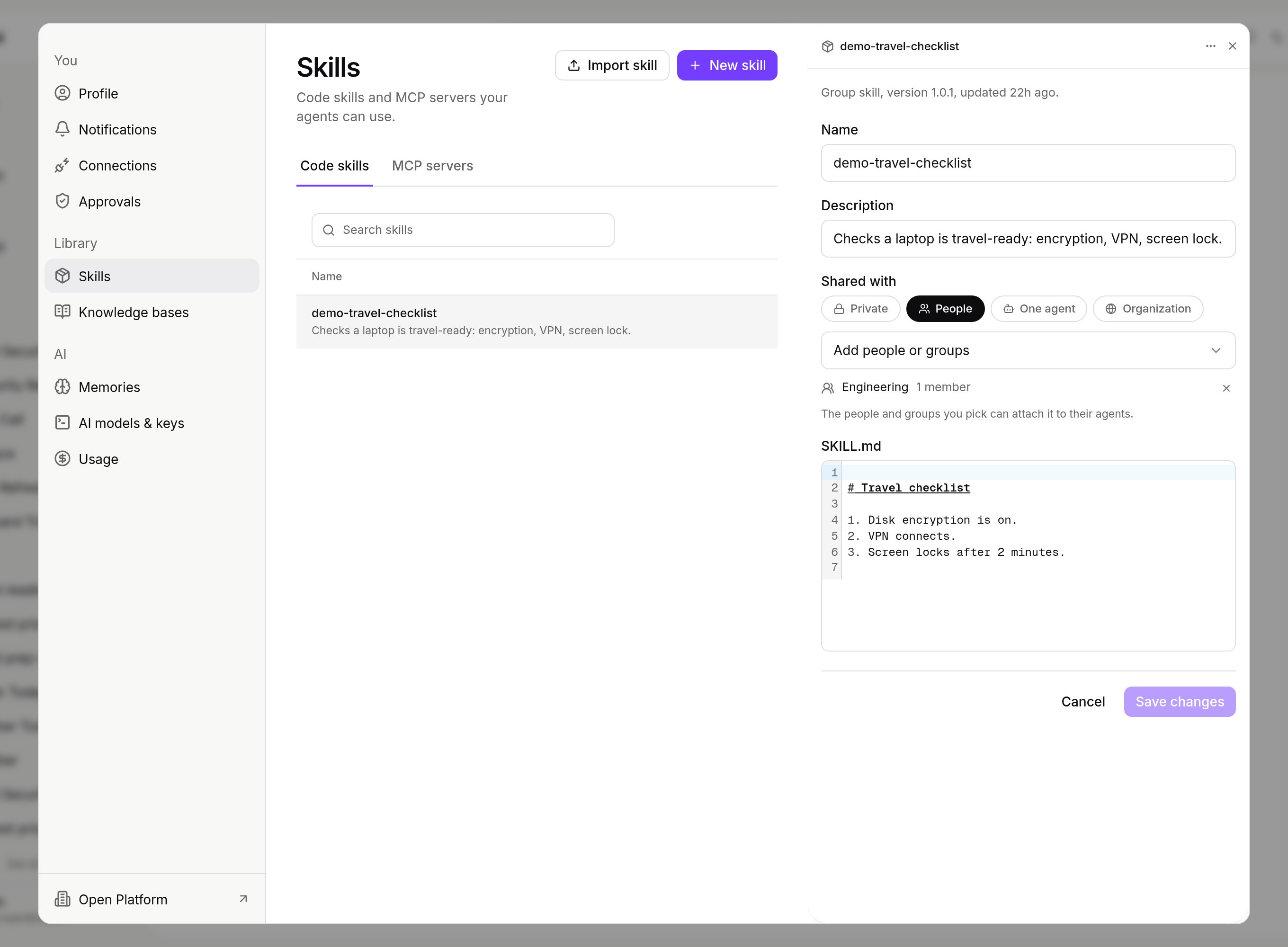
A skill opened from Settings > Skills: name, description, Shared with and its SKILL.md. Shown with sample data.
Approve skills that agents build
A skill or custom code an agent builds starts as a Draft, usable only by that agent and the person it was built for. It joins the library only with a passing test report. The switches are Agents build skills and Publish without approval under Agent-built skills (Govern). With Publish without approval off, an organization admin reviews it in the registry: the header counts waiting items, Test reruns the recorded test, Approve adds it to the library and Reject returns it to the agent as a draft.What is governed and recorded
- Who may use a skill is its Shared with setting. Repository skills can also be
restrictedto an allowlist or scoped to oneagent, and xpander Chat refuses to attach them elsewhere. - Who may add or manage skills is set per group with the
Add skillsandManage skillstoggles in Platform > Organization > Members & groups. - Every skill carries its version and provider badge, so an agent’s skills list reads as a bill of materials.
- The audit log records
Skill CreatedandSkill Addedunder the Agent category, with who did it. Each skill call is in the task record. See Permissions and access and Credentials.
Next steps
Add skills to an agent
Who can attach what.
Set who approves agent-built skills
Agent-built skills switches.