Documentation Index

Fetch the complete documentation index at: https://docs.xpander.ai/llms.txt

Use this file to discover all available pages before exploring further.

Once your agent is published, you can connect it to channels so users can reach it outside the Agent Studio. This page covers setup for each channel: Chat, Slack, scheduled tasks, MCP, A2A, REST API, SDK, and webhooks.

Deploy on Channels

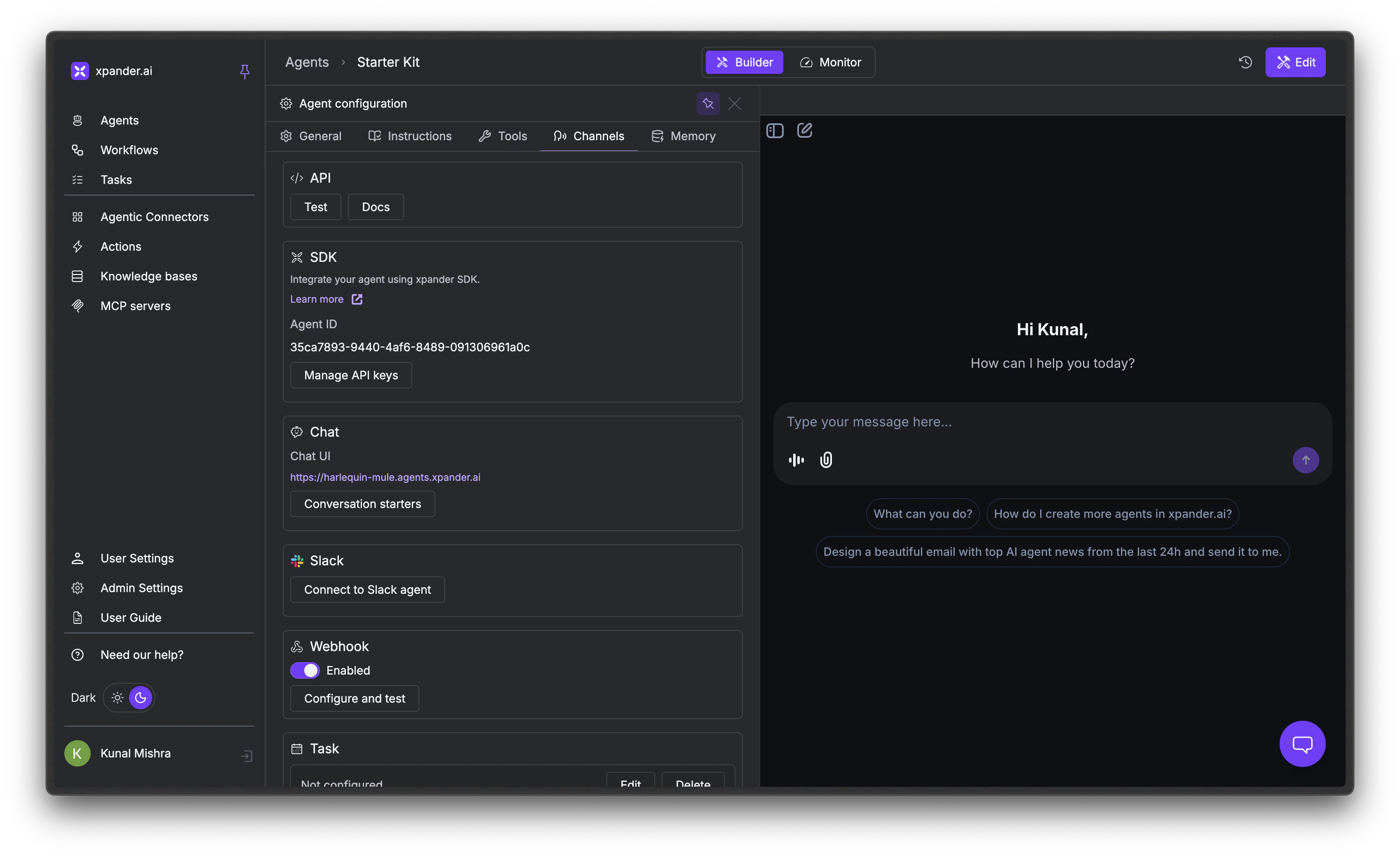
In the Agent Studio, click the gear icon and go to the Channels tab to see all available channels. Channels tab showing all available deployment channels
ChannelBest forHow users interact
Chat WidgetInternal teams, customer portalsHosted URL or embedded iframe with threaded conversations
SlackTeams already in SlackDM or @mention the bot, auto-engage on topics
WebhooksAutomation platforms, CI/CD, custom appsHTTP POST, sync or async response
MCPDevelopers in Claude Desktop, Cursor, VS CodeAgent appears as a native MCP tool
Scheduled TasksRecurring reports, monitoring, data syncsNo user trigger, runs on a cron schedule

Chat

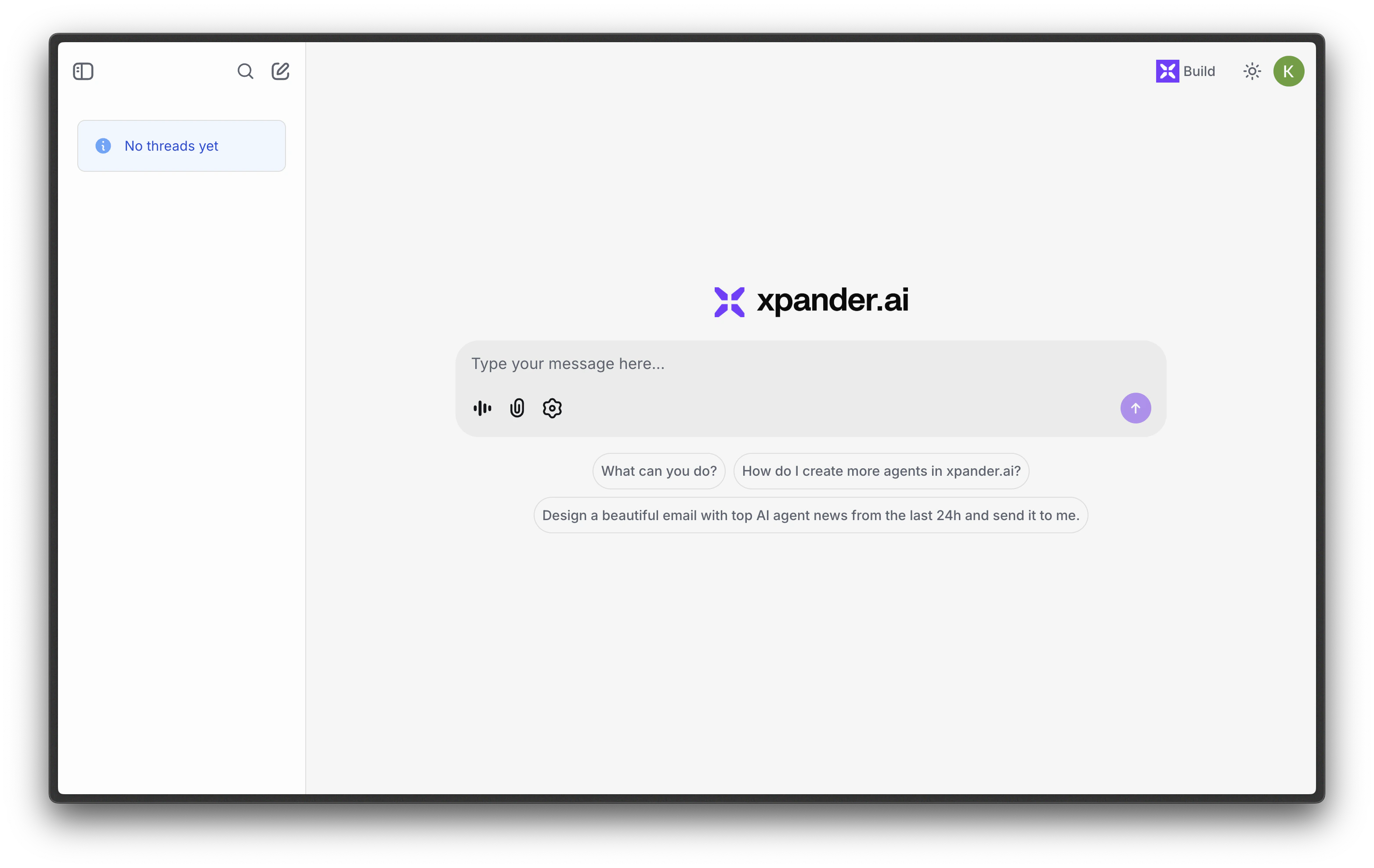
A hosted Chat UI with a unique, shareable URL. No embedding or code required. See Chat Widget for full setup, embedding, conversation starters, and access control.
1

Open the Chat section in the Channels tab

Your Chat UI URL is displayed (e.g., https://peach-centipede.agents.xpander.ai). Share this link directly with users who have access.Chat UI with Xpander branding, message input, and conversation starters
2

Configure conversation starters

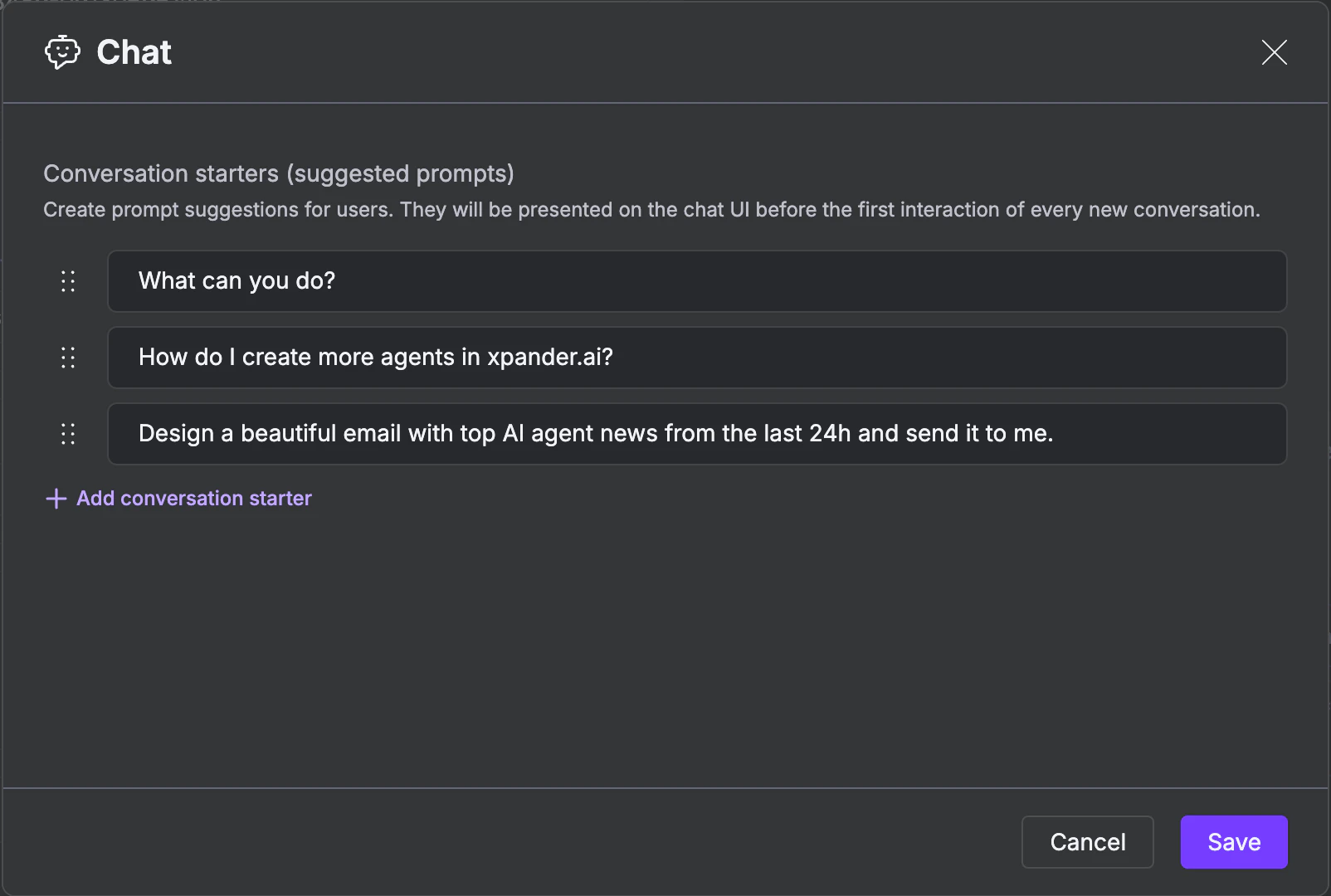
Click Conversation starters to add prompt suggestions that appear when a user opens the chat for the first time. Add, edit, or remove starters, then click Save.
Chat conversation starters editor with example prompts
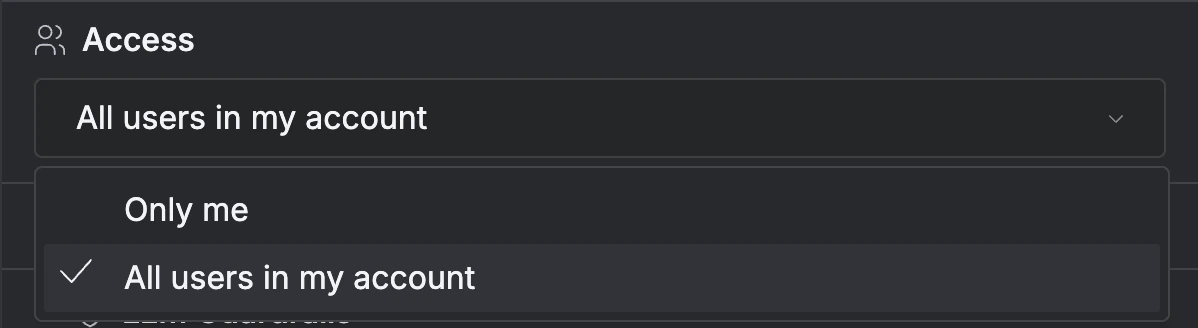
Only users set in the Access setting (in the General tab) can access this link. Set it to Only me for private use or All users in my account to share with your team. Supports platform authentication (Xpander built-in) or SSO (SAML, OAuth 2.0 with Okta, Auth0, Azure AD).
Access setting dropdown with Only me and All users in my account options

Slack

Connect your agent as a Slack bot that users can DM or @mention in channels. See Slack for the full setup flow, file processing capabilities, auto-engage rules, and conversation starters.
1

Click Connect to Slack agent

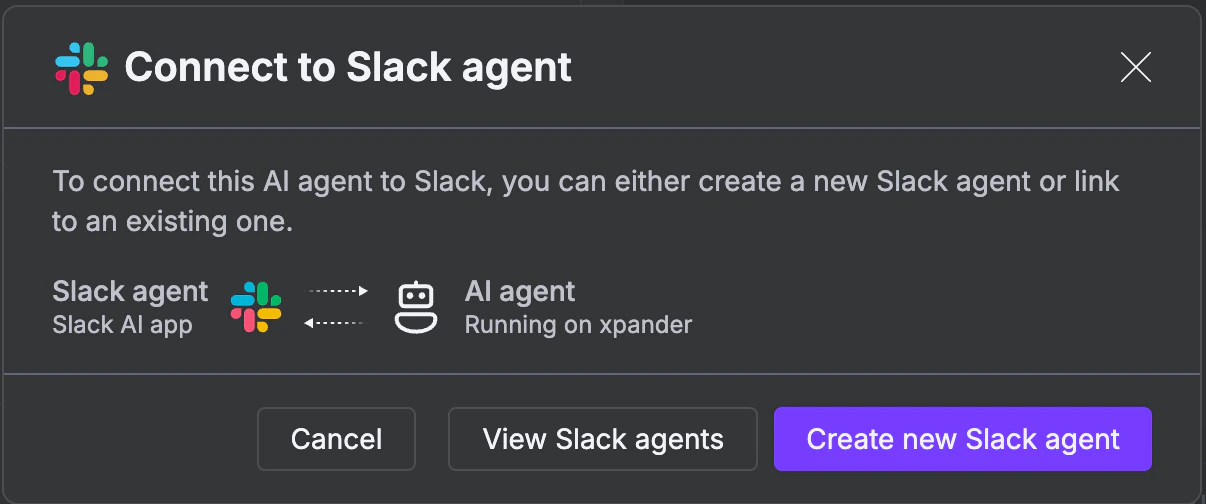
In the Channels tab, click Connect to Slack agent. A dialog opens letting you create a new Slack agent or link to an existing one.Click Create new Slack agent.
Connect to Slack agent dialog with options to create new or view existing
2

Set up a new Slack agent

You’ll need:
  • A name for your Slack bot
  • Access tokens and Refresh tokens (See next step)
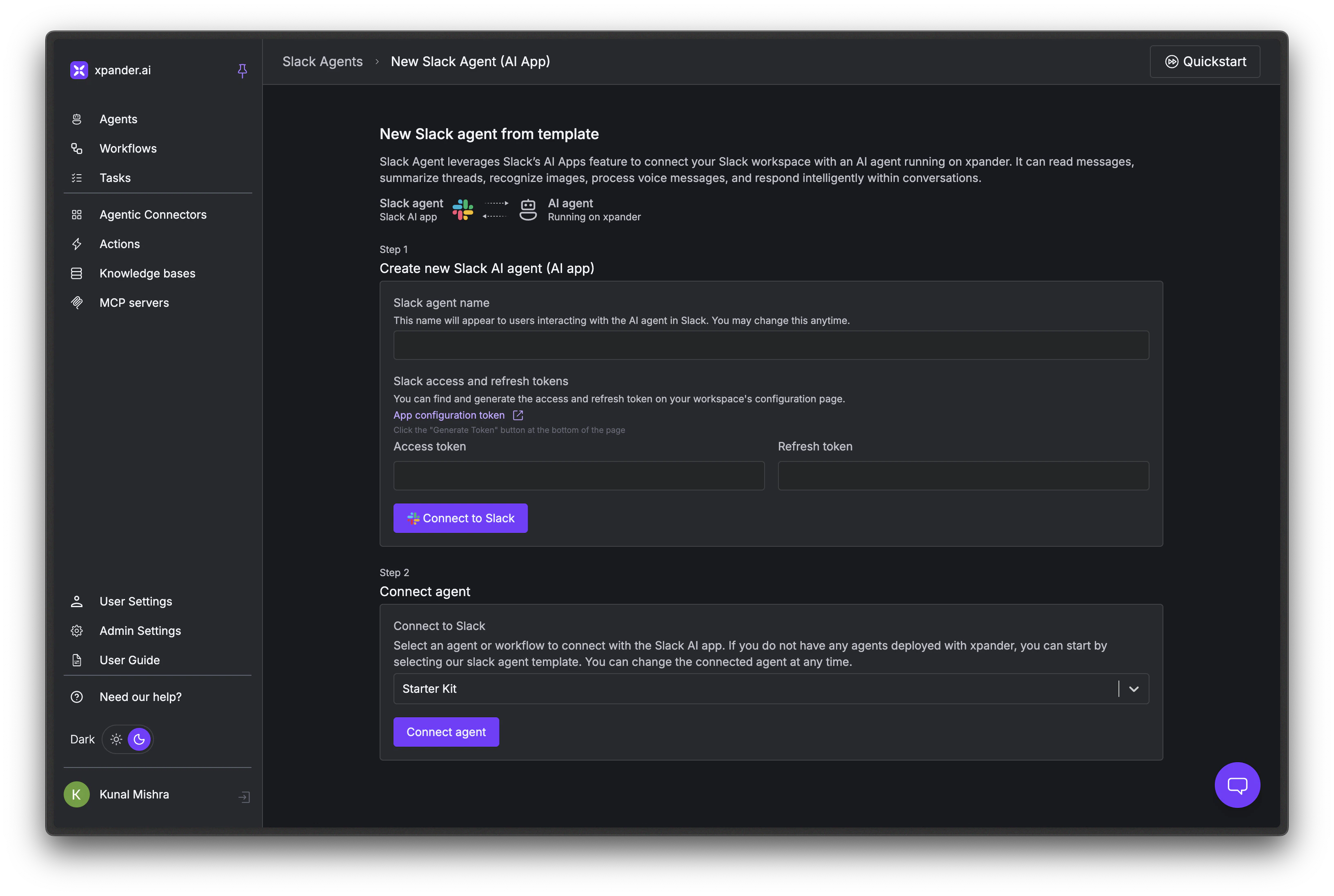
New Slack agent setup page with empty name and token fields
3

Get your Slack tokens

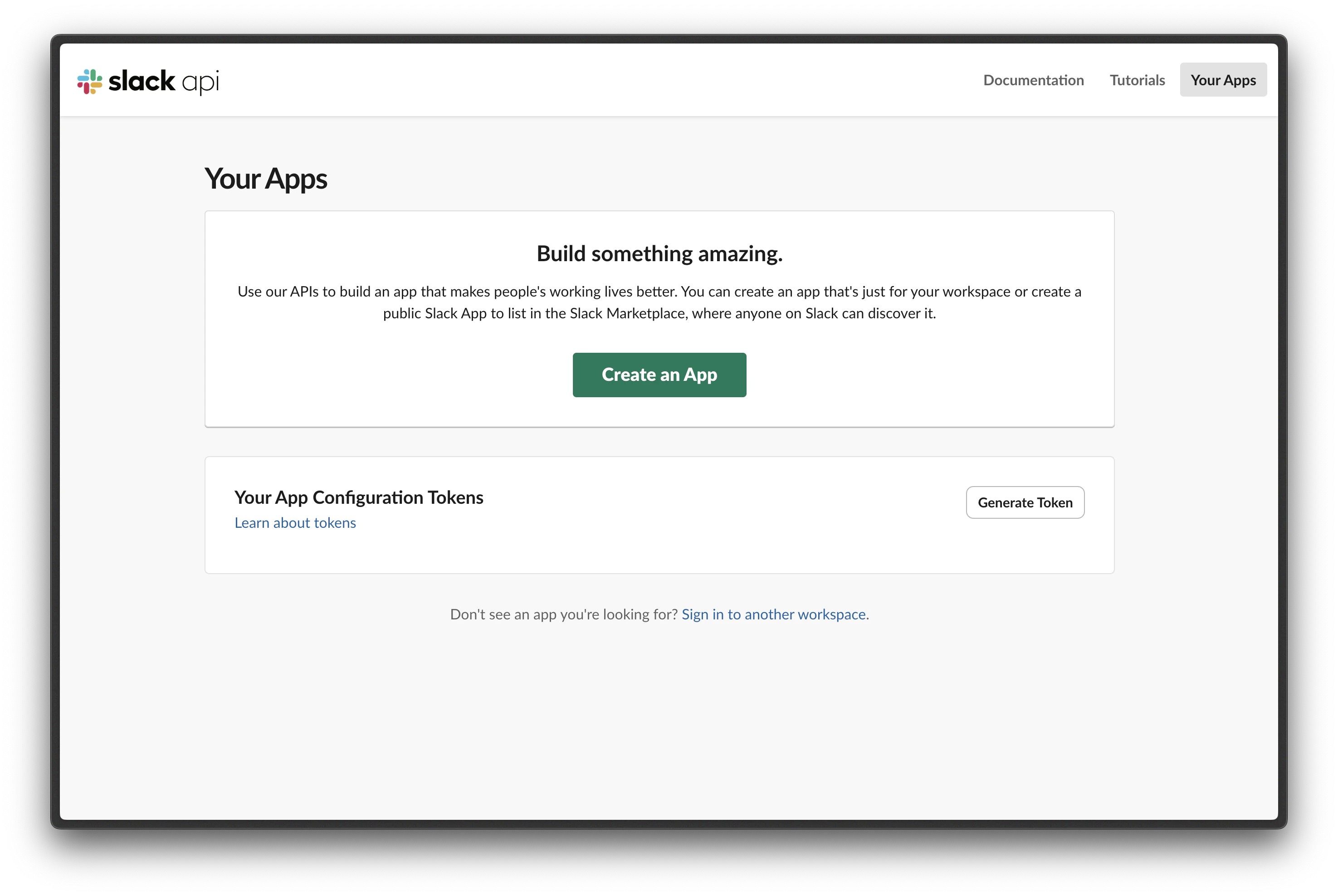
Go to api.slack.com/apps. Under Your App Configuration Tokens, click Generate Token.Slack API Your Apps page with Generate Token button
4

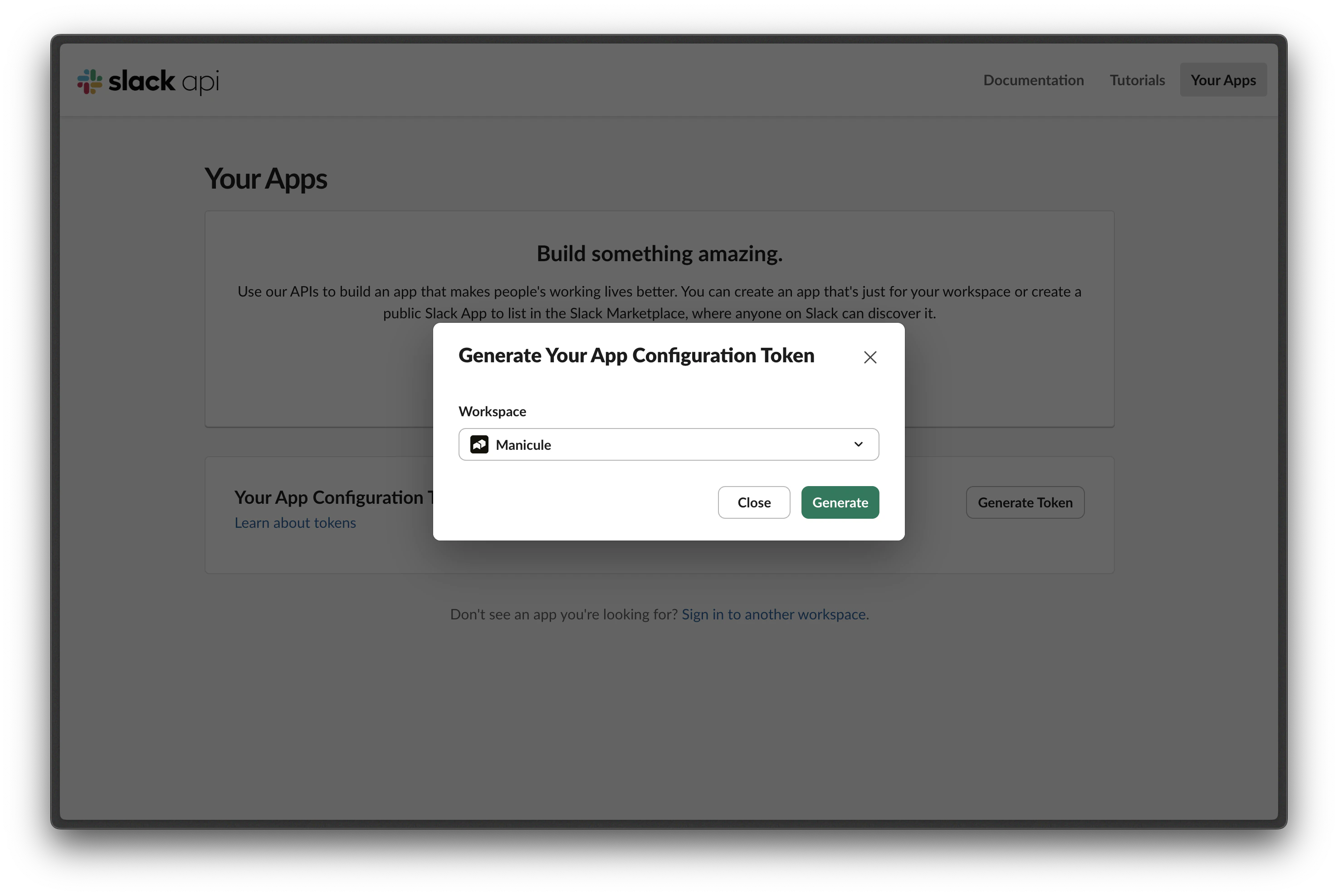
Select your workspace and generate

In the dialog, select the Slack workspace you want your agent to work in from the dropdown and click Generate.Each Slack workspace needs its own Xpander Slack agent, but you can connect a single Xpander agent to multiple Slack agents across workspaces.Generate Your App Configuration Token dialog with workspace selection
5

Copy the Access Token and Refresh Token
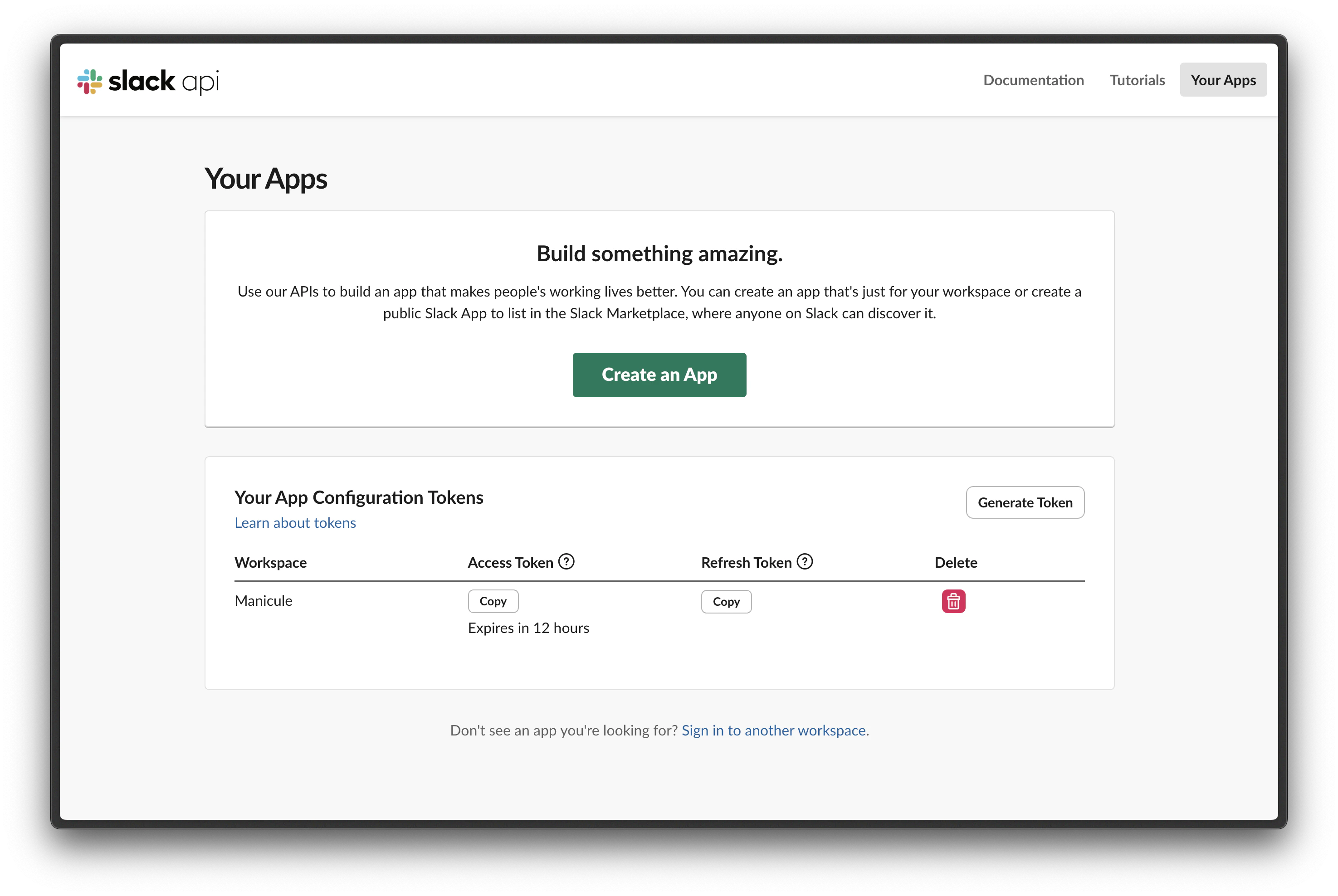
Once generated, you’ll see your Access Token and Refresh Token with Copy buttons. Copy both.Slack API tokens page showing Access Token and Refresh Token with Copy buttons
6

Fill in the setup page and connect to Slack
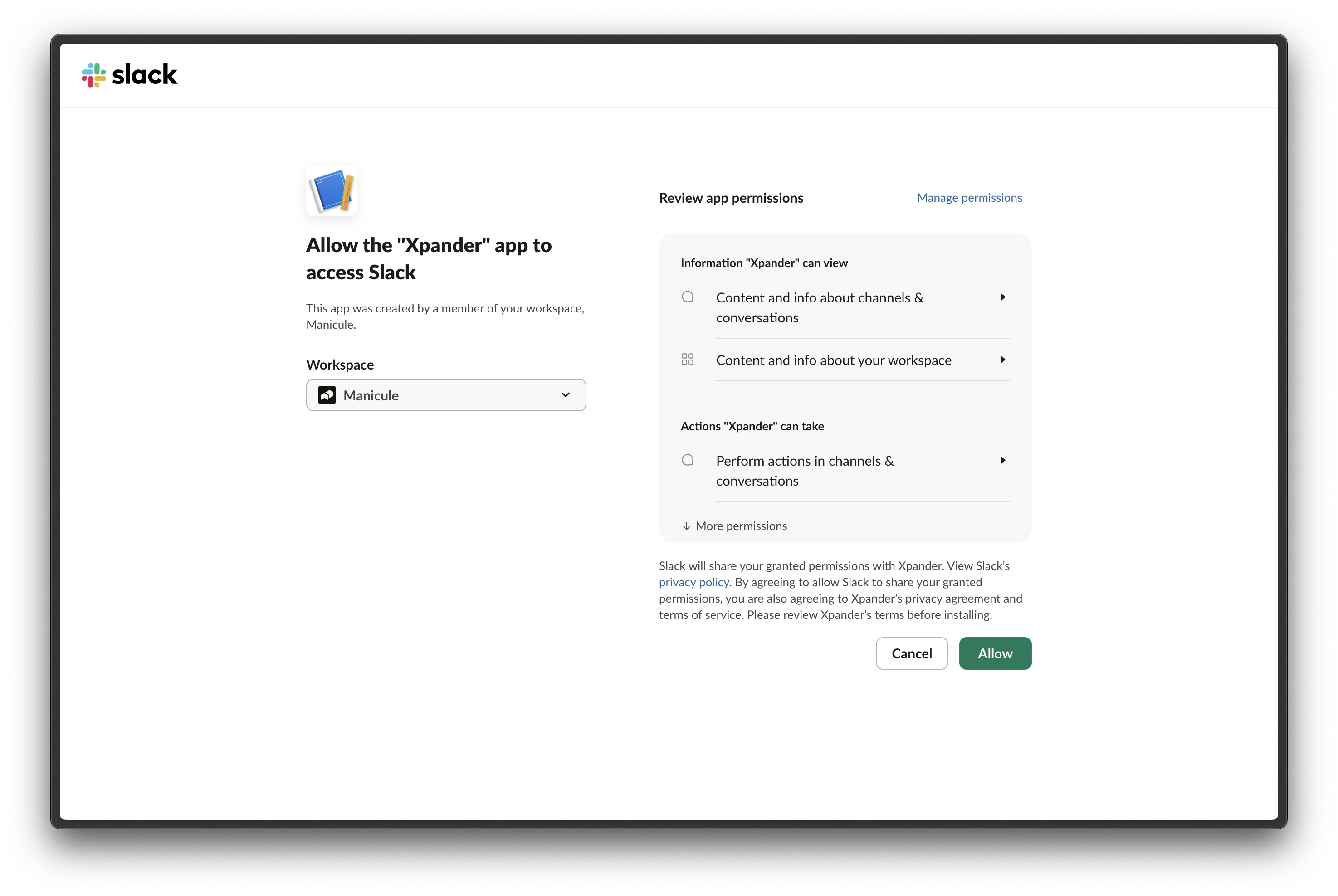
Back on the Xpander setup page, enter a Slack agent name, paste the Access Token and Refresh Token, then click Connect to Slack.Slack will prompt you to review permissions for the Xpander app. Click Allow.Slack OAuth permissions page. Allow Xpander to access Slack
7

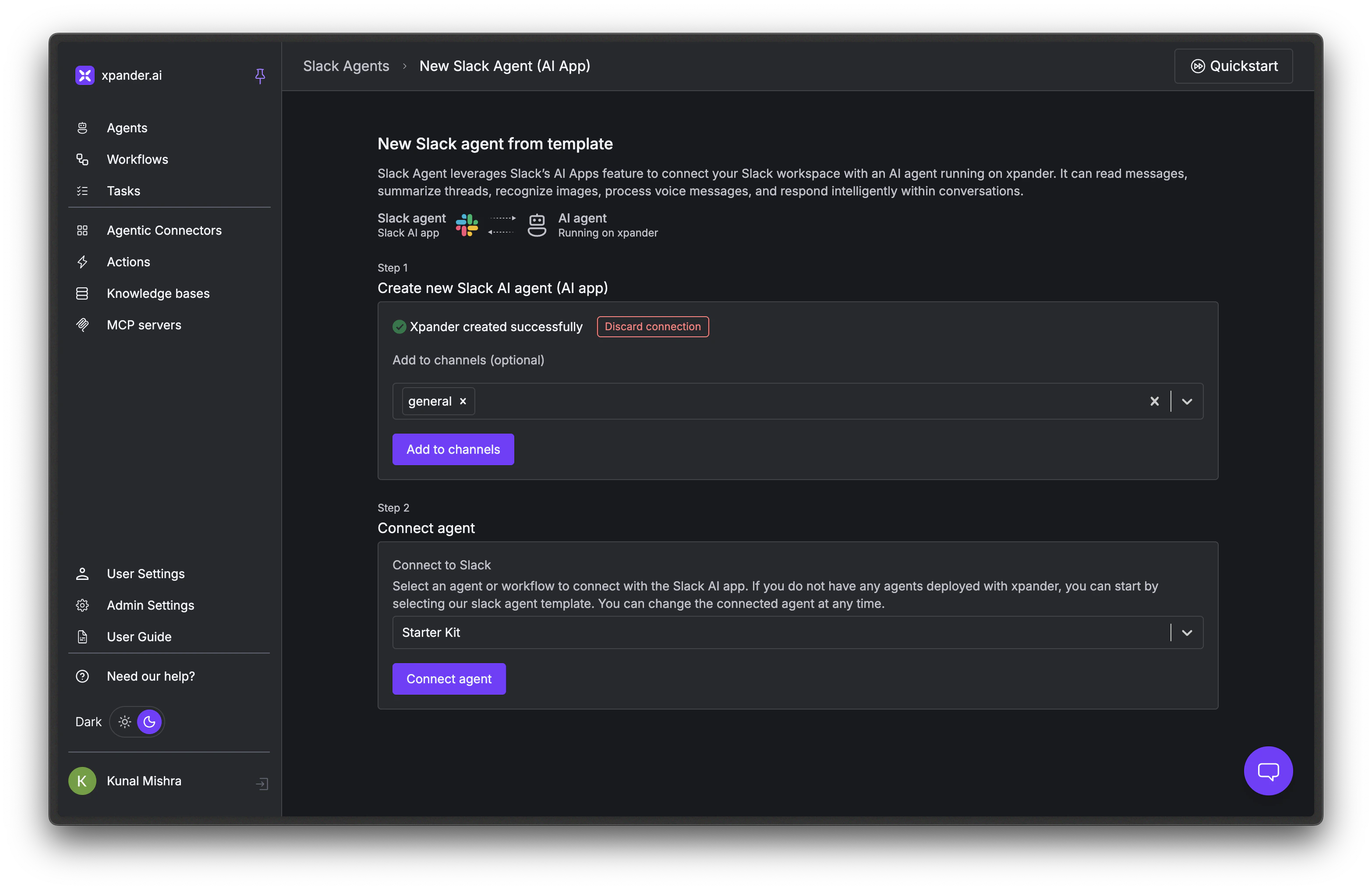
Add channels and connect your agent

Once connected, you’ll see “Xpander created successfully”. Add the Slack channels the bot should be active in and click Add to channels. Then in the Connect agent section below, select the Xpander agent (or workflow) to connect and click Connect agent.Slack agent page with successful connection, channel selection, and Connect agent button
8

Publish

Back in the Agent Studio, click Publish to make the agent live in Slack.
To manage, customize, or delete Slack agents after setup, go to the Slack Agents page. From there you can change the connected Xpander agent, configure capabilities (OCR, audio transcription), set auto-engage rules, or delete the Slack agent entirely to revoke access.

Task (Scheduled)

Run your agent on a recurring schedule. Use this for daily reports, periodic data syncs, monitoring checks, or other automated work. See Scheduled Tasks for cron expressions, custom schedules, run-as-user context, and monitoring scheduled runs.
1

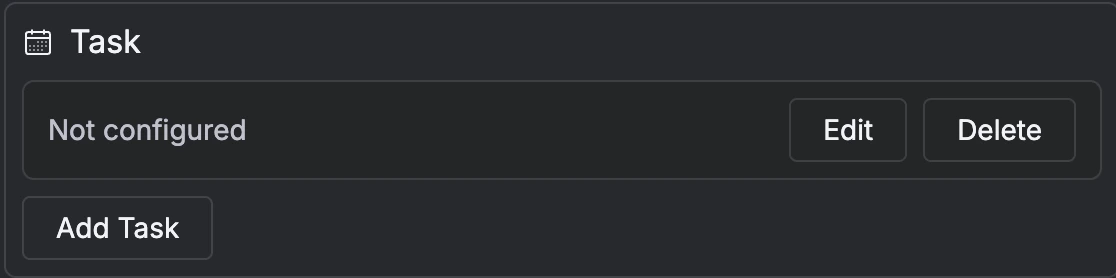
Click Add Task

Open the Task section in the Channels tab and click Add Task.
Task channel card showing Add Task button and existing tasks
2

Configure the task

Fill in the task configuration:
  • Instructions: Describe what the agent should do on each scheduled run
  • Schedule: Choose a Quick Preset (e.g., every 5 minutes) or set a Custom Schedule with interval, specific time, and active days
  • User context (under Advanced Settings): Provide an email, user ID, and name so the agent runs with a specific user identity. Without it, the agent runs as an anonymous user with no memory context.
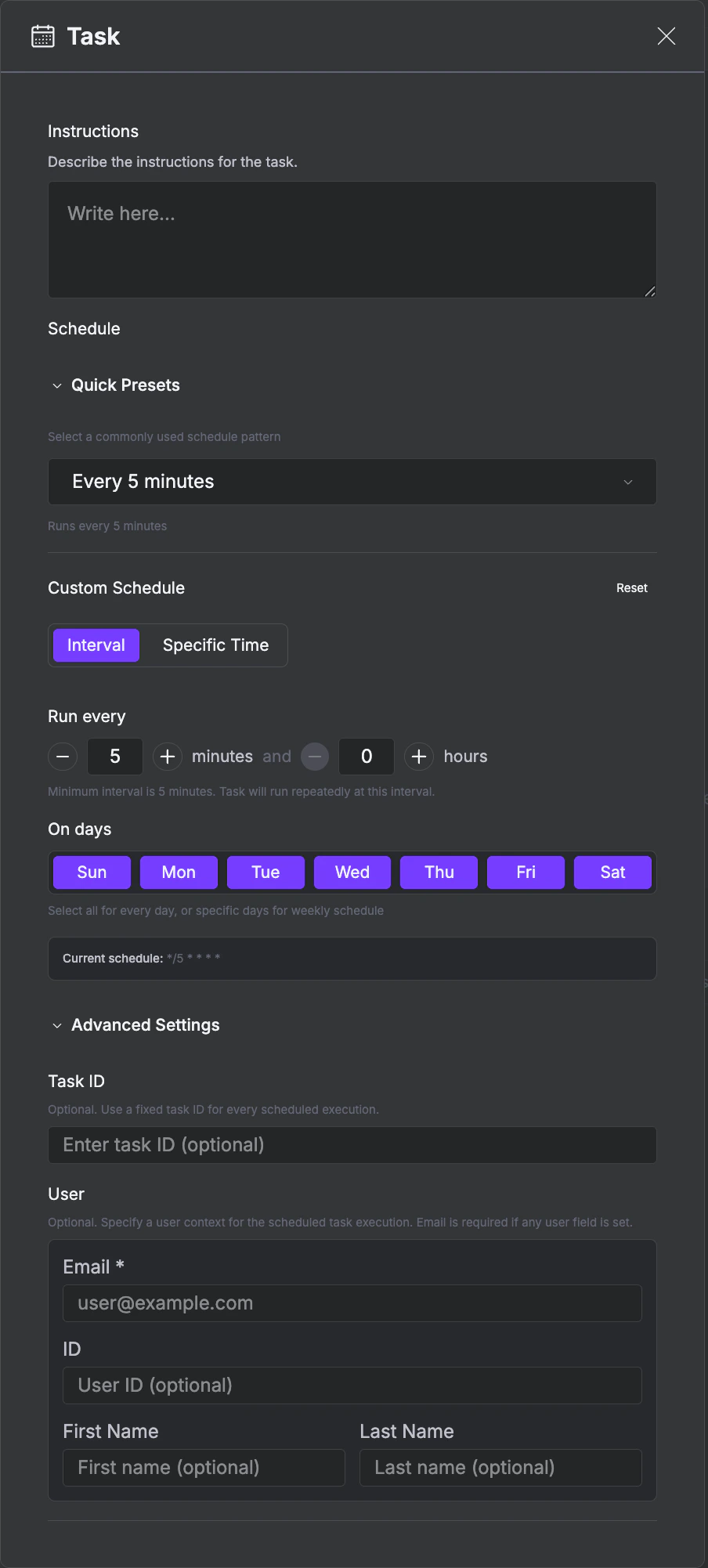
Task configuration with instructions, schedule presets, interval settings, and user details

MCP (Model Context Protocol)

Expose your agent as an MCP server so any MCP client can invoke it. See MCP Protocol for client-specific configurations (Claude Desktop, Cursor, VS Code, ChatGPT), available MCP tools, and OAuth flow.
1

Enable MCP and view connection details

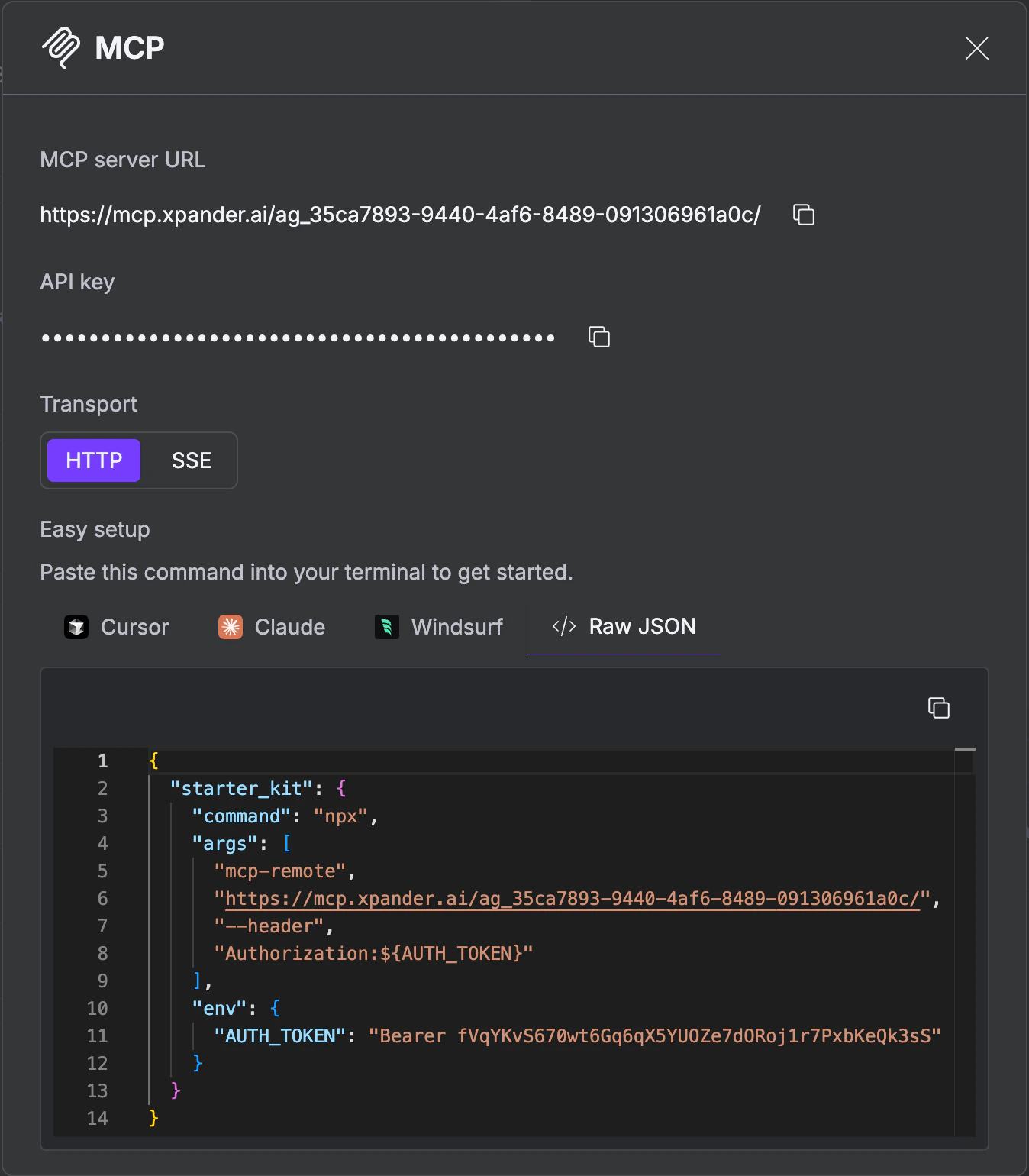
Toggle MCP on in the Channels tab, then click Details. The modal shows your MCP server URL, API key, and transport options (HTTP or SSE).
2

Copy the setup config for your client

The modal provides ready-to-paste configuration for Cursor, Claude, Windsurf, or Raw JSON. Copy and paste it into your MCP client’s config file.
MCP details showing server URL, API key, transport selection, and easy setup configs for Cursor, Claude, Windsurf

A2A (Agent-to-Agent)

A2A channel card with Enabled toggle, Agent card and Manage API keys buttons
Let other agents (inside or outside your organization) discover and invoke this agent via Google’s Agent2Agent protocol.
1

Toggle A2A on

Open the A2A section in the Channels tab and enable it.
2

View the agent card

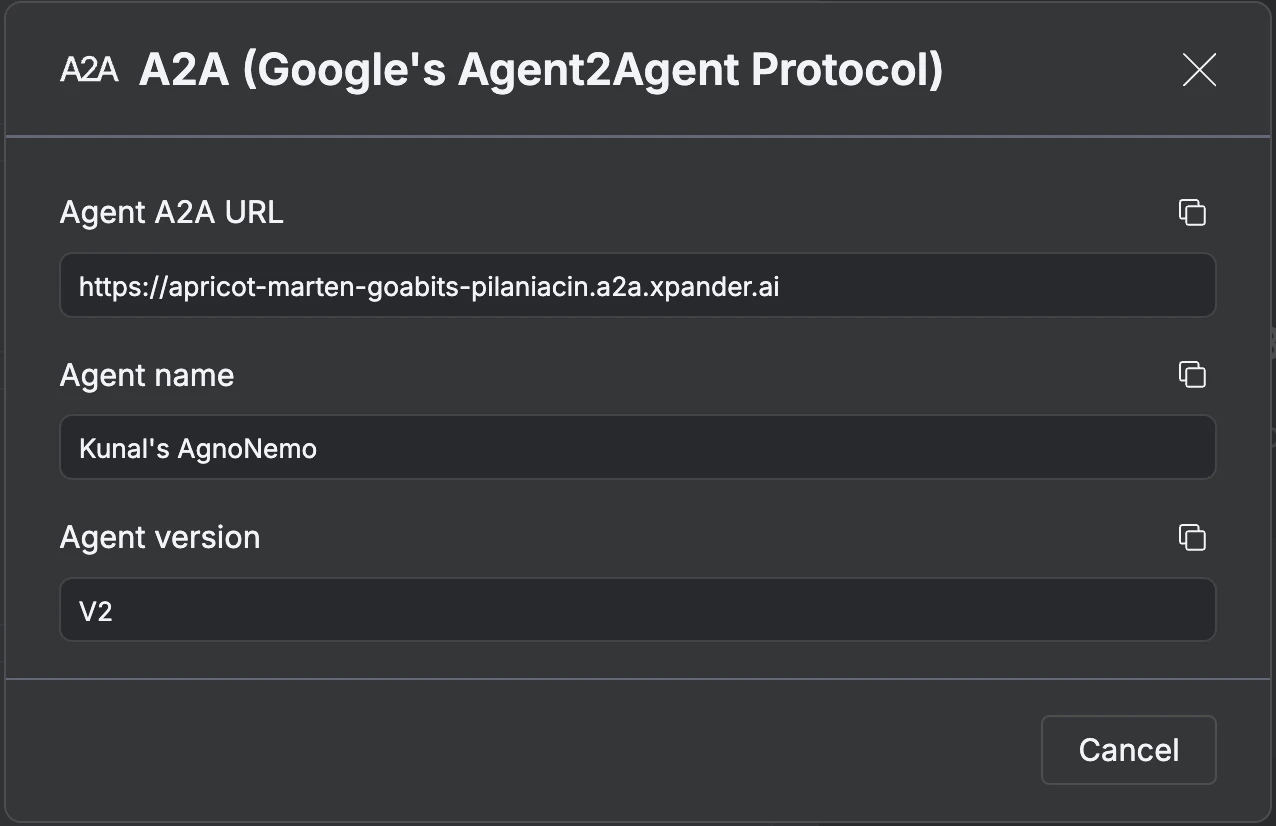
Click Agent card to see your agent’s A2A identity, including the Agent A2A URL, name and version.
A2A agent card showing URL, name, version, and list of exposed skills with descriptions
3

Generate API keys for external agents
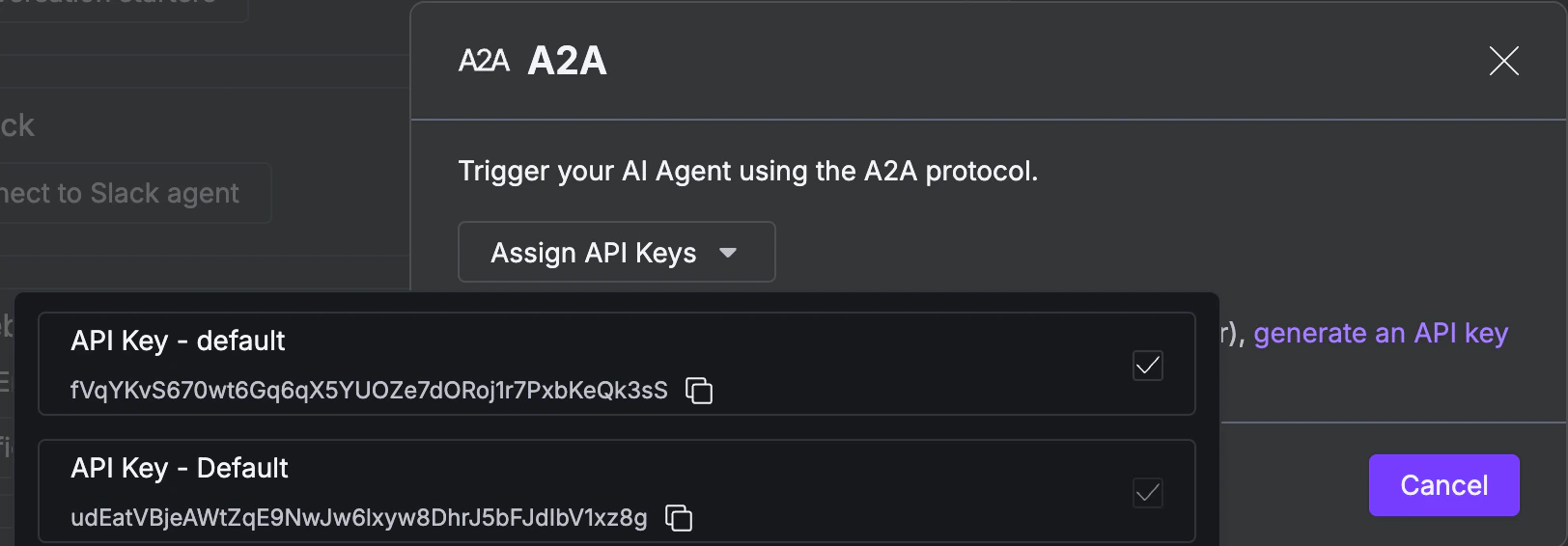
Click Manage API keys to open the A2A key manager.Click Assign API Keys to generate credentials that external agents use to authenticate.
A2A API key manager with Assign API Keys dropdown showing generated keys

API

Call your agent programmatically via the REST API.
1

Open the API Tester

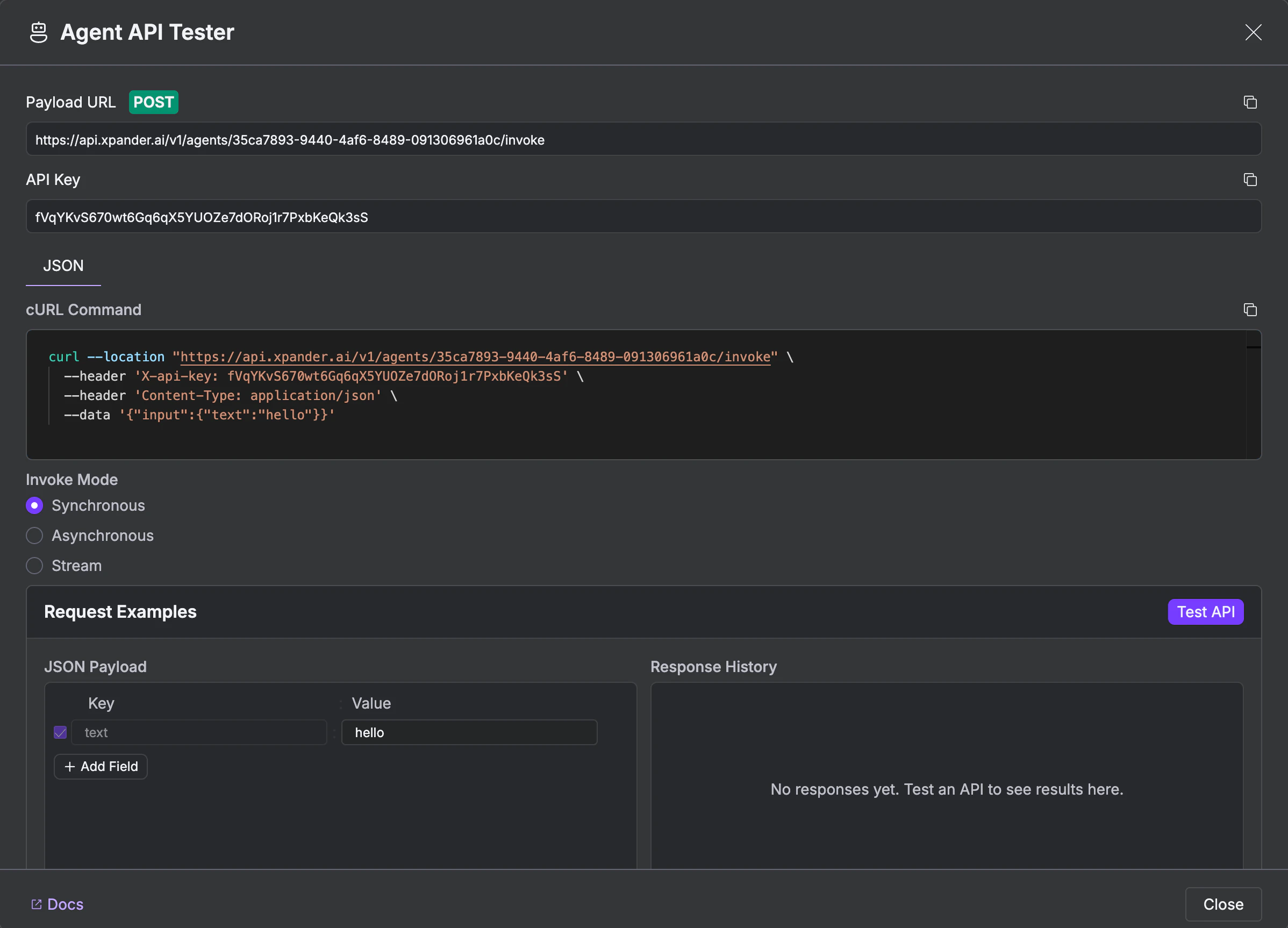
Click Test to open the Agent API Tester.
Agent API Tester with payload URL, API key, cURL command, and invoke mode selection
2

Get your endpoint and API key

The tester shows your Payload URL and API Key at the top. Copy these for your integration. It also generates a ready-to-use cURL command. Choose an invocation mode:
MethodEndpointWhen to use
SynchronousPOST /v1/agents/{agent_id}/invokeSimple integrations. Blocks until the agent finishes.
AsynchronousPOST /v1/agents/{agent_id}/invoke/asyncBackground jobs. Returns a task ID immediately.
StreamingPOST /v1/agents/{agent_id}/invoke/streamChat UIs. Delivers SSE events in real-time.
All three support multimodal input (text, files, and images in the same request).
3

Test it

Set a JSON payload in the Request Examples section and click Test API. The response appears in the Response History panel.

SDK

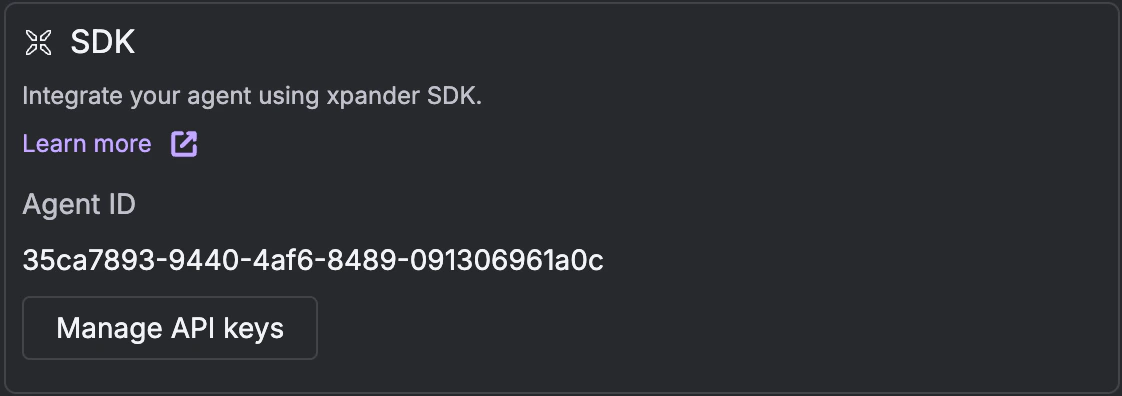
SDK channel card showing Agent ID and Manage API keys button
Integrate your agent into custom applications using the Xpander SDK.
1

Copy your Agent ID

Open the SDK section in the Channels tab. Your Agent ID is displayed there.
2

Click Manage API keys

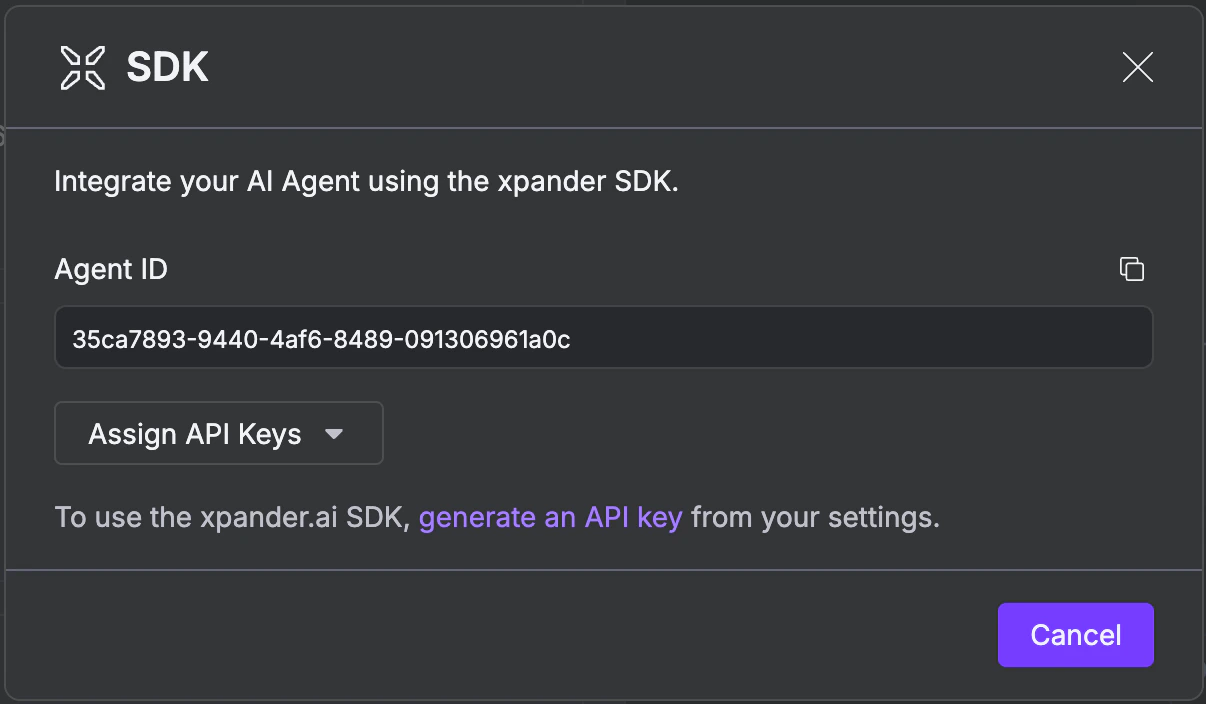
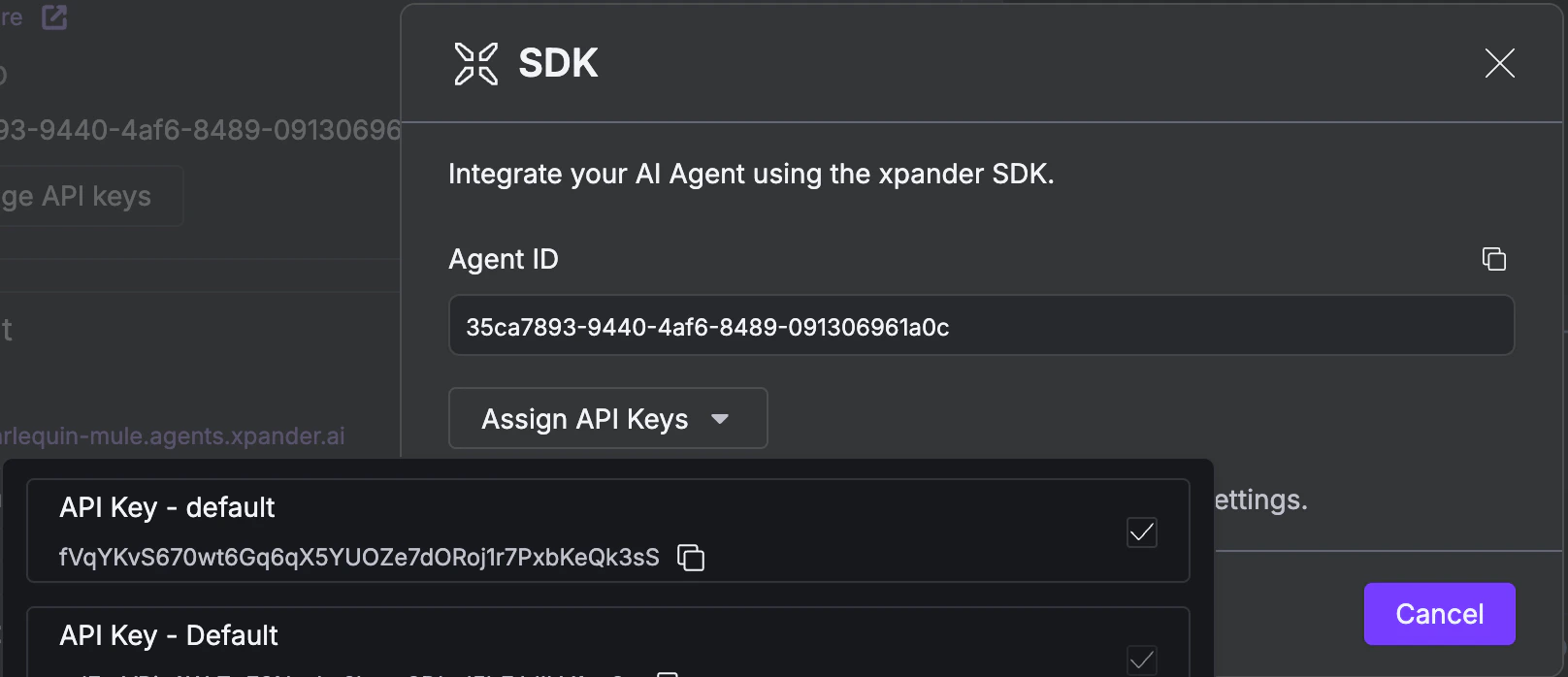
Click Manage API keys to open the SDK modal. Click Assign API Keys to generate or select a key for your application.
SDK modal showing Agent ID and Assign API Keys dropdown
3

Copy your API key

Expand the Assign API Keys dropdown to reveal your key. Copy it for use in your application.
SDK modal with API key expanded and visible
4

Install the SDK and connect

Follow the SDK documentation to integrate the agent into your app.

Webhook

Trigger your agent from Zapier, Make, n8n, etc. See Webhooks for sync vs async modes, file uploads, response field extraction, dynamic parameter mapping, and MCP OAuth pass-through.
1

Enable the Webhook and open the tester

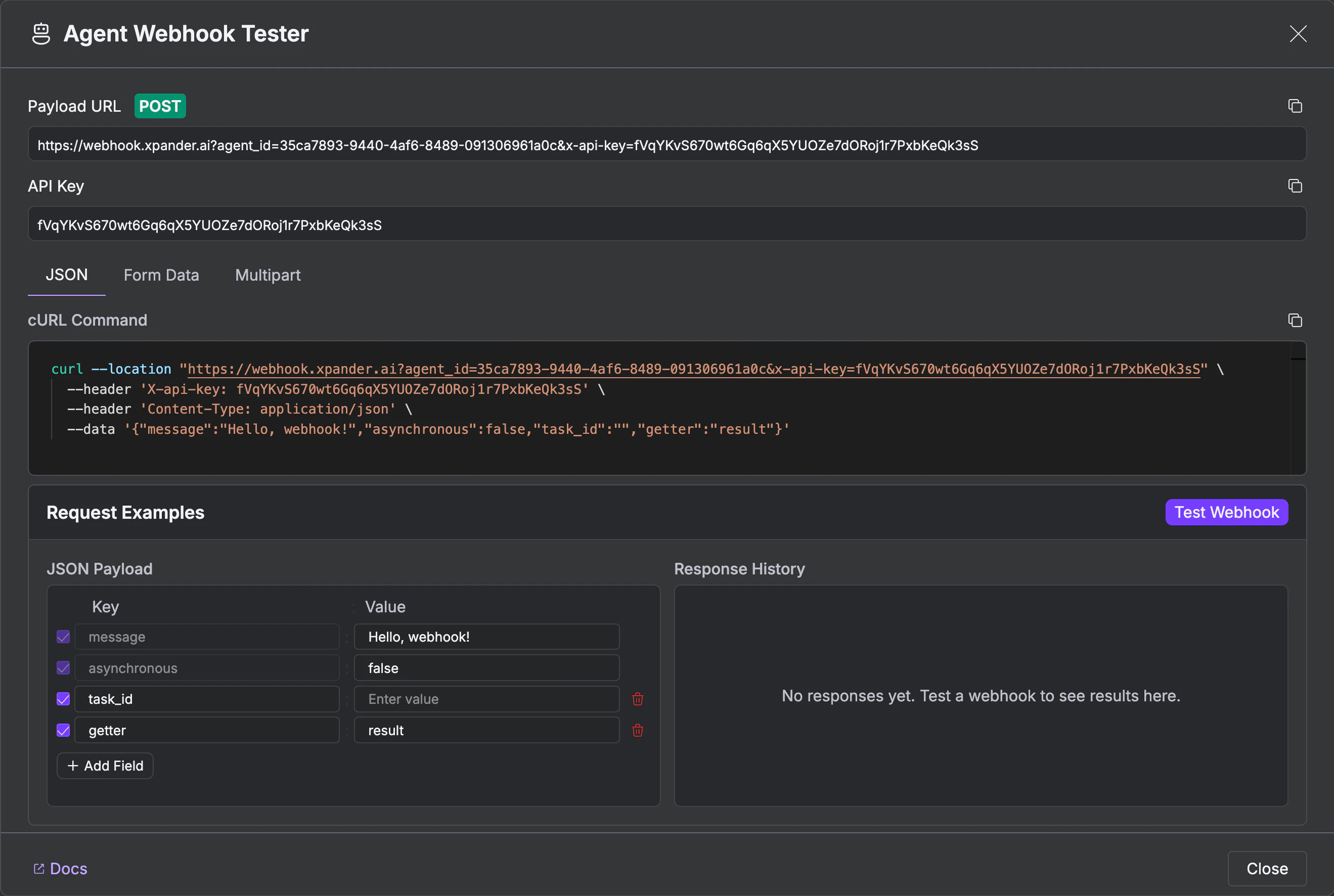
Open the Webhook section in the Channels tab and toggle it on. Then click Configure and test to open the Agent Webhook Tester.
2

Get your endpoint and API key

The tester shows your Payload URL (with agent ID and API key embedded) and a ready-to-use cURL command. Copy these for your integration.Key parameters you can set in the payload:
  • message: the prompt to send to the agent
  • asynchronous: set to true for async mode (returns task ID immediately)
  • task_id: optionally continue an existing conversation thread
  • getter: extract a specific field from the agent’s response (e.g., result)
3

Test it

Choose an input format: JSON, Form Data, or Multipart. Set your payload fields. Click Test Webhook to send a test request. The response appears in the Response History panel.
Agent Webhook Tester with payload URL, API key, cURL command, JSON payload fields, and Test Webhook button

Share Agent Template

You can share your agent’s configuration with your team as a reusable template. Use this to:
  • Create similar agents quickly
  • Share proven configurations with your team
  • Backup a known-good configuration before making major changes
1

Open the Templates section

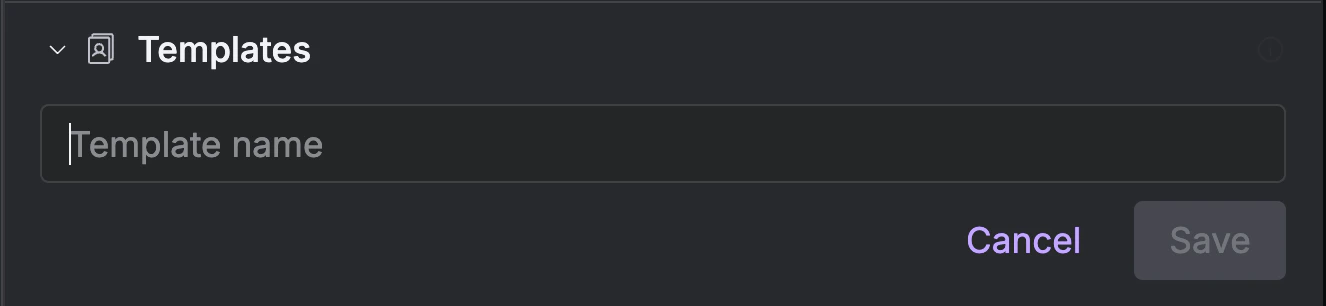
In the Agent Studio General tab, expand the Templates section.
Templates section in the General tab showing saved templates with Use template buttons
2

Save as template

Click Save as template. This captures your agent’s complete configuration (instructions, tools, memory settings, model, and channels) as a named template with a timestamp.
3

Use a saved template

Saved templates appear in the list with a Use template button. Click it to create a new agent pre-configured with that template’s settings.

Next Steps

Agent Configuration

Adjust settings and re-publish

Testing & Chat

Debug issues found in production

Tools & Connectors

Add more capabilities to your deployed agent

Memory & State

Tune memory for production workloads