

Enable cross-run memory
Agentic context is controlled by a toggle in your workflow’s settings. Click the Settings gear icon in the top toolbar and look for the Agentic Context section. The toggle is on by default for new workflows. When enabled, every node with a Context Input field set automatically receives two values from the previous execution: the last run datetime and the last run result.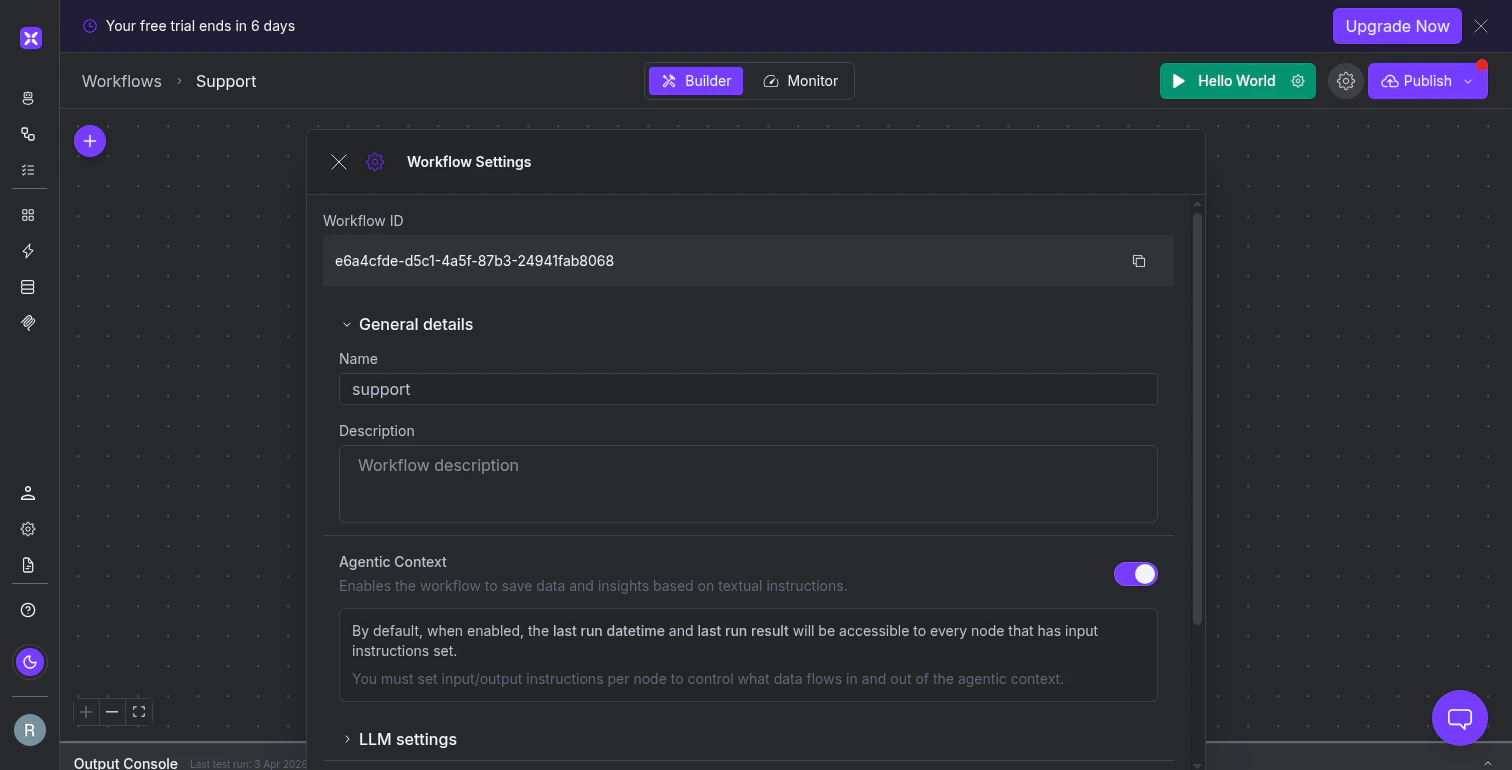
The Agentic Context toggle in workflow settings. When enabled, nodes with Context Input fields automatically receive previous run data.
Configure what each node remembers
The workflow-level toggle is the on/off switch. The node-level configuration controls what data flows in and out of the agentic context. You’ll find Context Input and Context Output in the Advanced Configuration section of most node types, under the Agentic context heading. Context Input describes what previously saved data to inject into this step. Write a natural language description of what the node needs from prior runs: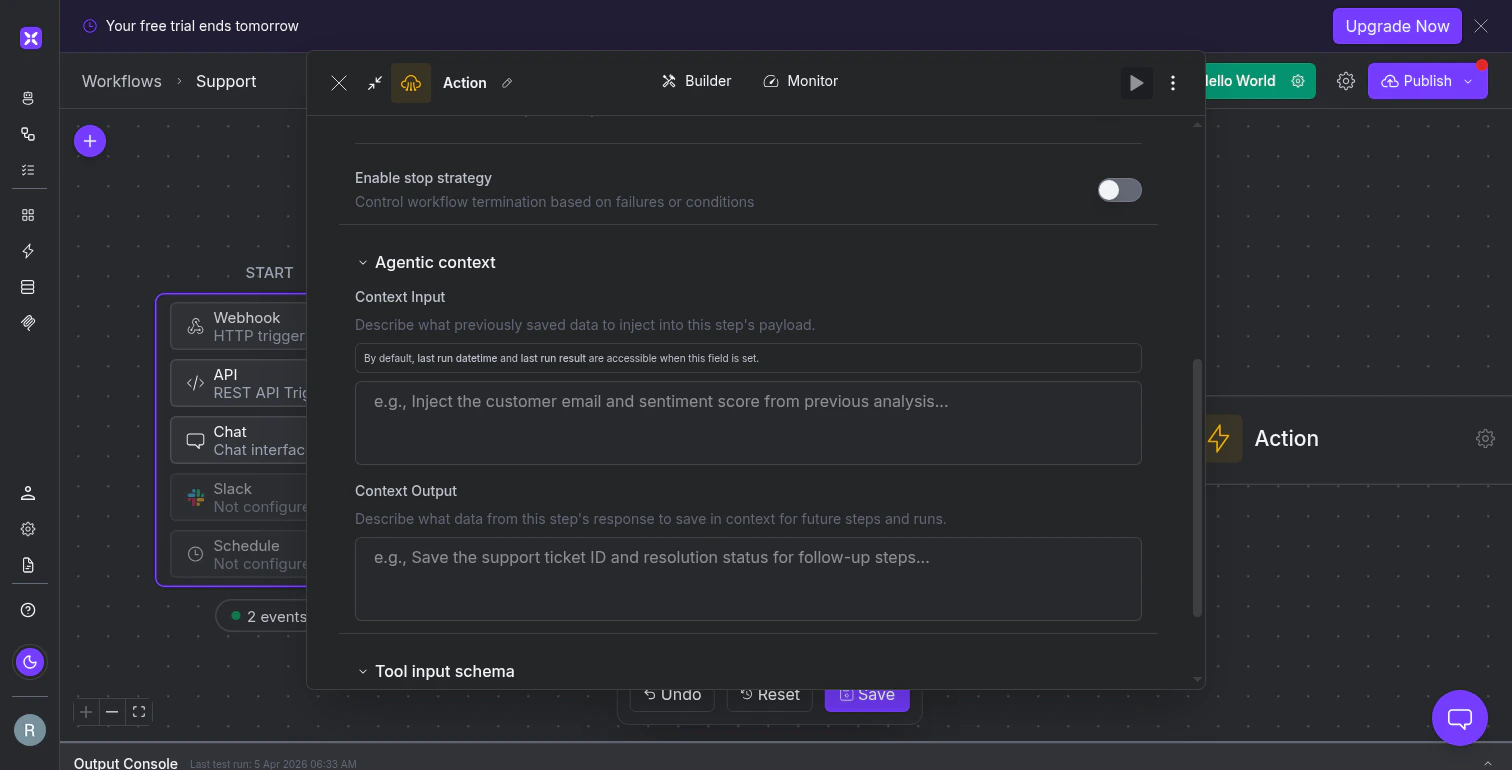
Context Input describes what to retrieve from previous runs. Context Output describes what to save for future runs.
Which nodes support agentic context
Condition nodes evaluate a simple comparison that doesn’t benefit from historical context. Parallel nodes orchestrate concurrent execution and don’t process data themselves. Send to End nodes pass a finish message, so there’s nothing to persist.
Detect what changed since the last run
The most common use of agentic context is delta detection: comparing the current run’s data against the previous run and acting only on the differences. Set the Agent node’s Context Input to “Inject the timestamp and ticket IDs from the last run.” The node uses the last run datetime to filter results to only records created after that timestamp, and cross-references against saved IDs to skip anything already processed. The Context Output saves the current timestamp and processed IDs for next time. Delta detection is not limited to timestamps. You can save and compare:- Record IDs to skip already-processed items
- Computed values like a pipeline total so the next run can report the change
- Accumulated state like an unresolved discrepancy list that carries forward until resolved
Write effective context descriptions
The Context Input and Context Output fields accept natural language, so their effectiveness depends on how clearly you describe what to save and retrieve. Be specific about the data, not the mechanism. Write “Save the customer email, sentiment score, and ticket category from this analysis” rather than “Save the output.” The AI needs to know which pieces of the step’s result matter for future runs. Match your input descriptions to your output descriptions. If one node’s Context Output saves “the list of processed order IDs and the highest order value,” a downstream node in a future run should have a Context Input that asks for those same items. Mismatched descriptions mean the AI may not retrieve the right data. Start simple. Save one or two values (a timestamp and a list of IDs) first. Once you’ve confirmed the cross-run behavior works, expand to more sophisticated state like trend comparisons or running averages.What’s next
Versioning and Rollback
Manage immutable deploy snapshots and roll back to previous workflow versions.
Running and Monitoring
Execute workflows, view results in the output console, and debug failed runs.