

- Share a hosted chat URL with anyone in your organization
- Embed the Agent chat as a widget on any website or app
- Suggest pre-defined conversation starters to guide first-time users
- Control access with platform login or your SSO provider
Chat is not available for Personal Agents. Create a Custom Agent to use the hosted chat or embed widget.
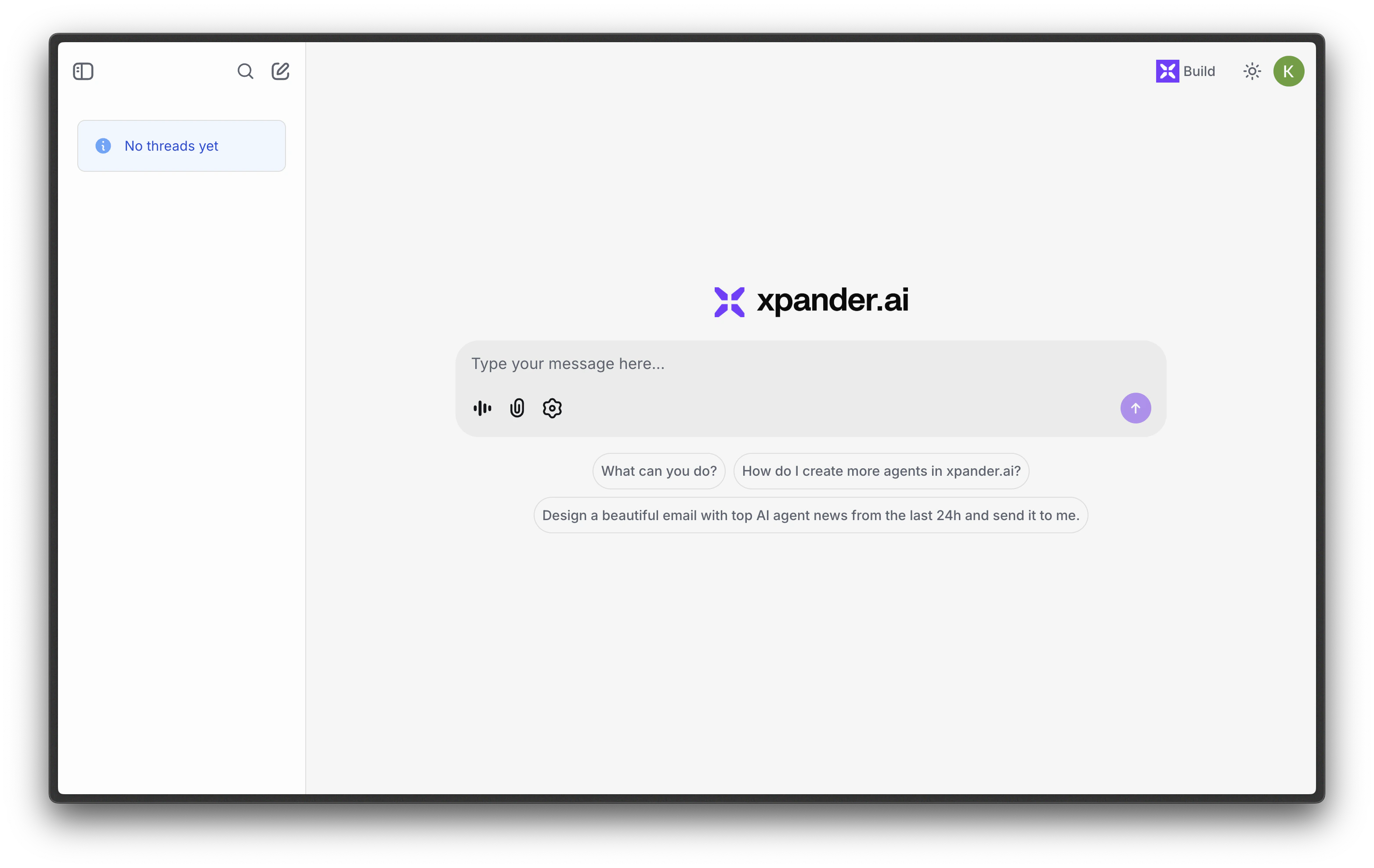
Share the Chat URL
Each agent gets a unique hosted URL that you can share directly - no code or embedding required.1
Open the Channels tab
In the Agent Studio, click the gear icon and go to the Channels tab. Find the Chat section.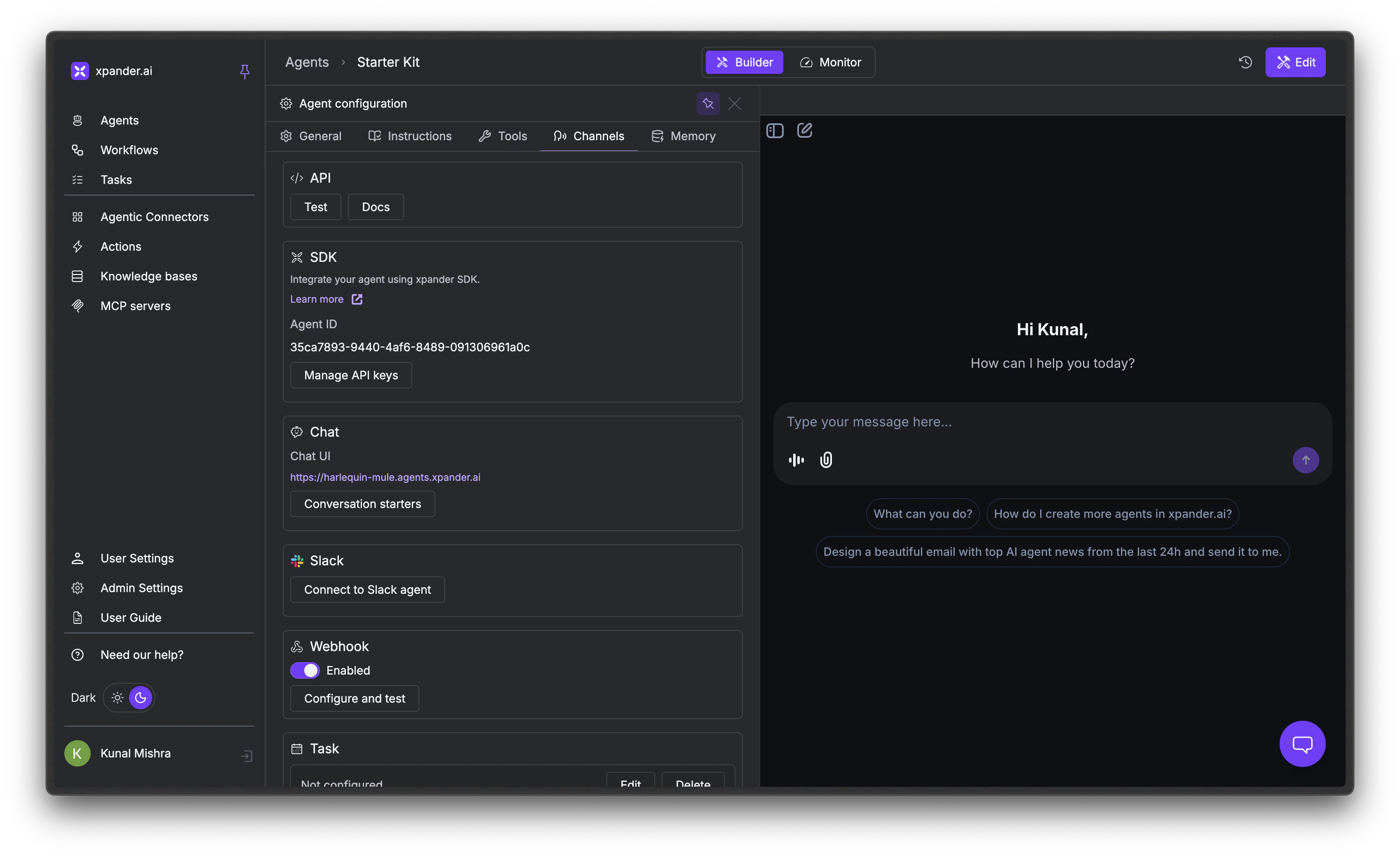
2
Copy the URL
Your chat URL is displayed directly (e.g., 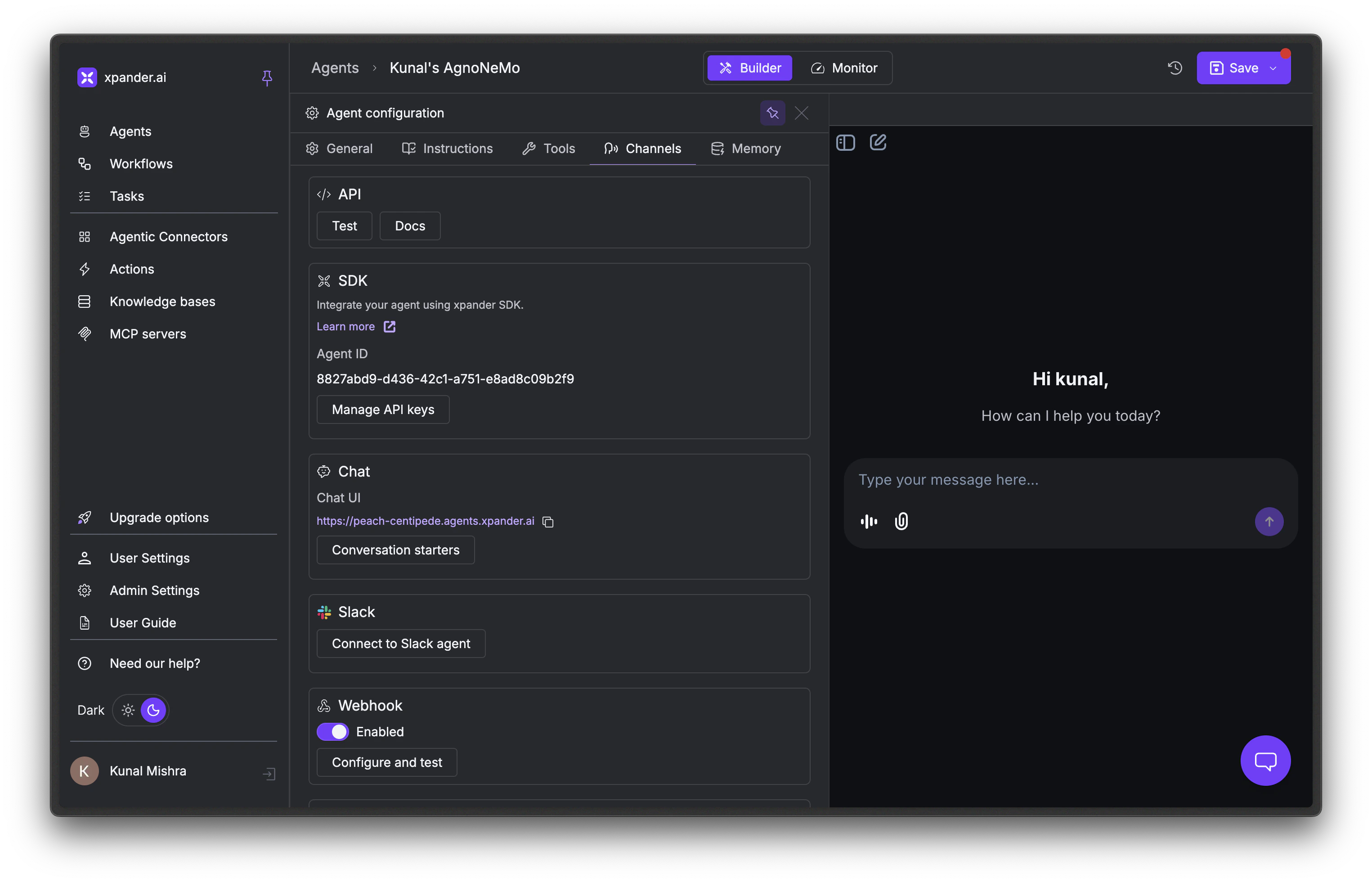
https://peach-centipede.agents.xpander.ai). Share this link with your users.Embed Chat Widget
You can embed the chat interface in any website using an iframe. The embedded version supports the same features as the hosted version: multiple threads, file uploads, and streaming responses. ReplaceYOUR_AGENT_ID with your agent’s ID. You can find it in the Channels tab under the SDK section (it’s the same Agent ID shown there).
Control Access
Set who can reach the chat using the Agent Studio > Configuration > General tab > Access setting.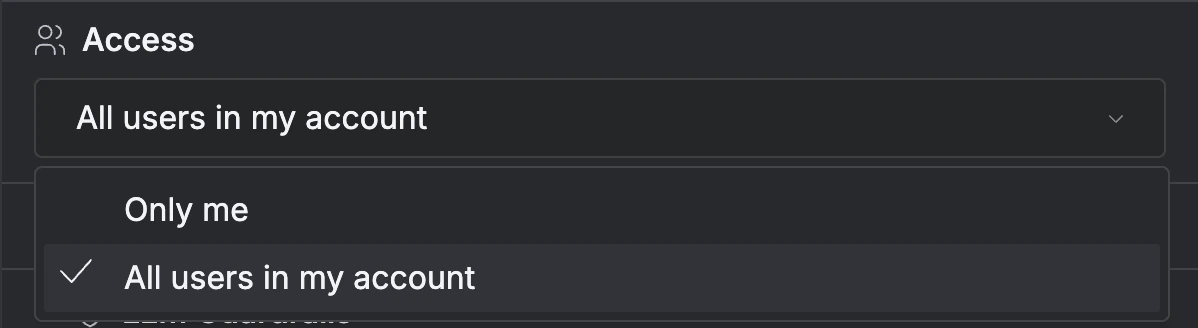
Authentication
Users authenticate through one of two paths:- Platform login - Xpander’s built-in user management (registration, password recovery, session handling, user profiles). The default, and the right choice for most deployments.
- SSO - If your organization already uses Okta, Auth0, or Azure AD, connect it so users sign in with their existing credentials. Xpander supports SAML 2.0 and OAuth 2.0 with role mapping and automatic provisioning.
Custom Domain
Enterprise workspaces can serve the chat from a branded domain likechat.your-company.com instead of the default chat.xpander.ai. This preserves every chat feature (threads, conversation starters, authentication, and embedding) while keeping the URL on your own domain. Contact sales to set this up.
Add Conversation Starters
Conversation starters are prompt suggestions that appear when a user first opens the chat. They reduce the blank-page problem and help users understand what the agent can do.1
Open Conversation starters
In the Chat section of the Channels tab, click Conversation starters.
2
Add prompts
Click + Add conversation starter to create suggestions. Each starter is a short phrase like “What can you do?” or “Summarize today’s tickets.”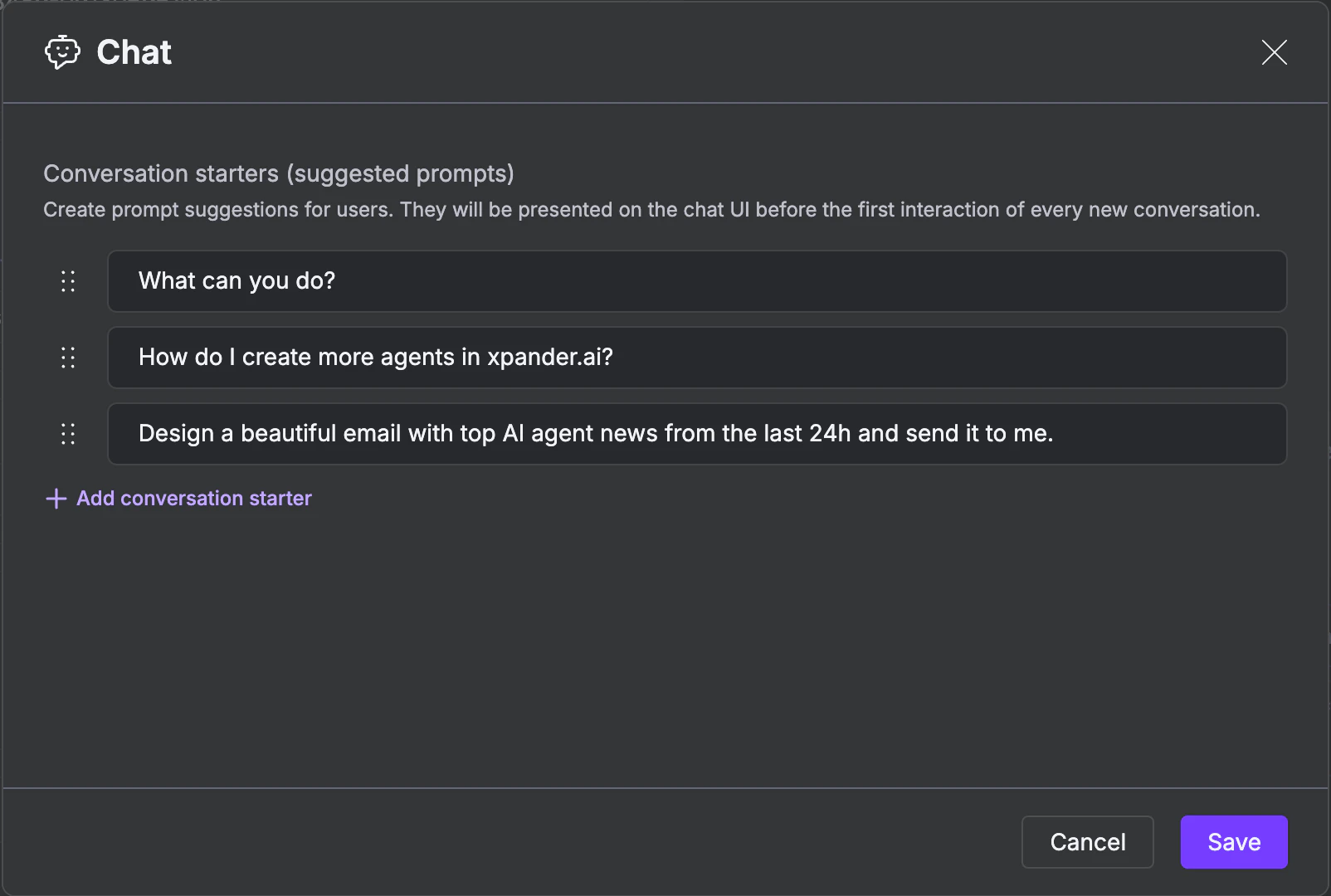
3
Save
Click Save. The starters appear immediately in the chat interface.
Next Steps
MCP Protocol
Expose your agent to Claude Desktop, Cursor, and other MCP clients
Slack
Deploy to Slack workspaces
Monitor Runs
Trace execution, debug failures, and review AI performance