

This page is being phased out. For the current way to give agents tools and data, see Work with Data and Tools in the User Guide.
- Create a new connection: authenticate an external service
- Create a custom connector: add your own APIs to the catalog
- Add tools to your agent: attach specific actions to an agent
- Tool dependencies: enforce tool execution order
Create a New Connection
Before your agent can use a connector, you need to create a connection. This authenticates your account with the external service. Each connector can have multiple connections (e.g., different Slack workspaces or different AWS accounts).1
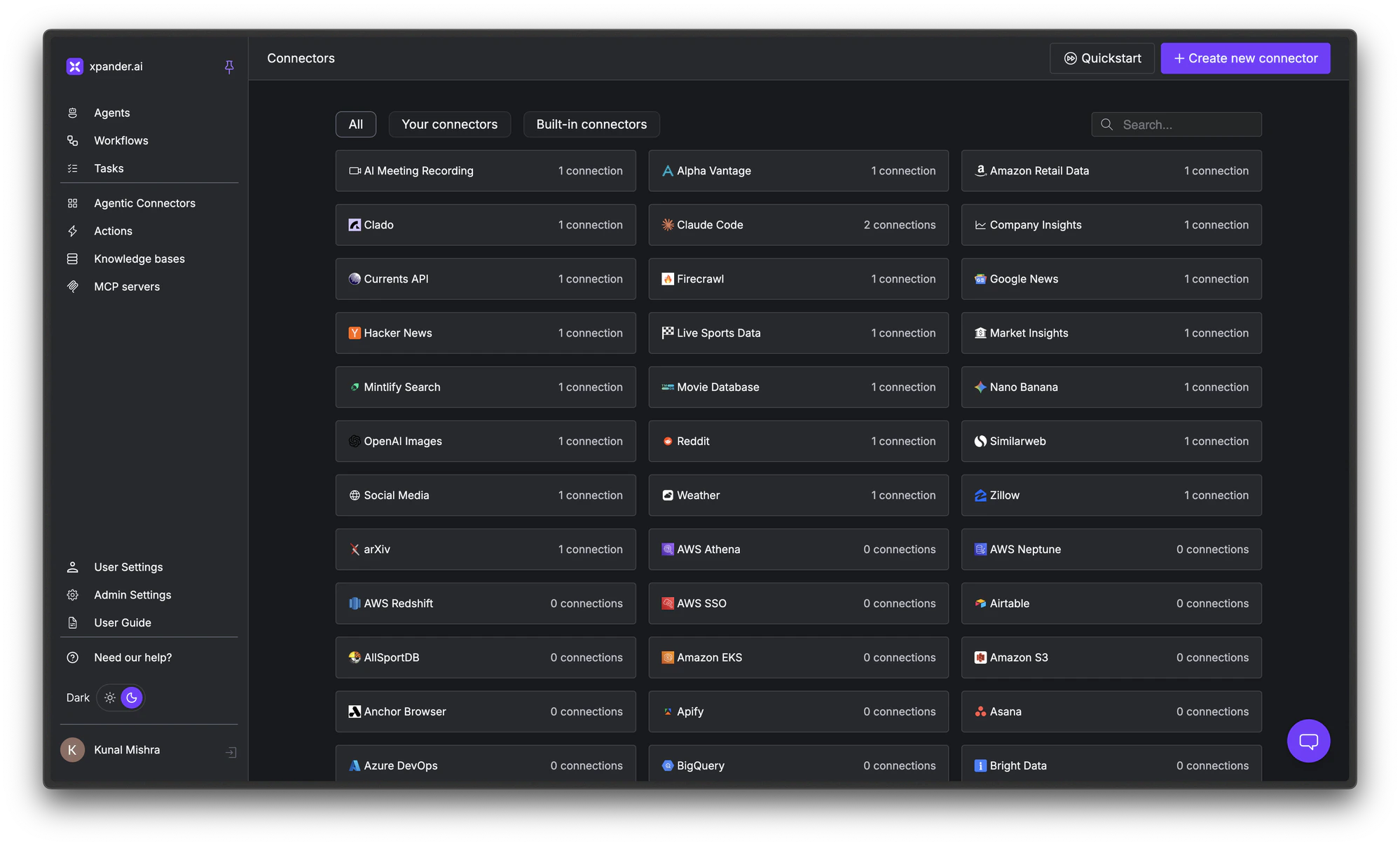
Choose a Connector from the catalog
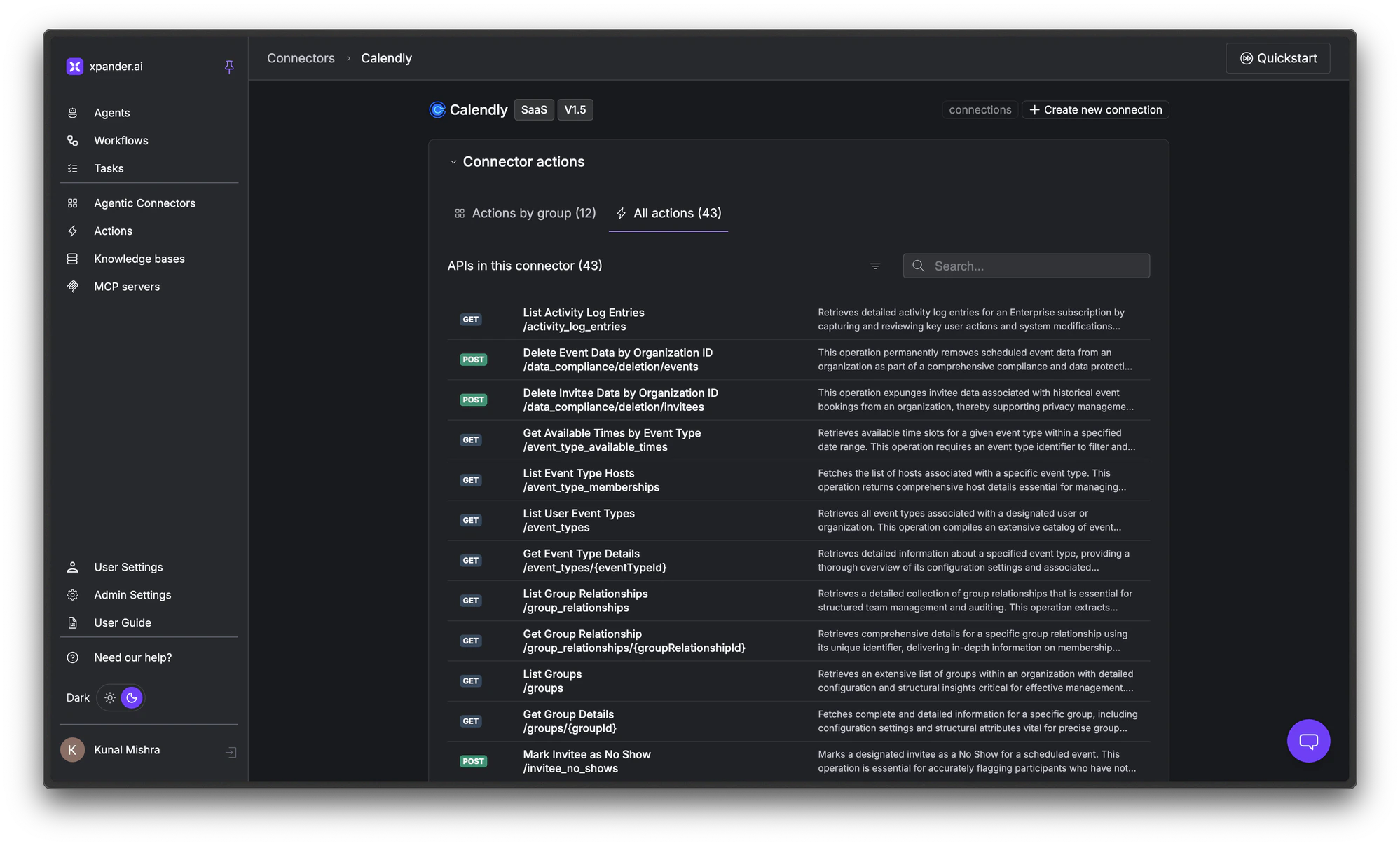
Open the Agentic Connectors page and choose a connector you want to use (e.g., Calendly, Slack, Google Drive, Salesforce).This opens its Connector Actions list. Each action is a tool your agent can call once you’ve authenticated.You can see all actions grouped by category or as a flat list of API endpoints.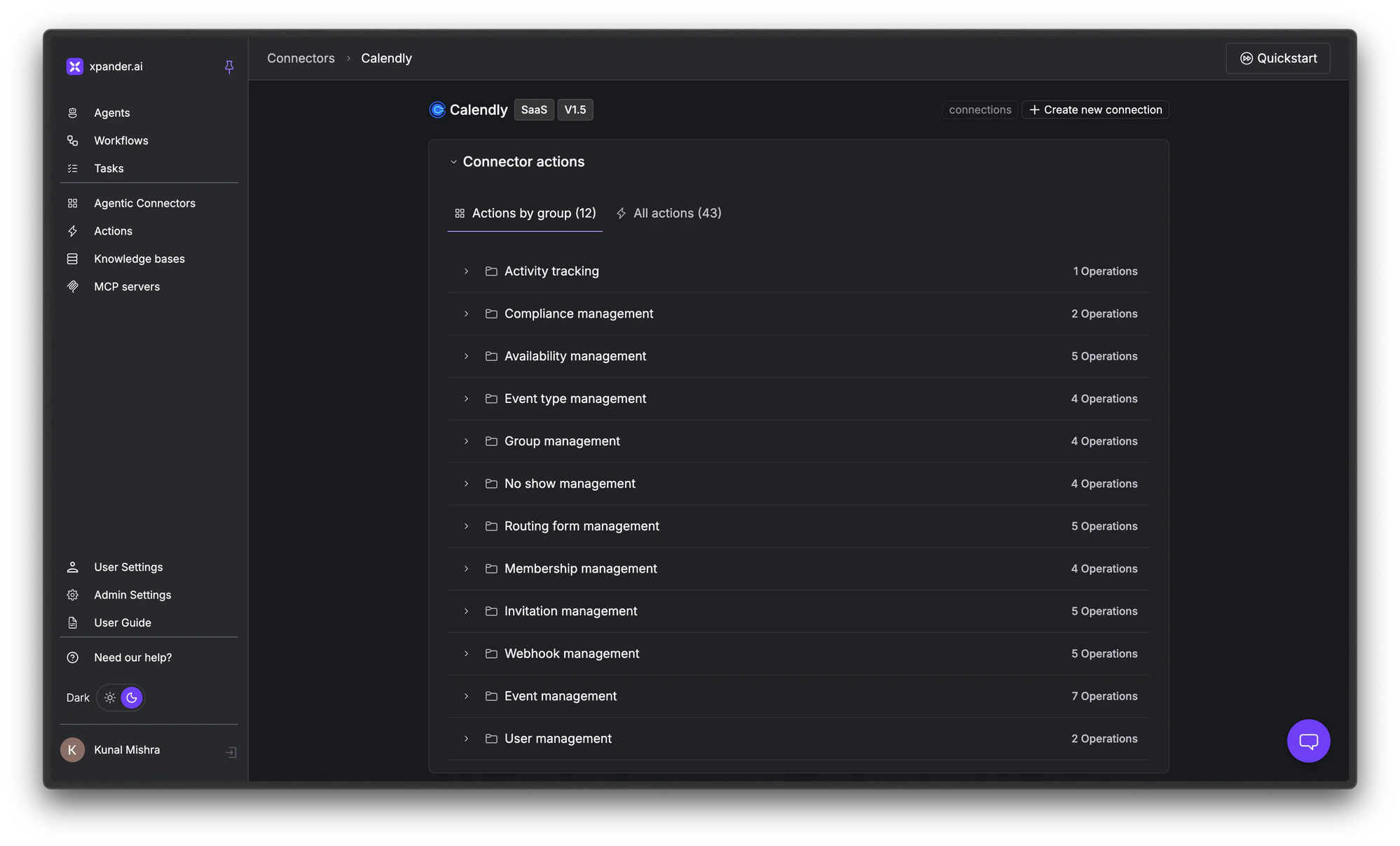
- Actions by group
- All actions
2
Click + Create new connection
In the top right of the Connector Actions page, click + Create new connection.Enter connection details: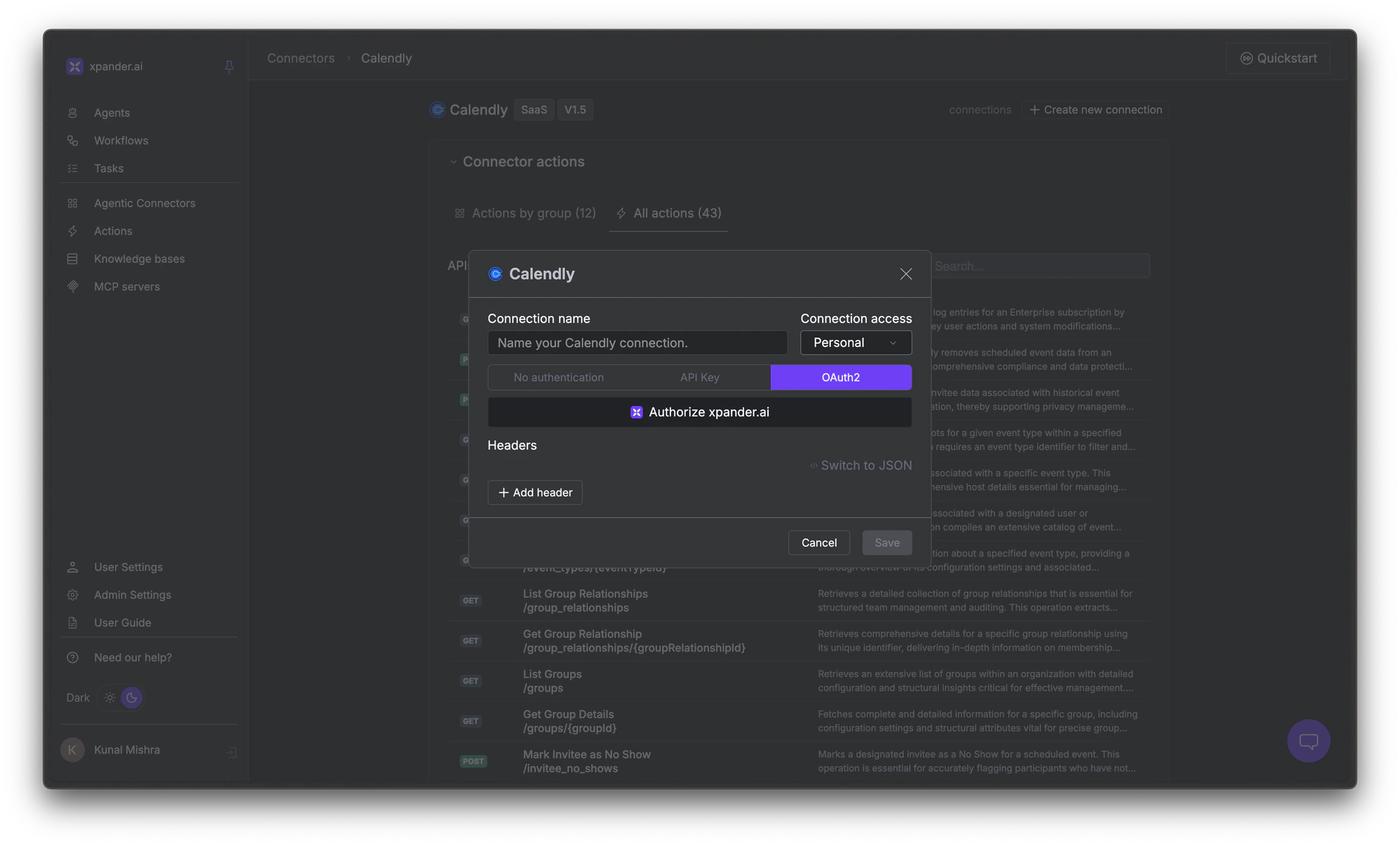
- Name: Give the connection a descriptive name (e.g., “Marketing Team Slack”)
- Access scope:
- Personal (only you can use it), or
- Organization (anyone in your workspace can use it)
3
Choose an authentication method
Select the authentication method based on what the service supports:
- Choose No authentication for public APIs that don’t require credentials
- Choose API Key for services that use API keys or tokens
- Choose OAuth 2.0 for services with own sign-in flow like Calendly, Slack, Google
- No authentication
- API Key
- OAuth 2.0
- Select the No authentication tab
- Click Save
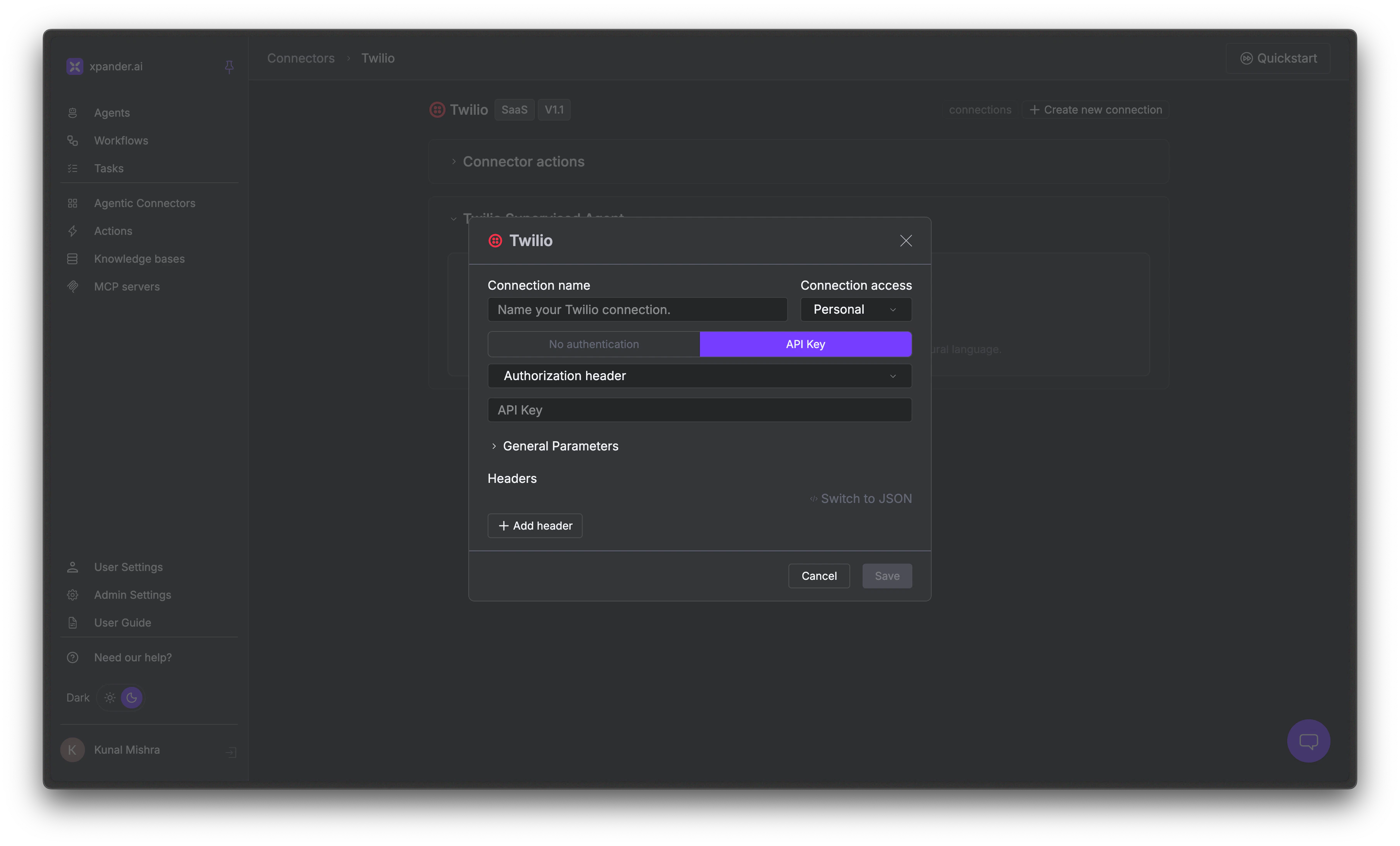
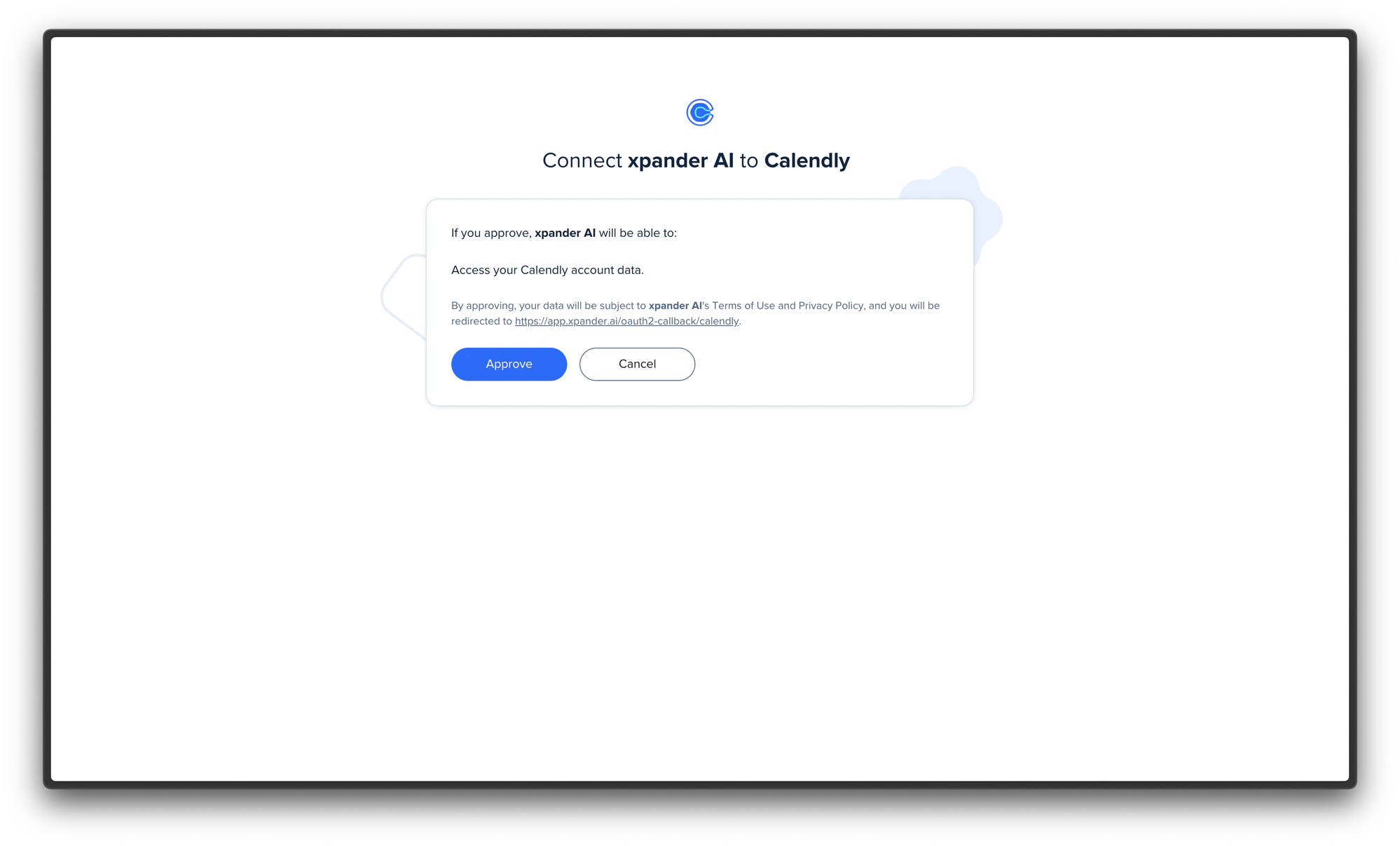
4
Manage your connections
After creating a connection, you can view and manage all connections for a connector by clicking connections in the top right of the connector’s detail page.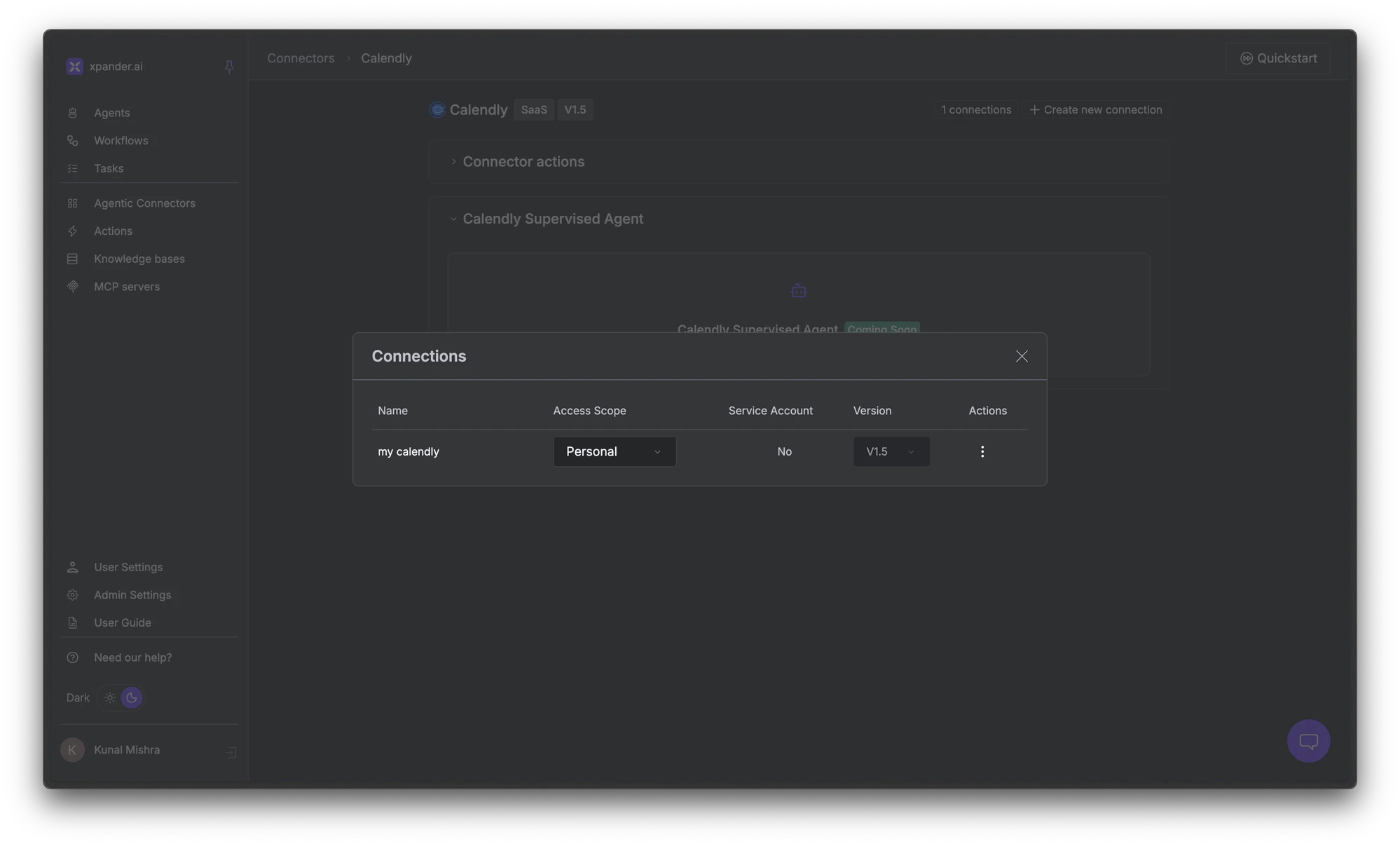
Create a Custom Connector
If the catalog doesn’t have what you need, for example, an internal tool API, you can create your own connector.1
Click + Create new connector
In the top right of the Connectors Catalog page, click + Create new connector.
2
Provide connector details
- Name: A descriptive name for your connector
- Description: Optional context about what this connector does
- OpenAPI specification or Postman collection: Upload a spec file (up to 50 MB)
- API reference URL: Optional link to your API documentation
- Server URL: The base URL for your API
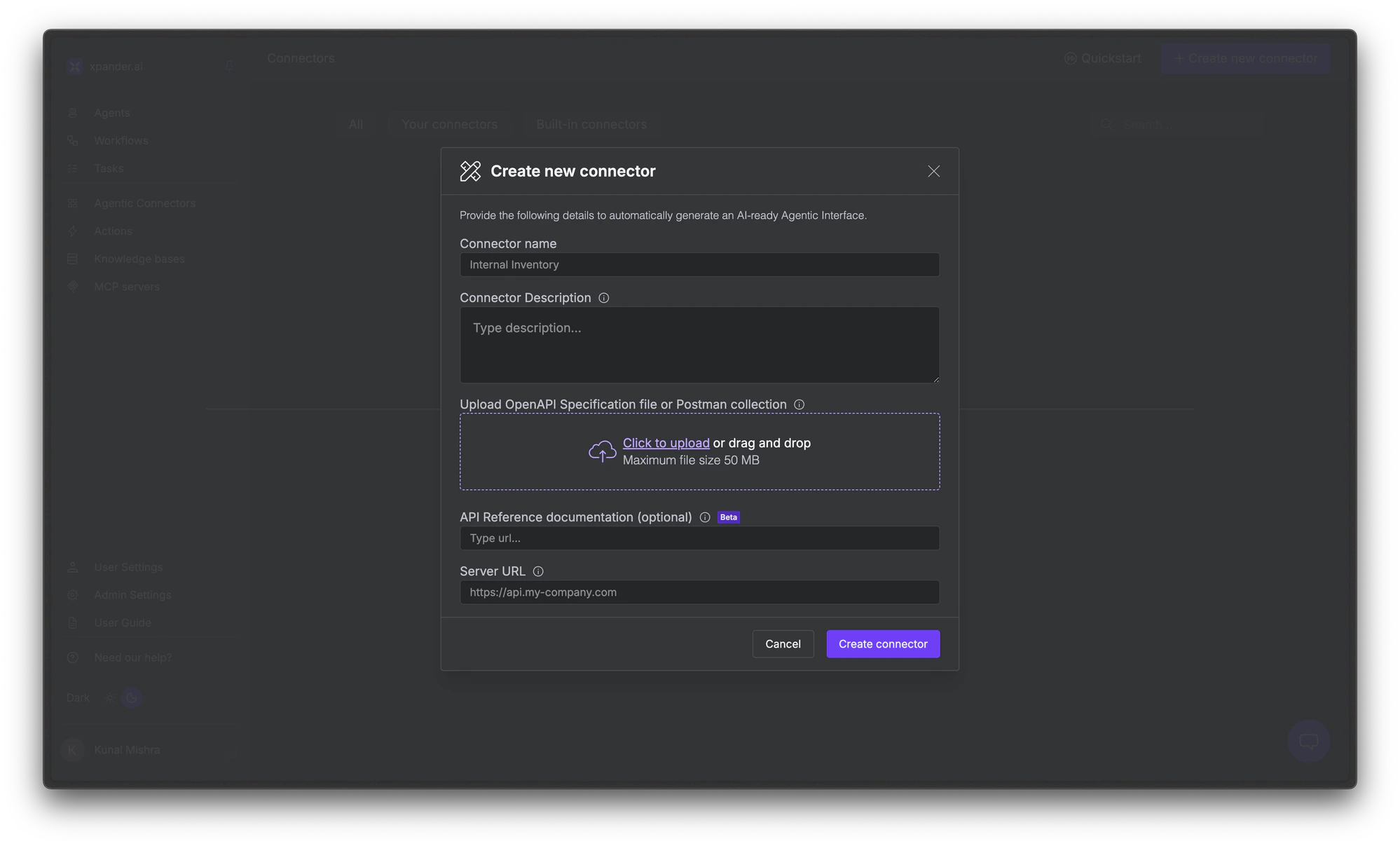
3
Upload and generate
Click Create connector. Xpander will turn each endpoint in your API spec into a tool your agent can call.
4
Authenticate and use
Your custom connector now appears in the catalog. Create a connection to authenticate it (see Create a new connection above), then add its actions to your agents.
Add Tools to Your Agent
Once you’ve created connections, you can add tools to your agent. Tools come in two types: Built-in tools (pre-configured actions) and Connector tools (actions from authenticated services).1
Open your agent's Tools tab
In the Agents page, select your agent to open its Agent Studio.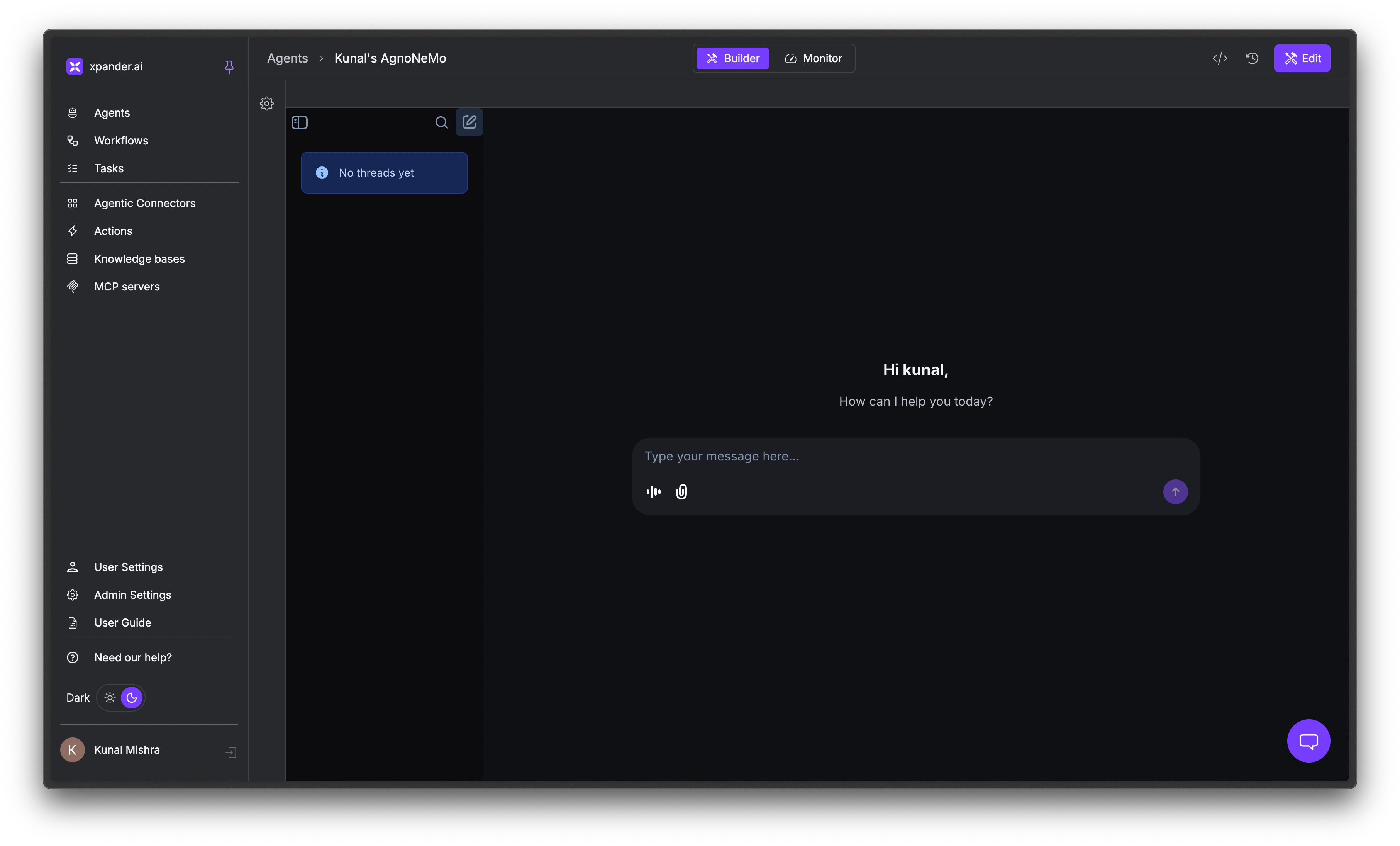
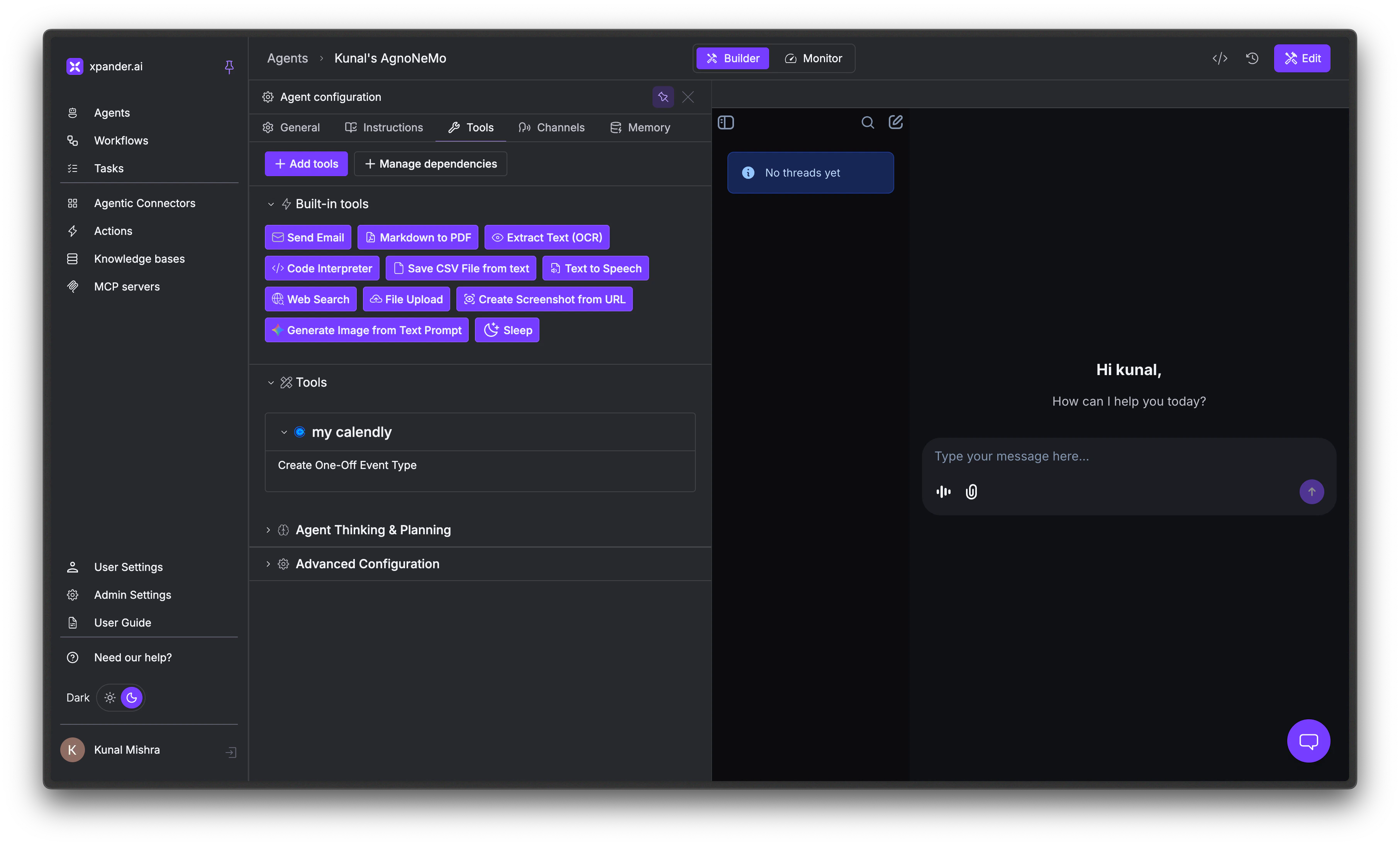
2
Enable built-in tools (optional)
Built-in tools are pre-configured actions that ship with every agent, no authentication or setup required.Click on any tool to toggle it on or off.
3
Add connector tools
Click + Add tools to open the connector browser panel. Click Connectors to see the full catalog. Or use the search to find a specific connector.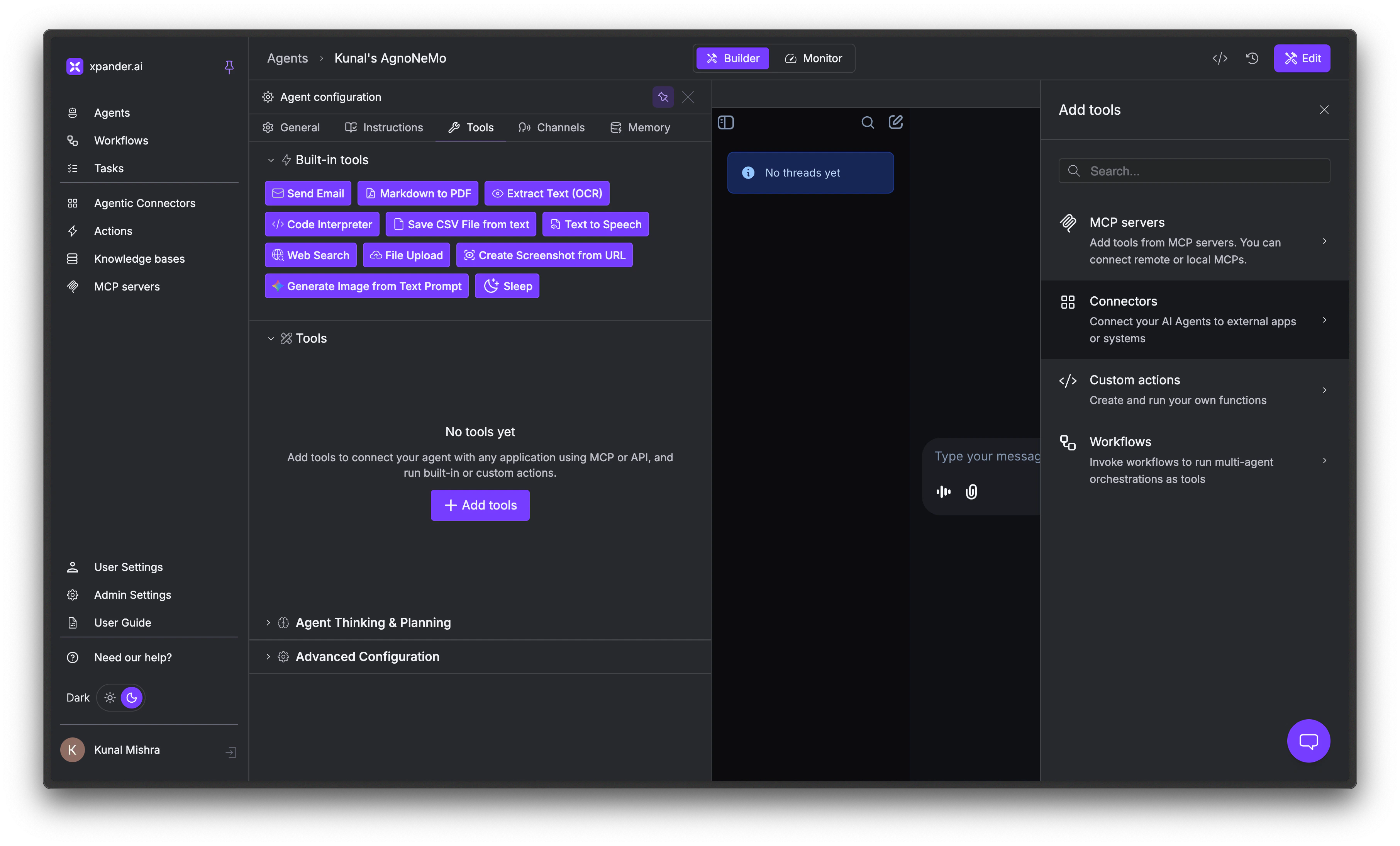
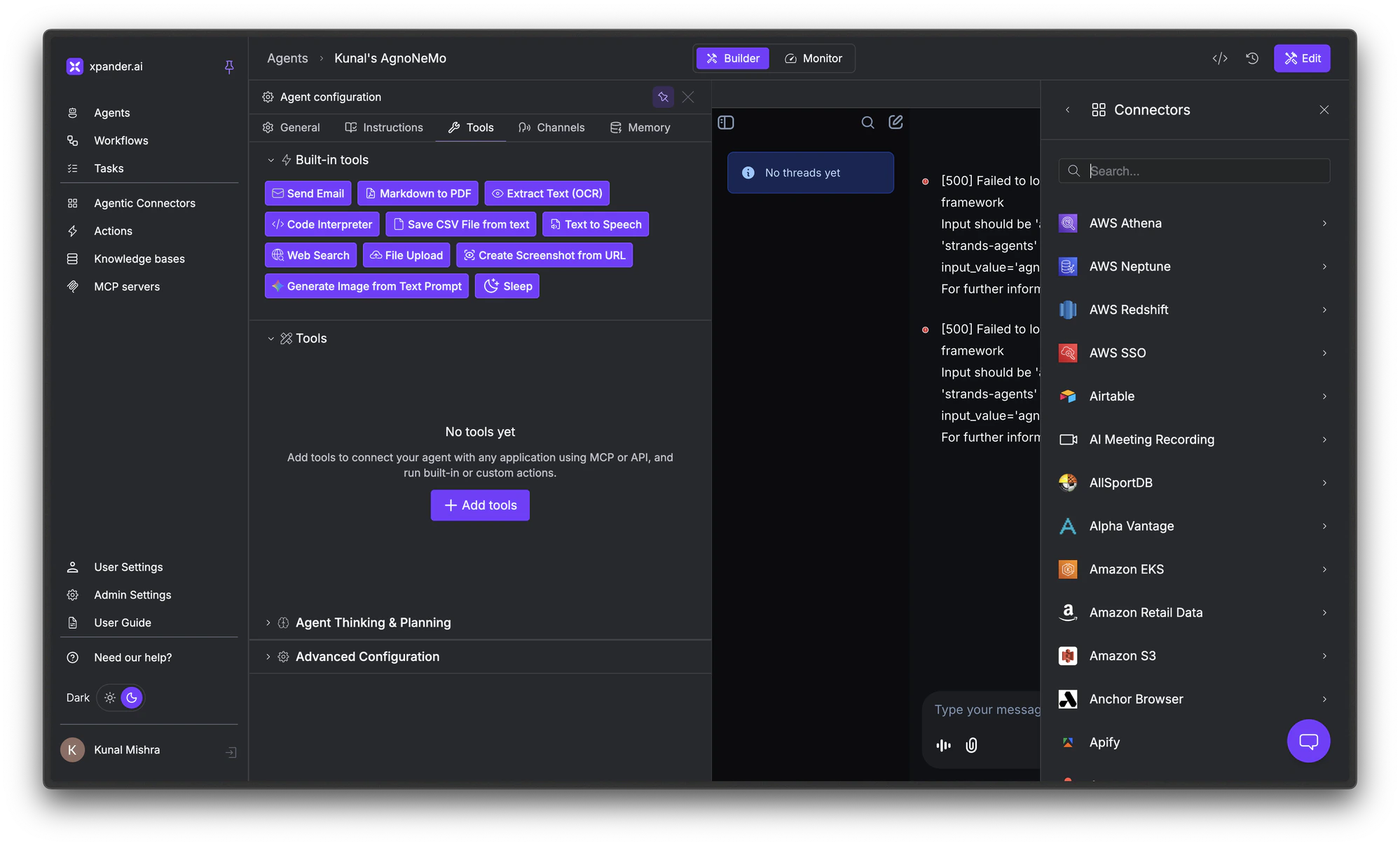
4
Select a connector and connection
Click a connector (e.g., Calendly) to see its available connections.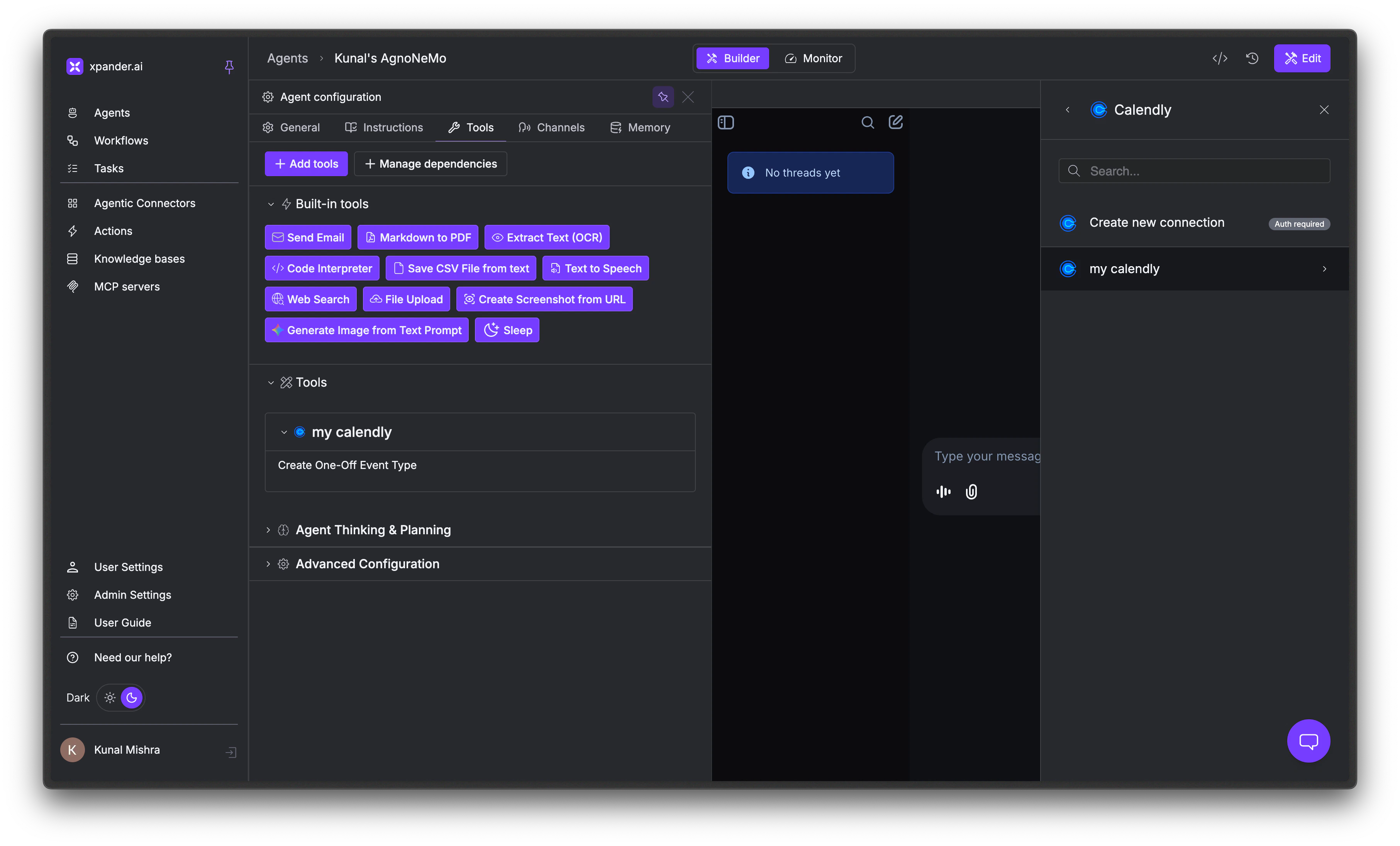
5
Select specific tools
Check the boxes next to the actions you want. Finally, click + Add to agent to attach them.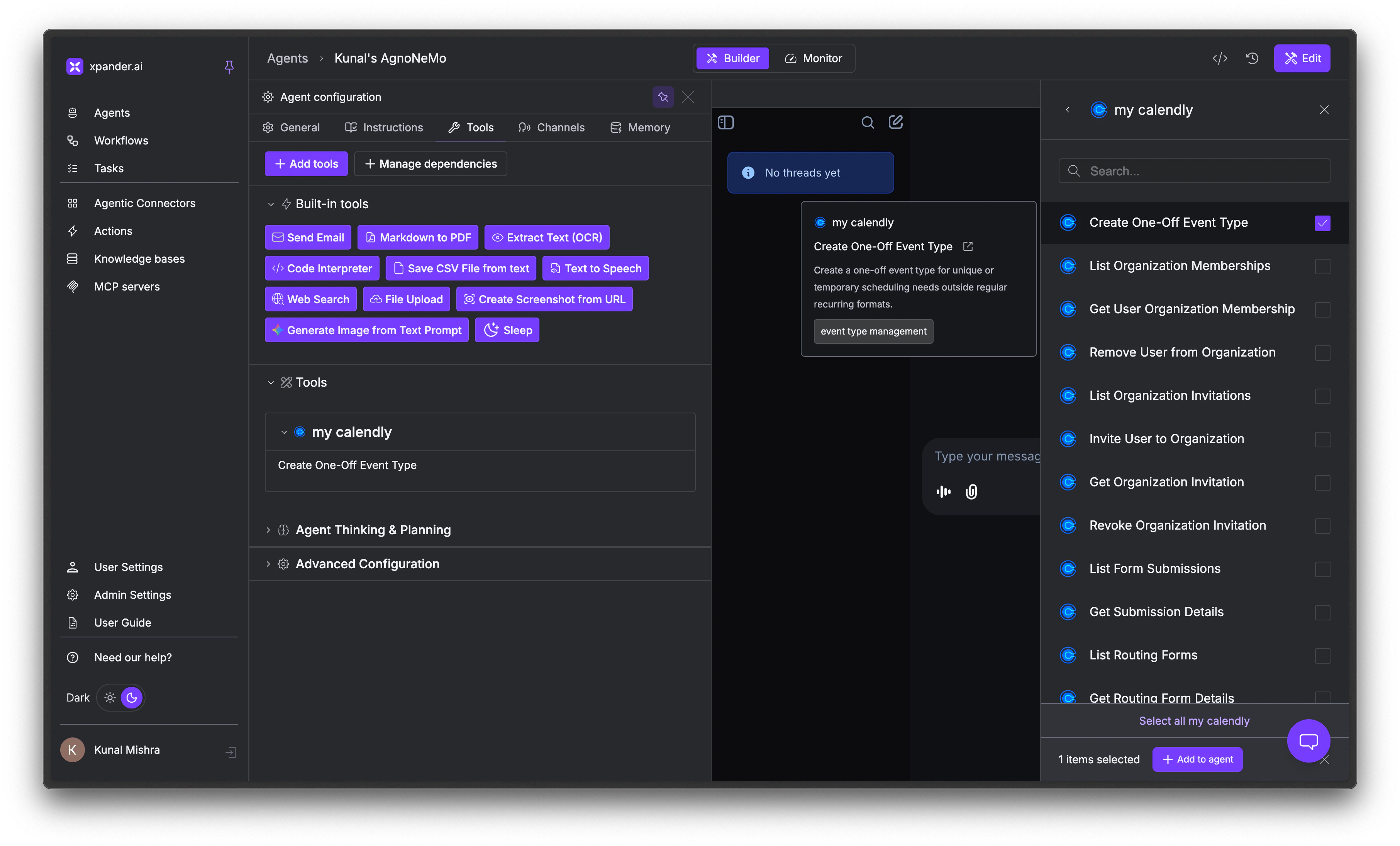
6
Verify and publish
The selected actions now appear under the Tools section in the config panel.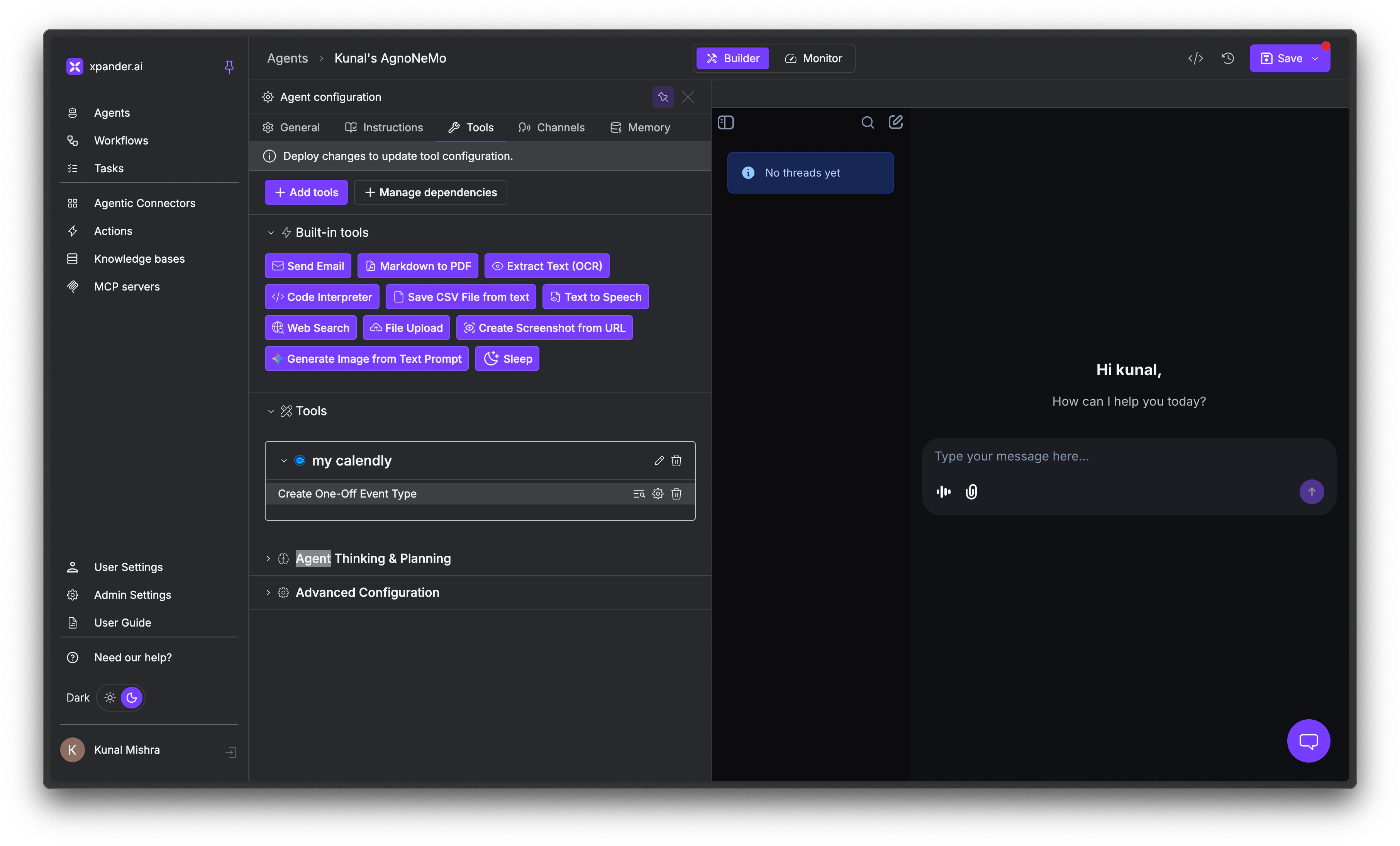
Tool Dependencies
Without dependencies, an agent can call any tool in any order. Dependencies lock Tool B until the agent has called Tool A first, even if the user’s request only mentions Tool B. This is useful when one tool’s output is a prerequisite for another to work correctly. Even if the user says “book a meeting at 3pm,” the agent must call Get calendar availability before it can call Create calendar event. This guarantees the agent checks for conflicts before booking.Create a dependency
Click + Manage dependencies at the top of the Tools tab to open the agent graph, a visual canvas showing every tool attached to your agent as a node.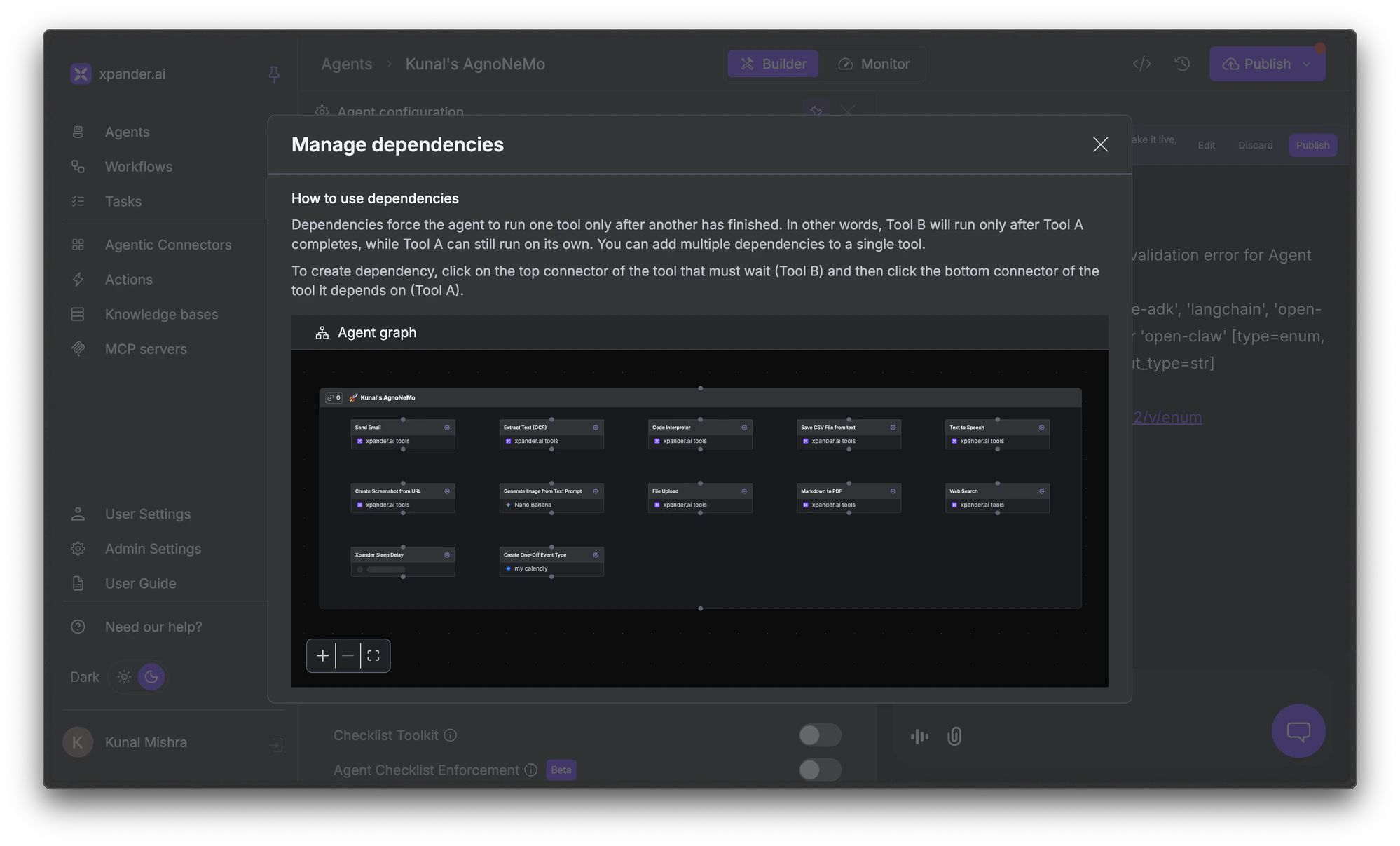
1
Select the dependent tool
Click the top handle of the tool that must wait (the downstream tool).
2
Drag to the prerequisite tool
Drag to the bottom handle of the tool it depends on (the upstream tool). The dependency is created automatically.
3
Chain additional dependencies
Repeat to build multi-step sequences. You can also create branching paths where multiple tools depend on the same prerequisite, or where a tool requires multiple prerequisites to complete first.
Configure Max Tool Calls
Under Advanced Configuration in the Tools tab, you can limit the maximum number of tool calls per run.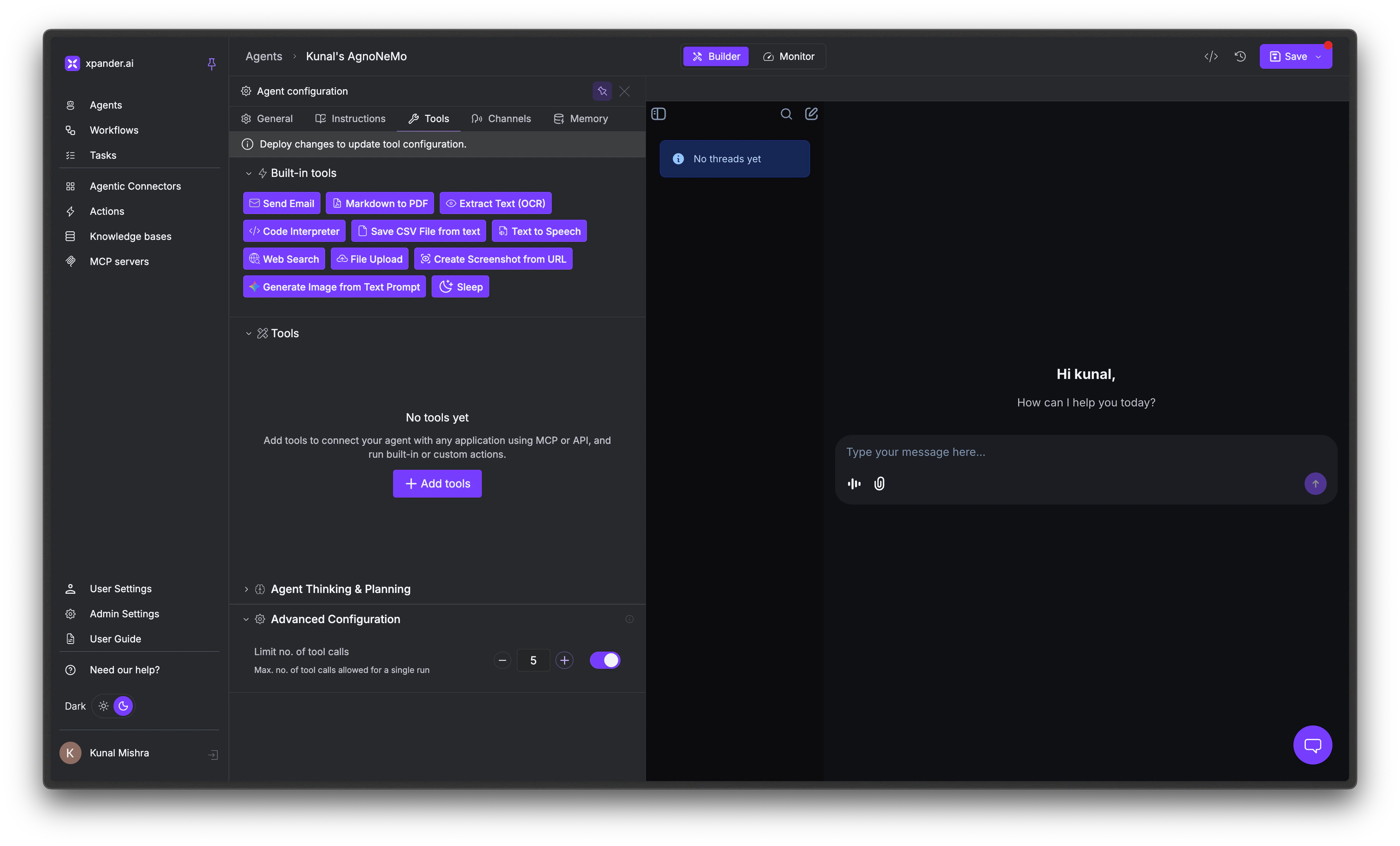
Next steps
Knowledge Bases
Upload documents so your agent can search and cite them
AI Models & Intelligence
Planning mode, reasoning mode, and model selection
Agent Configuration
Full overview of all Agent Studio settings
Testing & Chat
Test your tools and debug behavior