

Canvas layout
Every workflow flows left to right: a START block on the left, an END block on the right, and a purple connection line between them. Events enter from the left, pass through each node in sequence, and exit as output on the right.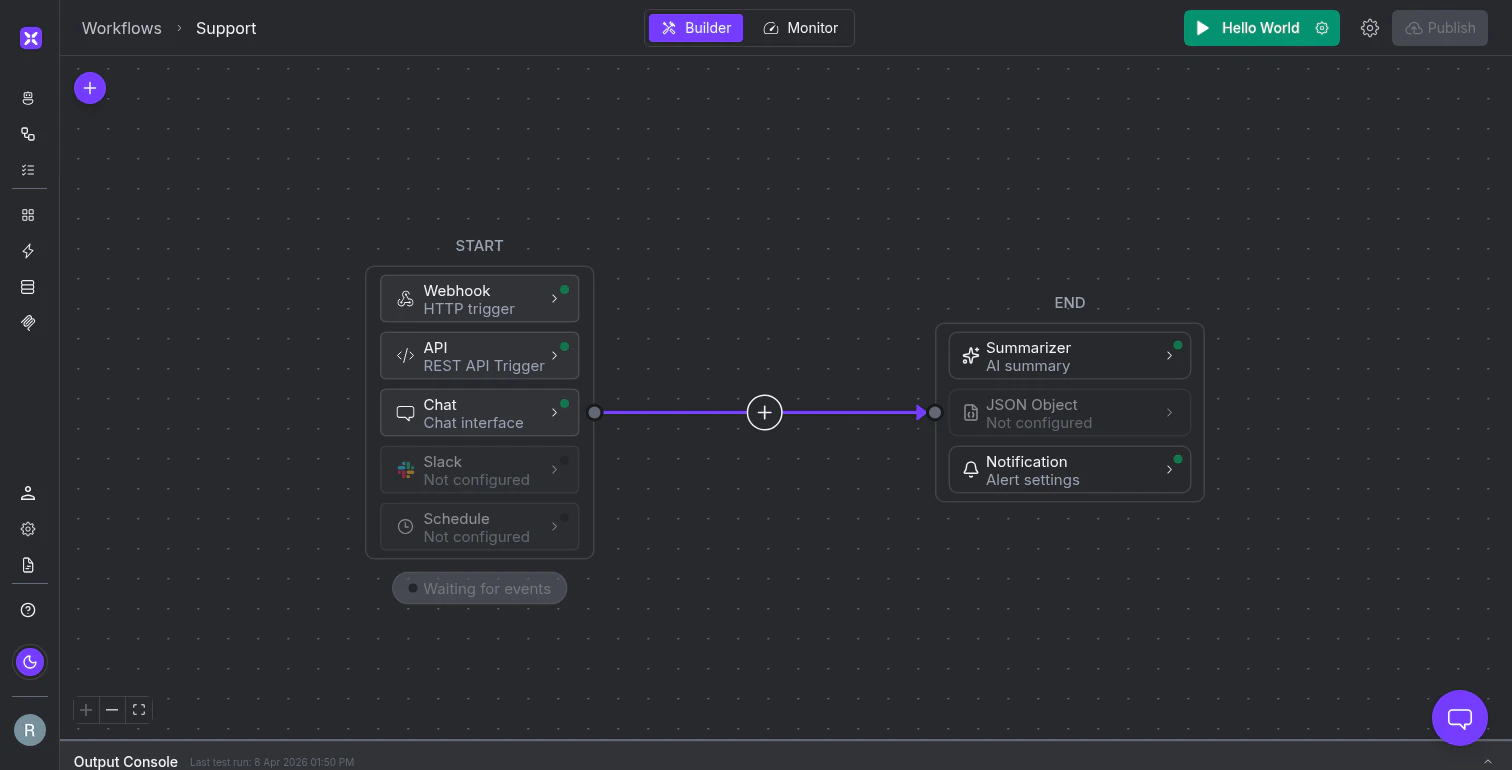
A new workflow canvas. The START block holds triggers, the END block holds outputs, and the purple connection line is where you add processing nodes.
- A Summarizer for natural language digests
- A JSON Object for structured data against a schema
- Notifications for emails or webhooks on success or failure
Add nodes
Click the + button on any connection line to open the node picker. It organizes 15 node types into three categories. Agents use AI to reason about data:
Actions run deterministic operations without an LLM:
Flow nodes control branching and execution:
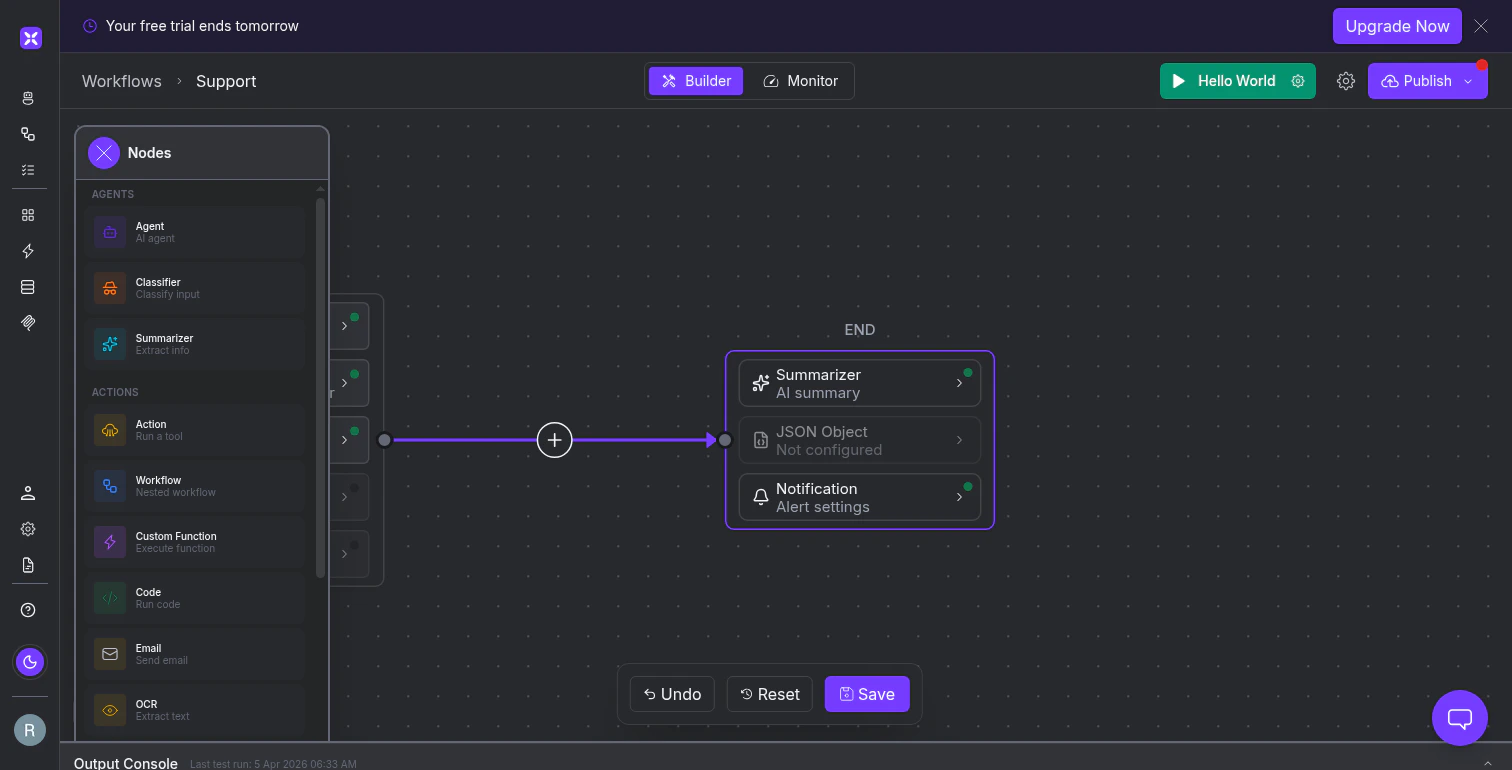
The node picker showing all 15 node types organized into Agents, Actions, and Flow categories.
Test workflows
The top toolbar has a green Run button labeled with the active test preset name (e.g., “Hello World”). Click the gear icon next to it to configure your test payload: plain text or JSON, with optional file attachments. Save named presets so you can re-run the same test cases quickly. When a test starts, the Output Console appears at the bottom of the canvas showing real-time execution events: task creation, tool requests, tool results, and the final outcome. Click any entry to expand the full JSON payload.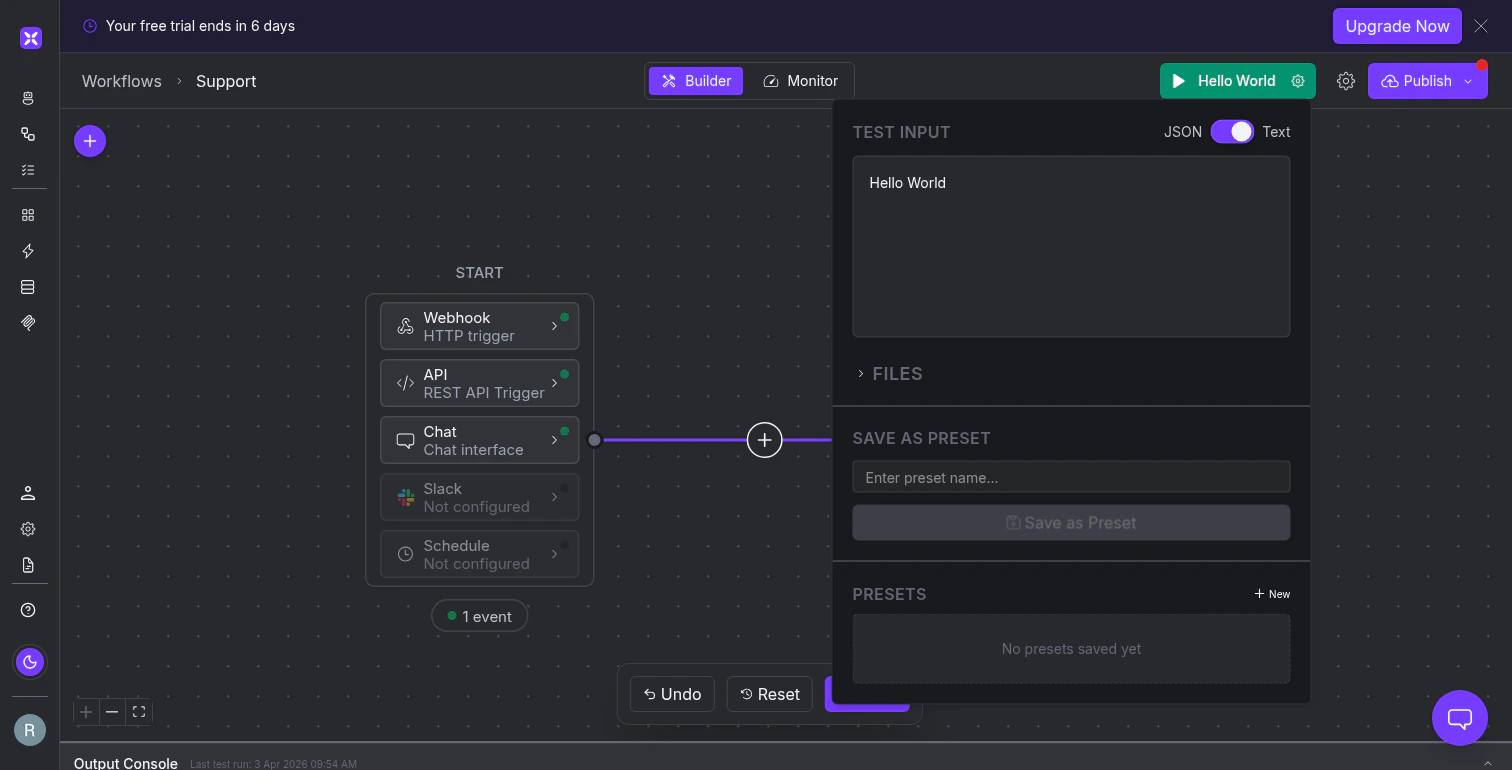
The test input panel and Output Console. Configure payloads, run the workflow, and watch events stream in real time.
Save and publish
Changes are not saved automatically. When you modify anything, a floating toolbar appears at the bottom with Undo, Reset, and Save. It disappears once you save or reset.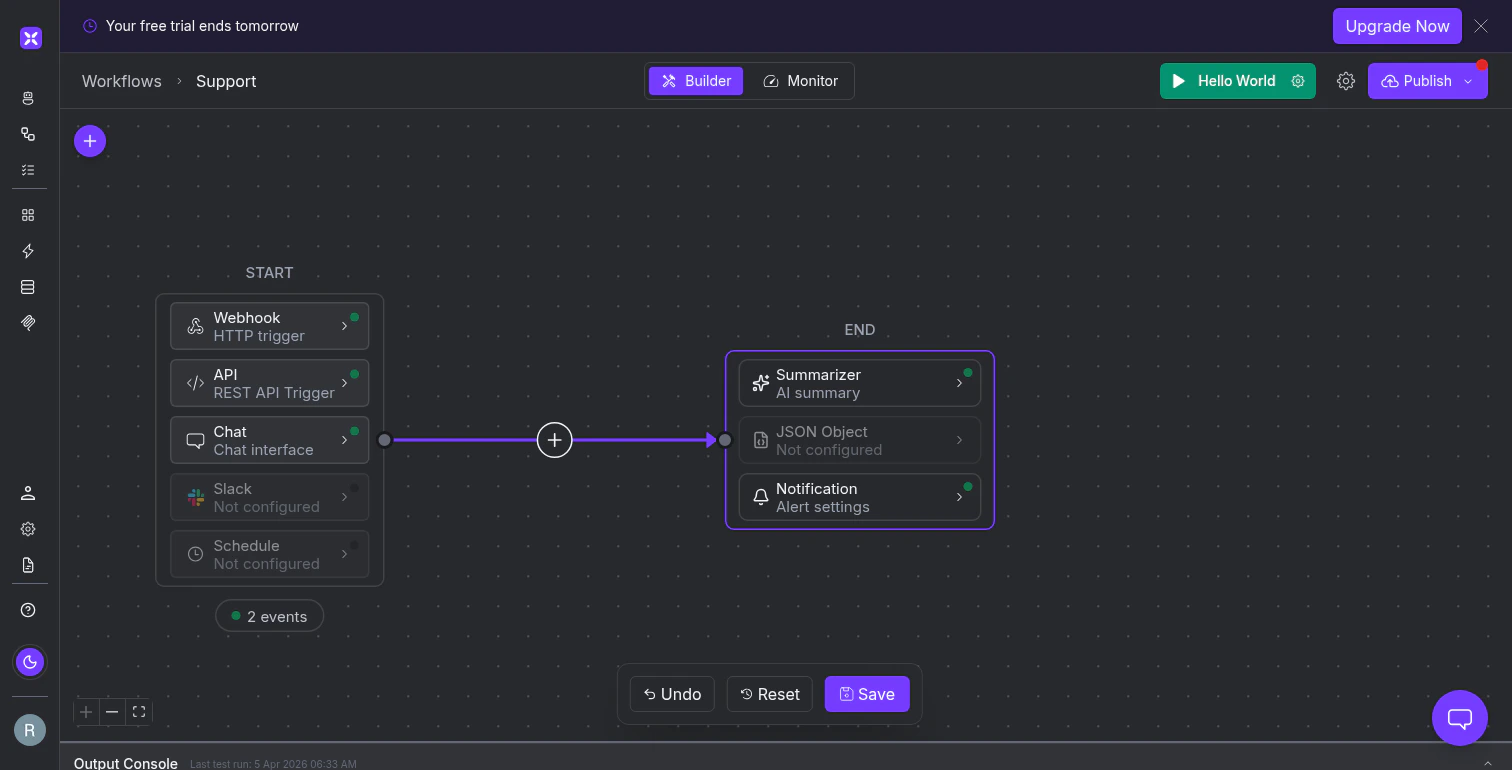
The floating save toolbar appears whenever unsaved changes exist.
- Make changes on the canvas
- Save using the floating toolbar
- The Publish button in the top toolbar turns purple with a red dot
- Click Publish, confirm the dialog, and the new version goes live
What’s next
Triggers
Configure webhooks, schedules, API calls, and other trigger types in the START block.
Agent Nodes
Add AI-powered reasoning steps that query systems, classify inputs, and summarize results.
Action Nodes
Run deterministic operations: tool invocations, code, email, and OCR.
Flow Control
Branch with conditions, validate with guardrails, and pause for human approval.