

- Trigger an agent run from any inbound HTTP POST with a prompt or payload
- Call it directly from a browser or form builder, with no credential to hide
- Choose synchronous (wait for the agent’s response) or asynchronous (fire-and-forget) invocation
- Upload files (documents, images, audio) alongside the prompt
- Extract specific fields from the agent’s response instead of returning the full payload
- Map nested fields from the incoming payload to the agent’s input parameters
- Pass through MCP OAuth tokens to authenticate downstream skills
Enable Webhooks
1
Open the agent's Channels
In Xpander Chat, open the agent’s settings with the gear icon. On the Channel row, click Configure. The Channels panel opens; make sure Developer access is on.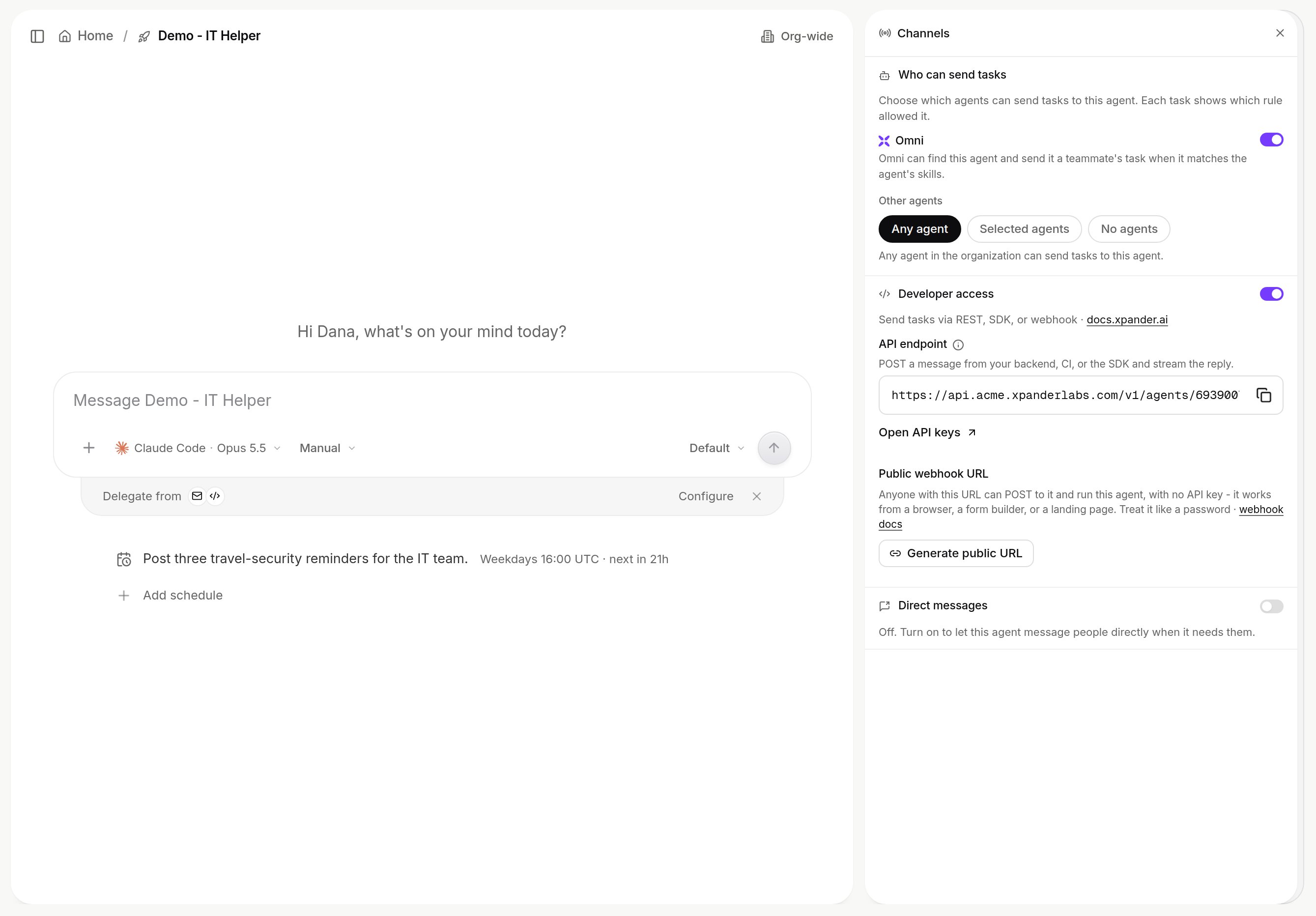
2
Generate the public URL
Under Public webhook URL, click Generate public URL. The section then shows the URL to copy and Regenerate URL, which replaces it and stops the old one working at once. Anyone with this URL can POST to it and run this agent with no API key, so treat it like a password. The API endpoint above it is the keyed alternative for your backend, CI or the SDK; Open API keys manages the keys it needs.
3
Test it
Send a POST to the URL with a prompt, as in the requests below, and check the reply. The run also appears in the agent’s conversation and in the Session Manager.
Make Requests
Every webhook request is a POST to your agent’s public URL. The secret in the path both authenticates the call and binds it to that one agent, so nothing else is required.Calls to a public URL default to asynchronous and return
{"status": "Started", "task_id": "..."}, because the
typical caller is a browser that should not wait. Add ?asynchronous=false when you want the
agent’s answer in the response.Invoking with an API key
The original key-based form still works and is unchanged, which suits server-to-server callers that already hold an organization key:Optional Parameters
You can include any additional fields in your request body - they’re all passed to the agent as context.
When the same parameter appears in multiple places, query parameters take priority over body parameters, which take priority over defaults.
Choose Sync vs Async
Synchronous (default with an API key; on a public URL add?asynchronous=false) - The request blocks until the agent finishes and returns the full result. Best for short tasks and interactive workflows.
asynchronous=true to return immediately. The agent processes in the background. Best for long-running tasks, file processing, or when you don’t need the result inline.
Upload Files
Upload files usingmultipart/form-data. The agent automatically processes them - OCR for images, text extraction for PDFs, transcription for audio.
Uploaded files are stored on xpander and exposed to your agent through secure presigned URLs. Those URLs are scoped to your organization’s agents and remain valid for 30 days after upload. Your agent never handles download or storage logic directly.
Extract Data from Responses
Use thegetter parameter to extract a specific field from the agent’s response using dot notation.
Map Dynamic Parameters
Useparams_mapping as a query parameter to extract values from nested payload fields and map them to webhook parameters. This is especially useful for integrations with Telegram bots, WhatsApp, and other messaging platforms where identifiers are nested. With curl, keep -g so curl sends the braces as they are instead of treating them as a URL pattern.
task_id, user_id, user_email, user_first_name, user_last_name, prompt. A task_id belongs to the agent that first used it. Reusing it continues that thread. Sending it to another agent answers 409 on a synchronous call. On an asynchronous call, the message does not run.
Pass MCP OAuth Tokens
If your agent uses skills served over MCP with OAuth authentication, pass pre-authenticated user tokens viauser_tokens to bypass the interactive OAuth flow during webhook execution.
graph.items for entries with type: "mcp".
Monitor Webhook Runs
Every webhook invocation creates a task visible in the Session Manager, exactly like any other agent run. You get the full execution trace: prompts, skill calls with request/response payloads, files processed, timing, and token usage. For details on reading execution traces, see Threads.Handle Errors
Next Steps
Scheduled Tasks
Run agents on a recurring schedule
Omni in your MCP client
Reach Omni and your organization’s agents from Claude Code, Cursor or Claude Desktop
Monitor Runs
The task record: messages, skill calls, approvals, files, tokens and cost