

- Run an agent on a quick preset (every N minutes/hours, daily, weekly) or a custom cron expression
- Pass fixed instructions to the agent at each run, like a stored prompt
- Run the task as a specific user so per-user memory, permissions, and credentials apply
- Monitor every scheduled execution from the Tasks view alongside manual runs
Scheduled tasks are not available for Personal Agents. Personal Agents only expose API, Slack, Telegram, and Webhook channels. Create a Custom Agent to schedule recurring runs.
Create a Scheduled Task
1
Open the Channels tab
In the Agent Studio, click the gear icon and go to the Channels tab. Find the Task section.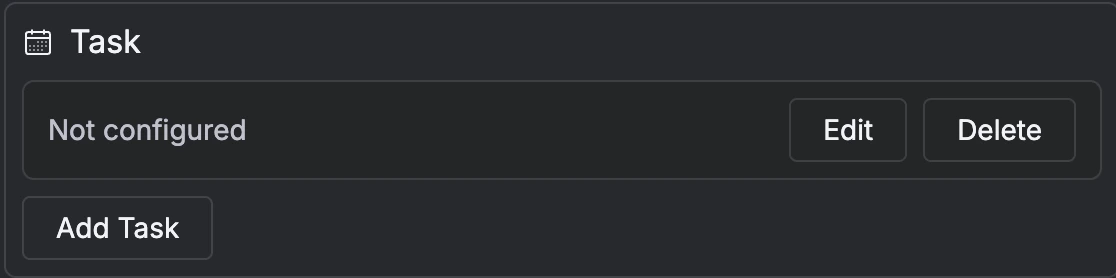
2
Add a task
Click Add Task to open the task configuration panel.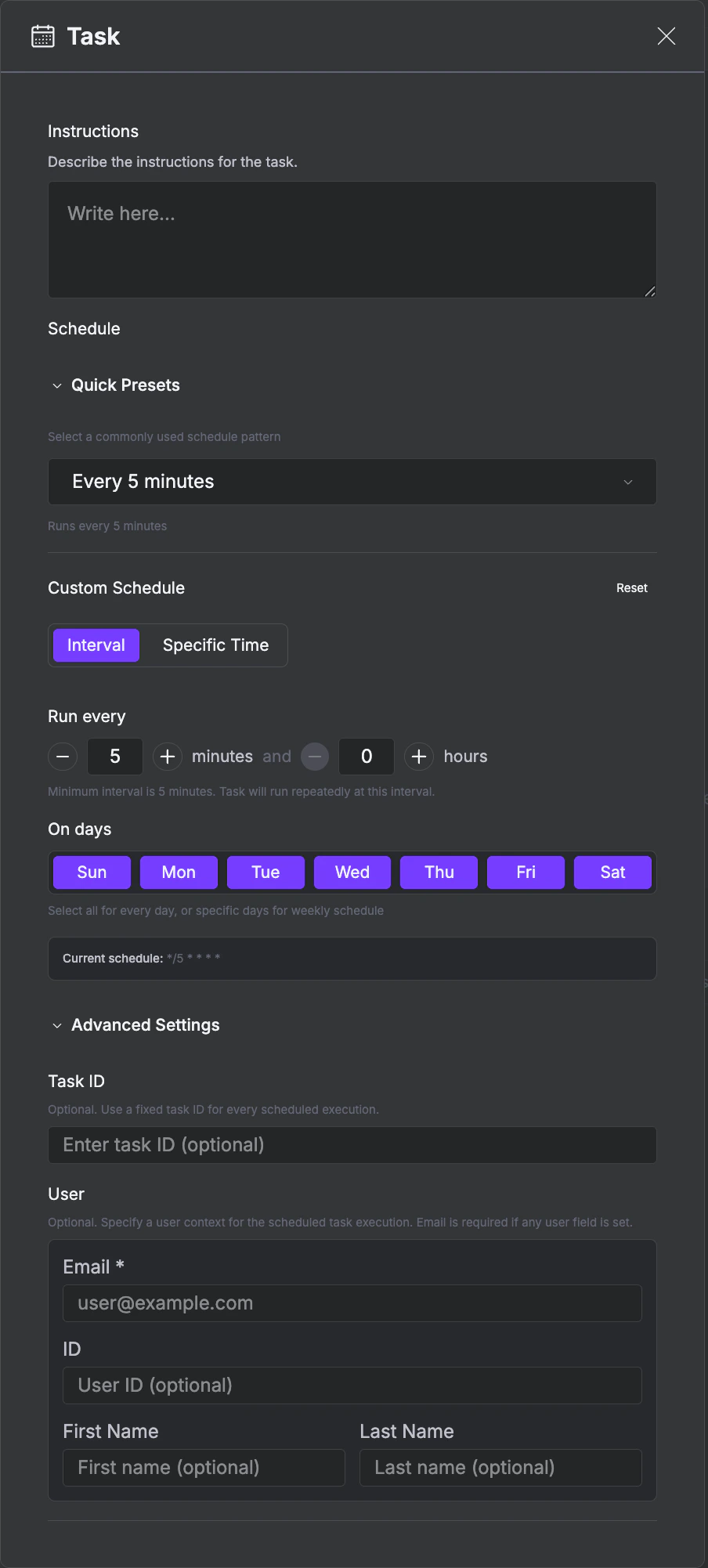
3
Set the instructions
In the Instructions field, describe what the agent should do on each run. For example: “Check for open P0 incidents and post a summary to #ops-alerts.”
4
Set the schedule
Choose a Quick Preset (every 5 minutes, hourly, daily, etc.) or configure a Custom Schedule with a specific interval, time, and active days. The current cron expression is shown at the bottom of the scheduler.
5
Publish
Click Publish. The agent will run automatically at the configured times.
Configure the Schedule
Use Quick Presets
Select a preset from the dropdown for common intervals like every 5 minutes, every hour, or once daily.Build a Custom Schedule
Switch to Custom Schedule for more control:- Interval vs Specific Time - run every N minutes/hours, or at a fixed time each day
- On days - select which days of the week the task should run (all days are selected by default)
Write Cron Expressions
Under the hood, schedules use standard five-field cron syntax:Try It: Cron Builder
Edit each field, see the expression update, and get a plain-English description of when your schedule will fire.Set User Context
Under Advanced Settings in the task configuration, you can provide a user identity for the scheduled run:
Without user context, the agent runs as an anonymous user with no memory or personalization. Setting a user identity means the agent can access that user’s memories and the run shows up under their history in the Monitor tab.
Monitor Runs
Each scheduled execution creates a task that appears in the Monitor tab, just like any other agent invocation. You can see:- When the task ran and how long it took
- The agent’s full response and any tool calls it made
- Whether the run succeeded or failed
- Token usage and cost
Handle Failures
If a scheduled run fails, the failure is logged in the Monitor tab. To investigate, open the failed task and switch to Threads to trace the execution log.Next Steps
Webhooks
Trigger agents from external systems on demand
Slack
Deploy to Slack workspaces
Monitor Runs
Trace execution, debug failures, and review AI performance