

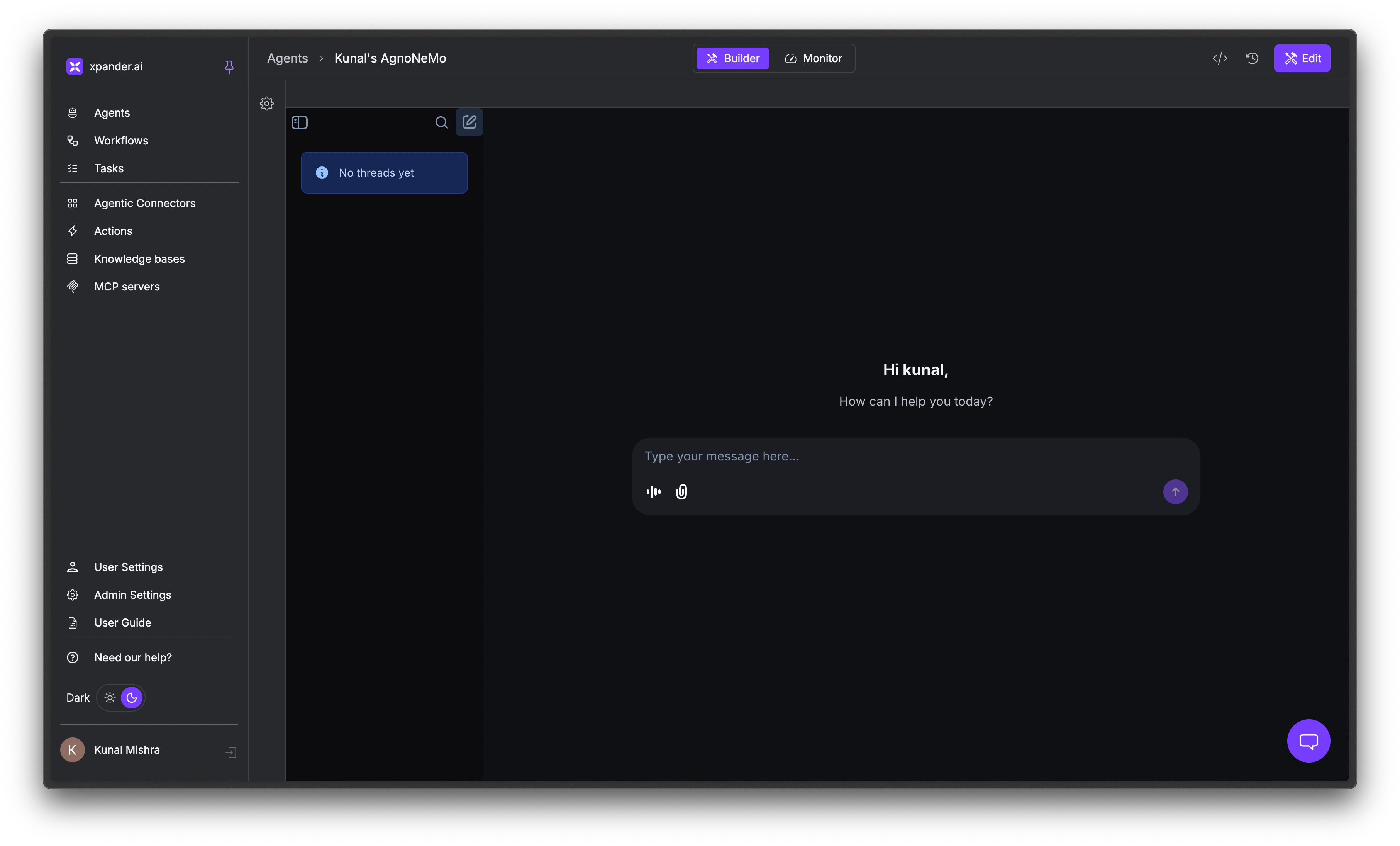
This page is being phased out. For the current way to interact with and test an agent, see Build an Agentic App in the User Guide.
Testing Checklist
Work through each section below. If something isn’t working, check the linked configuration page for that feature.Instructions and Personality
Your agent should sound like the persona you defined and stay within the boundaries you set.- Basic behavior: Send a few messages and check that the agent responds in the tone, style, and format you defined in your Instructions.
- Boundaries: Ask the agent to do something your instructions explicitly forbid. It should decline or redirect - not comply.
- Off-topic handling: Ask something completely unrelated to the agent’s purpose. Verify it stays on topic or deflects the way you intended.
Tool Usage
Your agent should pick the right tool for the request and pass sensible parameters.- Trigger each tool: For every tool you attached, send a message that should trigger it. Verify the agent picks the correct tool.
- Inspect the tool call: Click on the tool call in the chat to expand it. Check the tool name, input parameters, raw output, and execution time. This tells you whether a problem is with tool selection, the parameters the agent chose, or the tool itself.
- Tool dependencies: If you set up dependencies, try to trigger the downstream tool directly. The agent should call the prerequisite tool first.
- Ambiguous requests: Send a message that could match multiple tools. Verify the agent picks the right one. If it doesn’t, add tool-specific instructions or reduce the number of enabled tools.
Knowledge Base Retrieval
Your agent should answer from your documents when relevant and admit ignorance when they don’t cover the question.- Answerable questions: Ask questions your Knowledge Base documents should cover. Verify the agent’s answers are accurate and grounded in your content.
- Unanswerable questions: Ask something your documents don’t cover. The agent should say it doesn’t know - not hallucinate an answer.
- Edge cases: Ask questions that are partially covered or use different phrasing than your documents. If results are poor, adjust the similarity threshold or Top K in your Knowledge Base settings.
Memory
Your agent should remember what you told it earlier, both in this conversation and across new ones.- Within a thread: Tell the agent a fact (“My timezone is EST”) and reference it later in the same conversation. It should remember.
- Across threads: Start a new thread and check if User Memories persist. If they don’t, verify that User Memories are enabled and that
user_idis consistent. - Agent memories: If you enabled Agent Memories, verify the agent stores and recalls organizational knowledge across users and threads.
Multimodal Input
Your agent should read and reason over files you attach alongside your message.- Upload supported files: Send a PDF, image, or audio file and verify the agent processes it correctly.
- Combine text and files: Send a message with both text and an attachment. Verify the agent uses both in its response.
- Unsupported files: Upload a file type the agent shouldn’t handle. Verify it responds gracefully instead of failing silently.
Planning and Reasoning
Your agent should break complex tasks into steps and produce deeper answers on hard questions.- Planning mode: If you enabled the Checklist Toolkit, give the agent a multi-step task. Verify it creates a plan and executes steps in order. Check the Monitor tab’s Tasks view to see the execution plan.
- Reasoning mode: If you enabled the Reasoning Toolkit, ask a question that requires careful analysis. The agent should produce more thorough, well-structured answers than it would without reasoning enabled.
Set up Error Notifications
Get alerted when your agent completes a task or encounters an error.1
Open the Notifications section
In the Agent Studio General tab, expand the Notifications section.
2
Choose Success or Error
Notifications are split into two tabs: Success and Error. Configure them independently - you might want email on errors but webhook on success.
3
Add Email or Webhook notifications
Click + next to Email or Webhook to add a notification channel.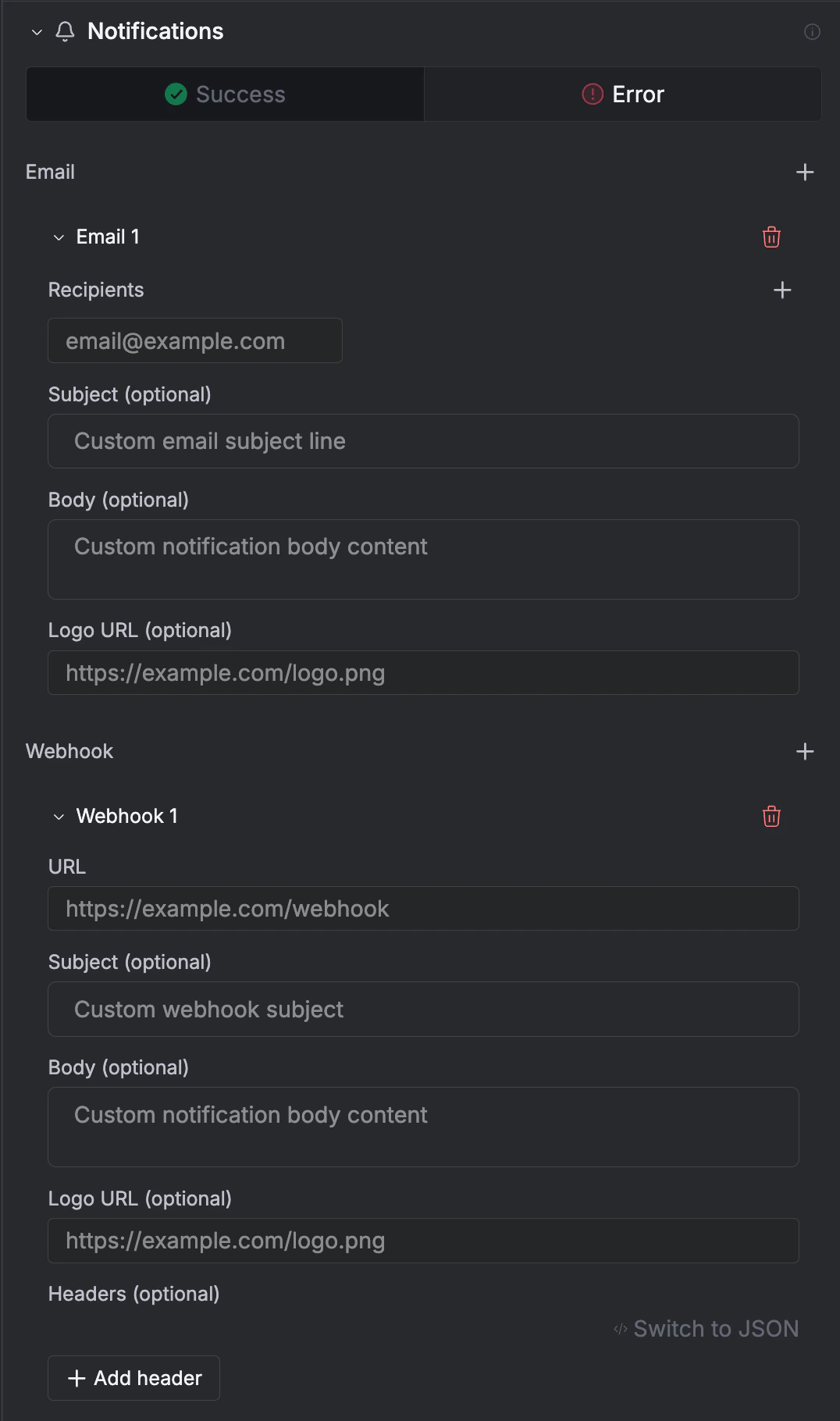
- Email: Add recipient addresses, and optionally customize the subject line, body, and logo URL.
- Webhook: Enter a URL to receive a POST payload. Optionally customize the subject, body, logo URL, and add custom headers (or switch to raw JSON).
Next Steps
Deploy Your Agent
Publish and connect to Slack, API, SDK, and more
Agent Configuration
Full overview of all Agent Studio settings