

https://api.anchorbrowser.io and carry the credential the connect dialog asks for.
What the skill can do
API connector: 37 actions, as they appear in the skill panel. 22 of them create, change or delete something in Anchor Browser; mark those under These actions need approval when you add the skill to an agent.- Task orchestration (17): Create Or Update Task By Name, Create Task Version Deploy, Get Task Draft By Id, Get All Task Versions By Id, Delete Task Version By Id, Create Task Run By Name, Get Task Metadata By Id, Delete Task By Id, Get Latest Task Version By Id, Session Manage Get Session Details By Id, Create Or Update Task Draft, Get Task Executions By Id, Get All Tasks, Create Task Run In Session, and 3 more
- Session management (6): Manage Delete Session By Id, Manage Get Pages By Session Id, Manage Create New Session, Manage Delete All Sessions, Manage Get All Session Status, Manage Get Downloads By Session Id
- Profile management (4): Manage Delete Profile By Name, Manage Get Profile By Name, Manage Get All Profiles, Manage Create Profile From Session
- Browser tooling (3): Create Screenshot By Url, Get Rendered Webpage Content, Create Web Task From Url
- File transfer service (3): Agent Files Get Resources By Session Id, Agent Files Create Resources By Session Id, Session Files Create Uploads By Session Id
- Batch session service (2): Create Batch Sessions, Get Batch Status By Id
- Agent control service (2): Create Pause Agent By Session Id, Create Resume Agent By Session Id
Authentication Options
- API Access
Generate an Anchor Browser API Key
- Log in to your Anchor Browser account.
-
Click API Keys.
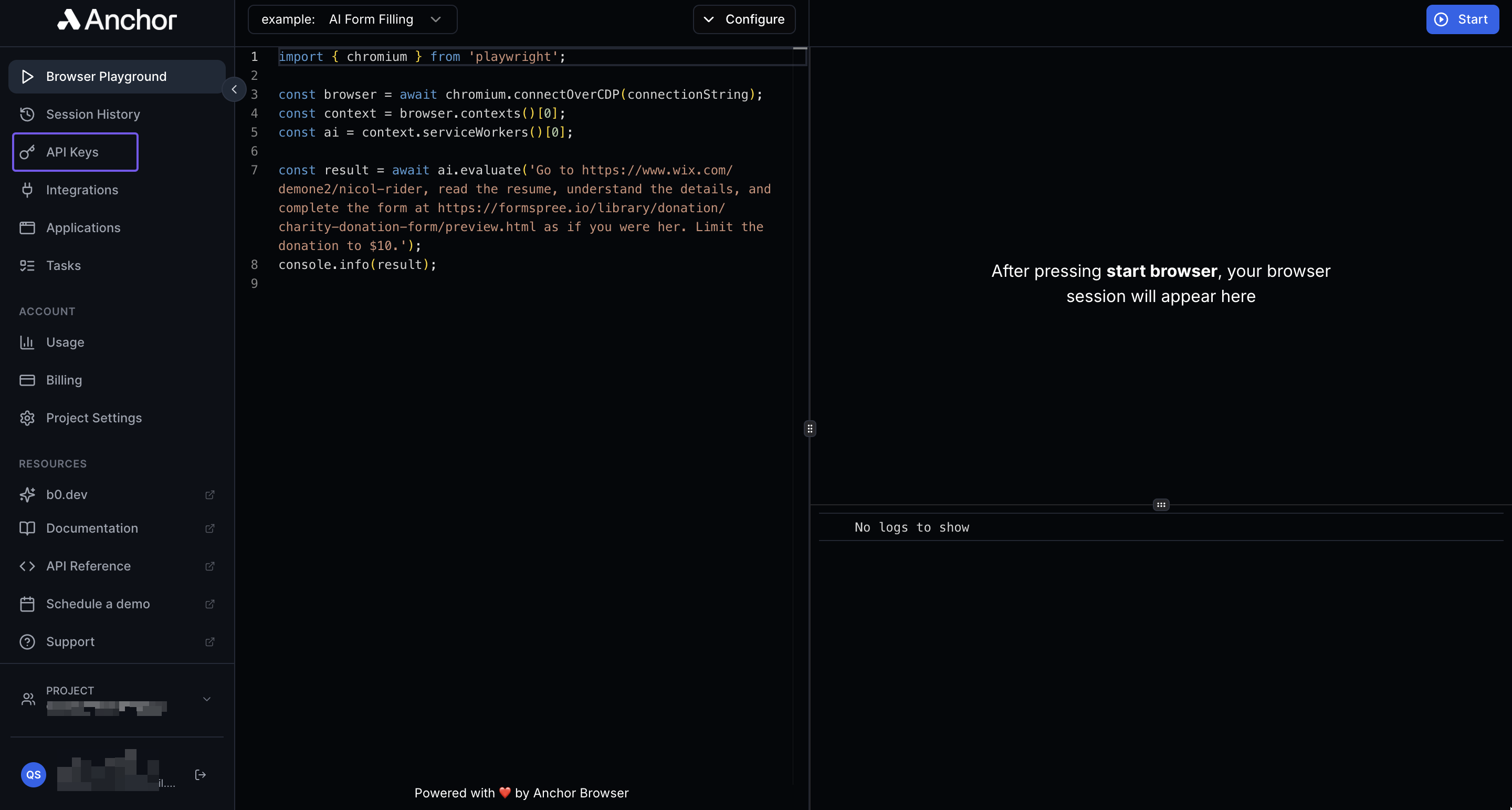
- Click + Add on the top right corner of the API Keys page to create a new API key.
-
Enter a name for the new API key in the Create New API Key dialog that appears, and click Continue to create the new API key.
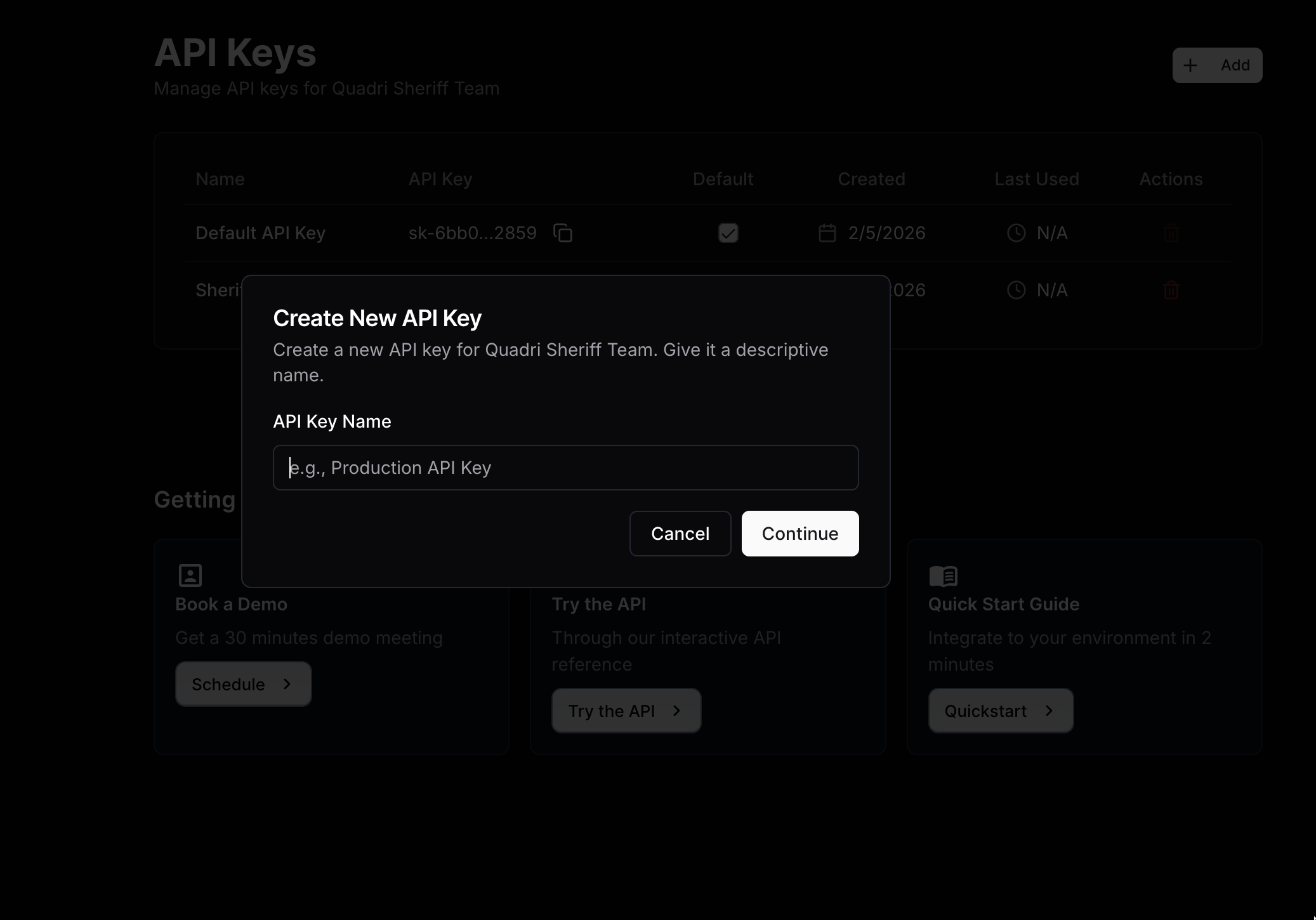
-
The new API key will appear in the API Keys page. Click the copy icon next to the API key to copy the generated key and store it somewhere safe.
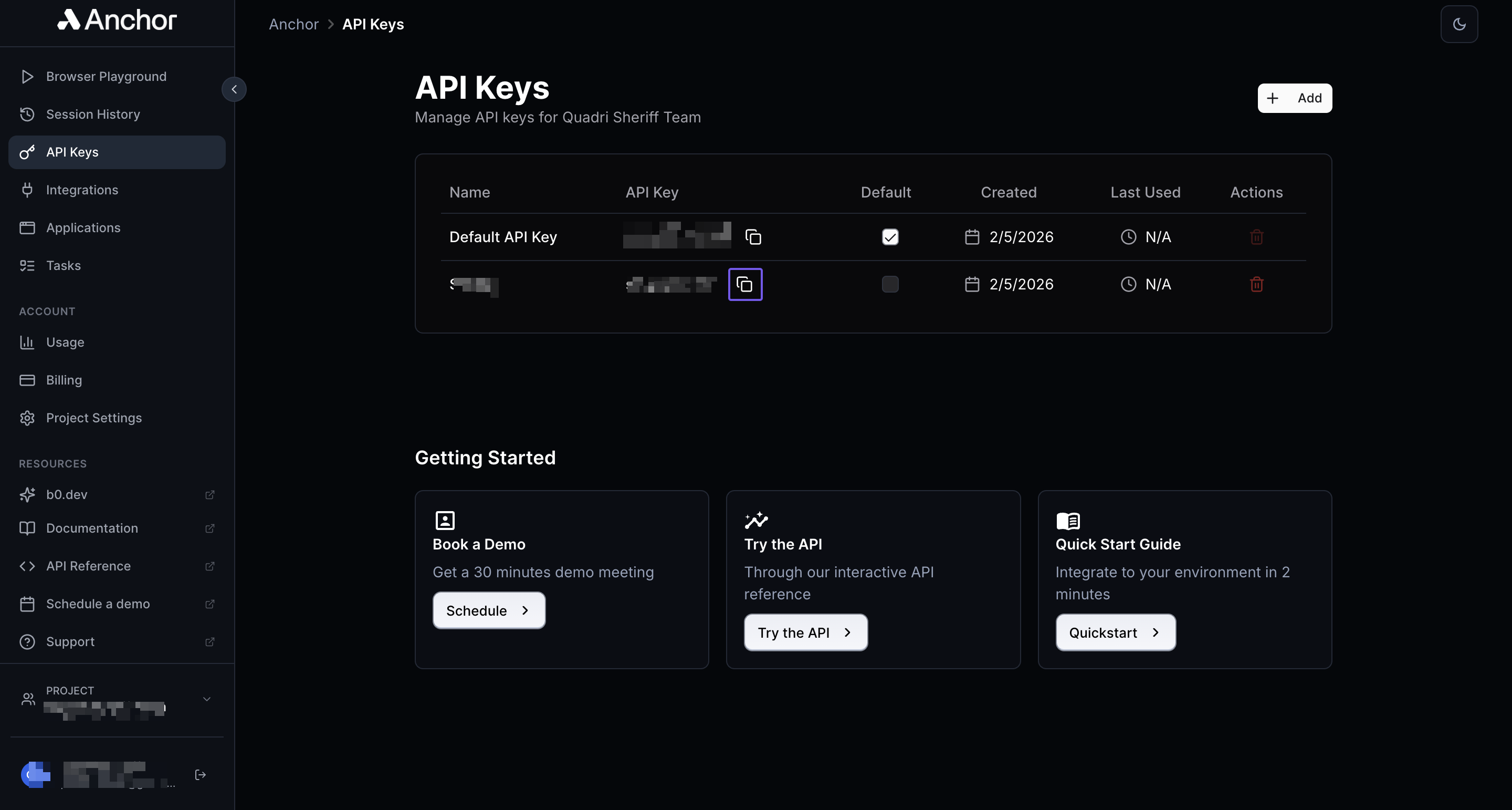
Connect Anchor Browser in xpander
- In Xpander Chat, open the agent’s settings and click Add skill.
- Search for Anchor Browser and select it.
- Enter a connection name, e.g., “xpander-anchorbrowser”.
- Choose Organization access (one shared account) or Personal (your own account, so the agent acts with your permissions where systems allow). On an agent other people use, a personal connection runs their requests as you unless the binding requires each person’s own sign-in; see whose credential a shared agent uses.
- Choose API Key as the authentication method.
- Paste your Anchor Browser API key into the provided field.
- Choose Custom header as the Type.
- Enter anchor-api-key as the custom header name.
- Enter https://api.anchorbrowser.io under Server URL.
- Click Connect.