

https://api.zoom.us/v2 and carry the credential the connect dialog asks for.
What the skill can do
API connector: 155 actions, as they appear in the skill panel. 75 of them create, change or delete something in Zoom; mark those under These actions need approval when you add the skill to an agent.- User management (23): Check User Email Exists, Update User, Delete User Assistant, Upload User Profile Picture, Update User Status, Retrieve User Token, Revoke User Ssotoken, Retrieve User Permissions, Delete User Scheduler, Check Zpkexpiration, Delete User, Add User Assistants, Delete All User Assistants, List User Pacaccounts, and 9 more
- Meeting management (19): Retrieve Meeting Details, Update Meeting Details, Retrieve Meeting Invitation, List Meeting Polls, Create Meeting Poll, Retrieve Meeting Poll, Update Meeting Poll, Delete Meeting Poll, List Meeting Registrants, Register Meeting Participant, Delete Meeting, Update Meeting Live Stream, Update Live Stream Status, Update Registrant Status, and 5 more
- Webinar management (19): Create User Webinar, List Ended Webinar Instances, List User Webinars, Retrieve Webinar, List Webinar Registrants, Add Webinar Registrant, Update Registrant Status, Update Webinar Status, Create Webinar Poll, Retrieve Webinar Poll, Delete Webinar Poll, Delete Webinar, Update Webinar, Add Webinar Panelist, and 5 more
- Account management (16): Create Sub Account, List Sub Accounts, Retrieve Sub Account Billing, Subscribe Plans For Sub Account, Disassociate Sub Account, Update Sub Account Options, Retrieve Sub Account Plans, Update Base Plan Sub Account, Update Sub Account Billing, Retrieve Sub Account Domains, Update Additional Plan Sub Account, Retrieve Sub Account Settings, Update Sub Account Settings, Retrieve Sub Account, and 2 more
- Dashboard analytics (15): Get Crcport Usage, Retrieve Meeting Details, Retrieve Meeting Participants, List Meetings, List Webinars, List Participants Qo S, Retrieve Participant Sharing, Retrieve Webinar Details, Retrieve Webinar Participants, List Webinar Participants Qo S, Retrieve Participant Qo S, Retrieve Webinar Sharing, Retrieve Webinar Participant Qo S, List Zoom Rooms, and 1 more
- Reporting system (13): Retrieve Telephone Report, Retrieve Ended Webinar Participants, Meeting Management List User Meetings, Retrieve Ended Participants, Retrieve User Ended Meetings, Retrieve Hosts Report, Retrieve Ended Webinar Details, Retrieve Ended Webinar QA, Retrieve Cloud Recording Usage, Retrieve Daily Report, Retrieve Ended Meeting Details, Retrieve Ended Meeting Polls, Retrieve Ended Webinar Polls
- Chat service (11): Retrieve Imchat Messages, Create Imgroup, Retrieve Imgroup, List Imgroup Members, Retrieve Imchat Sessions, List Imgroups, Delete Imgroup, Update Imgroup, Add Members To Imgroup, Retrieve Immetrics, Delete Member From Imgroup
- Group management (8): List Groups, Retrieve Group, List Group Members, Add Members To Group, Delete Member From Group, Create Group, Update Group, Delete Group
- Recording service (8): Update Recording Settings, Recover Single Recording, Delete Meeting Recordings, Retrieve Recording Settings, Retrieve Meeting Recordings, Recover Meeting Recordings, Delete Single Recording, List User Recordings
- Tsp management (8): Tspmanagement Retrieve Tspinfo, Tspmanagement Update Tspinfo, User Management List Users, Tspmanagement Add User Tspaccount, Tspmanagement Retrieve User Tspaccount, Tspmanagement Delete User Tspaccount, Tspmanagement Update User Tspaccount, Tspmanagement List User Tspaccounts
- Webhook service (6): List Webhooks, Delete Webhook, Update Webhook, Create Webhook, Switch Webhook Version, Retrieve Webhook
- Tracking field management (5): Delete Tracking Field, Update Tracking Field, List Tracking Fields, Create Tracking Field, Retrieve Tracking Field
- Device management (4): List H323 Sipdevices, Create H323 Sipdevice, Delete H323 Sipdevice, Update H323 Sipdevice
Authentication Options
- API Access
Generate a Zoom API Key
- Go to the Zoom App Marketplace.
-
Click the Develop button at the top right of your dashboard, then select Build App.
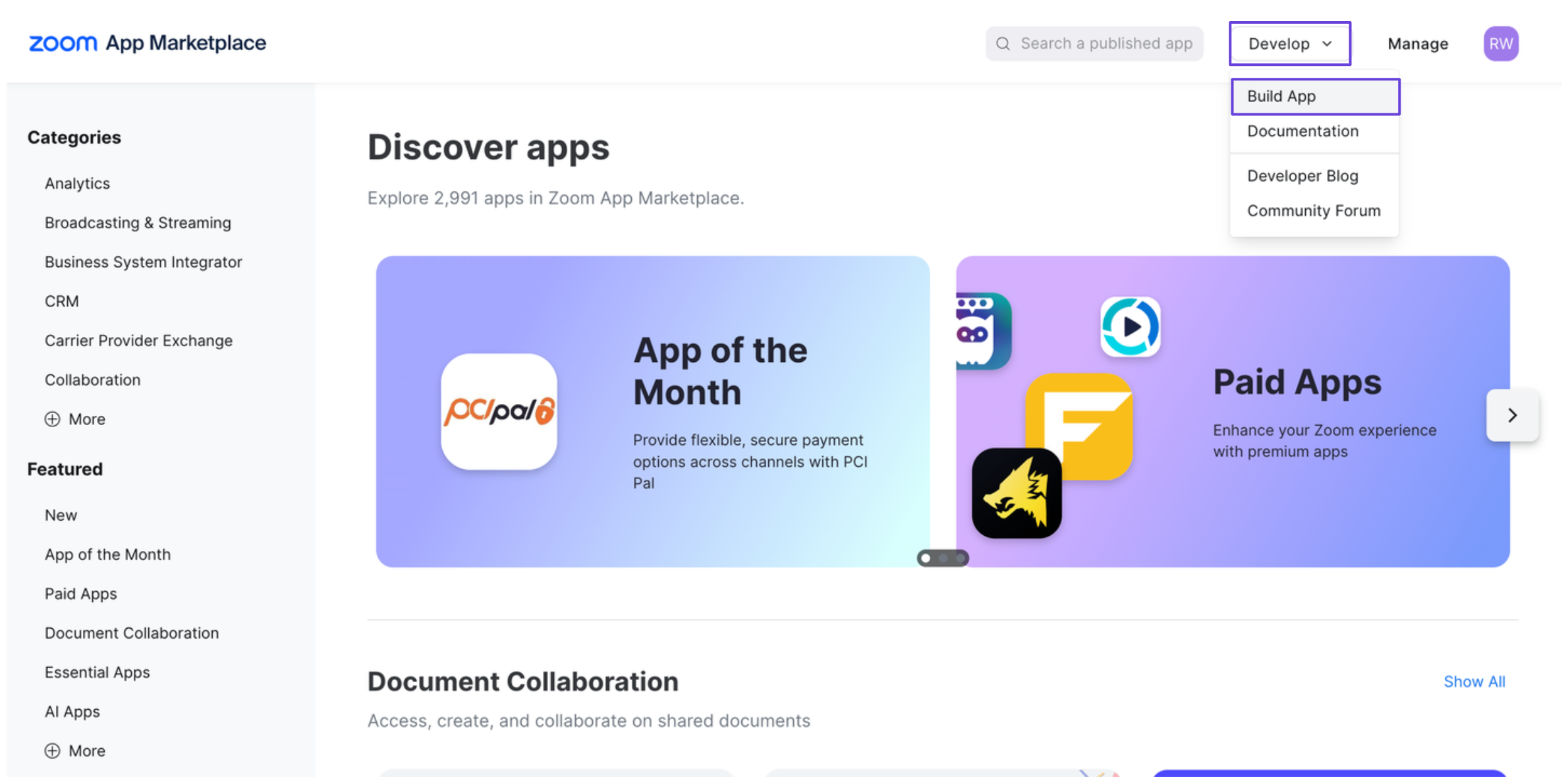
- Choose Server-to-Server OAuth App, then click Create.
- Give your app a name.
-
You’ll be shown the Account ID, Client ID, and Client Secret. Copy these values for later.
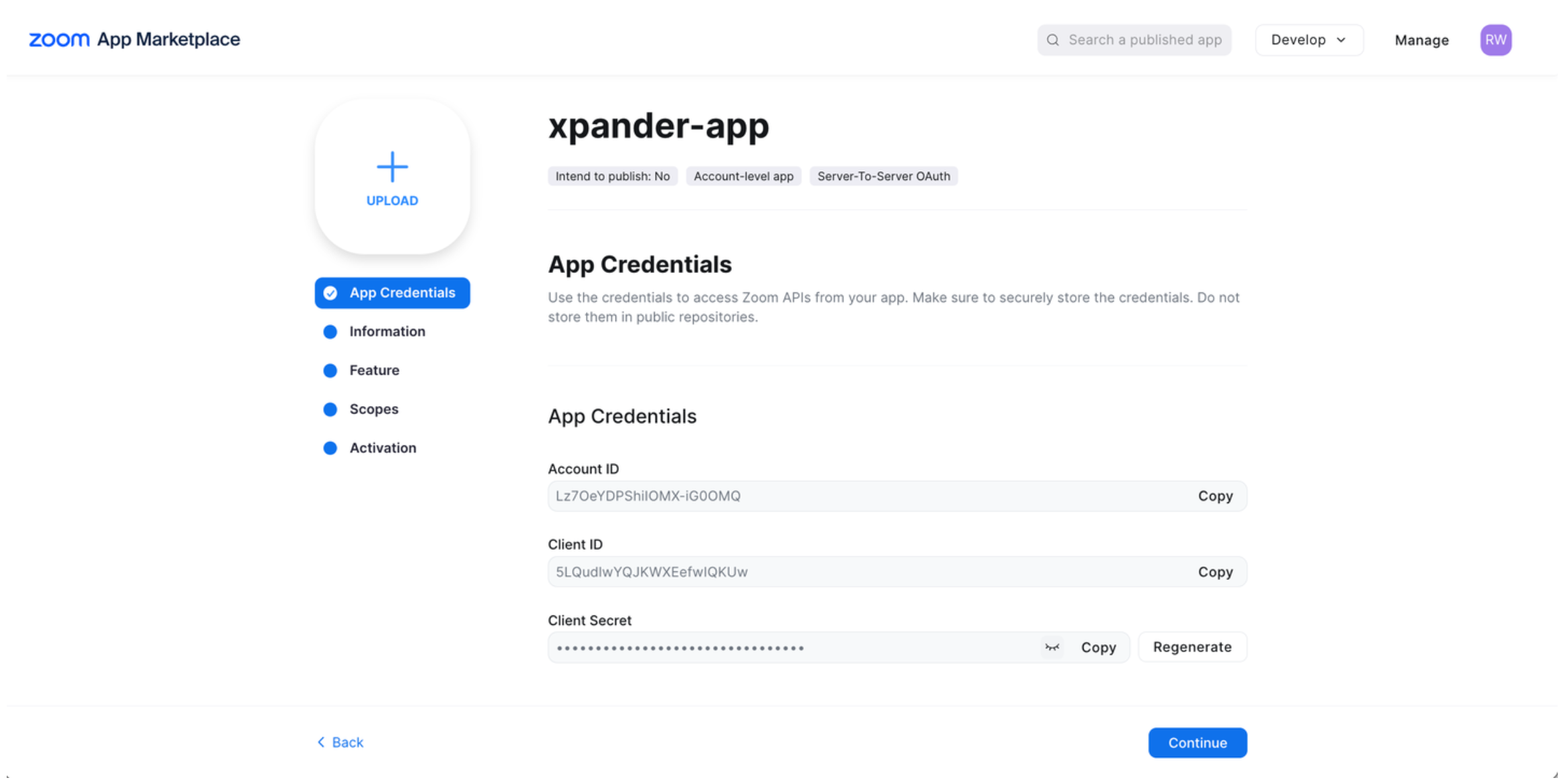
- Fill out the required fields and add the necessary scopes to your app.
-
Finally, click Activate your app.
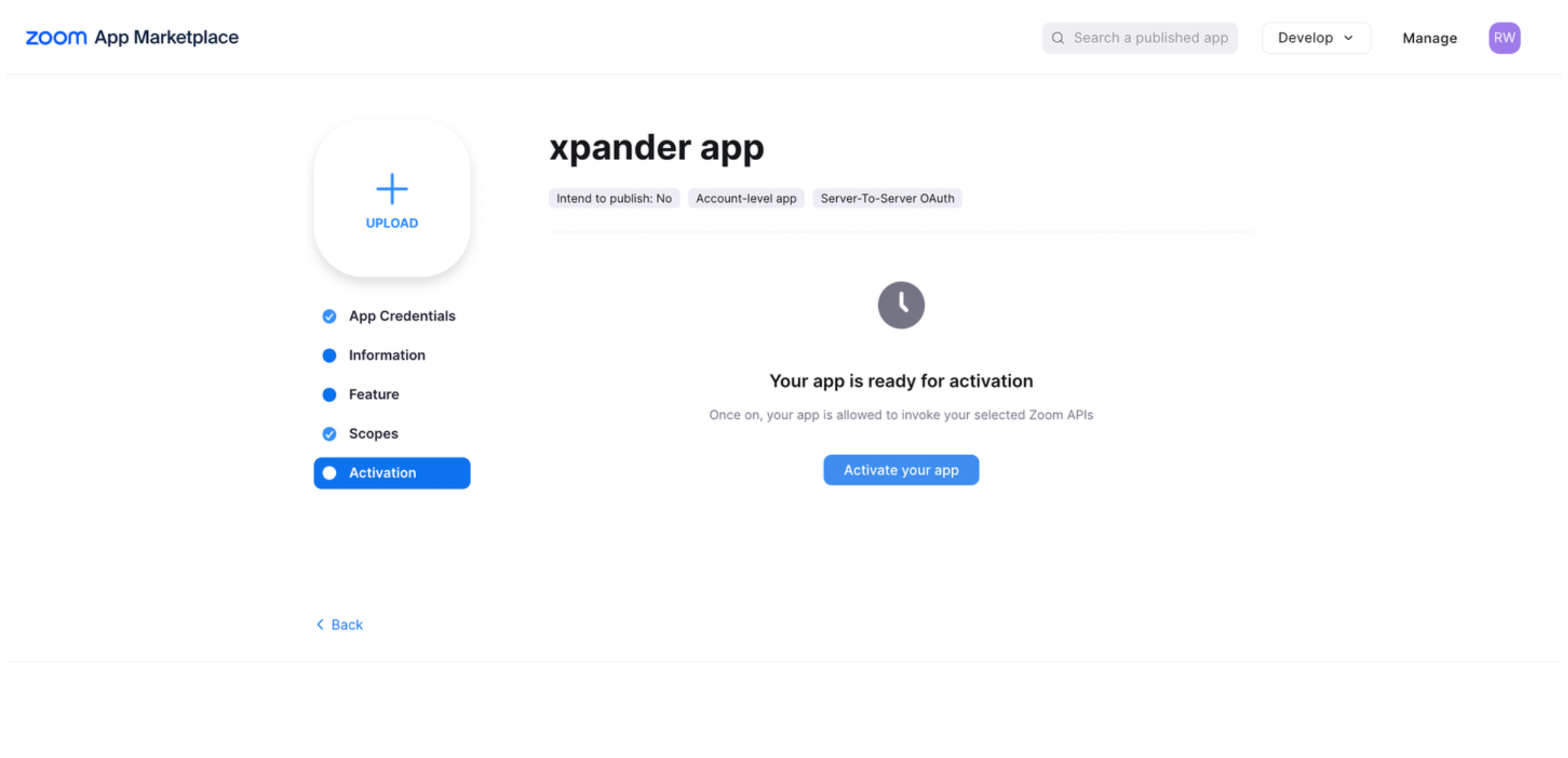
- Open your terminal and run the following command:
- If successful, you’ll receive an access token in the response.
Connect Zoom in xpander
- In Xpander Chat, open the agent’s settings and click Add skill.
- Search for Zoom and select it.
- Enter a connection name, e.g., “xpander-zoom”.
- Choose Organization access (one shared account) or Personal (your own account, so the agent acts with your permissions where systems allow). On an agent other people use, a personal connection runs their requests as you unless the binding requires each person’s own sign-in; see whose credential a shared agent uses.
- Choose API Key as the authentication method.
- Paste the Zoom access token from the previous step into the provided field.
- Set the Type to Bearer.
- Click Connect.