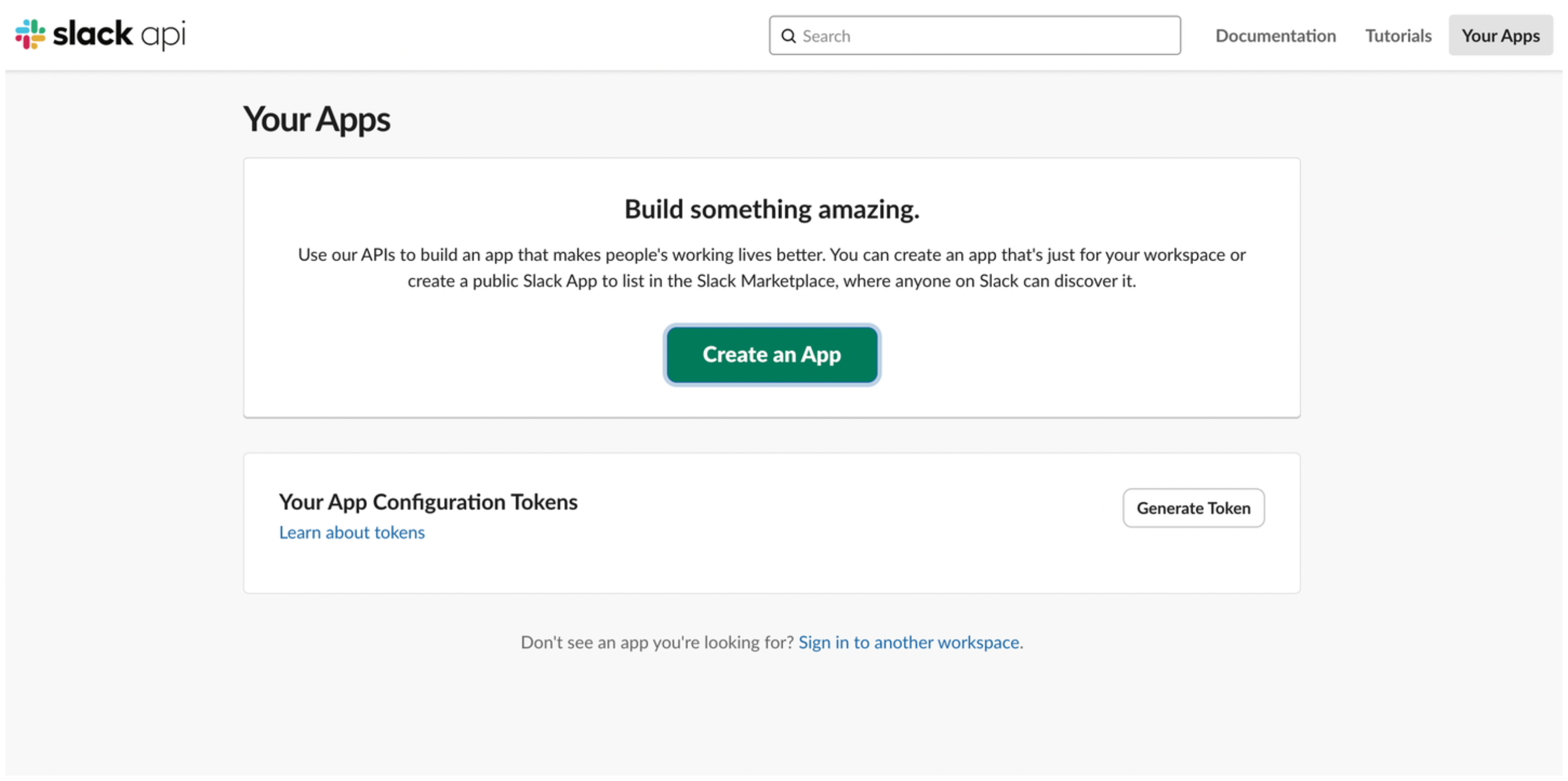
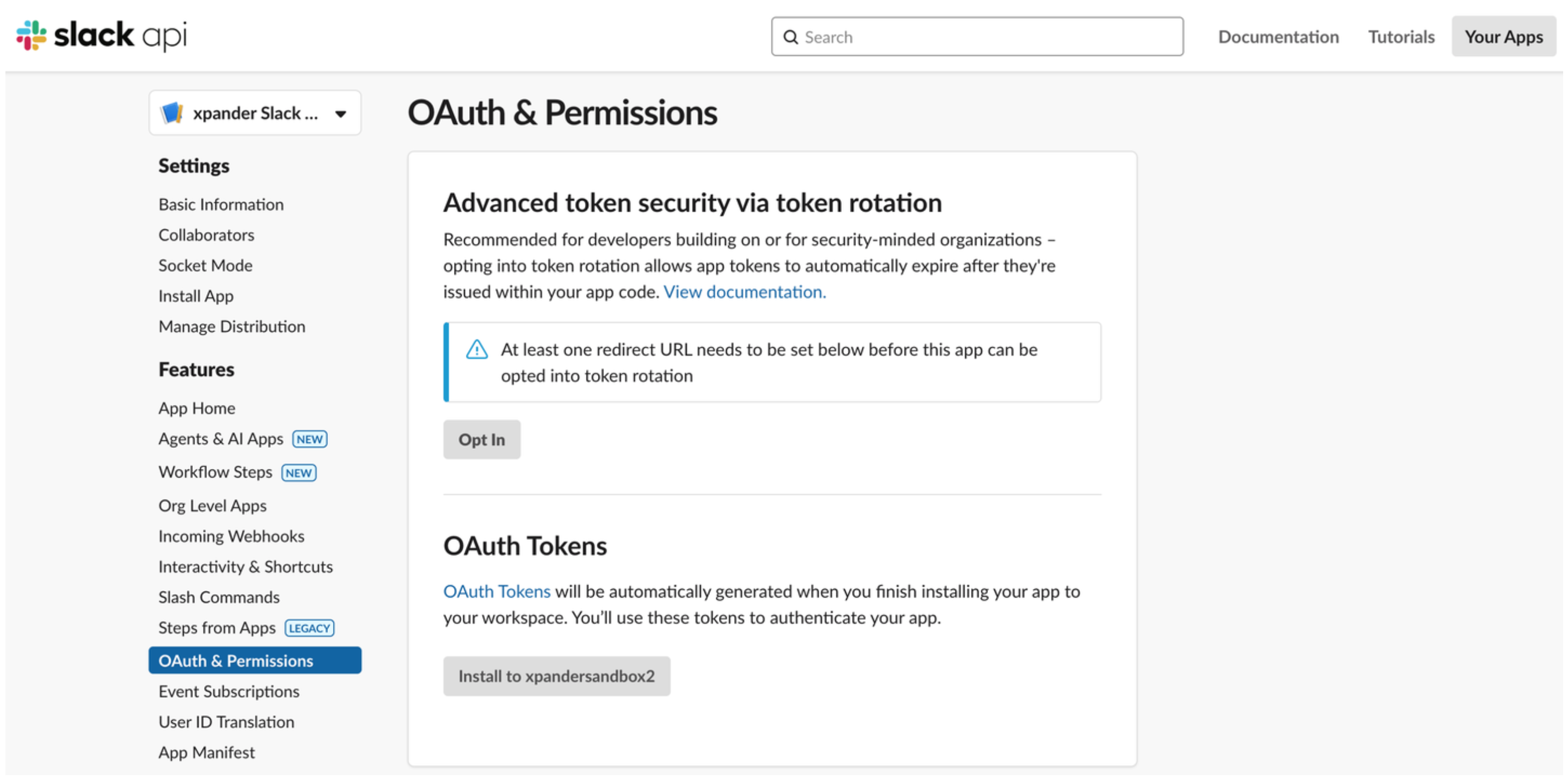
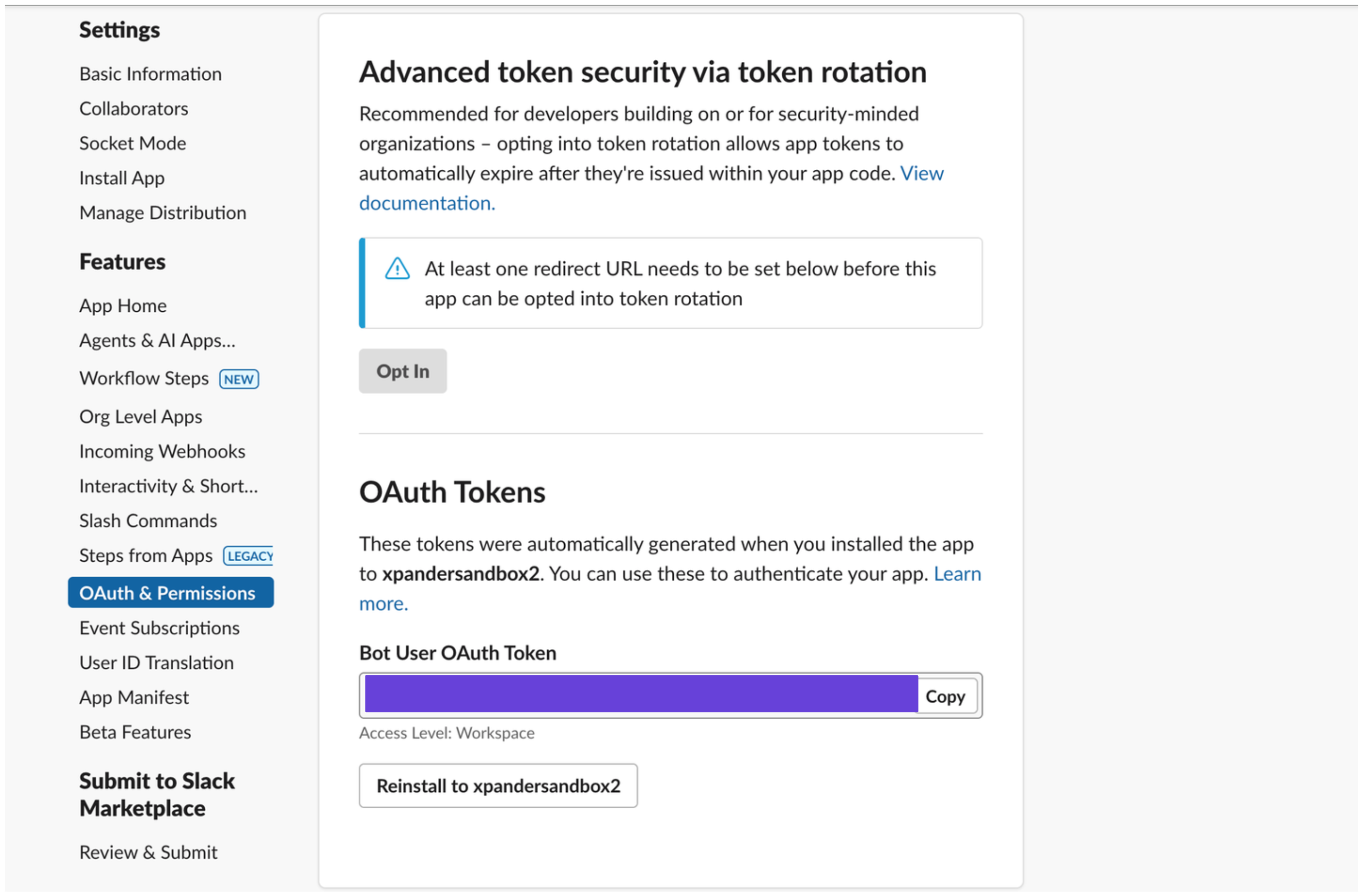
https://slack.com/api and carry an OAuth 2.0 token obtained with Sign in with Slack on the cloud edition, or an API key or custom header on a self-hosted installation, which offers no sign-in flow.
What the skill can do
API connector: 36 actions, as they appear in the skill panel. 15 of them create, change or delete something in Slack; mark those under These actions need approval when you add the skill to an agent.- Conversation management (11): Create New Channel, List Available Chats, Get Conversation Info, Invite Users To Channel, Fetch Channel Participants, Open Direct Message, Update Channel Purpose, Update Channel Topic, Join Channel, Rename Channel, Get Thread Messages
- Other (9): Message Sending Send Ephemeral Msg To User, Dnd Info Get User Status, Pin List Channel Pins, User Lookup By Email, Reaction Remove Emoji From Message, Message Permalink Retrieve Link, Reaction Add Emoji To Message, Reaction Get For Message, Pin Add Message To Channel
- Message service (6): Update Message In Channel, Schedule Message In Channel, Send Message To Channel, Fetch Conversation History, Search Messages, List Scheduled Messages
- Remote file service (2): List Team Channels, List Files With Filters
- File management (2): Get File Details, Upload File To Slack
- Team management (2): Get Team Info, List Team Members
- User management (2): Get User Profile, Get User Details
- Bot management (1): Get Bot User Info
- Emoji service (1): List Team Emojis
Want to talk to agents in Slack? Follow the Slack workspace guide to connect Omni, authorize agent handles, and configure channel auto-engagement. This page covers giving an agent Slack skills; authorizing this skill does not create an agent handle.
Authentication Options
- Built-in xpander Auth
- API Access
The simplest way to connect Slack is by using xpander’s built-in authentication:
- In Xpander Chat, open the agent’s settings and click Add skill.
- Search for Slack and select it.
- Click Sign in with Slack.
- Grant xpander permission to access specific channels in your Slack workspace.
- Your Slack integration is now ready to use.