

https://forms.googleapis.com/v1 and carry an OAuth 2.0 token obtained with Sign in with Google on the cloud edition, or an API key or custom header on a self-hosted installation, which offers no sign-in flow.
What the skill can do
API connector: 9 actions, as they appear in the skill panel. 5 of them create, change or delete something in Google Forms; mark those under These actions need approval when you add the skill to an agent.- Watch0b0ees (4): List Watch0b0ees, Renew Watch0b0e, Delete Watch0b0e, Create Watch0b0e
- Form0b0es (3): Get Form0b0e, Create Form0b0e, Batch Update Form0b0e
- Response0b0es (2): Get Form0b0e Response0b0e, List Form0b0e Response0b0es
Authentication Options
- API Access
Generate a Google Forms API Key
- Log in to your Google Cloud Console.
-
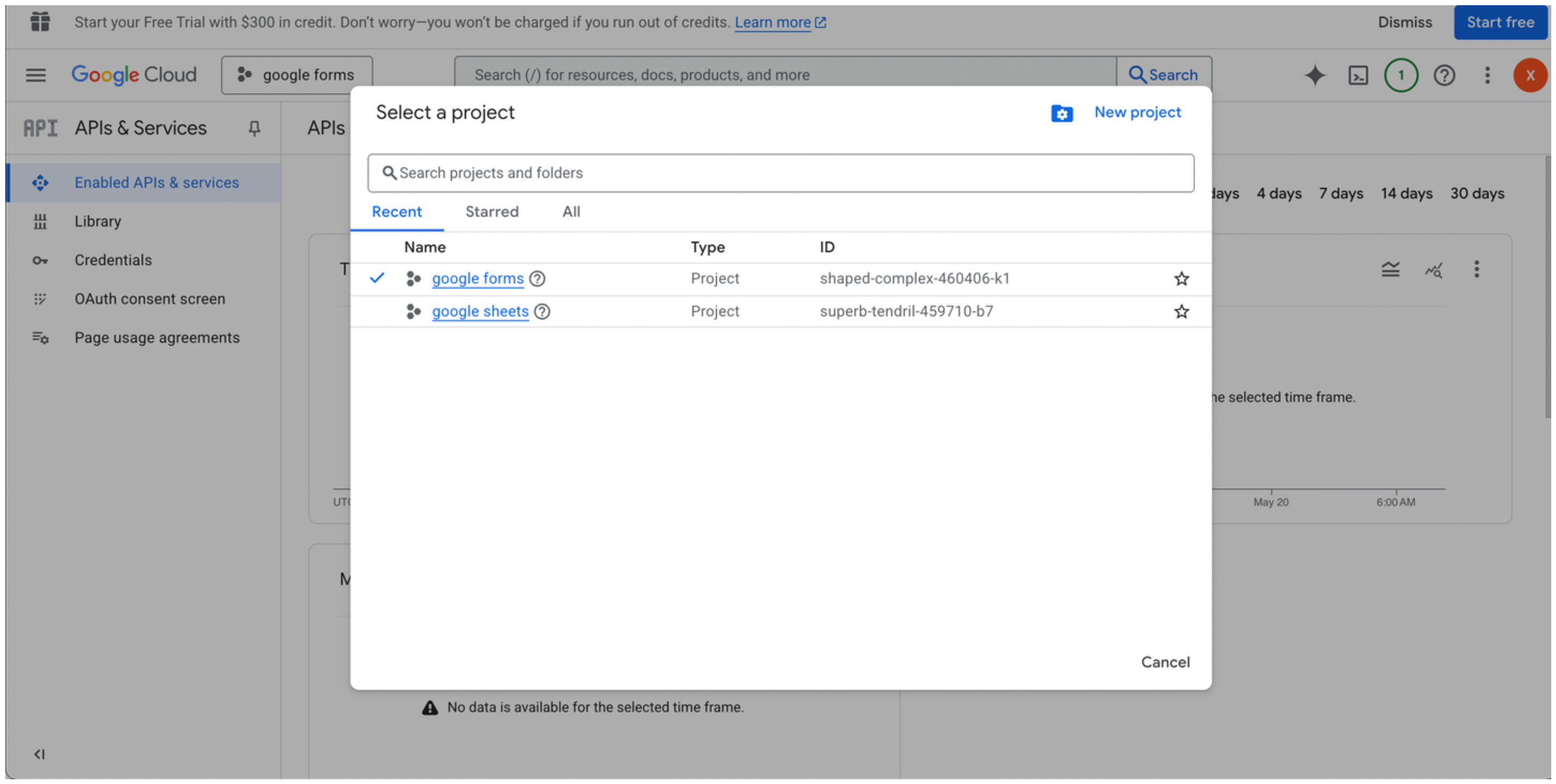
Create a new project or select an existing one.\
-
Go to the Google Cloud API Library.\
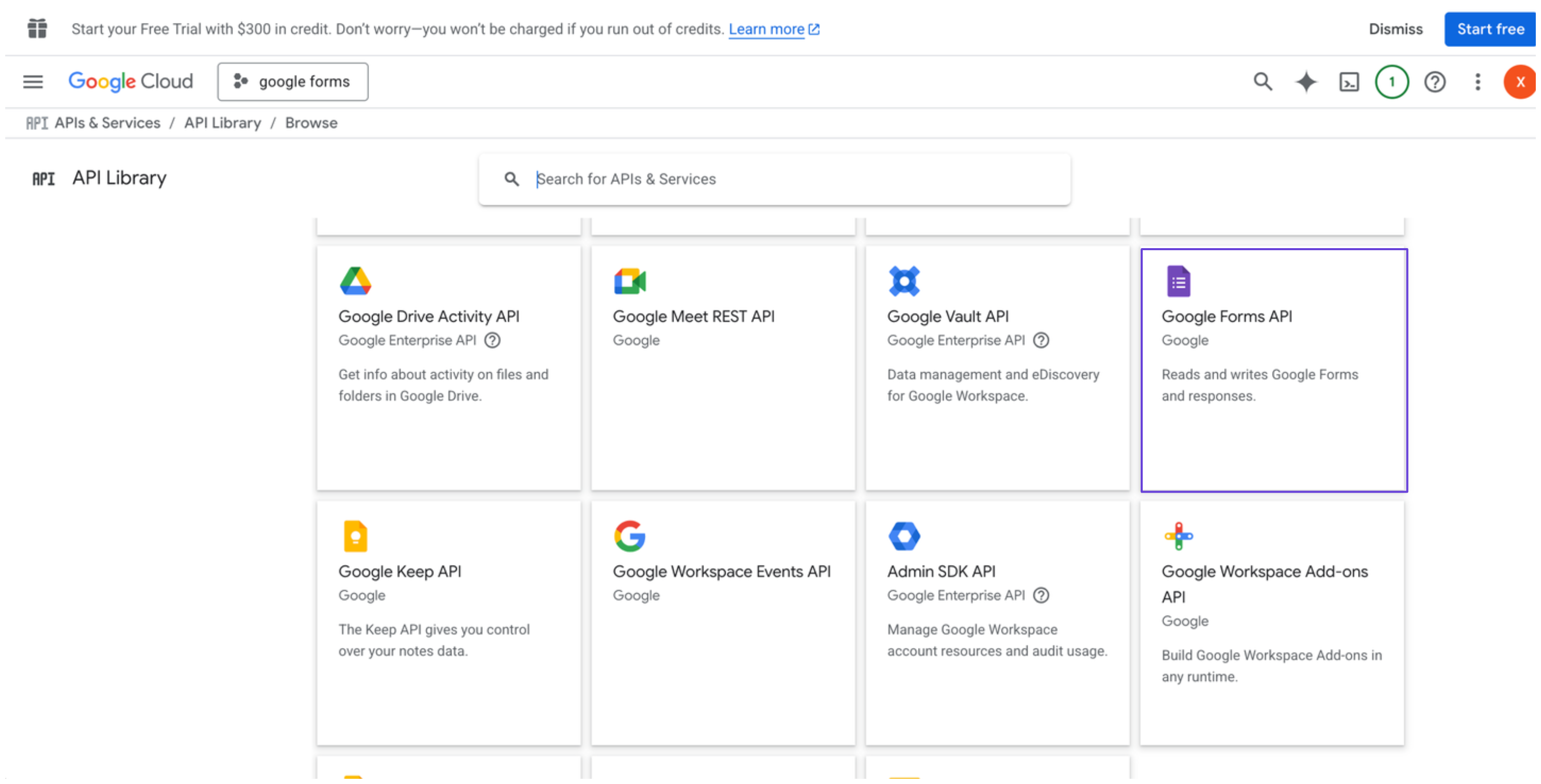
- Search for and select Google Forms API, then click Enable.
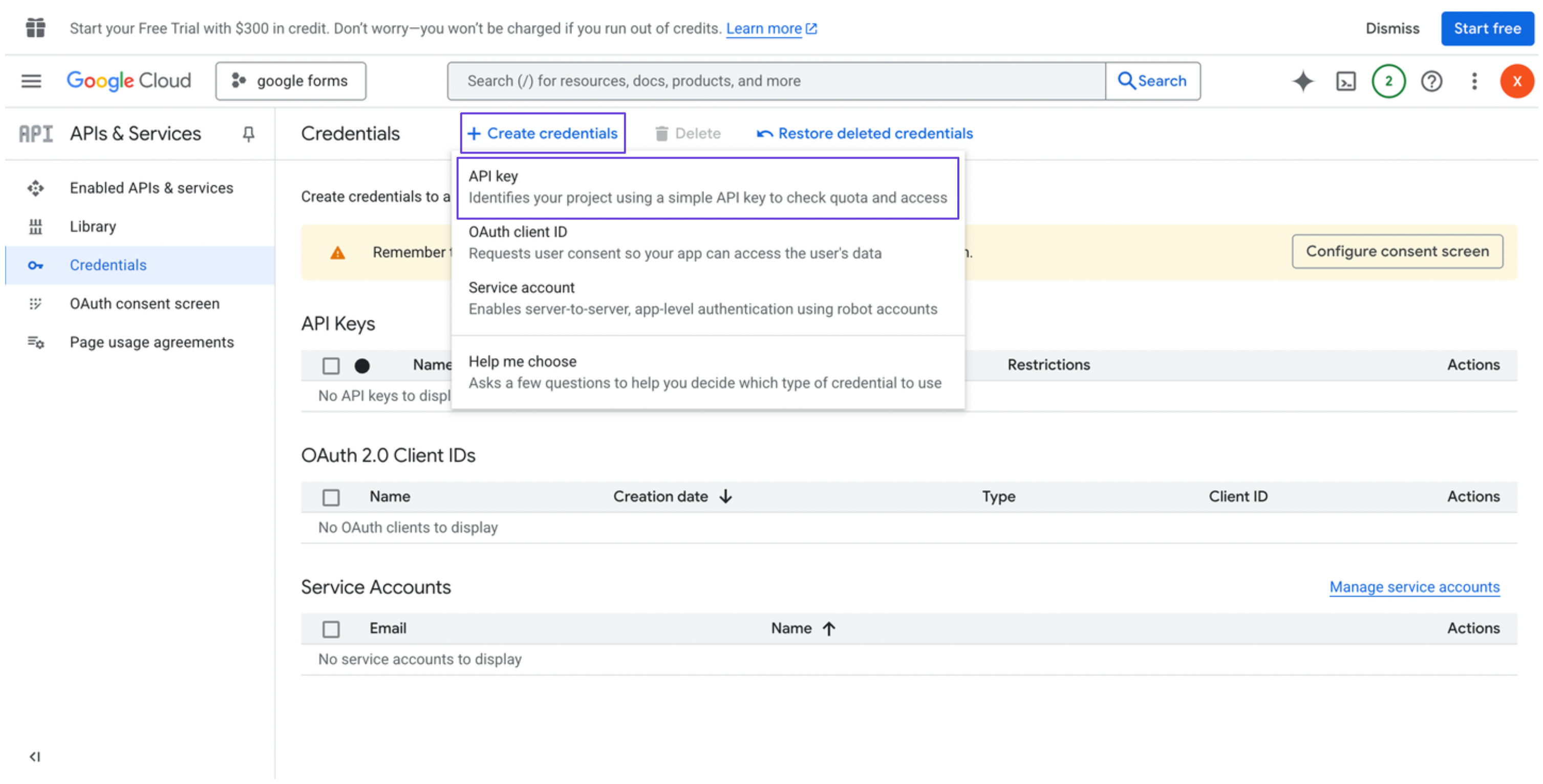
- In the sidebar, go to Credentials.
-
Click Create credentials, and select API key.\
-
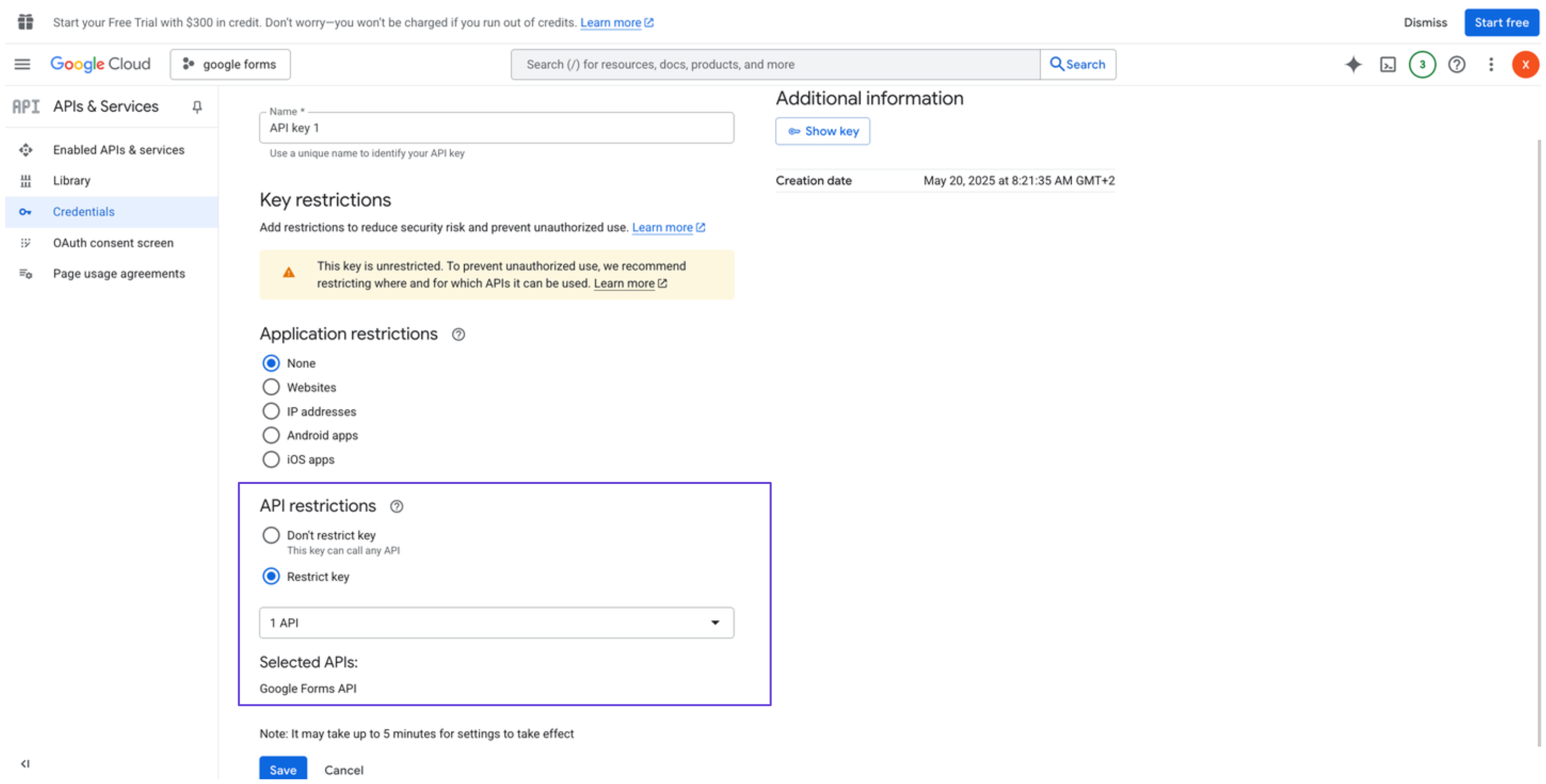
Restrict the API key to Google Forms API only (optional but recommended).\
Connect Google Forms in xpander
- In Xpander Chat, open the agent’s settings and click Add skill.
- Search for Google Forms and select it.
- Enter a connection name, e.g., “xpander-google-forms”.
- Choose Organization access (one shared account) or Personal (your own account, so the agent acts with your permissions where systems allow). On an agent other people use, a personal connection runs their requests as you unless the binding requires each person’s own sign-in; see whose credential a shared agent uses.
- Select API Key as the authentication method.
- Paste the Google Forms API key into the provided field.
- Choose Basic as the Type.
- Click Connect.