

https://api.twilio.com and carry the credential the connect dialog asks for.
What the skill can do
API connector: 197 actions, as they appear in the skill panel. 94 of them create, change or delete something in Twilio; mark those under These actions need approval when you add the skill to an agent.- Sip management (47): Stop Siprec, Create Siprec, Update Credential, Fetch Credential List by SID, Delete Credential Mapping, Create IP Access Control Mapping Domain, List IP Access Control Lists, Create IP Access Control List, Update IP Address, Delete IP Access Control List, Delete Credential, Fetch IP Access Control Mapping by SID, Create Registration Credential Mapping, Fetch Registration Credential Mapping by SID, and 33 more
- Recording service (18): Delete Recording for Call, Delete Payload, Create Call Recording, List Add-On Results, Update Recording Status, List All Recordings, Delete Add-On Result, Fetch Recording, Fetch Payload Data, List Call Recordings, Fetch Recording for Call, List Transcriptions, Fetch Transcription, Delete Transcription, and 4 more
- Incoming phone number service (17): Fetch Add-On Extension, Fetch Assigned Add-On, Fetch Incoming Phone Number by SID, List All Incoming Phone Numbers, Purchase Incoming Phone Number, List Local Numbers, List Mobile Numbers, Assign Add-On to Phone Number, Delete Assigned Add-On, List Toll-Free Numbers, Create Toll-Free Number, List Assigned Add-Ons, Create Local Number, Create Mobile Number, and 3 more
- Usage records (14): List Usage Records, List All Time Usage Records, List This Month Usage Records, List Yearly Usage Records, List Yesterday Usage Records, List Last Month Usage Records, List Monthly Usage Records, List Today Usage Records, Fetch Usage Trigger by SID, Delete Usage Trigger, List Daily Usage Records, List Usage Triggers, Create Usage Trigger, Update Usage Trigger
- Phone number service (10): List National Numbers by Country, List Toll-Free Numbers by Country, List Dependent Phone Numbers, List Available Countries, List Local Numbers by Country, List Shared Cost Numbers, List Available Numbers by Country, List Machine-to-Machine Numbers, List Mobile Numbers by Country, List VoIP Numbers by Country
- Key management (10): Fetch Key by SID, Update Key, List Keys, Create New Key, Delete Key, List Signing Keys, Update Signing Key, Delete Signing Key, Create Signing Key, Fetch Signing Key by SID
- Call management (8): Create Outgoing Call, List Call Events by Call SID, List Calls, List Notifications by Call SID, Update or Redirect Call, Fetch Call by SID, Delete Call by SID, Fetch Call Notification by SID
- Queue management (8): Fetch Queue Member by Call SID, Dequeue Queue Member, Delete Queue by SID, List Queues, List Queue Members, Create Queue, Fetch Queue by SID, Update Queue
- Conference management (7): List Conferences, Update Conference Recording Status, List Conference Recordings, Fetch Conference Recording, Delete Conference Recording, Fetch Conference by SID, Update Conference by SID
- Message service (6): Send Message, Create Message Feedback, Update Message, Delete Message by SID, List All Messages, Fetch Message by SID
- Address management (5): List Addresses, Create Address, Update Address by SID, Fetch Address by SID, Delete Address by SID
- Account management (5): List Accounts, Create Subaccount, Fetch Account Balance, Update Account Properties, Fetch Account by SID
- Application management (5): List Applications, Delete Application by SID, Create Application, Fetch Application by SID, Update Application
- Transcription service (5): Stop Transcription, Create Transcription, Fetch Transcription by SID, Delete Transcription by SID, List Transcriptions
- Participant management (5): Fetch Participant by SID, List Participants, Create Participant, Update Participant, Delete Participant
- Connect apps (4): Delete Connect App by SID, Fetch Connect App by SID, List Connect Apps, Update Connect App by SID
- Outgoing caller id (4): Update Outgoing Caller ID, Delete Outgoing Caller ID by SID, List Outgoing Caller IDs, Fetch Outgoing Caller ID by SID
- Media service (3): List Media by Message SID, Fetch Media by SID, Delete Media by SID
- User defined message service (3): Subscribe to User-Defined Messages for Call, Delete User-Defined Message Subscription by SID, Create User-Defined Message for Call
- Short code service (3): List Short Codes, Fetch Short Code by SID, Update Short Code
- Authorized connect apps (2): Fetch Authorized Connect App by SID, List Authorized Connect Apps
- Payments management (2): Update Payment Session, Create Payment Session
- Notification service (2): Fetch Notification by SID, List Notifications
- Stream management (2): Create Stream, Stop Stream
- Validation service (1): Create Validation Request
- Token management (1): Create Token
Authentication Options
- API Access
Generate Twilio API Key
- Go to your Twilio console account.
- You can find your Account SID and Auth Token at the bottom of your account dashboard.\
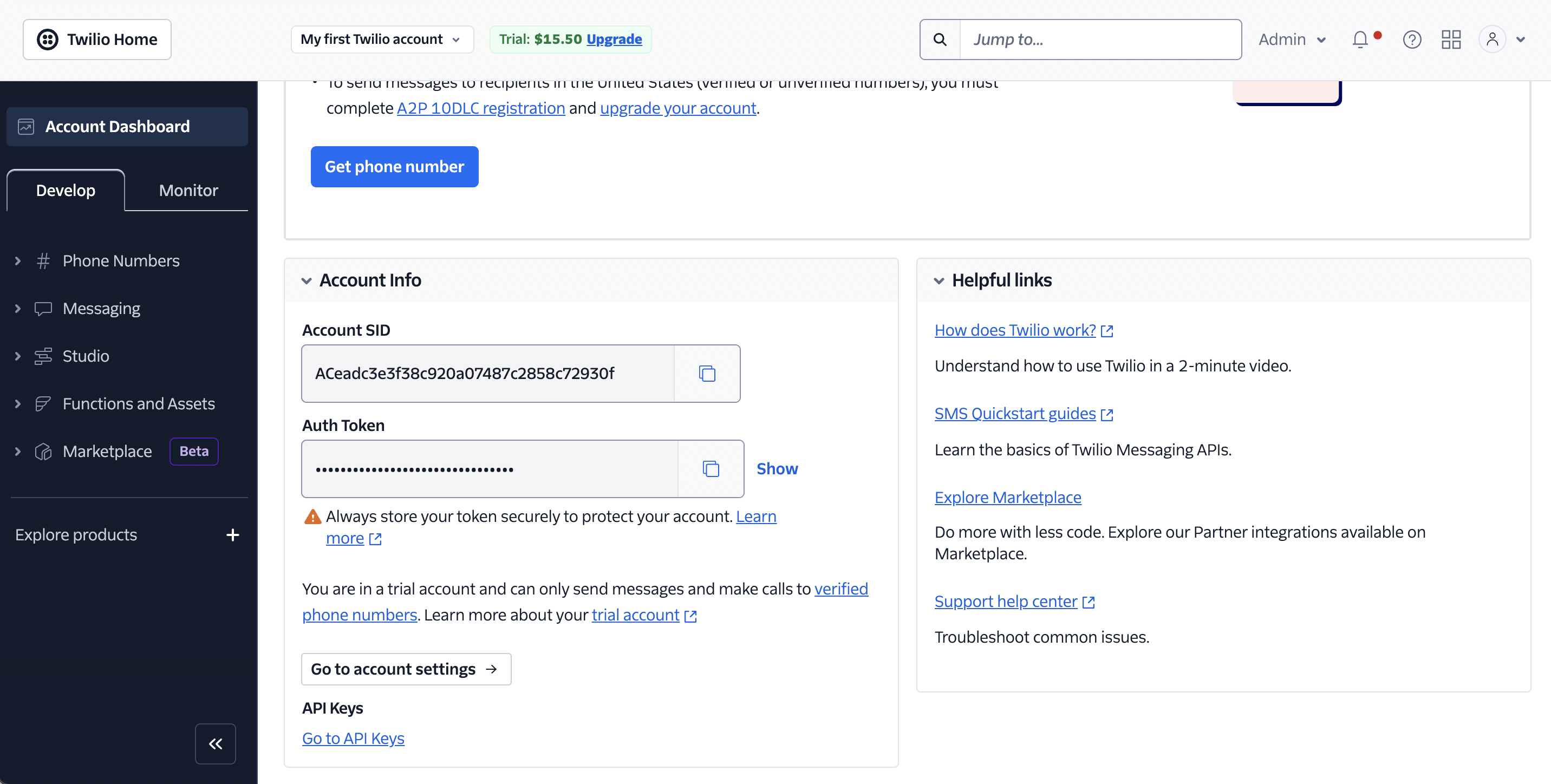
- Combine the Account SID and Auth Token using the following format:
account_SID:Auth_token, and encode it using Base64. You can do this in a few ways:
- Run this command:
echo -n '{account_SID}:{Auth_token}' | base64(for Linux or macOS). - Use an online encoder.
- The encoded result will serve as your Twilio API key.
Connect Twilio in xpander
- In Xpander Chat, open the agent’s settings and click Add skill.
- Search for Twilio and select it.
- Enter a connection name, e.g., “xpander-twilio”.
- Choose Organization access (one shared account) or Personal (your own account, so the agent acts with your permissions where systems allow). On an agent other people use, a personal connection runs their requests as you unless the binding requires each person’s own sign-in; see whose credential a shared agent uses.
- Choose API Key as the authentication method.
- Copy and paste the encoded Twilio API key into the provided field.
- Choose Basic as the Type.
- Click Connect.