What the skills can do
The platform lists 2 Jira skills, each added to an agent separately. All are HTTP APIs described by OpenAPI specs, not MCP servers:- Jira: 557 actions. Calls go to your Jira address (
https://api.atlassian.com/ex/jira/{cloud_id}, filled in when connecting) and carry an OAuth 2.0 token obtained with Sign in with Atlassian on the cloud edition, or an API key or custom header on a self-hosted installation, which offers no sign-in flow. - Jira Sprints: 95 actions. Calls go to your Jira address (
https://{your-domain}.atlassian.net, filled in when connecting) and carry an OAuth 2.0 token obtained with Sign in with Atlassian on the cloud edition, or an API key or custom header on a self-hosted installation, which offers no sign-in flow.
What the Jira skill can do
API connector: 557 actions, as they appear in the skill panel. 310 of them create, change or delete something in Jira; mark those under These actions need approval when you add the skill to an agent.- Issue management (58): Create Issue, Archive Issues, Archive Issues by JQL, Bulk Create Issues, Bulk Get Issues, Get Create Issue Metadata, Get Create Issue Meta Issue Types, Get Create Issue Meta Fields, Get Issue Limit Report, Suggest Issues, Set Multiple Issue Properties, Set Multiple Issue Properties by Issue, Set Issue Property in Bulk, Delete Issue Property in Bulk, and 44 more
- Project management (49): Get All Projects , Create Project , Get Recent Projects , Search Projects , Get All Project Types , Get Accessible Project Types , Get Project Type by Key , Get Accessible Project Type by Key , Get Project , Update Project , Delete Project , Archive Project , Update Project Avatar , Delete Project Avatar , and 35 more
- Custom field management (43): Get Custom Field Configuration List, Update Multiple Custom Field Values, Get Custom Field Configuration By ID, Update or Create Custom Field Configuration, Update Single Custom Field Value, Get Custom Field Option, Get All Fields, Create Custom Field, Search Fields, Search Trashed Fields, Update Custom Field, Get Contexts for Custom Field, Create Custom Field Context, Get Default Values for Custom Field, and 29 more
- Workflow scheme management (33): Get All Workflow Schemes, Create Workflow Scheme, Get Workflow Scheme Project Associations, Assign Workflow Scheme to Project, Read Workflow Schemes , Update Workflow Schemes , Update Workflow Scheme Mappings , Get Workflow Scheme Details, Update Workflow Scheme, Delete Workflow Scheme, Create Draft Workflow Scheme from Parent, Get Default Workflow, Update Default Workflow, Delete Default Workflow, and 19 more
- User management (26): Get Current User , Get User Details, Create User, Delete User, Find Bulk Assignable Users, Find Assignable Users, Bulk Get Users, Bulk Get Users for Migration, Get User Default Columns, Set User Columns, Reset User Columns, Get User Email, Bulk Get User Emails, Get User Groups, and 12 more
- Filter management (19): Create Filter, Get Default Share Scope, Set Default Share Scope, Get Favorite Filters, Get My Filters, Search Filters, Get Filter Details, Update Filter, Delete Filter, Get Filter Columns, Set Filter Columns, Reset Filter Columns, Add Filter to Favorites, Remove Filter from Favorites, and 5 more
- Issue security scheme management (18): Get All Issue Security Schemes, Create Issue Security Scheme, Get All Issue Security Levels, Set Default Security Level, Get Level Members, Get Project Issue Security Schemes, Assign Security Scheme to Project, Search Issue Security Schemes, Get Issue Security Scheme, Update Issue Security Scheme, Get Members by Security Scheme, Delete Issue Security Scheme, Add Security Level to Scheme, Update Security Level, and 4 more
- Dashboard management (17): Get User Dashboards, Create Dashboard, Bulk Edit Dashboards, Get Available Gadgets, Search Dashboards, Get Dashboard Gadgets, Add Gadget to Dashboard, Update Dashboard Gadget, Remove Gadget from Dashboard, Get Dashboard Item Property Keys, Get Dashboard Item Property, Set Dashboard Item Property, Delete Dashboard Item Property, Get Dashboard Details, and 3 more
- Workflow management (17): Get Workflows, Create Workflow, Get Workflow Transition Rule Configurations, Update Workflow Transition Rule Configurations, Delete Workflow Transition Rule Configurations, Search Workflows, Get Workflow Transition Properties , Update Workflow Transition Property , Create Workflow Transition Property , Delete Workflow Transition Property , Delete Inactive Workflow, Read Workflows, Get Workflow Capabilities, Create Workflows, and 3 more
- Priority management (16): Get Priorities , Create Priority , Set Default Priority , Move Priorities , Search Priorities , Get Priority , Update Priority , Delete Priority , Get Priority Schemes , Create Priority Scheme , Suggest Priorities for Mappings , Get Available Priorities , Update Priority Scheme , Delete Priority Scheme , and 2 more
- Screen management (16): Get Screens , Create Screen , Add Field to Default Screen , Get Bulk Screen Tabs , Update Screen , Delete Screen , Get Available Screen Fields , Get Screen Tabs , Add Screen Tab , Rename Screen Tab , Delete Screen Tab , Get All Screen Tab Fields , Add Screen Tab Field , Remove Screen Tab Field , and 2 more
- Field configuration management (15): Get Field Configurations, Create Field Configuration, Update Field Configuration, Delete Field Configuration, Get Field Configuration Items, Update Field Configuration Items, Get Field Configuration Schemes, Create Field Configuration Scheme, Get Field Configuration Scheme Mappings, Get Project Mappings for Field Configuration Scheme, Assign Field Configuration Scheme to Project, Update Field Configuration Scheme, Delete Field Configuration Scheme, Update Field Configuration Scheme Mapping, and 1 more
- Version management (13): Create Version, Get Version Details, Update Version, Delete Version, Merge Versions, Move Version, Get Version Related Issues, Get Related Work for Version, Update Related Work, Create Related Work, Delete and Replace Version, Get Version Unresolved Issues, Delete Related Work
- Issue type management (12): Get All Issue Types, Create Issue Type, Get Issue Types for Project, Get Issue Type Details, Update Issue Type, Delete Issue Type, Get Alternative Issue Types, Create Issue Type Avatar, Get Issue Type Property Keys, Get Issue Type Property, Set Issue Type Property, Delete Issue Type Property
- Permission scheme management (12): Get All Permissions , Get Bulk Permissions , Get Permitted Projects , Get All Permission Schemes , Create Permission Scheme , Get Permission Scheme , Update Permission Scheme , Delete Permission Scheme , Get Permission Scheme Grants , Create Permission Grant , Get Permission Scheme Grant , Delete Permission Scheme Entity
- Issue type screen scheme management (11): Get Issue Type Screen Schemes, Create Issue Type Screen Scheme, Get Issue Type Screen Scheme Mappings, Get Project Associations for Issue Type Screen Scheme, Assign Issue Type Screen Scheme to Project, Update Issue Type Screen Scheme, Delete Issue Type Screen Scheme, Append Mappings for Issue Type Screen Scheme, Update Default Screen Scheme, Remove Mappings from Issue Type Screen Scheme , Get Projects Using Issue Type Screen Scheme
- Connect app management (11): Get App Properties, Get App Property, Set App Property, Delete App Property, Get Registered Modules, Register Dynamic Modules, Delete Dynamic Modules, Migrate Custom Field Values, Migrate Properties, Search Workflow Transition Rules, Get Service Registry
- Issue type scheme management (10): Get Issue Type Schemes, Create Issue Type Scheme, Get Issue Type Scheme Mappings, Get Project Issue Type Schemes , Assign Issue Type Scheme to Project, Update Issue Type Scheme, Delete Issue Type Scheme, Add Issue Types to Scheme , Move Issue Types in Scheme , Remove Issue Type from Issue Type Scheme
- Jql service (10): Get JQL Auto Complete Data , Get JQL Auto Complete Post Data , Get Field Auto Complete Suggestions , Get Function Precomputations , Update Function Precomputation , Search Function Precomputations , Match Issues with JQL , Parse JQL Queries , Convert User IDs in JQL , Sanitize JQL Queries
- Group management (9): Get Group Details, Create Group, Delete Group, Get Bulk Groups, Get Users from Group, Add User to Group, Remove User from Group, Find Groups, Find Users and Groups for Picker
- Role management (9): Get All Project Roles , Create Project Role , Get Project Role , Fully Update Project Role , Partial Update Project Role , Delete Project Role , Get Project Role Actors , Add Project Role Actors , Delete Project Role Actors
- Status management (9): Get All Statuses, Get Status Details, Get All Status Categories, Get Status Category Details, Bulk Get Statuses, Update Status, Create Statuses, Delete Statuses, Search Statuses
- Issue link management (8): Link Issues, Get Issue Link Details, Delete Issue Link, Get Issue Link Types, Create Issue Link Type, Get Issue Link Type Details, Update Issue Link Type, Delete Issue Link Type
- Notification scheme management (8): Get Notification Schemes , Create Notification Scheme , Get Project Notification Schemes , Get Notification Scheme , Update Notification Scheme , Add Notifications to Scheme , Delete Notification Scheme, Remove Notification from Scheme
- Resolution management (8): Get Resolutions , Create Resolution , Set Default Resolution , Move Resolutions , Search Resolutions , Get Resolution , Update Resolution , Delete Resolution
- Attachment service (7): Get Attachment Content, Get Attachment Configuration, Get Attachment Thumbnail, Get Attachment Details, Delete Attachment, Get Human Readable Metadata, Get Raw Metadata
- Bulk issue operations (7): Bulk Delete Issues, Get Editable Fields in Bulk, Bulk Edit Issues, Bulk Move Issues, Get Available Transitions in Bulk, Bulk Transition Issues, Get Bulk Operation Progress
- Comment management (7): Get Comments By IDs, Get Comment Property Keys, Get Comment Property, Set Comment Property, Delete Comment Property, Get Comments for Issue, Get Comment Details
- My preferences service (7): Get My Permissions , Get Preference , Set Preference , Delete Preference , Get Locale , Set Locale , Delete Locale
- Component management (6): Get Project Components, Create Component, Get Component Details, Update Component, Delete Component, Get Related Issue Counts
- Configuration service (6): Get Global Configuration, Get Selected Time Tracking Provider, Select Time Tracking Provider, Get Available Time Tracking Providers, Get Time Tracking Settings, Set Time Tracking Settings
- Search service (6): Search for Issues Using JQL, Advanced Search for Issues Using JQL, Get Approximate Issue Count, Search for Issue IDs, Search for Issues Using JQL, Enhanced Search for Issues Using JQL
- Project category management (5): Get All Project Categories , Create Project Category , Get Project Category , Update Project Category , Remove Project Category
- Universal avatar service (5): Get Avatars, Store Avatar, Delete Avatar, Get Avatar Image By ID, Get Avatar Image By Owner
- Webhook service (5): Get Webhooks, Register Webhook, Delete Webhook, Get Failed Webhooks, Refresh Webhooks
- Screen scheme management (4): Get Screen Schemes , Create Screen Scheme , Update Screen Scheme , Delete Screen Scheme
- Ui modifications service (4): Get UI Modifications, Create UI Modification, Update UI Modification, Delete UI Modification
- Application properties service (3): Get All Application Properties, Get Advanced Application Settings, Set Application Property
- Expression evaluation service (3): Analyze Jira Expression, Evaluate Jira Expression, Evaluate Jira Expression Enhanced
- Worklog management (3): Get Deleted Worklog IDs, Get Worklogs for IDs, Get Modified Worklog IDs
- Announcement banner management (2): Get Current Announcement Banner Configuration, Update Announcement Banner Configuration
- Application role management (2): Get All Application Roles, Get Application Role By Key
- Avatar management (2): Get System Avatars By Type, Get Default Avatar Image By Type
- Data policy service (2): Get Workspace Data Policy, Get Project Data Policies
- License management (2): Get Approximate License Count , Get Approximate Application License Count
- Settings management (2): Get Default Issue Navigator Columns, Set Default Issue Navigator Columns
- Task management (2): Get Task Status, Cancel Task
- Forge app management (2): Set Forge App Property, Delete Forge App Property
- Auditing service (1): Get Audit Records
- Classification level management (1): Get All Classification Levels
- Event management (1): Get All Issue Events
- Instance license service (1): Get Instance License
- Label management (1): Get All Labels
- Server info service (1): Get Server Info
What the Jira Sprints skill can do
API connector: 95 actions, as they appear in the skill panel. 52 of them create, change or delete something in Jira Sprints; mark those under These actions need approval when you add the skill to an agent.- Issue tracking (16): Move Issues To Backlog, Move Issues To Board Backlog, Get Backlog Issues By Board Id, Get Issues Without Epic By Board, Get Issues By Epic And Board, Get Issues By Board, Move Issues To Board, Get Sprint Issues By Board, Get Issues Without Epic, Get Issues By Epic, Rank Issues, Get Issue By Id Or Key, Get Issue Estimation, Update Issue Estimation, and 2 more
- Board management (14): Get All Boards, Create New Board, Get Boards By Filter, Get Board By Id, Delete Board By Id, Get Board Configuration, Get Board Features, Update Board Features, Get Projects By Board, Get Full Projects By Board, Get Quick Filters, Get Quick Filter By Id, Get Board Reports, Get Versions By Board
- Operations management (14): Delete Entity, Submit Entity, Delete By Properties, Get Incident By Id, Delete Incident By Id, Get Linked Workspaces, Bulk Insert Workspaces, Bulk Delete Workspaces By Criteria, Get Review By Id, Delete Review By Id, Security Management Get All Linked Workspaces, Security Management Insert Workspaces, Security Management Delete Workspaces By Criteria, Security Management Get Workspace By Id
- Property management (10): Get Board Property Keys, Get Board Property Value, Set Board Property Value, Delete Board Property, Get Sprint Property Keys, Get Sprint Property Value, Set Sprint Property Value, Delete Sprint Property, Dev Ops Component Delete By Repo Props And Sequence Id, Check Development Exists
- Sprint management (7): Get Board Sprints, Create Sprint, Get Sprint By Id, Full Update Sprint, Partially Update Sprint, Delete Sprint, Swap Sprints
- Devops component (7): Dev Ops Component Store Development Data, Dev Ops Component Get Repository, Dev Ops Component Delete Repository, Dev Ops Component Submit Components, Dev Ops Component Delete Components By Criteria, Dev Ops Component Get Component By Id, Dev Ops Component Delete Component By Id
- Epic management (6): Get Board Epics, Remove Issues From Epics, Get Epic By Id, Partially Update Epic, Move Issues To Epic, Rank Epics
- Deployment service (5): Submit Deployments, Delete Deployments By Props, Get Deployment By Key, Delete Deployment By Key, Get Gating Status
- Build service (4): Submit Builds, Delete Builds By Props, Get Build By Key, Delete Build By Key
- Feature flag service (4): Submit Feature Flags, Delete Feature Flags By Props, Get Feature Flag By Id, Delete Feature Flag By Id
- Remote link service (4): Submit Remote Links, Delete Remote Links By Props, Get Remote Link By Id, Delete Remote Link By Id
- Security management (4): Submit Vulnerabilities, Delete Vulnerabilities By Props, Get Vulnerability By Id, Delete Vulnerability By Id
Authentication Options
- Built-in xpander Auth
The simplest way to connect to Jira is by using xpander’s built-in authentication:
- In Xpander Chat, open the agent’s settings and click Add skill.
- Search for Jira and select it.
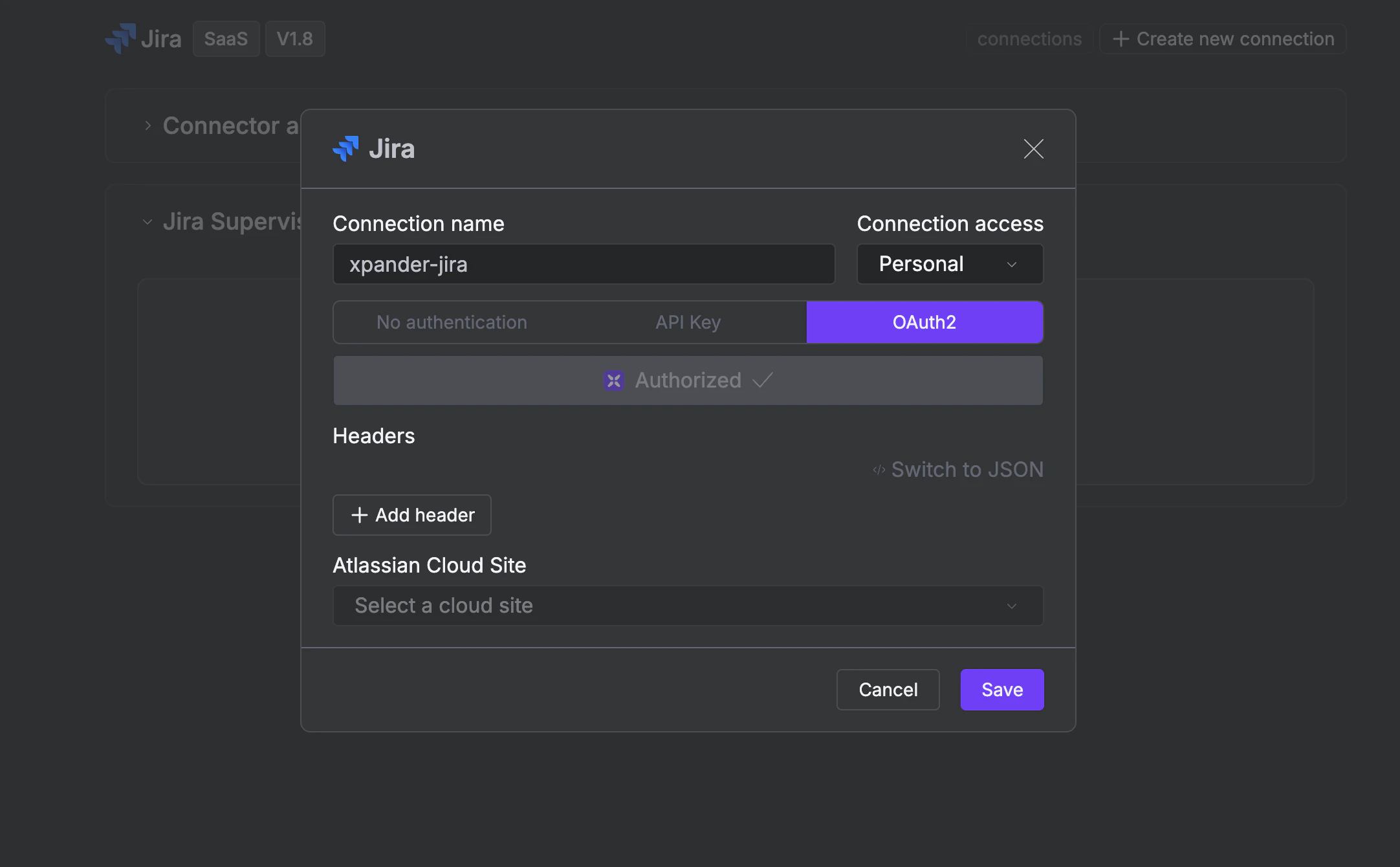
- Click + Create new connection.
- Enter a connection name, e.g., “xpander-jira”.
- Choose OAuth2 as the authentication method.
- Click Authorize xpander.
- Grant xpander permission to access your account.
-
Save the configuration.