

https://functions.xpander.ai/, which fronts the Linear API, and carry the credential the connect dialog asks for.
What the skill can do
API connector: 35 actions, as they appear in the skill panel. 16 of them create, change or delete something in Linear; mark those under These actions need approval when you add the skill to an agent.- Comment service (6): Get Comment by ID, Get List of Comments, Get List of Issues, Create New Comment, Delete Comment, Update Existing Comment
- Attachment service (4): Delete Attachment, Get Attachment by ID, Get List of Attachments, Create New Attachment
- Issue tracking (4): Get Issue by ID, Delete Issue, Create New Issue, Update Existing Issue
- Label management (4): Create New Label, Get List of Labels, Get Label by ID, Archive Label
- Project management (4): Get Project by ID, Create New Project, Get List of Projects, Archive Project
- Team management (4): Update Existing Team, Get List of Teams, Create New Team, Get Team by ID
- User management (3): Get List of Users, Get User by ID, Get Authenticated User Info
- Cycle management (3): Create New Cycle, Get Cycle by ID, Get List of Cycles
- Workflow state management (3): Get List of Workflow States, Create Workflow State, Get Workflow State by ID
Authentication Options
- API Access
Generate a Linear API Key
- Log in to your Linear app.
- Click on your avatar and select Settings from the dropdown menu.
- In the sidebar, click Security & access.
-
In the Personal API keys section, click New API key.\
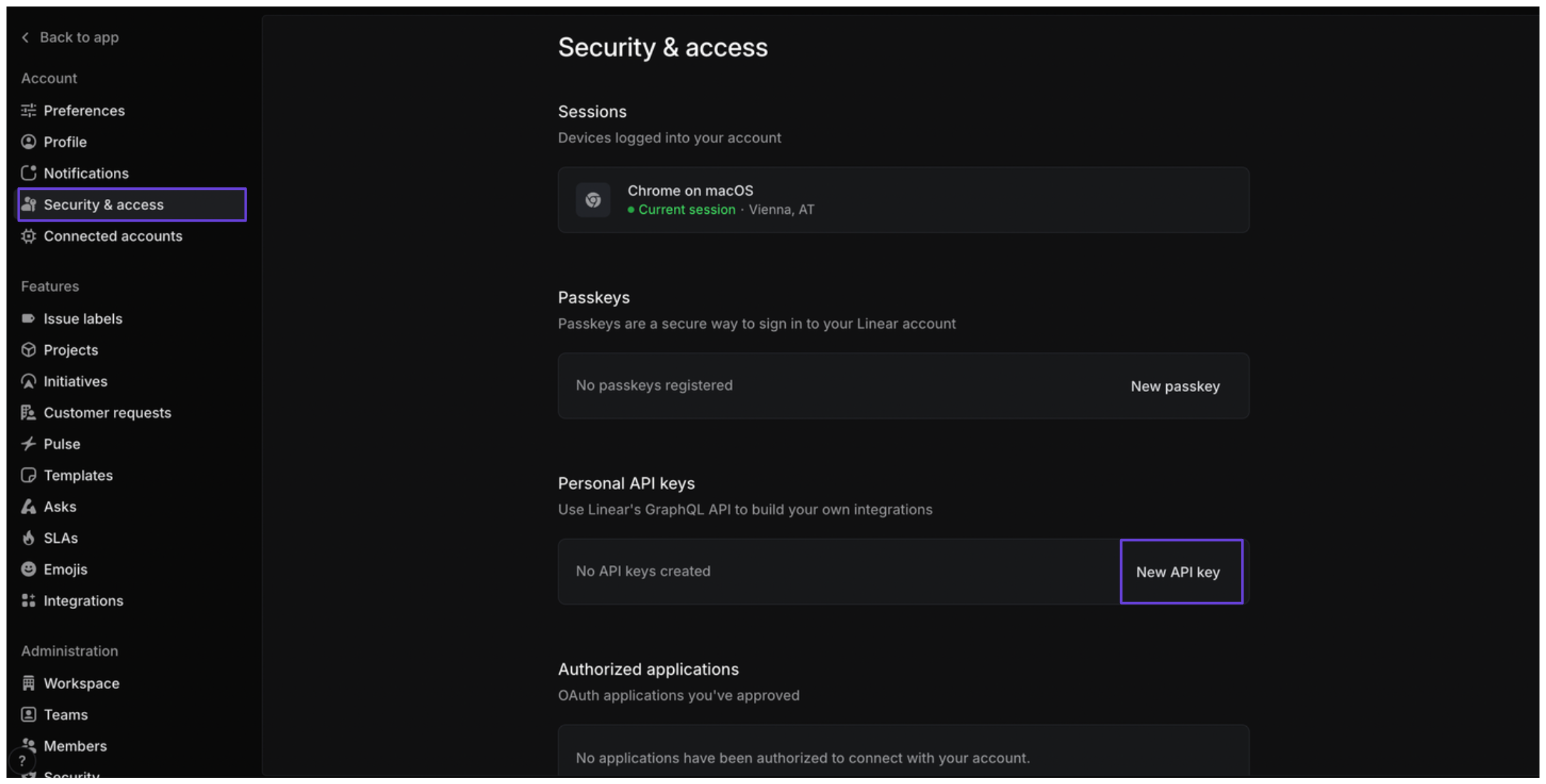
- Enter a name for the key, assign the appropriate permissions, and click Create.
- Save the API key.
Connect Linear in xpander
- In Xpander Chat, open the agent’s settings and click Add skill.
- Search for Linear and select it.
- Enter a connection name, e.g., “xpander-linear”.
- Choose Organization access (one shared account) or Personal (your own account, so the agent acts with your permissions where systems allow). On an agent other people use, a personal connection runs their requests as you unless the binding requires each person’s own sign-in; see whose credential a shared agent uses.
- Select API key as the authentication method.
- Paste the Linear API key into the provided field.
- Choose Custom header as the Type.
- In the Header name field, enter
Authorization. - Click Connect.