

https://api.intercom.io and carry an OAuth 2.0 token obtained with Sign in with Intercom on the cloud edition, or an API key or custom header on a self-hosted installation, which offers no sign-in flow.
What the skill can do
API connector: 108 actions, as they appear in the skill panel. 62 of them create, change or delete something in Intercom; mark those under These actions need approval when you add the skill to an agent.- Conversation management (10): List All Conversations, Search Conversations, Update Conversation, Remove Contact From Conversation, Redact Conversation Part, Get Conversation Details, Add Contact To Conversation, Manage Conversation, Reply To Conversation, Run Assignment Rules
- Contact relationship management (9): Archive Contact, Note List Notes For Contact, Unarchive Contact, Delete Contact, Tag List Tags For Contact, Note Add Note To Contact, Segment List Segments For Contact, Segment Management Get Segment Details, Note Management Get Note Details
- Tag management (8): Contact Tag Add Tag To Contact, Contact Tag Remove Tag From Contact, Conversation Tag Remove Tag From Conversation, Conversation Tag Add Tag To Conversation, Ticket Tag Add Tag To Ticket, Get Tag Details, Delete Tag, Ticket Tag Remove Tag From Ticket
- News management (8): Create New News Item, List All Newsfeeds, Update News Item, Delete News Item, List All News Items, Get News Item Details, Get Newsfeed Details, List Live News Items For Newsfeed
- Company management (7): Get Company By Id Or Name, Update Company, Get Company Details, Scroll Through All Companies, Create Or Update Company, List Companies With Filters, Delete Company
- Contact management (7): Get Contact Details, Search Contacts By Attributes, Update Contact, List All Contacts, Create New Contact, Merge Lead Into User, Tag Management Create Or Update Tag
- Collection management (7): Help Center List All Help Centers, Help Center Get Help Center Details, Help Center List All Collections, Help Center Update Collection, Help Center Delete Collection, Help Center Create New Collection, Help Center Get Collection Details
- Article management (6): Get Article Details, Create New Article, Search Articles By Keyword, List All Articles, Update Article, Delete Article
- Ticket management (6): Conversation Ticket Convert Conversation To Ticket, Get Ticket Details, Update Ticket, Reply To Ticket, Create New Ticket, Search Tickets
- Ticket type management (6): Update Ticket Type, Get Ticket Type Details, Create Ticket Type Attribute, List All Ticket Types, Create New Ticket Type, Update Ticket Type Attribute
- Company contact management (5): Segment List Segments For Company, List Contacts For Company, List Companies For Contact, Detach Company From Contact, Attach Company To Contact
- Segment management (5): Admin Management List All Admins, Admin Activity Get Admin Activity Logs, List All Segments, Tag Management List All Tags, Team Management List All Teams
- Admin management (4): Get Admin Details, Set Admin Away Status, Get Authorized Admin Details, Team Management Get Team Details
- Subscription management (4): Add Subscription To Contact, List Subscriptions For Contact, Remove Subscription From Contact, List All Subscription Types
- Export management (4): Cancel Export Job, Get Export Job Status, Download Exported Data, Create Export Job
- Communication management (3): Conversation Management Create New Conversation, Message Management Create New Message, Create Phone Call Redirect
- Attribute management (3): List All Data Attributes, Update Data Attribute, Create New Data Attribute
- Event management (3): Create New Event, Create Event Summaries, List Events For Contact
- Visitor management (3): Convert Visitor To Contact, Get Visitor Details, Update Visitor
Authentication Options
- API Access
Generate an Intercom API Key
- Log in to your Intercom account.
- Click Settings in the sidebar.
-
Navigate to the Integrations section and click Developer Hub.\
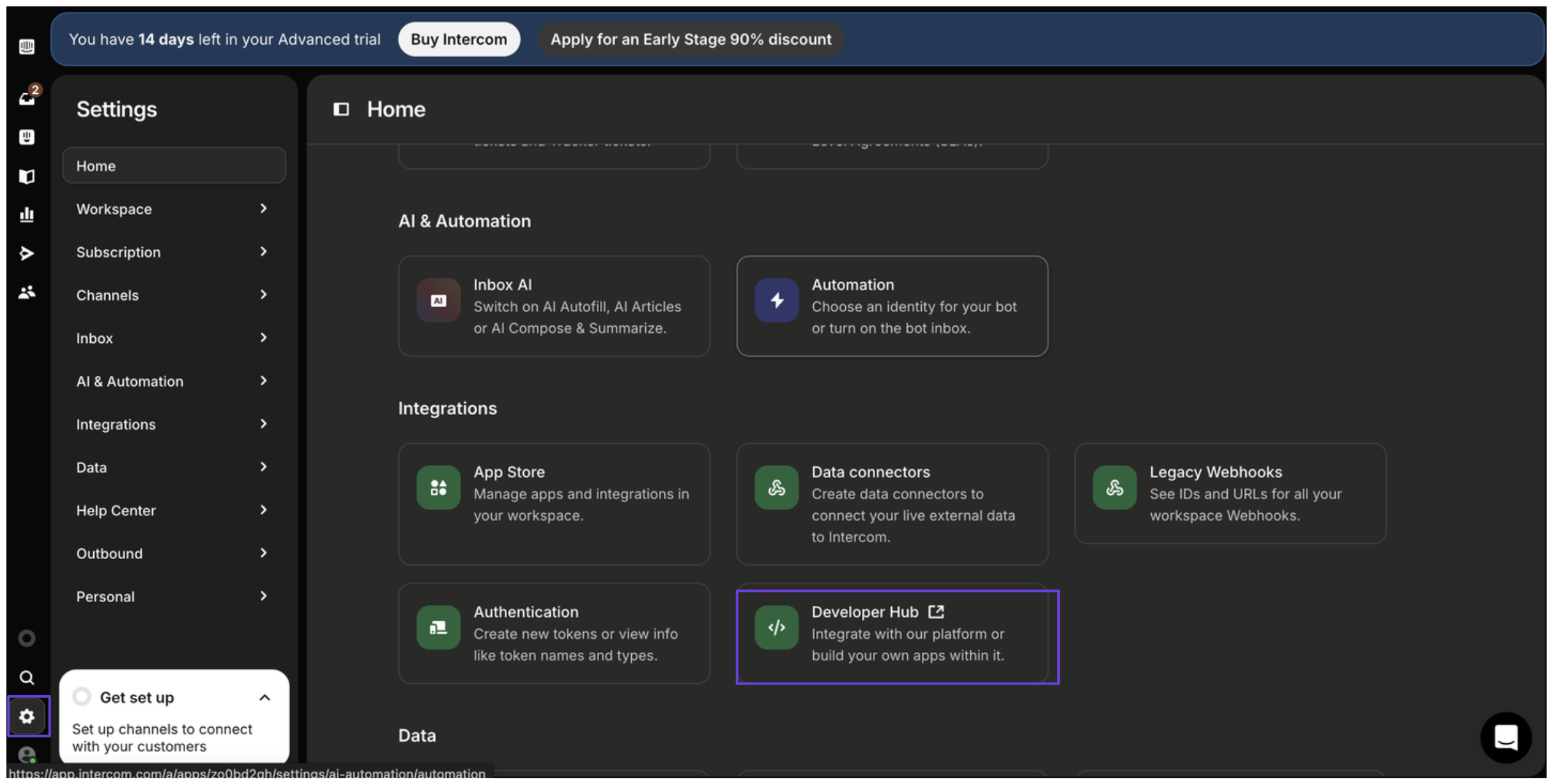
- In the Developer Hub, click New app.
-
Enter a name for your app and select the appropriate workspace.\
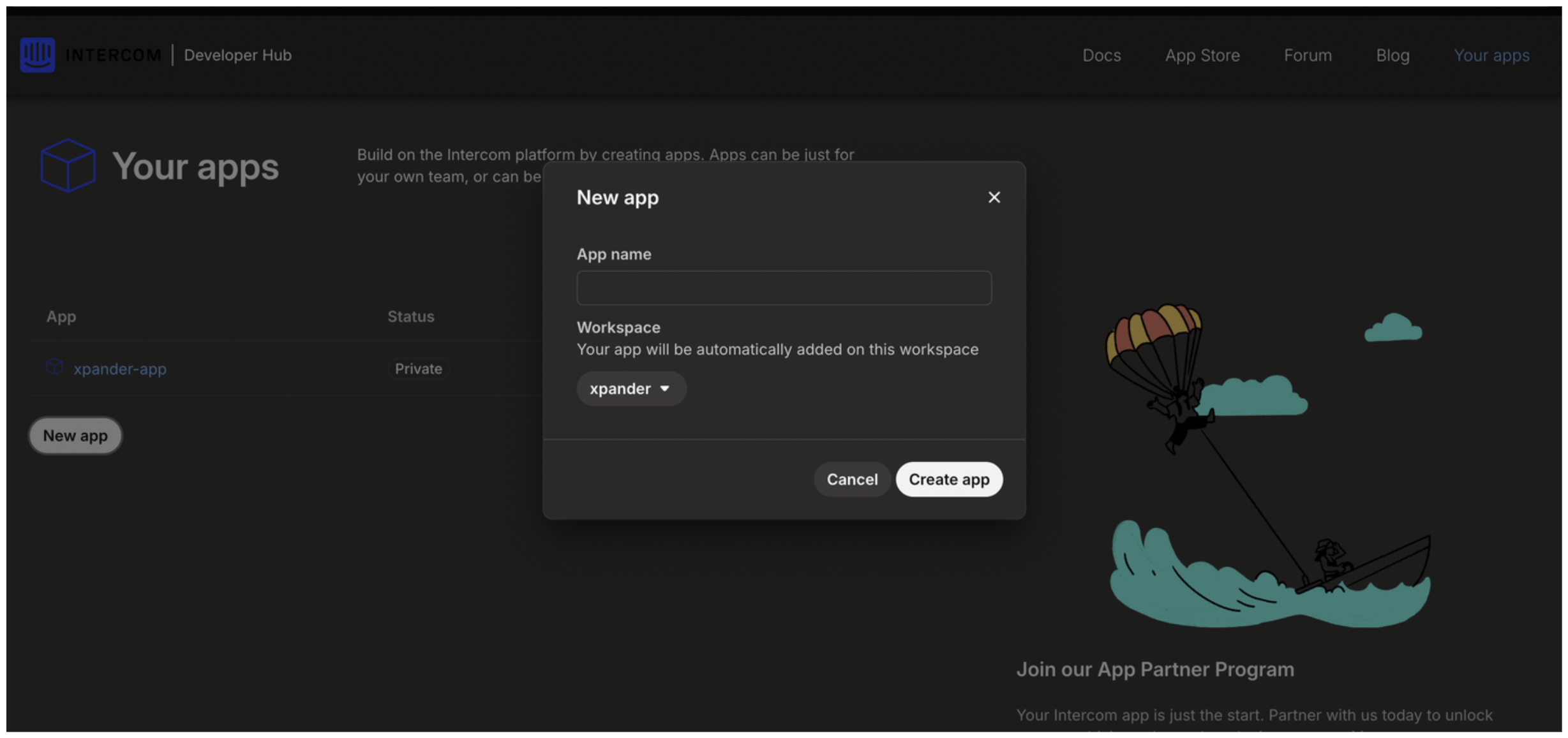
- After clicking Create app, your access token will be displayed.
Connect Intercom in xpander
- In Xpander Chat, open the agent’s settings and click Add skill.
- Search for Intercom and select it.
- Click Other auth options.
- Enter a connection name, e.g., “xpander-intercom”.
- Choose Organization access (one shared account) or Personal (your own account, so the agent acts with your permissions where systems allow). On an agent other people use, a personal connection runs their requests as you unless the binding requires each person’s own sign-in; see whose credential a shared agent uses.
- Select API Key as the authentication method.
- Paste the Intercom access token into the provided field.
- Choose Bearer as the Type.
- Click Connect.