

https://api.meetgeek.ai/v1 and carry the credential the connect dialog asks for.
What the skill can do
API connector: 8 actions, as they appear in the skill panel. 1 of them create, change or delete something in MeetGeek; mark those under These actions need approval when you add the skill to an agent.- Upload service (4): Get All Meetings, Meet Geek Meeting Management Get Meeting Details7b45 By Id, Get All Teams, Upload Meeting Recording
- Summary service (2): Get Team Meetings by Team ID, Meet Geek Summary Service Get Meeting Summary7b45 By Id
- Transcript service (1): Get Meeting Transcript by ID
- Highlight service (1): Get Meeting Highlights by ID
Authentication Options
- API Access
Generate MeetGeek API Key
- Log in into your MeetGeek account.
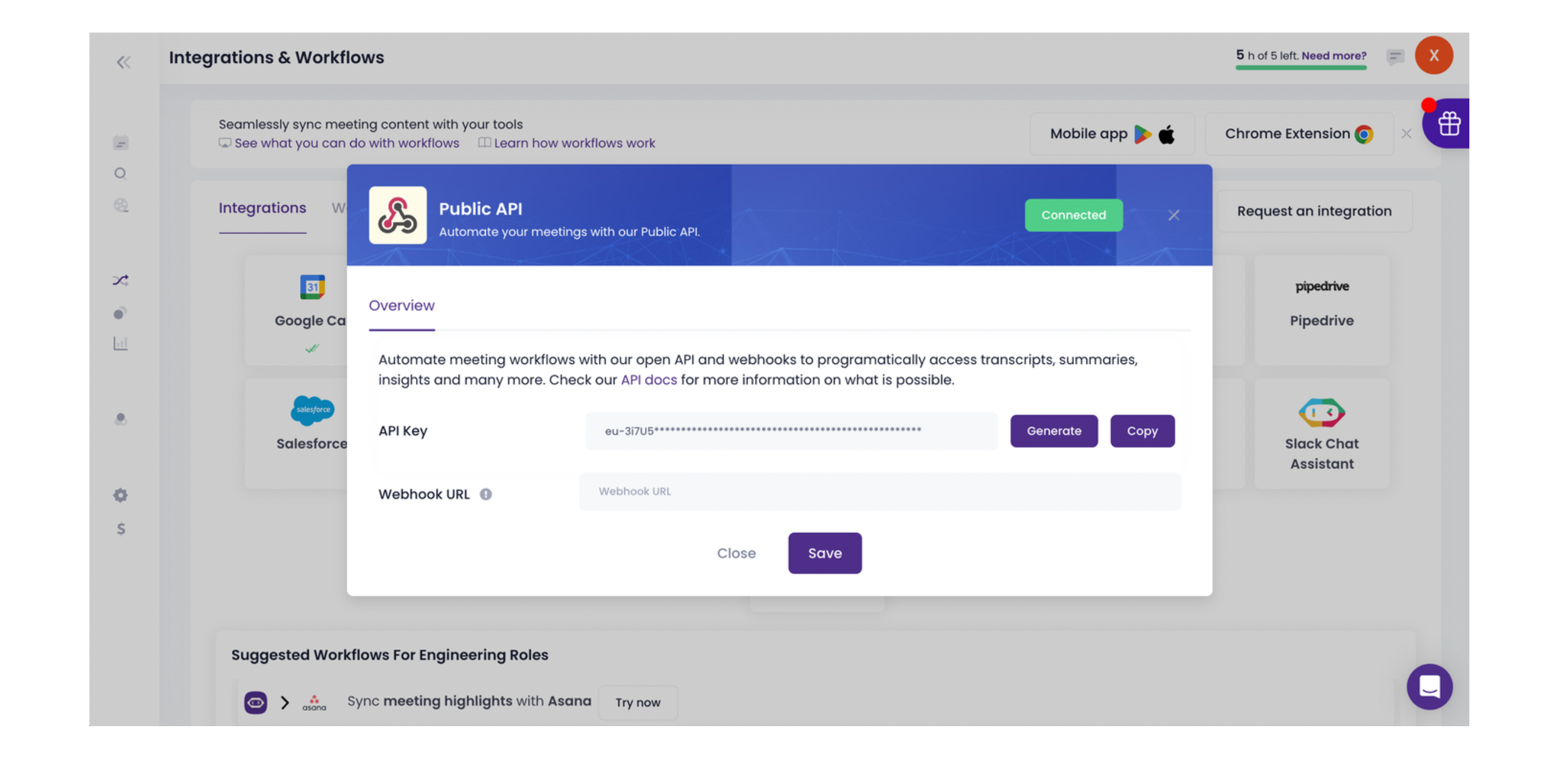
- In the sidebar of your dashboard, choose Integrations -> Public API.
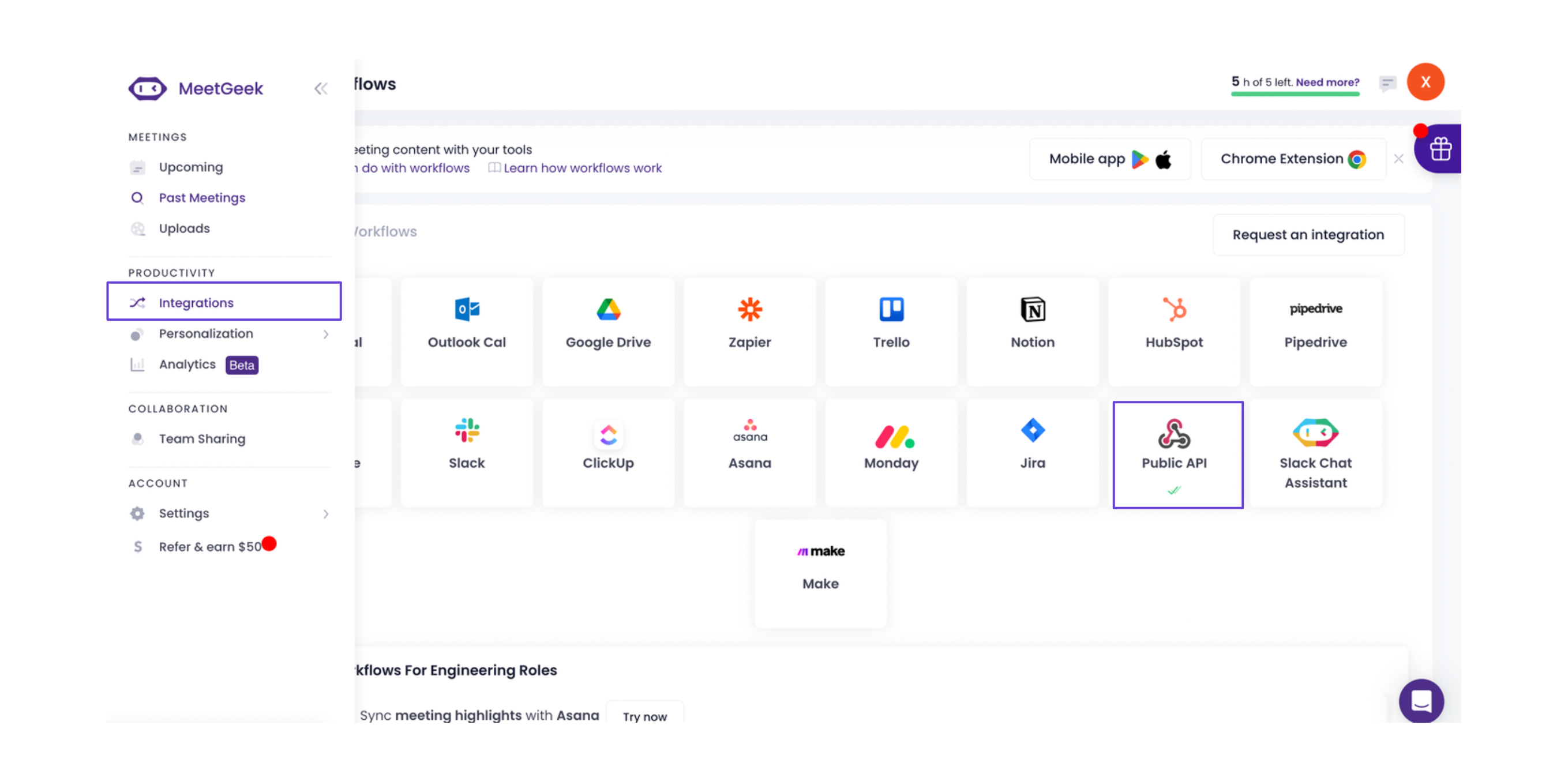
- You’ll see your MeetGeek API key.
Connect MeetGeek in xpander
- In Xpander Chat, open the agent’s settings and click Add skill.
- Search for MeetGeek and select it.
- Enter a connection name, e.g., “xpander-meetgeek”.
- Choose Organization access (one shared account) or Personal (your own account, so the agent acts with your permissions where systems allow). On an agent other people use, a personal connection runs their requests as you unless the binding requires each person’s own sign-in; see whose credential a shared agent uses.
- Choose API Key as the authentication method.
- Copy and paste your MeetGeek API key into the provided field.
- Choose Bearer as the Type.
- Click Connect.