About Microsoft Teams
Microsoft Teams is a cloud-based collaboration platform that enables organizations to communicate, meet, and work together in a unified workspace across chat, meetings, calls, and file sharing. Key features include:- Channels and team collaboration: Create teams and channels to organize conversations by department, project, or topic, with threaded discussions and shared workspaces.
- Chat and messaging: Communicate instantly through 1:1 chats, group chats, and channel messages with rich text, mentions, and file attachments.
- Meetings and calls: Host online meetings, video conferences, webinars, and voice calls with screen sharing and recording capabilities.
- File sharing and collaboration: Store and collaborate on shared files directly within Teams, integrated with Microsoft 365 apps.
- Security and compliance: Enterprise-grade security, identity management, and compliance controls built into the Microsoft 365 ecosystem.
Authentication Options
Below are possible authentication options you can choose:- Built-in xpander.ai Auth
The simplest way to connect Microsoft Teams is by using xpander.ai’s built-in authentication:
- Go to the Connectors section in the sidebar of your xpander.ai dashboard.
- Select Microsoft Teams from the available integrations.
- Click + Create new connection.
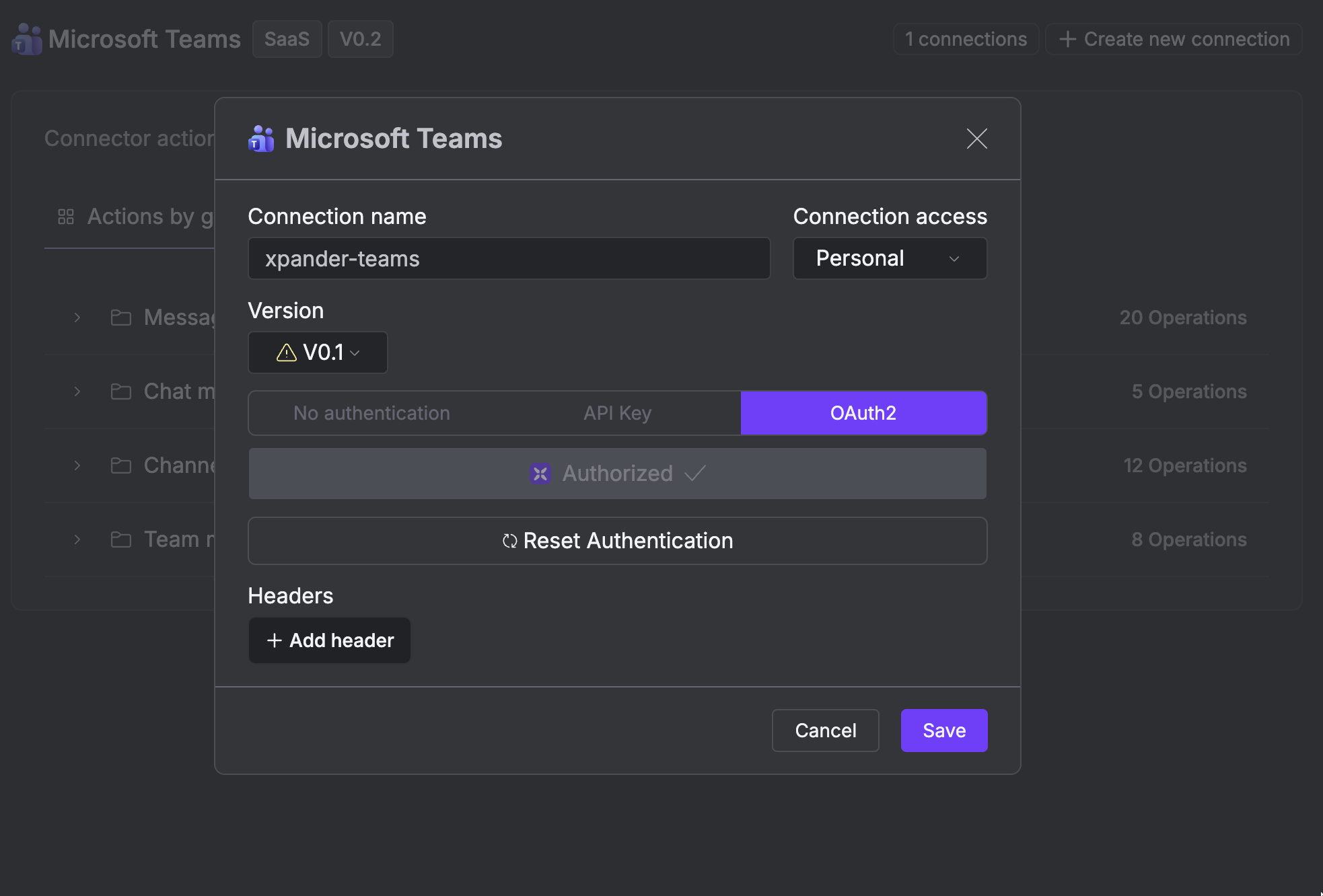
- Enter a connector name as desired, e.g., “xpander-teams”.
- Choose OAuth2 as the authentication method.
- Click Sign in with Microsoft Teams.
- Grant xpander.ai permission to access your account.
-
Save the configuration.
Integration of Microsoft Teams into an AI Agent
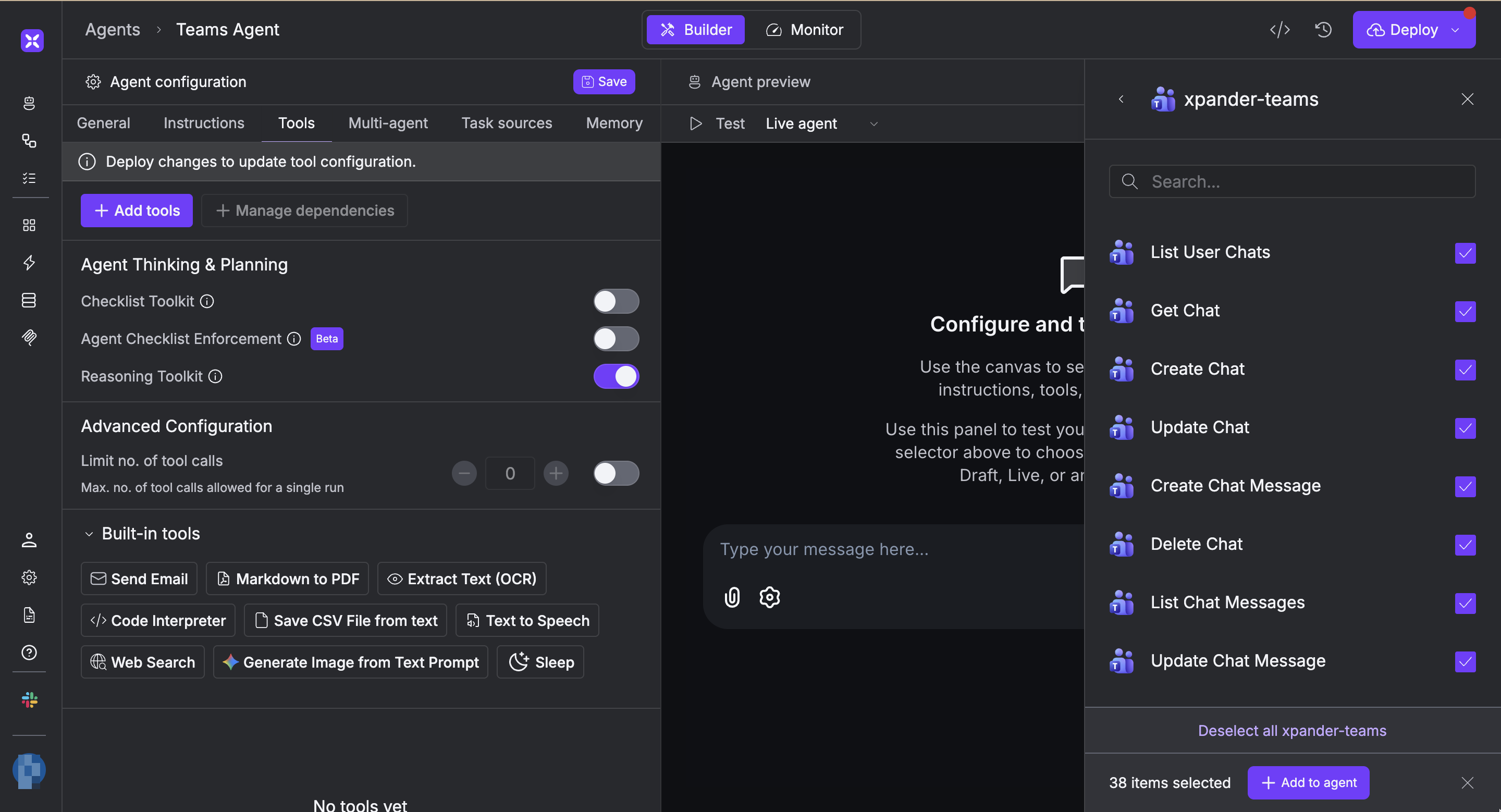
Once you’ve configured your Microsoft Teams connector with the authentication option described above, you can integrate it into your AI agent with xpander.ai:- In your xpander.ai dashboard, navigate to the Agents page, then click an agent to open the Agent Configuration tab.
- Select Tools, then click Add Tools.
- Select Connectors.
- Choose Microsoft Teams with the same connector name you configured in the previous section (e.g., xpander-teams).
-
Select the available Microsoft Teams operations that suit your use case.
To grant your agent channel management and chat capabilities, enable the following operations.
- List User Chats
- Create Chat
- Create Chat Message
- List Chat Messages
- Create Joined Team Channels
- List Joined Team Channel Messages
- Click Deploy to update your agent.