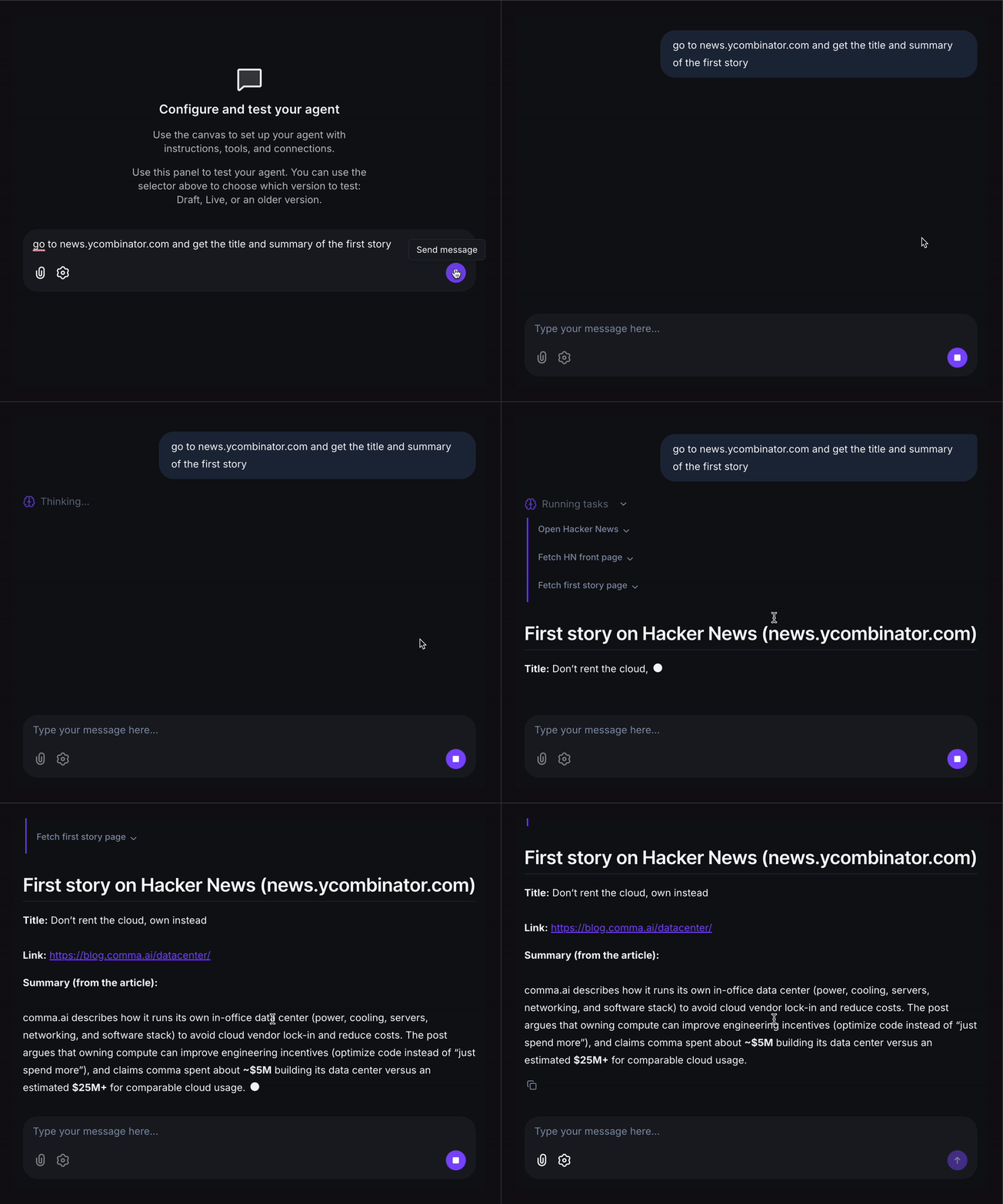
About Anchor Browser
Anchor Browser is a programmable, cloud-based browser built for AI agents and automation software. Anchor Browser lets software and autonomous agents interact with the web exactly like a real human would, using a full Chromium environment, real network identities, and persistent state. Unlike traditional scraping or HTTP tools, Anchor Browser renders pages fully, executes JavaScript, solves modern web challenges, and performs multi-step workflows across real websites.Authentication Options
Below are possible authentication options you can choose:- API Access
Generate an Anchor Browser API Key
- Log in to your Anchor Browser account.
-
Click API Keys.
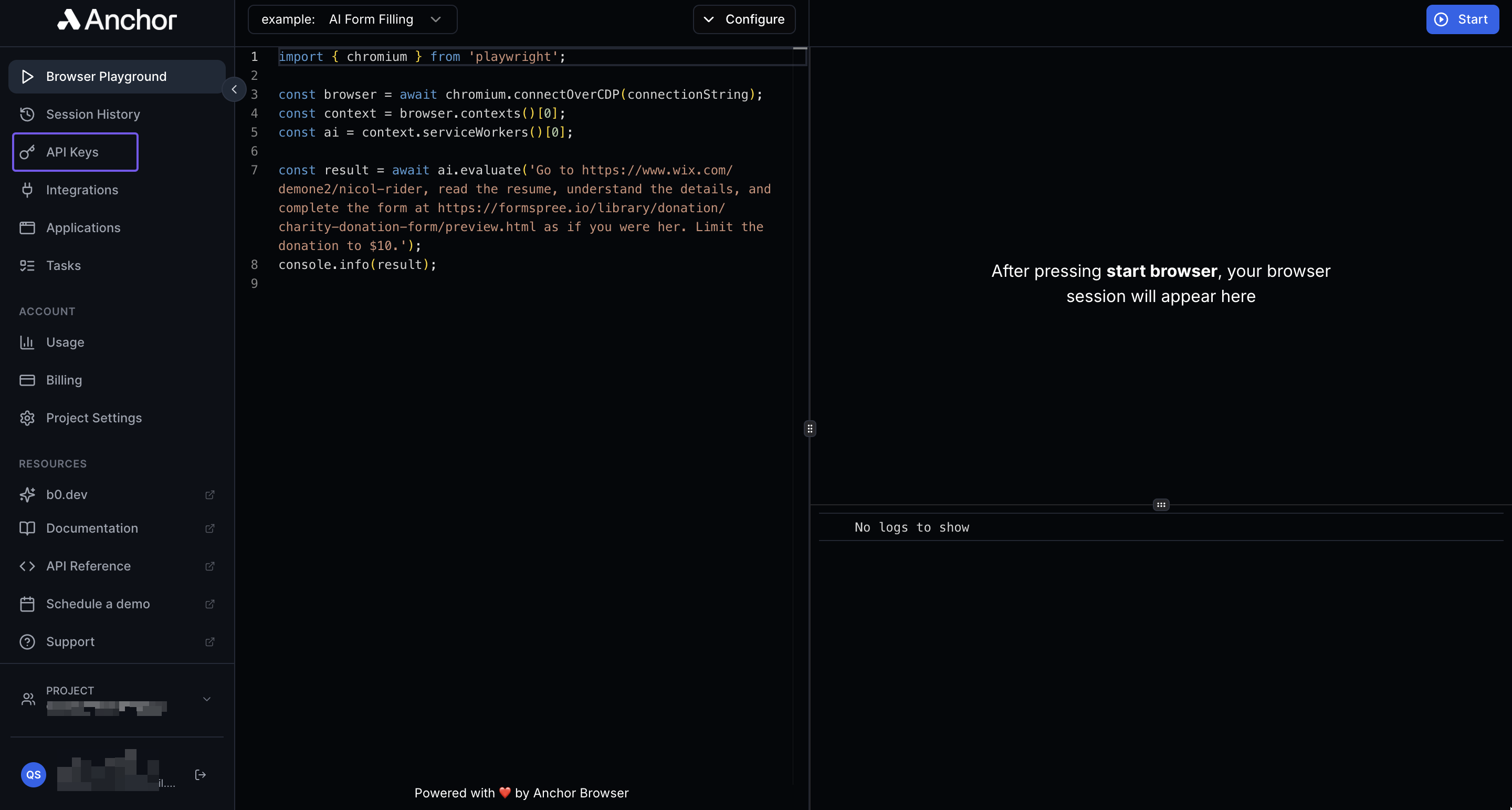
- Click + Add on the top right corner of the API Keys page to create a new API key.
-
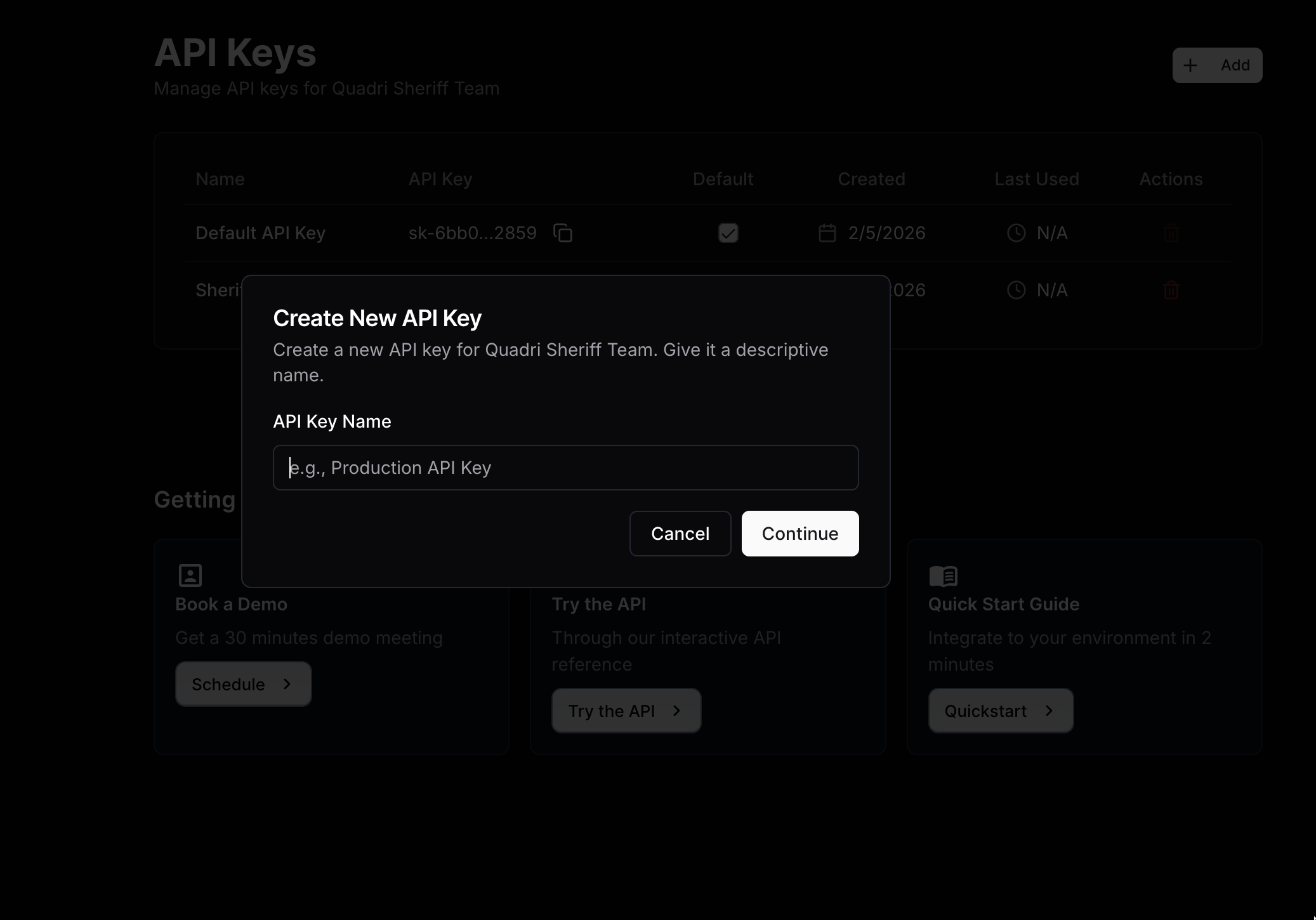
Enter a name for the new API key in the Create New API Key dialog that appears, and click Continue to create the new API key.
-
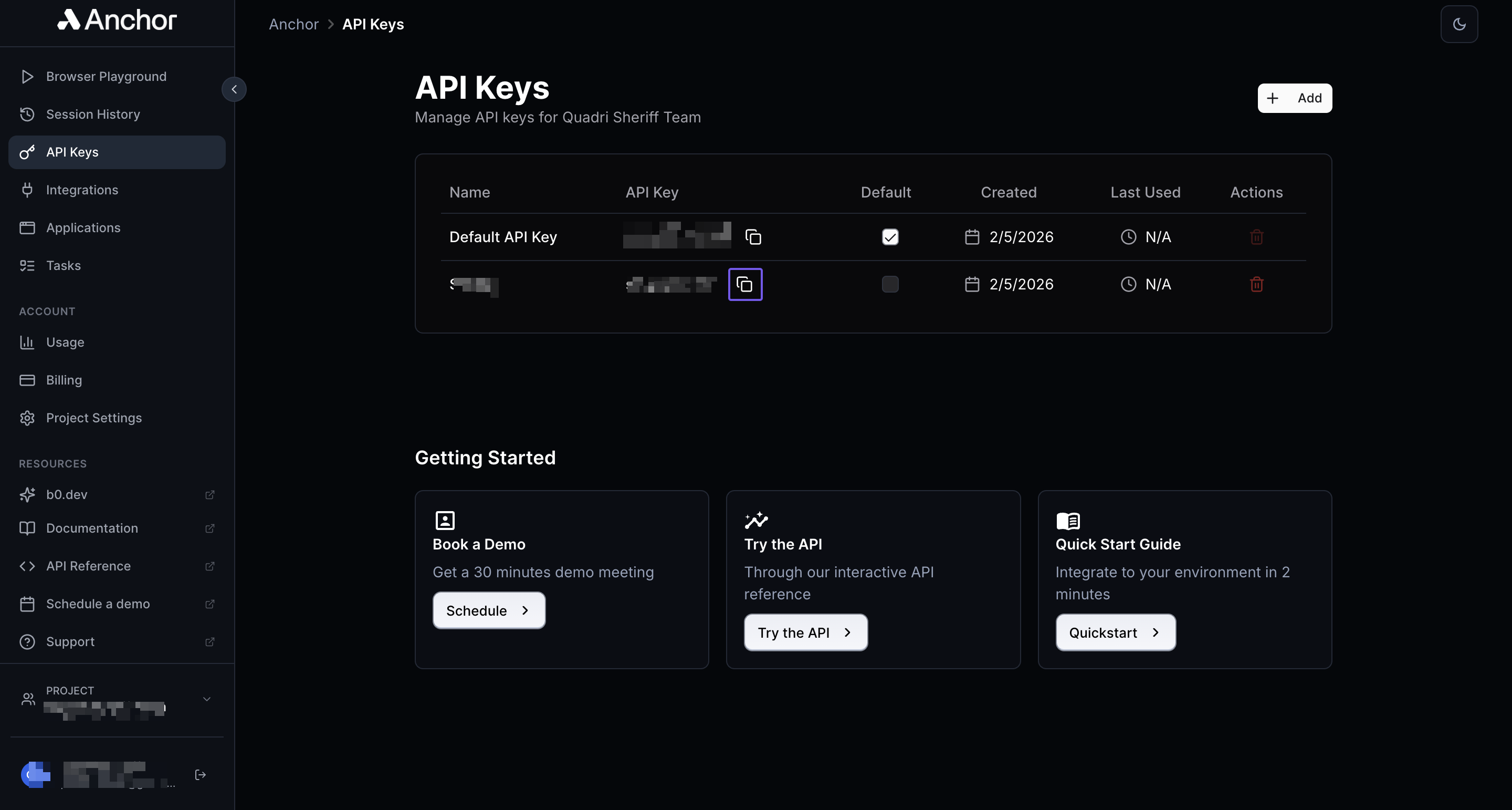
The new API key will appear in the API Keys page. Click the copy icon next to the API key to copy the generated key and store it somewhere safe.
Integrate Anchor Browser into xpander.ai
- Go to the Connectors section in the sidebar of your xpander.ai dashboard.
- Select Anchor Browser from the available integrations.
- Click Enable.
- Enter a connector name as desired, e.g., “xpander-anchorbrowser”.
- Select Integration User for the authentication mode.
- Choose API Key as the authentication method.
- Paste your Anchor Browser API key into the provided field.
- Choose Custom as the auth type.
- Enter anchor-api-key as the custom header name.
- Enter https://api.anchorbrowser.io as the base URL in the Interface specific settings section.
-
Save the configuration.
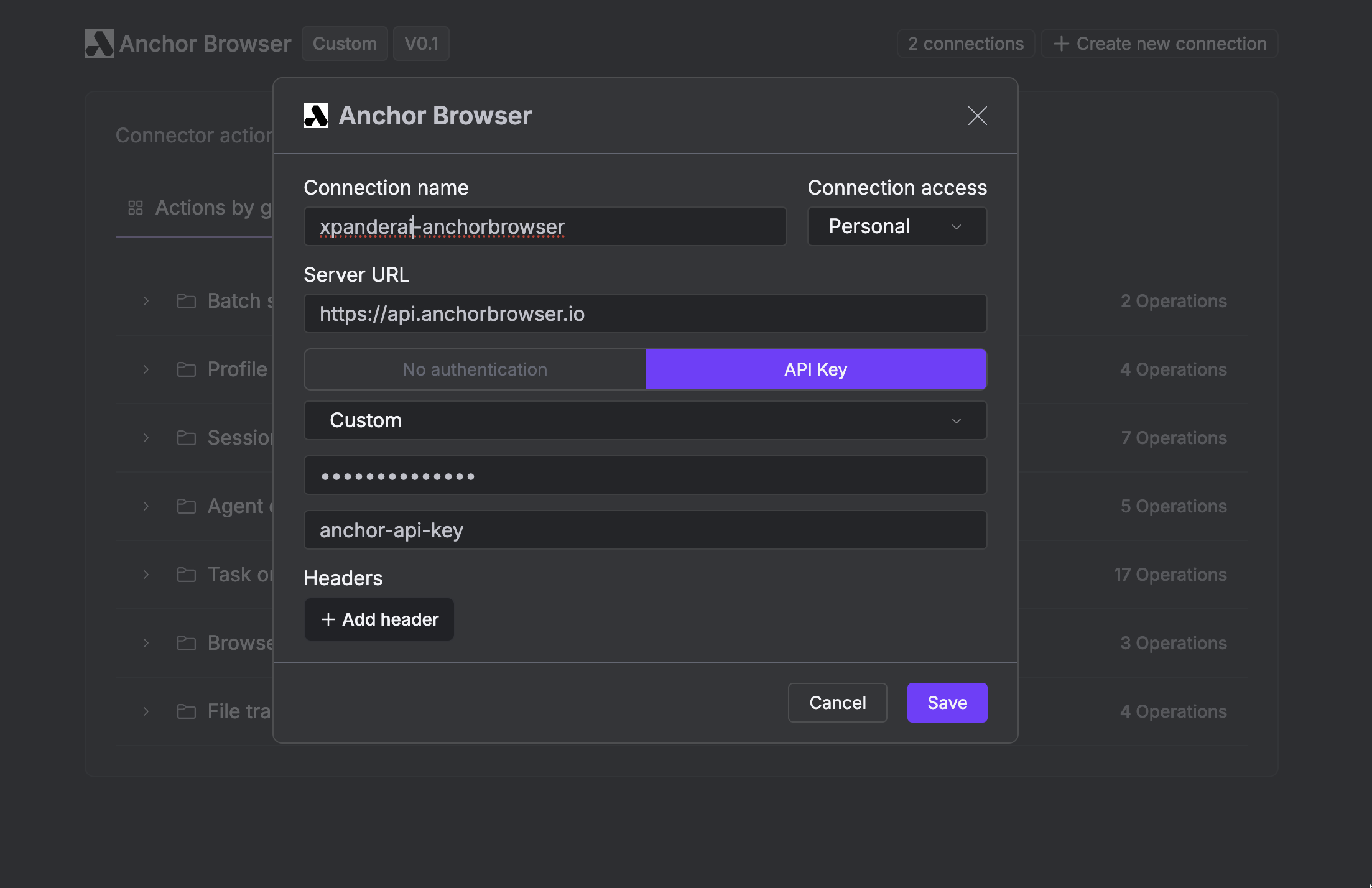
Integration of Anchor Browser into an AI Agent
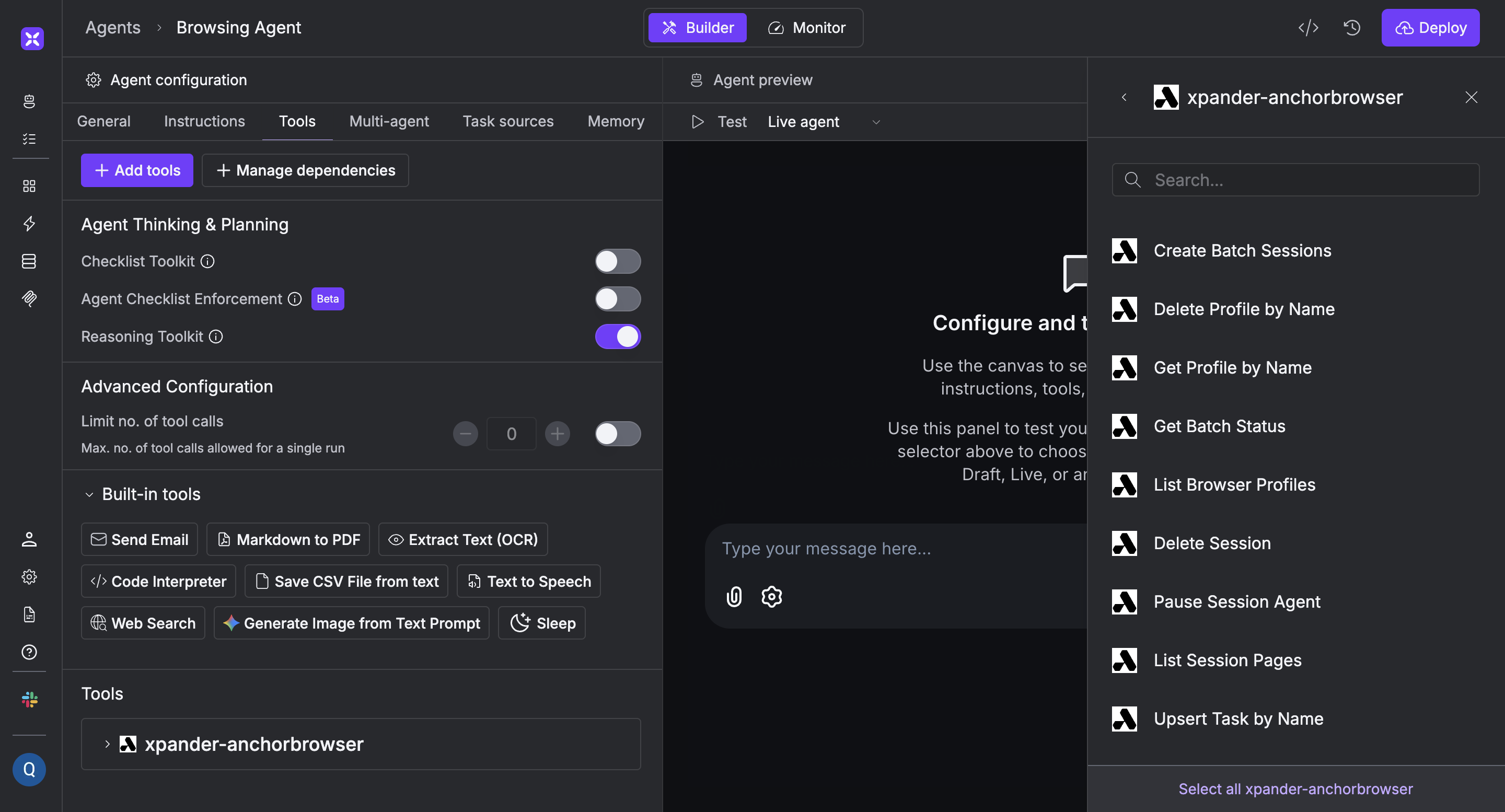
Once you’ve configured your Anchor Browser connector with the authentication option(s) described above, you can integrate it into your AI agent with xpander.ai:- In your xpander.ai dashboard, navigate to the Agents page, then click an agent to open the Agent Configuration tab.
- Select Tools, then click Add Tools.
- Select Connectors.
- Choose Anchor Browser with the same connector name you configured in the previous section (e.g., xpander-anchorbrowser).
-
Select the available Anchor Browser operations that suit your use case.
To grant your agent web-browsing capabilities, enable the following operations.
- Create Browser Session
- Fetch Rendered Webpage Content
AI Agent Anchor Browser Prompt Library
Below are possible prompts or use cases you can try after integrating Anchor Browser into your xpander.ai AI agent: