About Microsoft OneDrive
Microsoft OneDrive is a cloud-based file storage and content management platform built for storing, syncing, sharing, and collaborating on files across devices and Microsoft 365 applications. Key features include:- Cloud file storage and sync: Centralized storage for files and folders with automatic synchronization across desktop, web, and mobile devices.
- File and folder management: Create, upload, organize, move, copy, and delete files and folders with support for large files and rich metadata.
- Collaboration and sharing: Enable secure file sharing and real-time collaboration with granular permission controls for internal and external users.
- Versioning and recovery: Maintain version history for files, allowing users and systems to restore previous versions and recover deleted content.
- Security and compliance: Built-in security features including encryption, access controls, auditing, and compliance with enterprise and regulatory requirements.
Authentication Options
Below are possible authentication options you can choose:- Built-in xpander.ai Auth
The simplest way to connect Microsoft OneDrive is by using xpander.ai’s built-in authentication:
- Go to the Connectors section in the sidebar of your xpander.ai dashboard.
- Select Microsoft OneDrive from the available integrations.
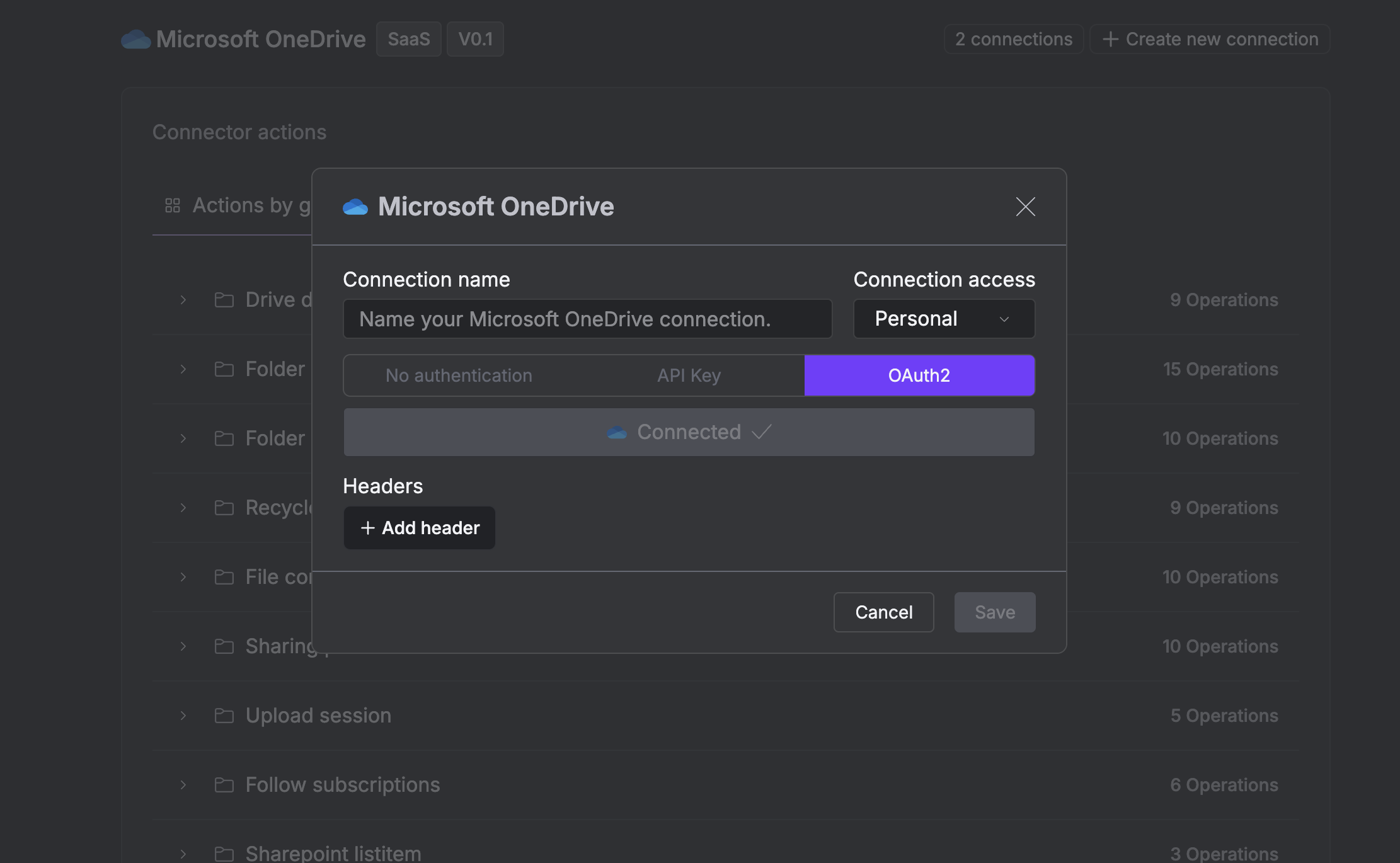
- Click + Create new connection.
- Enter a connector name as desired, e.g., “xpander-onedrive”.
- Choose OAuth2 as the authentication method.
- Click Sign in with Microsoft OneDrive.
- Grant xpander.ai permission to access your account.
-
Save the configuration.
Integration of Microsoft OneDrive into an AI Agent
Once you’ve configured your Microsoft OneDrive connector with the authentication option described above, you can integrate it into your AI agent with xpander.ai:- In your xpander.ai dashboard, navigate to the Agents page, then click an agent to open the Agent Configuration tab.
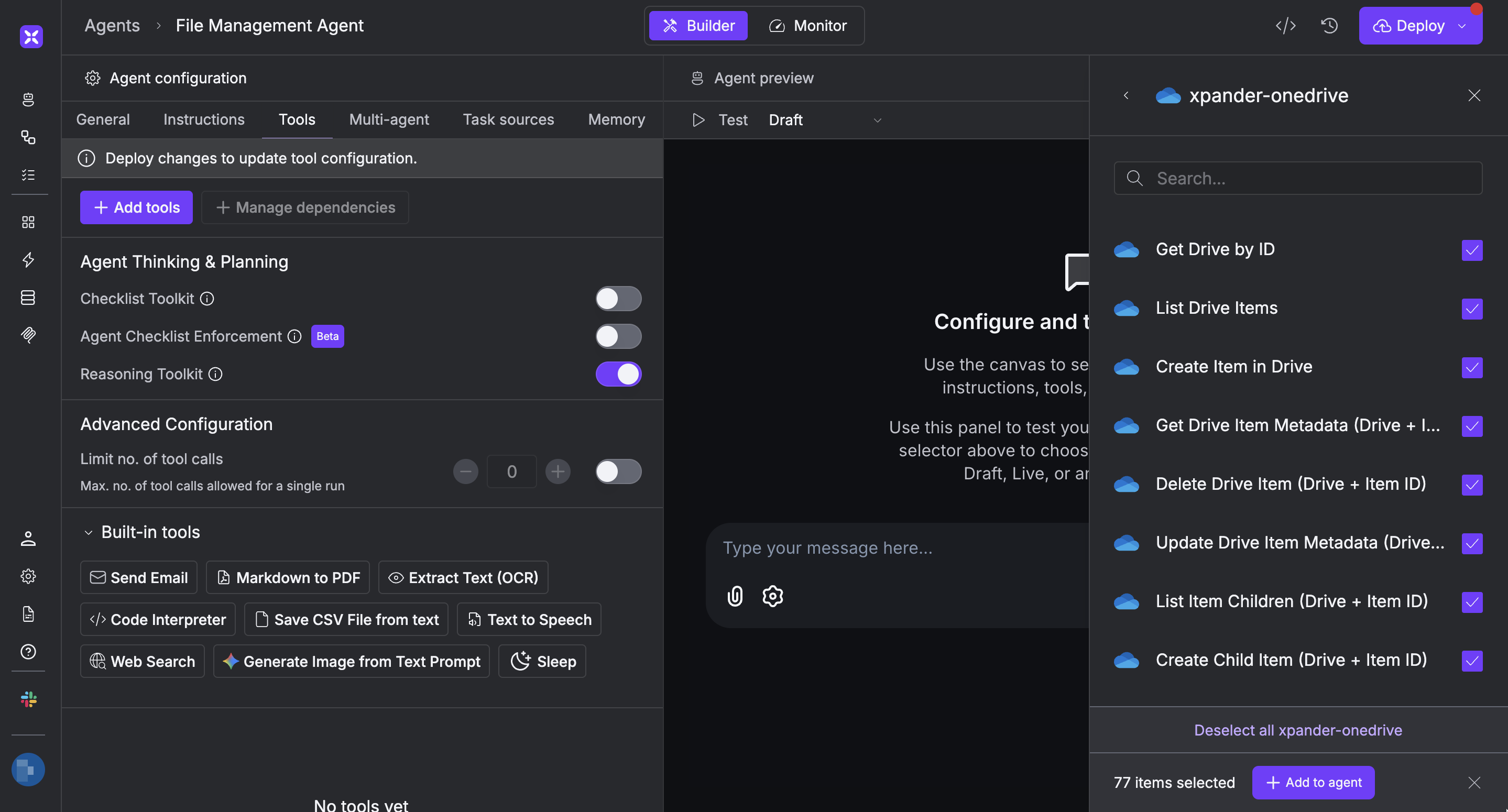
- Select Tools, then click Add Tools.
- Select Connectors.
- Choose Microsoft OneDrive with the same connector name you configured in the previous section (e.g., xpander-onedrive).
-
Select the available Microsoft OneDrive operations that suit your use case.
To grant your agent file and folder management capabilities, enable the following operations.
- List Drive Items
- Create Item in Drive
- Delete Drive Item (Drive + Item ID)
- Update Drive Item Metadata (Drive + Item ID)
- Click Deploy to update your agent.
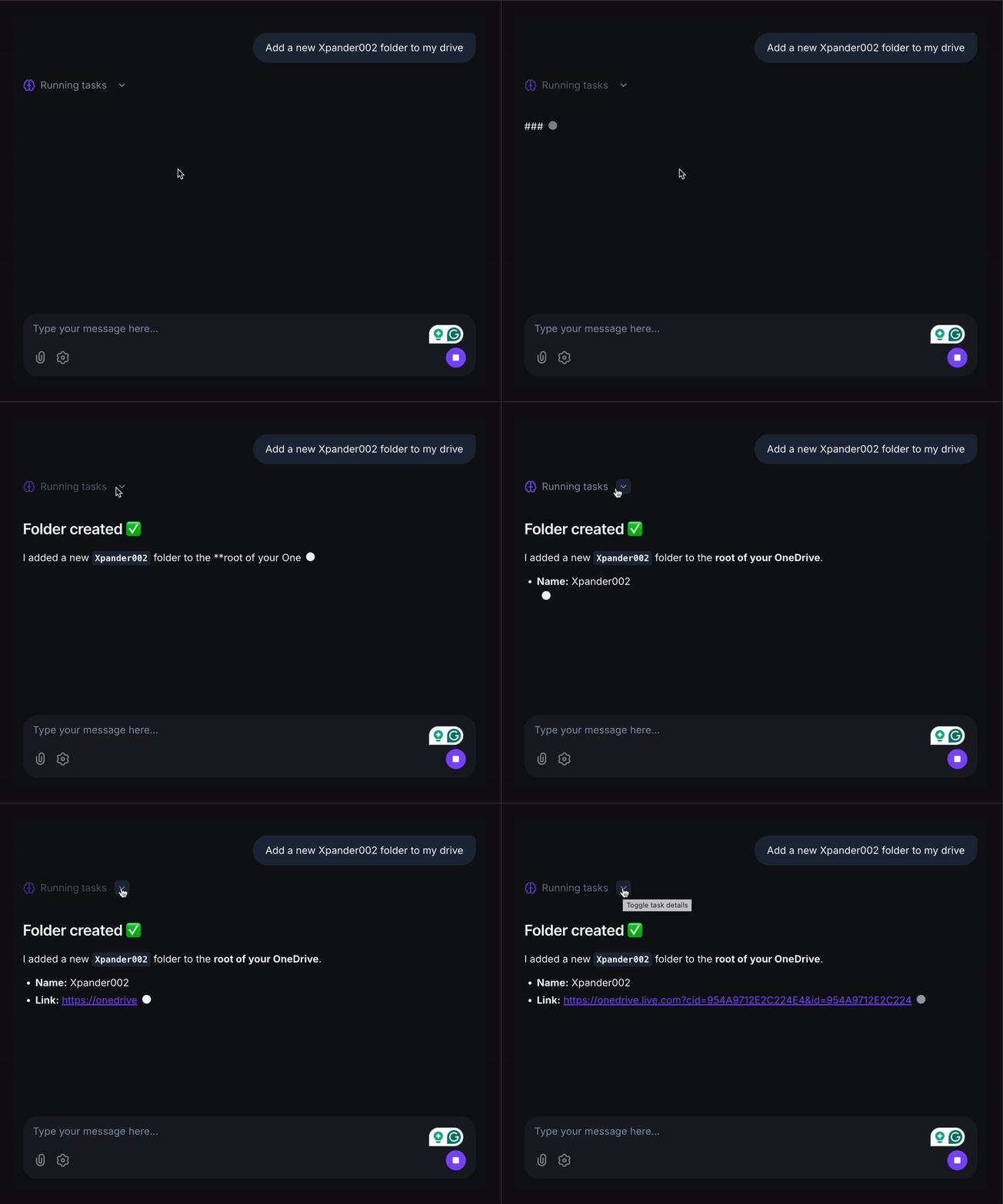
AI Agent Microsoft OneDrive Prompt Library
Below are possible prompts or use cases you can try after integrating Microsoft OneDrive into your xpander.ai AI agent: