About Google Cloud Monitoring
Google Cloud Monitoring is a fully managed observability and monitoring platform offered by Google Cloud. Key features include:- Comprehensive Metrics Collection: Collects metrics from Google Cloud services, virtual machines, containers, databases, and custom applications to provide deep visibility into system performance and health.
- Real-Time Alerting: Create and manage alerting policies based on metrics, thresholds, and logs to detect and respond to incidents proactively.
- Uptime Monitoring: Monitor the availability and responsiveness of applications and endpoints from multiple global locations.
- Integration with Google Cloud Ecosystem: Seamlessly integrates with services like Cloud Logging, Cloud Trace, Kubernetes Engine (GKE), and other GCP tools to provide a unified observability experience across your cloud environment.
Authentication Options
Below are possible authentication options you can choose:- Built-in xpander.ai Auth
- API Access
The simplest way to connect Google Cloud Monitoring is by using xpander.ai’s built-in authentication:
- Go to the Connectors section in the sidebar of your xpander.ai dashboard.
- Select Google Cloud Monitoring from the available integrations.
- Click + Create new connection.
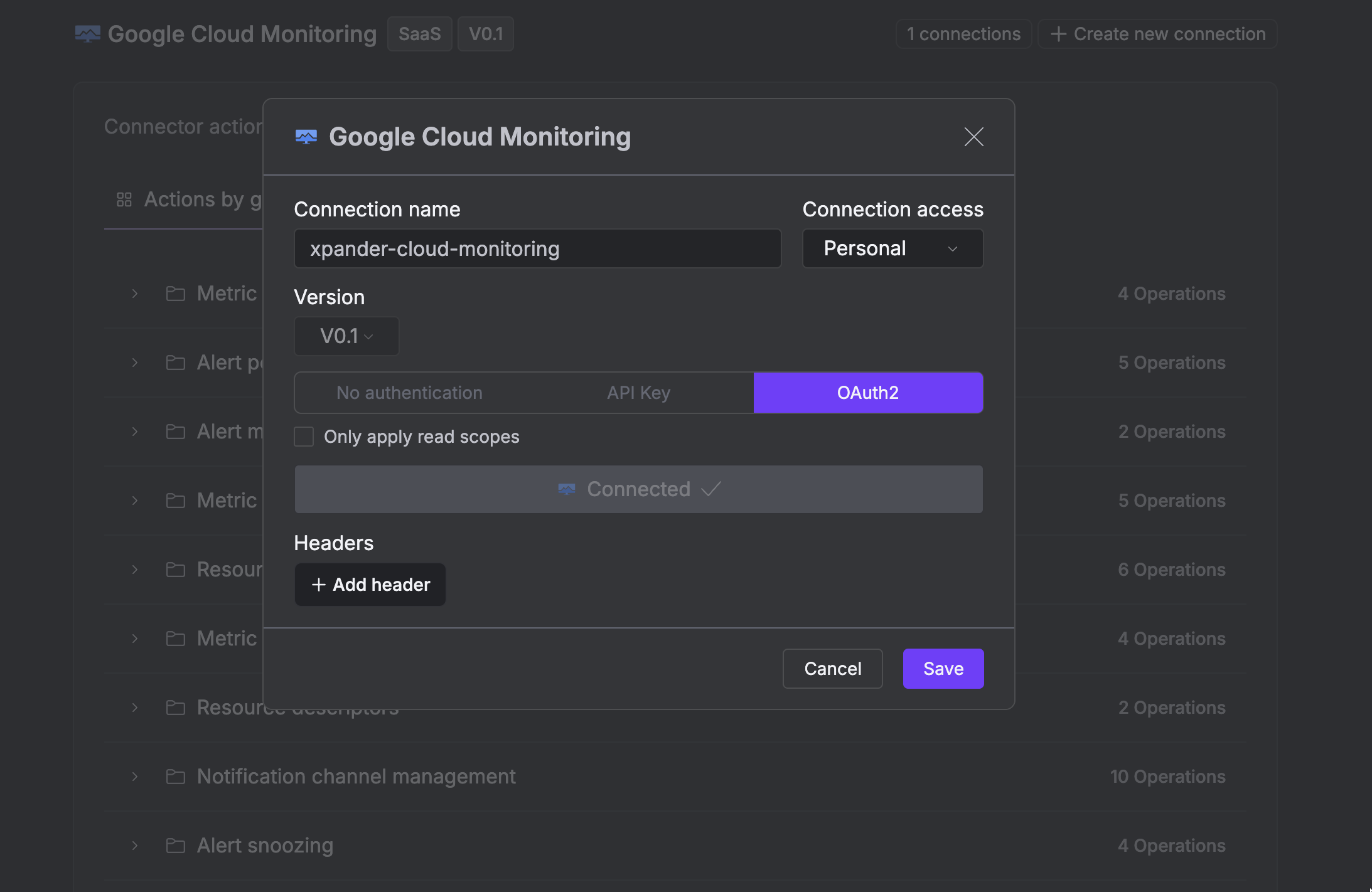
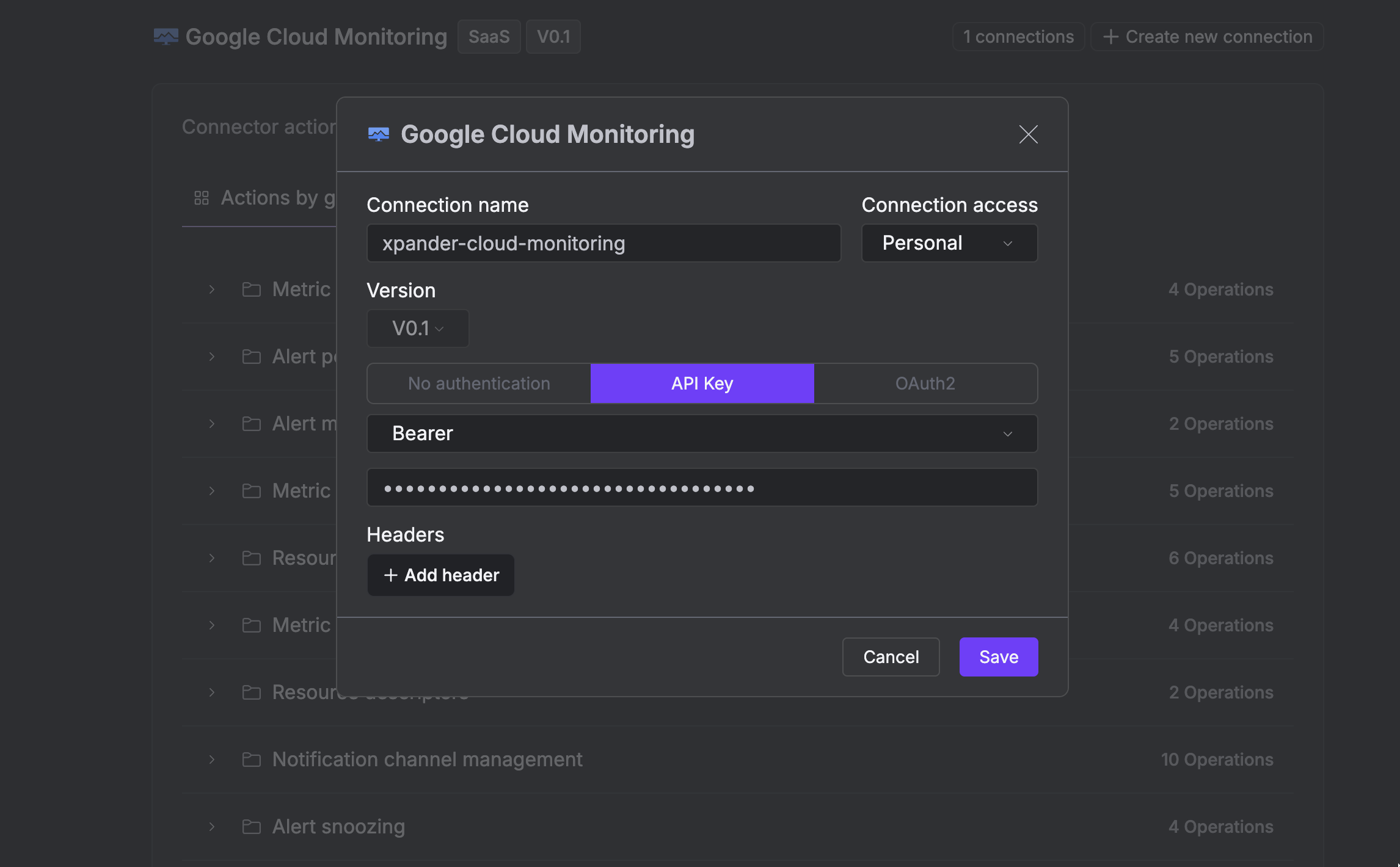
- Enter a connector name as desired, e.g., “xpander-cloud-monitoring”.
- Choose OAuth2 as the authentication method.
- Click Sign in with Google Cloud Monitoring.
- Grant xpander.ai permission to access your account.
-
Save the configuration.
Integration of Google Cloud Monitoring into an AI Agent
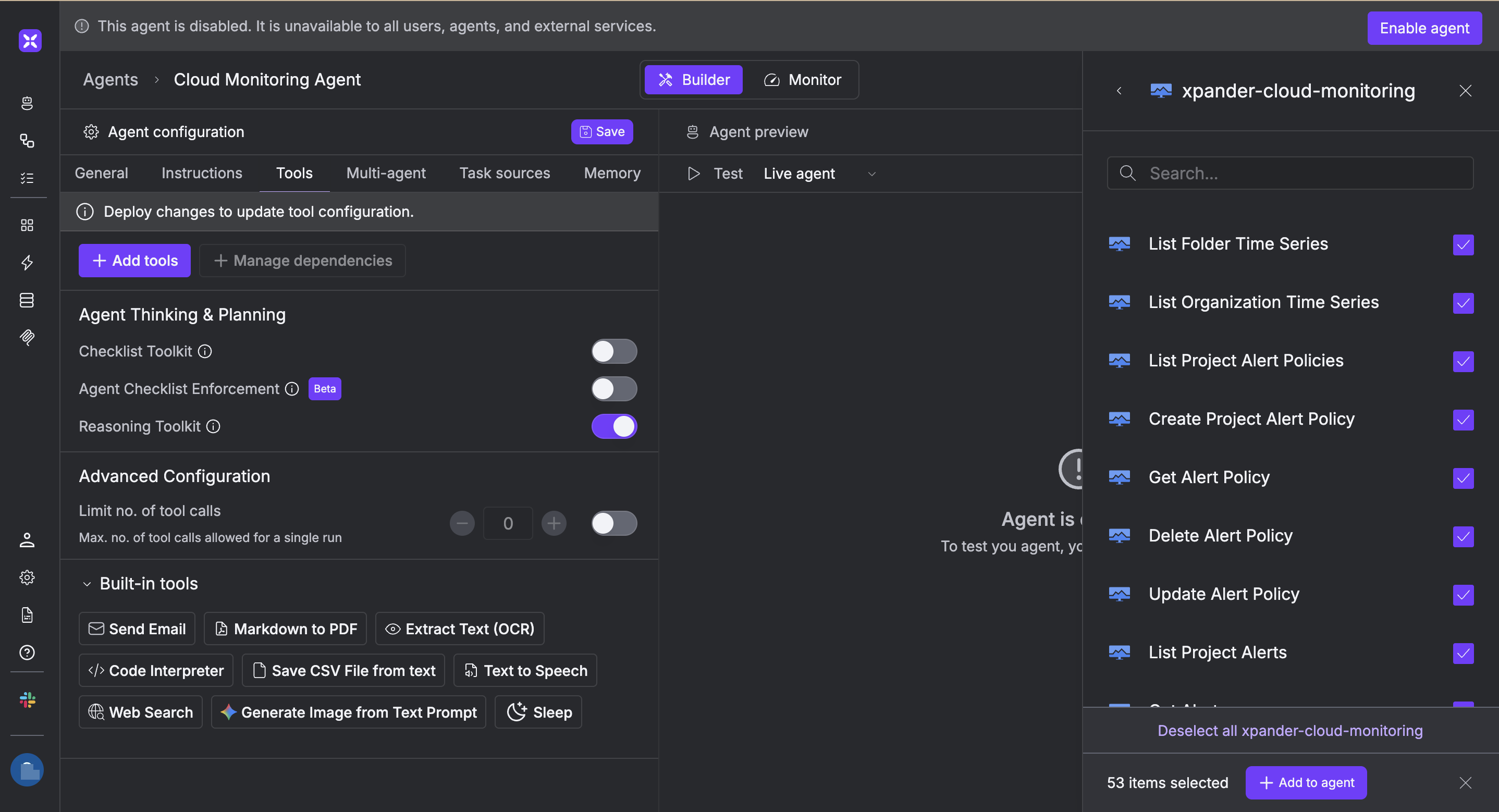
Once you’ve configured your Google Cloud Monitoring connector with the authentication option described above, you can integrate it into your AI agent with xpander.ai:- In your xpander.ai dashboard, navigate to the Agents page, then click an agent to open the Agent Configuration tab.
- Select Tools, then click Add Tools.
- Select Connectors.
- Choose Google Cloud Monitoring with the same connector name you configured in the previous section (e.g., xpander-cloud-monitoring).
-
Select the available Google Cloud Monitoring operations that suit your use case.
To grant your agent cloud monitoring capabilities, enable the following operations.
- List Project Alerts
- Get Alert
- List Folder Time Series
- Get Alert Policy
- List Metric Descriptor
- List Project Alert Snoozes
- Click Deploy to update your agent.
AI Agent Google Cloud Monitoring Prompt Library
Below are possible prompts or use cases you can try after integrating Google Cloud Monitoring into your xpander.ai AI agent: