

Choose your xpander
On first launch the app asks which xpander you use. Enter its address and choose Continue:- xpander cloud:
chat.xpander.ai. - A self-hosted xpander (Hybrid or Air-gapped): your company’s own address, for example
chat.acme.com. Ask your admin if you do not know it.
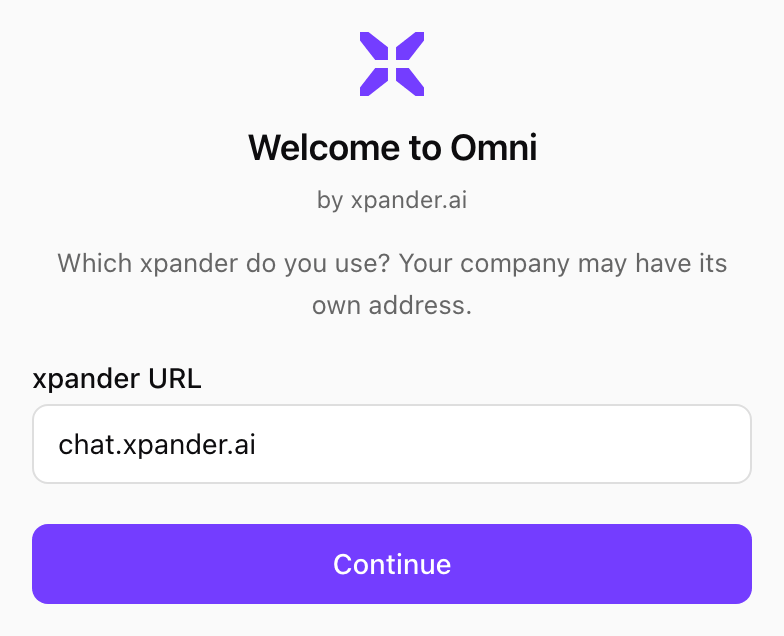
First run: the address of your xpander. Shown with sample data.
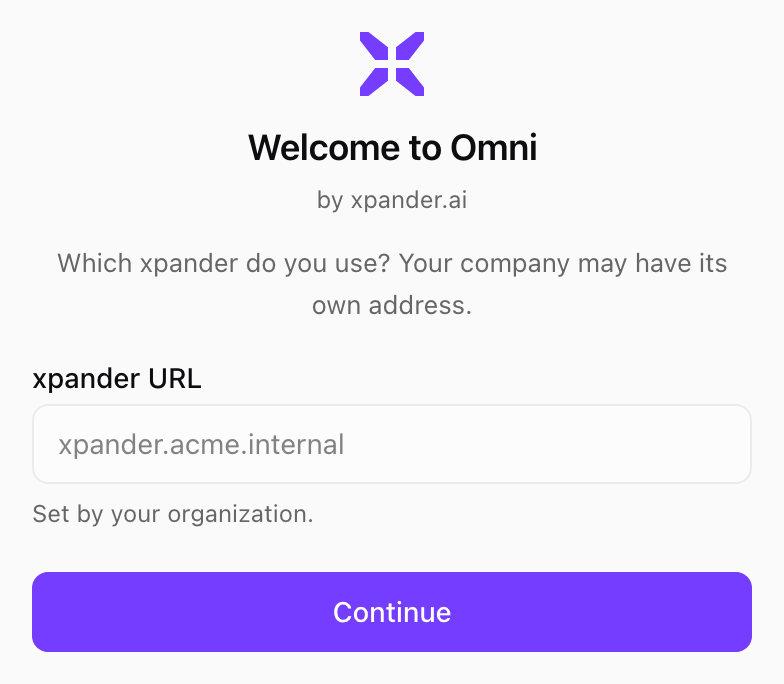
An address set by your organization. Shown with sample data.
Sign in through your browser
The app has no sign-in form of its own. You sign in in your browser, the way you always do on the web (single sign-on, Google, GitHub or email), and the browser hands the app its own session for this Mac.-
In the app, choose Sign in with your browser. The dialog shows which xpander you are signing in to; Change goes back to the address.
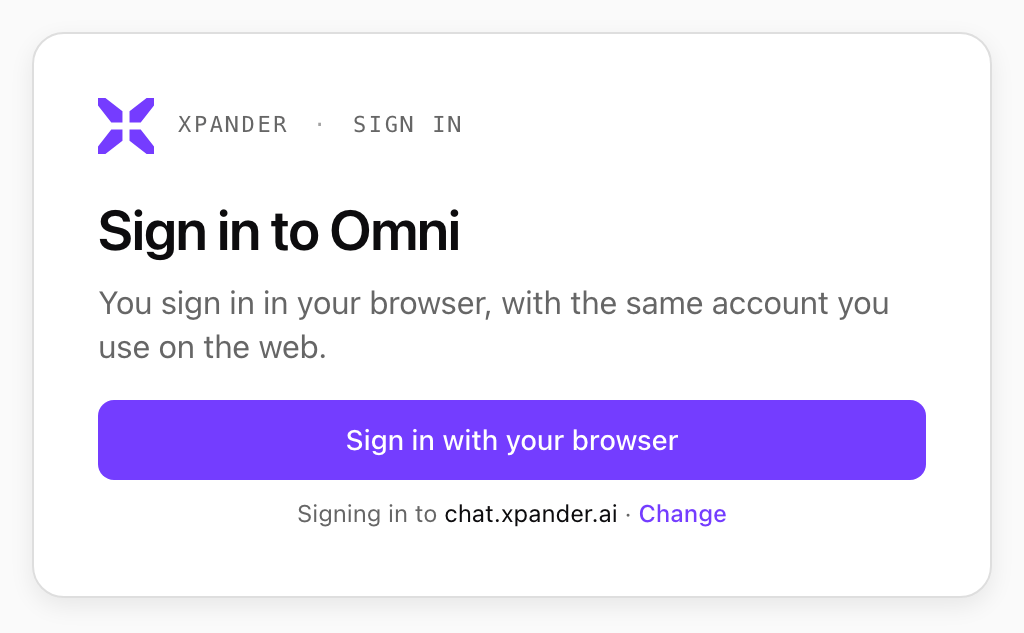
Sign in to Omni. Shown with sample data.
-
Your browser opens the Connect Omni Desktop page. Sign in if you are not already. The page names your Mac, the account and the organization the app will be signed in as. If you did not just choose Sign in in the app on your own computer, close the page.
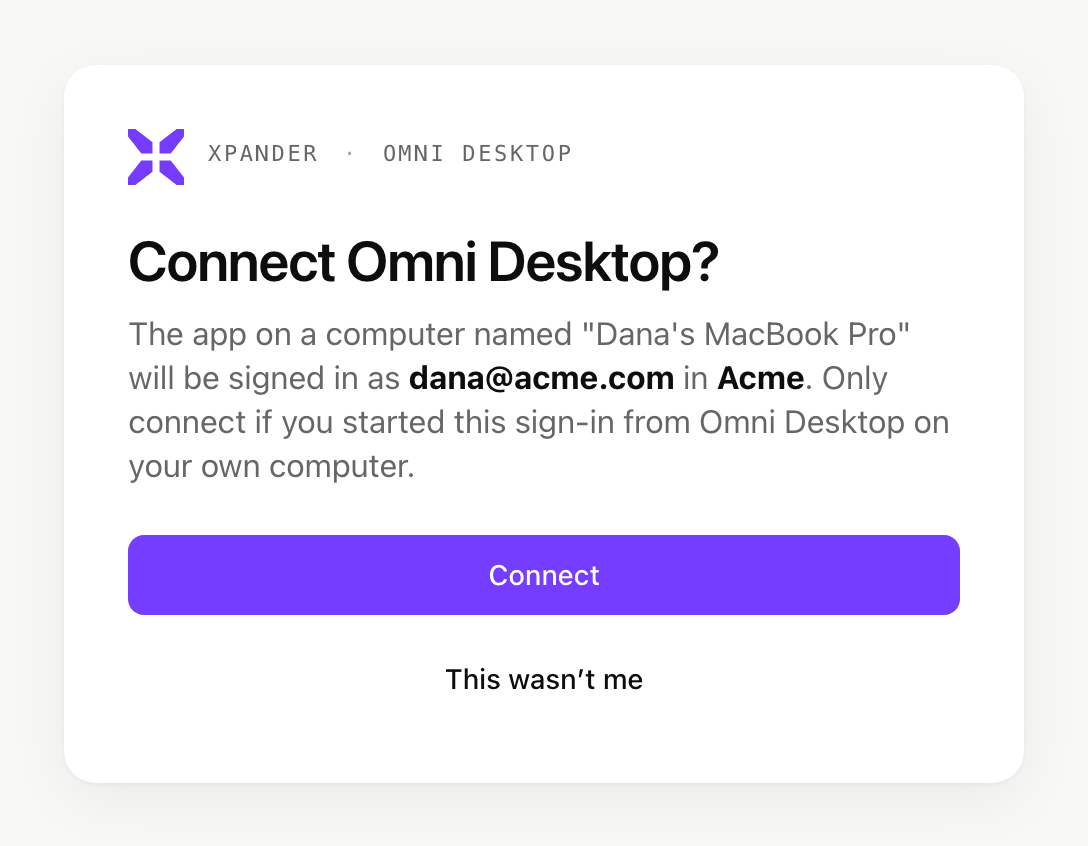
The browser asks before it connects the app. Shown with sample data.
- Choose Connect. The browser opens the app, which finishes signing in on its own.
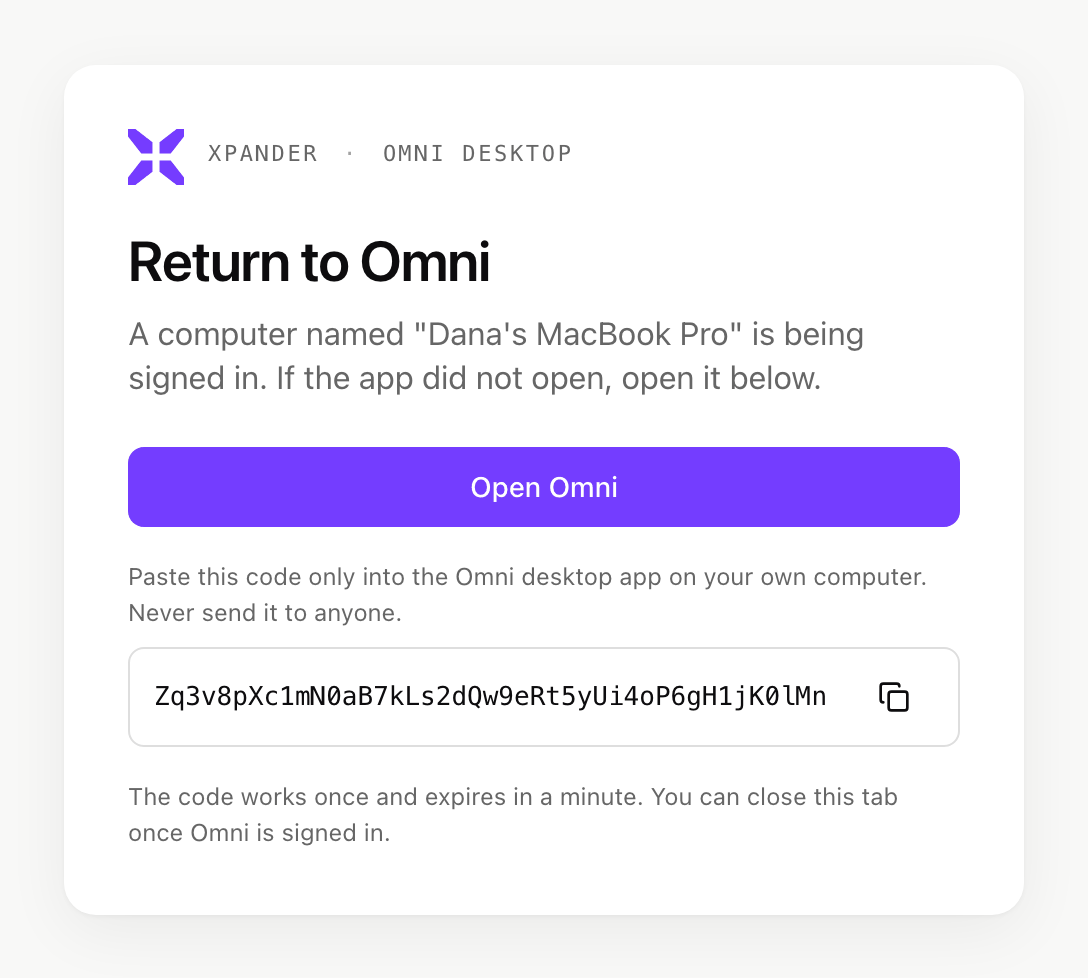
The one-time code, for when the app does not open by itself. Shown with sample data.
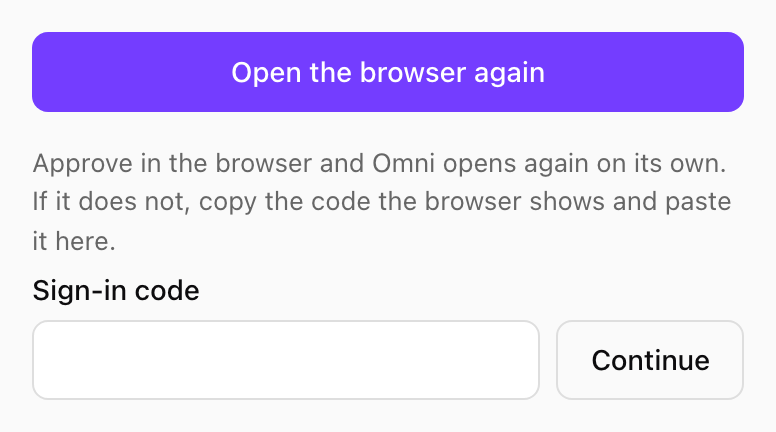
Pasting the code in the app. Shown with sample data.